

You just unboxed an iPhone 17. It’s fast, polished, and quietly powerful. But here’s the thing. Out of the box, it’s not set up for how most people actually use their phone. Apple makes good defaults, not great ones. A few small changes right now will save you battery, reduce friction, and make the phone feel like it’s actually yours. Let’s break it down.
Table of contents
1. Turn On Call Screening
Spam calls are still a problem, and answering them shouldn’t be your job.
- Go to Settings → Apps → Phone → Screen Unknown Callers.
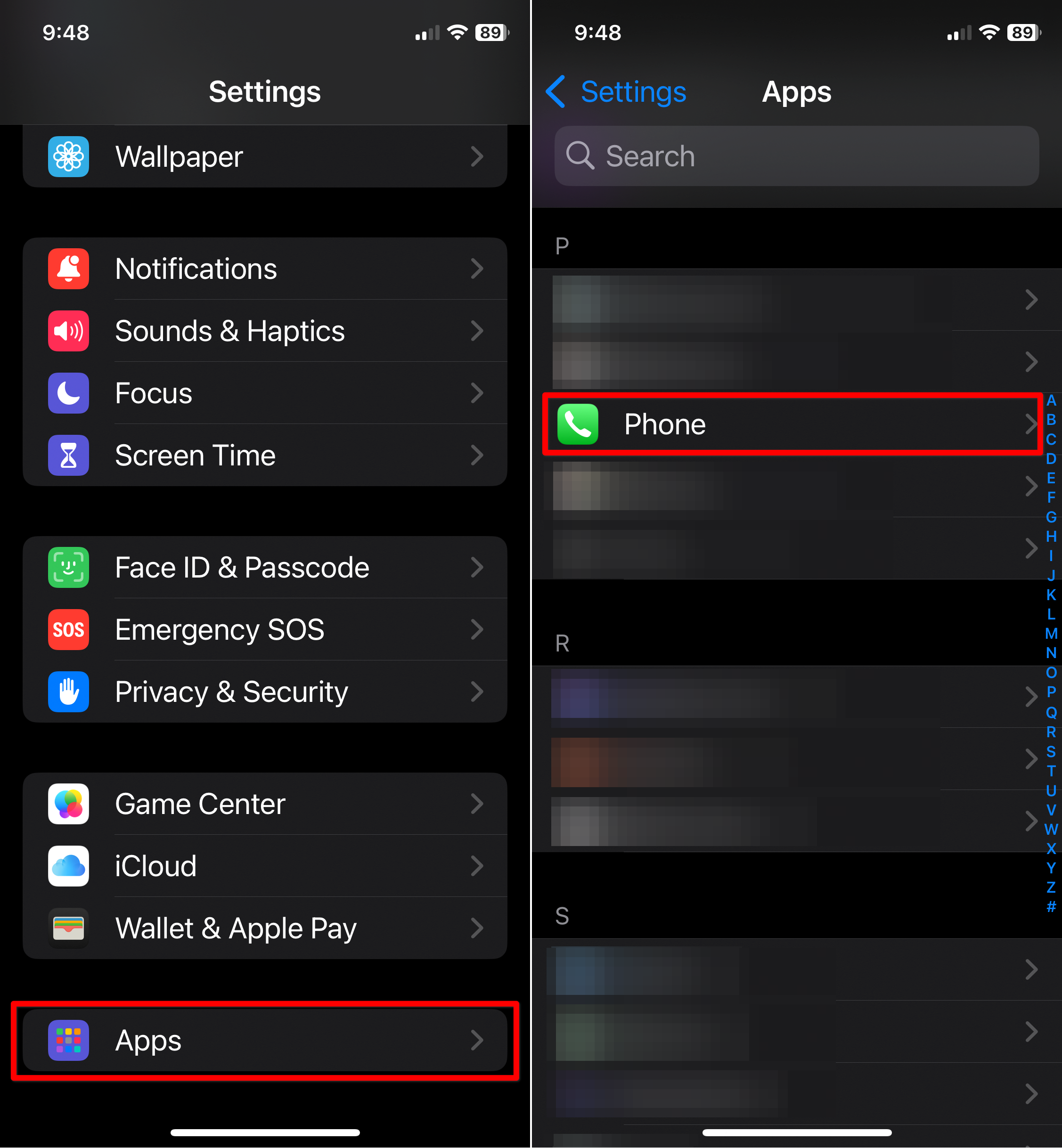
- Enable Ask Reason for Calling.
Your iPhone will quietly screen unknown callers and show you why they’re calling before it rings. You decide if it’s worth your time.
Don’t miss the best of The Mac Observer
Set us as a preferred source and our Apple reporting ranks higher in your Google Search results and Discover feed — one tap, no account changes.
2. Enable RCS Messaging
If you text people on Android, this one matters.
- Head to Settings → Apps → Messages.
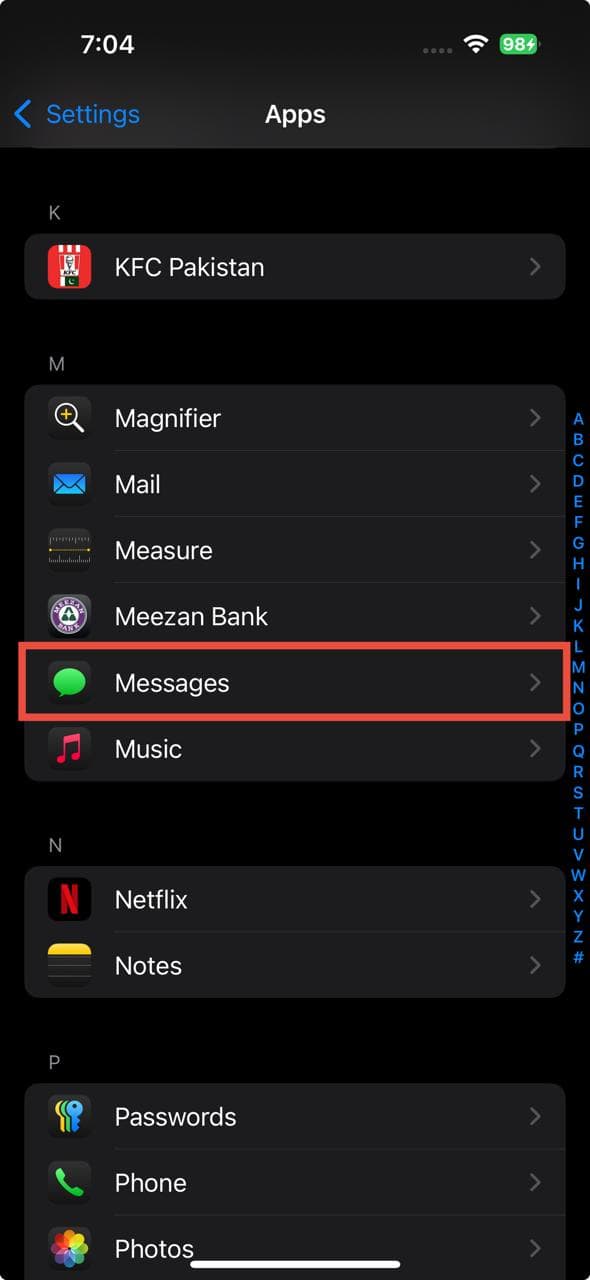
- Turn on the RCS Messaging toggle.
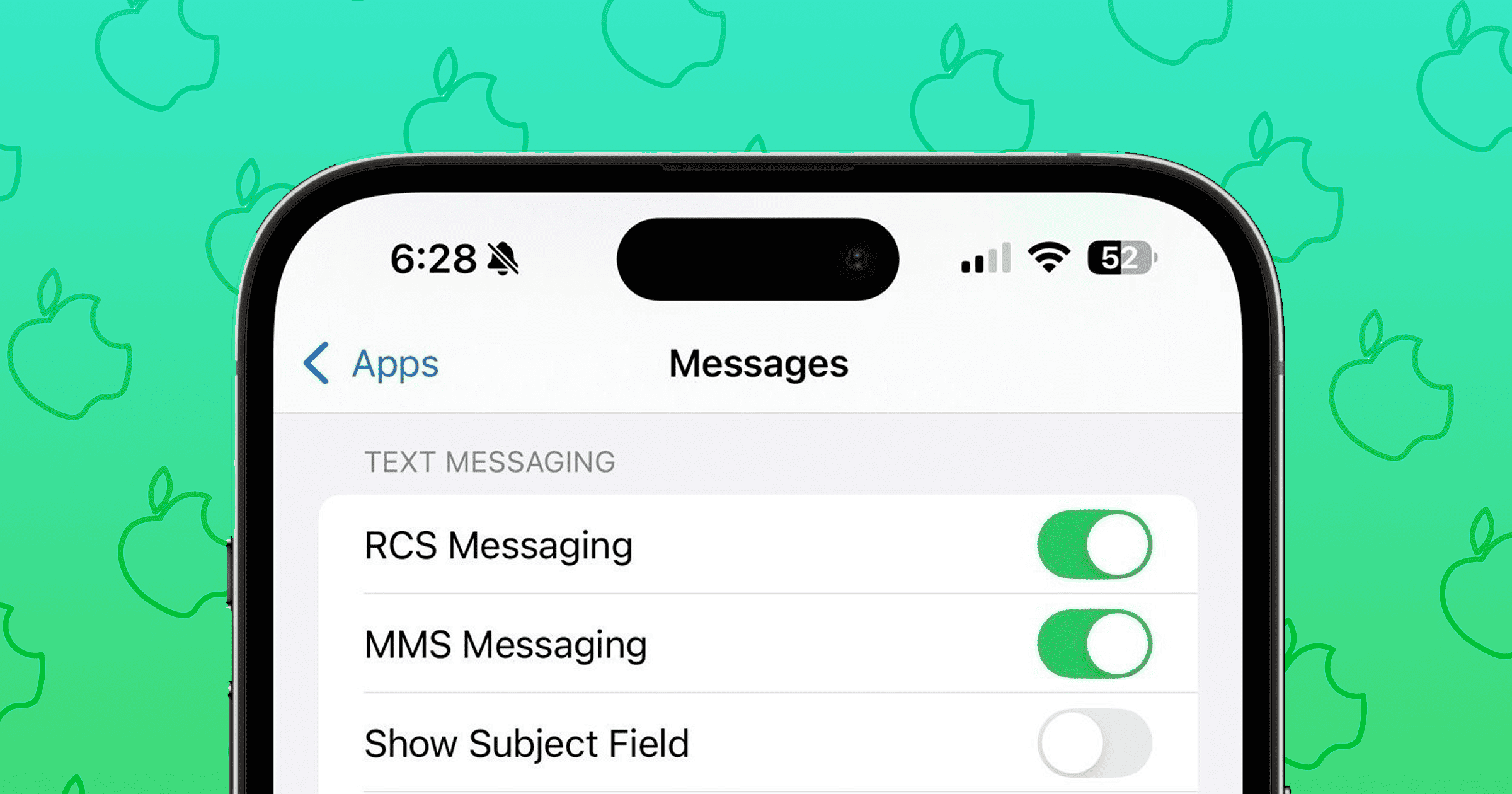


You’ll get typing indicators, better photos, and fewer broken group chats. Apple leaves this off by default for reasons known only to Apple.
3. Customize Control Center
- Swipe down from the top right, then press and hold.
- Tap the plus icon.
Remove the stuff you never use. Add the controls you reach for every day. Flashlight, Low Power Mode, Notes, Shazam. Control Center should feel intentional, not cluttered.
4. Change the Lock Screen Buttons
That flashlight shortcut you trigger by accident? You can replace it.
- Long press the lock screen → Customize.
- Remove the default buttons and add ones you actually want.
Camera can stay. Flashlight doesn’t have to.
5. Extend Auto Lock
If your screen keeps turning off while you’re reading, this fixes it.
- Go to Settings → Display & Brightness → Auto Lock.
- Set it longer than the default.
Two or five minutes is a good balance. Never is fine too, if you trust yourself.
6. Kill Keyboard and Lock Sounds
Typing clicks and lock sounds are noise pollution.
- Settings → Sounds & Haptics → Keyboard Feedback.
- Turn Sound off.
While you’re there, turn off Lock Sound too. Your future self and everyone around you will thank you.
7. Switch to Dark Mode
It’s easier on your eyes and just looks better.
- Settings → Display & Brightness → Dark.
- You can automate it, but always-on dark mode is the move.
8. Set a Battery Charge Limit
If you want your battery to last years, not months, do this now.
- Settings → Battery → Charging.
- Set the charge limit to 80 percent.
You’ll still get through most days, and your battery health will age much more slowly.
9. Turn On Adaptive Power Mode
This one quietly saves you when battery drain spikes.
- Settings → Battery → Power Mode → Adaptive Power.
It makes small adjustments when your usage gets heavy. You won’t notice it working. You’ll notice when your phone doesn’t die.
10. Set Up the Action Button
This is the most underused feature on the iPhone 17.
- Settings → Action Button → Shortcuts.
- Assign it to something that matters.
A notes shortcut. A focus mode. A custom automation. One press should do something useful, not just silence your phone.
Final thought
You don’t need to tweak everything on day one. But these ten settings change how the phone feels immediately. Fewer interruptions. Less friction. More control. Set them once, and your iPhone 17 stops feeling like a demo unit and starts feeling like your phone.




How do I set my phone to ring for all calls?