

HomePod mini error -6753 usually shows up during setup, right when things should be simple. The Home app spins, setup fails, or the speaker just refuses to finish configuring. It feels vague because it is. Apple never explains the code clearly, but here’s the thing: this error almost always points to a setup breakdown between your iPhone, Wi-Fi, iCloud, or power. The good news is that it’s fixable once you approach it in the right order.
Table of contents
- What error -6753 is really telling you
- Start with the basics that actually matter
- Reset the HomePod mini properly
- Check the iCloud settings most people overlook
- If setup freezes on “Loading Accessories and Scenes”
- When HomePod mini keeps configuring forever
- When it’s time to contact Apple
- The short version
What error -6753 is really telling you

Image Source: Apple
Error -6753 isn’t about one single failure. It’s a signal that the HomePod mini can’t complete its handshake with your home setup. That handshake depends on four things working together at the same time:
Don’t miss the best of The Mac Observer
Set us as a preferred source and our Apple reporting ranks higher in your Google Search results and Discover feed — one tap, no account changes.
- Your iPhone or iPad
- Your Wi-Fi network
- Your Apple ID and iCloud settings
- Stable power to the HomePod mini
If any one of those is slightly off, setup stalls and throws this error.
Start with the basics that actually matter
Before digging deeper, check these first. Skipping them usually means wasting time later.
1. Update your iPhone or iPad
You need iOS or iPadOS 16.3 or later. Older versions cause silent setup failures that look like error -6753.

2. Make sure Wi-Fi is solid
Your HomePod mini copies the Wi-Fi network your phone is using. If your phone is on the wrong network, a weak signal, or a network that blocks device-to-device traffic, setup breaks.
- Avoid personal hotspots
- Avoid captive networks unless you’ve already signed in on your phone
- If you use a tri-band router, make sure all bands share the same network name
If you see any Wi-Fi warning during setup, forget the network on your phone, reconnect, and try again.

3. Use the right power adapter
An orange blinking light is a dead giveaway. The HomePod mini needs a 20W power adapter rated at 9V ⎓ 2.22A. Laptop ports and low-power chargers often cause setup errors without saying so.
Reset the HomePod mini properly
If error -6753 keeps coming back, don’t half-reset it. Do a full reset.
- Open the Home app
- Tap the HomePod mini
- Go to Settings
- Select Reset HomePod
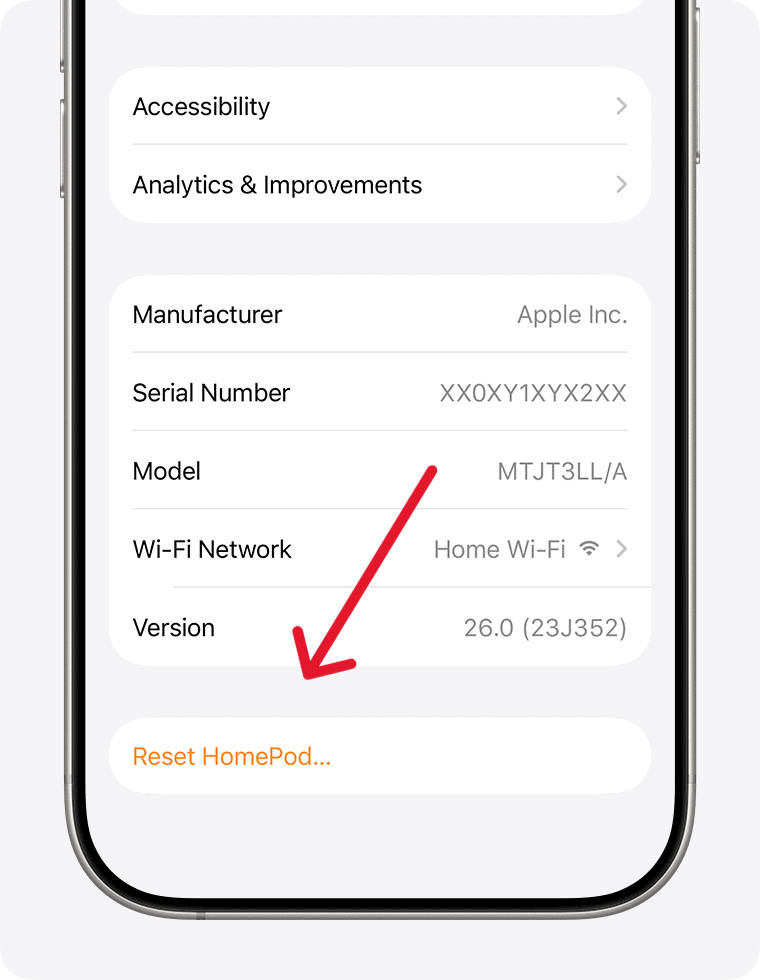
- Choose Remove Accessory

Once it’s removed, unplug it for about 10 seconds. Plug it back in, wait for the pulsing white light, then bring your phone close and start fresh.
Check the iCloud settings most people overlook
This is where a lot of setups quietly fail.
On your iPhone or iPad:
- Turn on Bluetooth
- Make sure Two-Factor Authentication is enabled
- Turn on iCloud Passwords and Keychain
- Sign in with the same Apple ID used by the home owner in the Home app
If you’ve used HomeKit accessories before, your phone must be on the same Wi-Fi network they use.
If setup freezes on “Loading Accessories and Scenes”
This one feels unrelated, but it isn’t. If the Home app hangs for more than 30 minutes, the home database is stuck.
When prompted, reset the home. Yes, it’s annoying. But once the database clears, error -6753 usually disappears. You’ll need to re-add accessories afterward.
When HomePod mini keeps configuring forever
If your HomePod mini never finishes configuring, check Apple’s system status. If iCloud is struggling, setup stalls even if nothing looks broken.
If everything is up:
- Restart the HomePod mini
- Try setup later in the day
- If needed, factory reset and try again
If it still won’t finish, that’s when hardware issues enter the picture.
When it’s time to contact Apple
If you’ve done all of the above and error -6753 still blocks setup, contact Apple support. At that point, you’ve ruled out software, network, and power issues. Some units are simply defective.
The short version
Error -6753 isn’t mysterious once you know what it’s tied to. It’s a setup handshake failing because something small is out of alignment. Fix the phone, the Wi-Fi, the power, and iCloud in that order. Don’t skip steps. Most HomePod mini setup failures come from rushing past the boring checks.




Discussion