
If Siri isn’t responding accurately or keeps misunderstanding your commands, learning how to reset Siri voice recognition can often fix the problem. Over time, Siri’s voice model can become less accurate due to background noise, accent changes, or repeated misrecognition.
This guide explains when resetting Siri voice recognition helps, how to do it step by step, and what to expect after retraining Siri.
Table of contents
What Resetting Siri Voice Recognition Actually Does
When you reset Siri voice recognition, you’re clearing Siri’s existing voice model and forcing it to relearn how you speak. This doesn’t delete your data or affect other iPhone settings—it only resets how Siri recognizes your voice.
Don’t miss the best of The Mac Observer
Set us as a preferred source and our Apple reporting ranks higher in your Google Search results and Discover feed — one tap, no account changes.
This is especially useful if:
- Siri frequently misunderstands simple commands
- “Hey Siri” triggers inconsistently
- Siri responds to other voices but not yours
Before resetting, it helps to confirm that Siri is set up correctly. MacObserver has already explained how to activate Siri on iPhone and ensure it’s working as expected.
How to Reset Siri Voice Recognition on iPhone
Apple doesn’t label this option as “reset voice recognition,” but the process is straightforward.
Step-by-Step Instructions
- Open Settings
- Tap Siri & Search
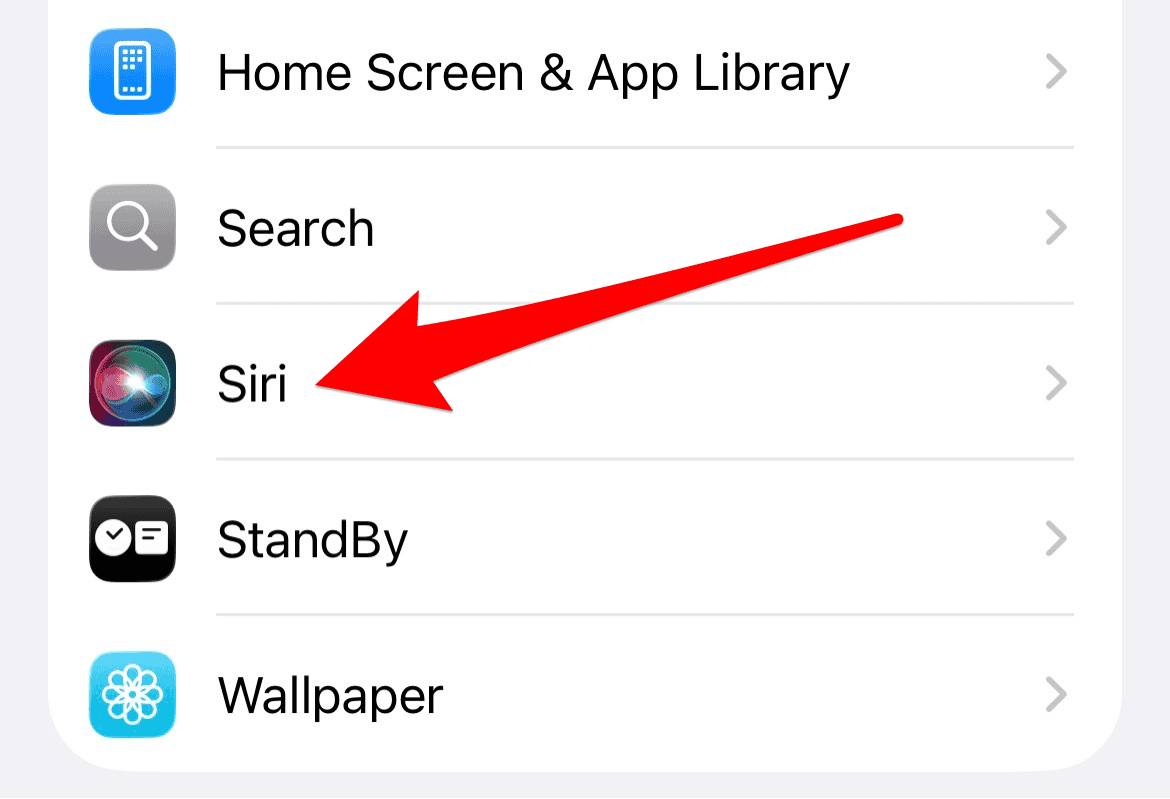
- Turn off Listen for “Hey Siri”
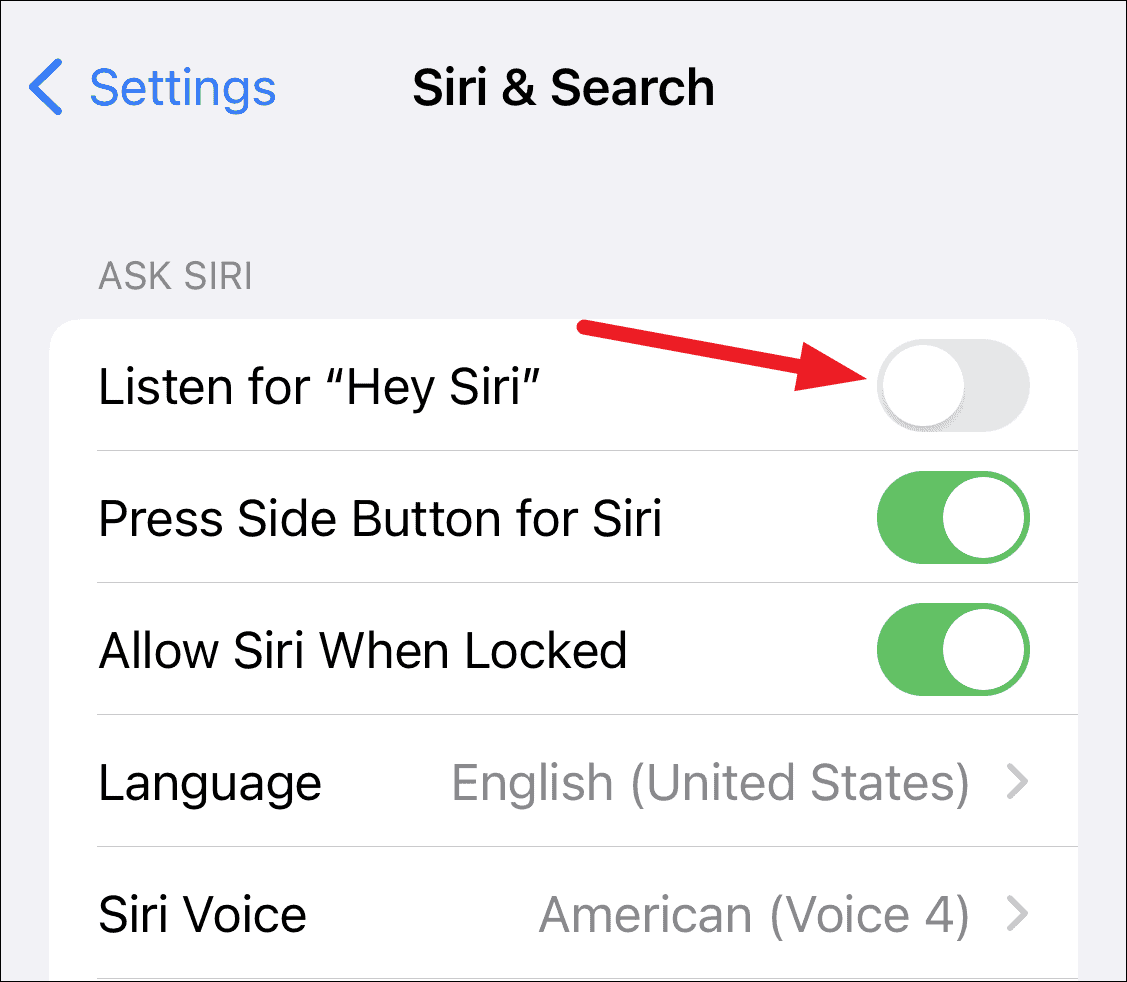
- If prompted, confirm by tapping Turn Off
- Restart your iPhone

- Go back to Settings → Siri & Search
- Turn Listen for “Hey Siri” back on
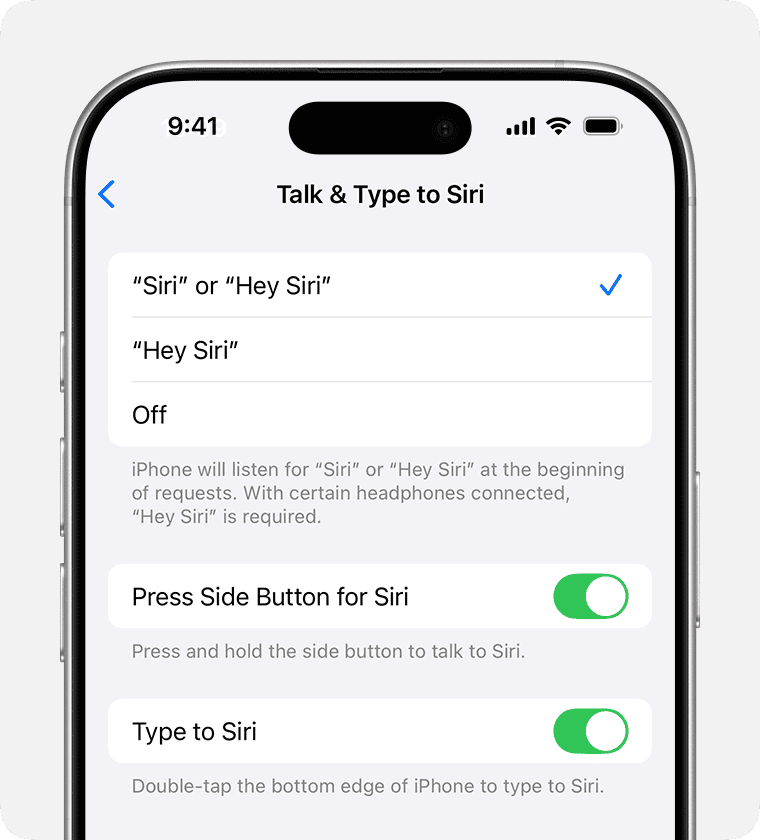
- Follow the on-screen steps to retrain Siri with your voice
This process forces Siri to discard the old voice profile and create a new one.
Retraining Siri for Better Accuracy
When setting up Siri again, try to:
- Speak clearly in a quiet environment
- Hold your phone at a normal distance
- Use your natural speaking voice
Apple explains how voice recognition works during setup in its guide on how to set up Hey Siri, which outlines the retraining process in more detail.
Check Siri Settings After Resetting
Once Siri is retrained, it’s worth reviewing a few settings to make sure everything is optimized. Apple provides a full overview of available options in its documentation on Siri settings on iPhone.
Pay particular attention to:
- Language and accent settings
- Voice feedback preferences
- Whether Siri is allowed to respond when the phone is locked
Incorrect language or region settings can affect recognition accuracy.
When Resetting Siri Voice Recognition Doesn’t Help
If Siri still struggles after a reset, the issue may not be voice recognition itself. Possible causes include:
- Microphone problems
- Network connectivity issues
- System-level bugs
In these cases, reviewing the general Siri setup can help. MacObserver has previously covered how to set up and use Siri on iPhone, including checks that go beyond voice training.
Final Takeaway
Knowing how to reset Siri voice recognition is useful when Siri stops responding accurately or consistently. Turning off “Hey Siri,” restarting your device, and retraining Siri often resolves recognition issues without requiring more advanced troubleshooting.
If problems continue after a reset, checking Siri’s language settings or microphone performance is the next logical step. In most cases, however, a fresh voice model is enough to restore reliable Siri performance.




Discussion