

If you’ve just bought a Magic Keyboard or it isn’t responding the way you expect, knowing how to connect Magic Keyboard to iPad can save a lot of frustration. Apple’s Magic Keyboard is designed to work instantly with compatible iPad models, but setup issues can still occur depending on the model, software version, or physical connection.
This guide explains how to connect the Magic Keyboard properly, what to check if it doesn’t respond, and how to confirm everything is working as intended.
Table of contents
Which iPads Are Compatible With Magic Keyboard
Before connecting anything, it’s important to confirm that your iPad supports the Magic Keyboard. Apple’s Magic Keyboard is designed for specific iPad Pro and iPad Air models and connects using the Smart Connector rather than Bluetooth.
Don’t miss the best of The Mac Observer
Set us as a preferred source and our Apple reporting ranks higher in your Google Search results and Discover feed — one tap, no account changes.

Image Source: Apple Wiki
If you’re still deciding whether the Magic Keyboard makes sense for your setup, MacObserver has explored this in detail in its review of whether the Apple Magic Keyboard is still worth the investment, including compatibility and long-term value.
Apple lists supported models and design differences for each version of the Magic Keyboard on its Magic Keyboard for iPad page.
How to Connect Magic Keyboard to iPad
Connecting the Magic Keyboard is simple because it doesn’t require pairing or charging.
Step-by-Step Instructions
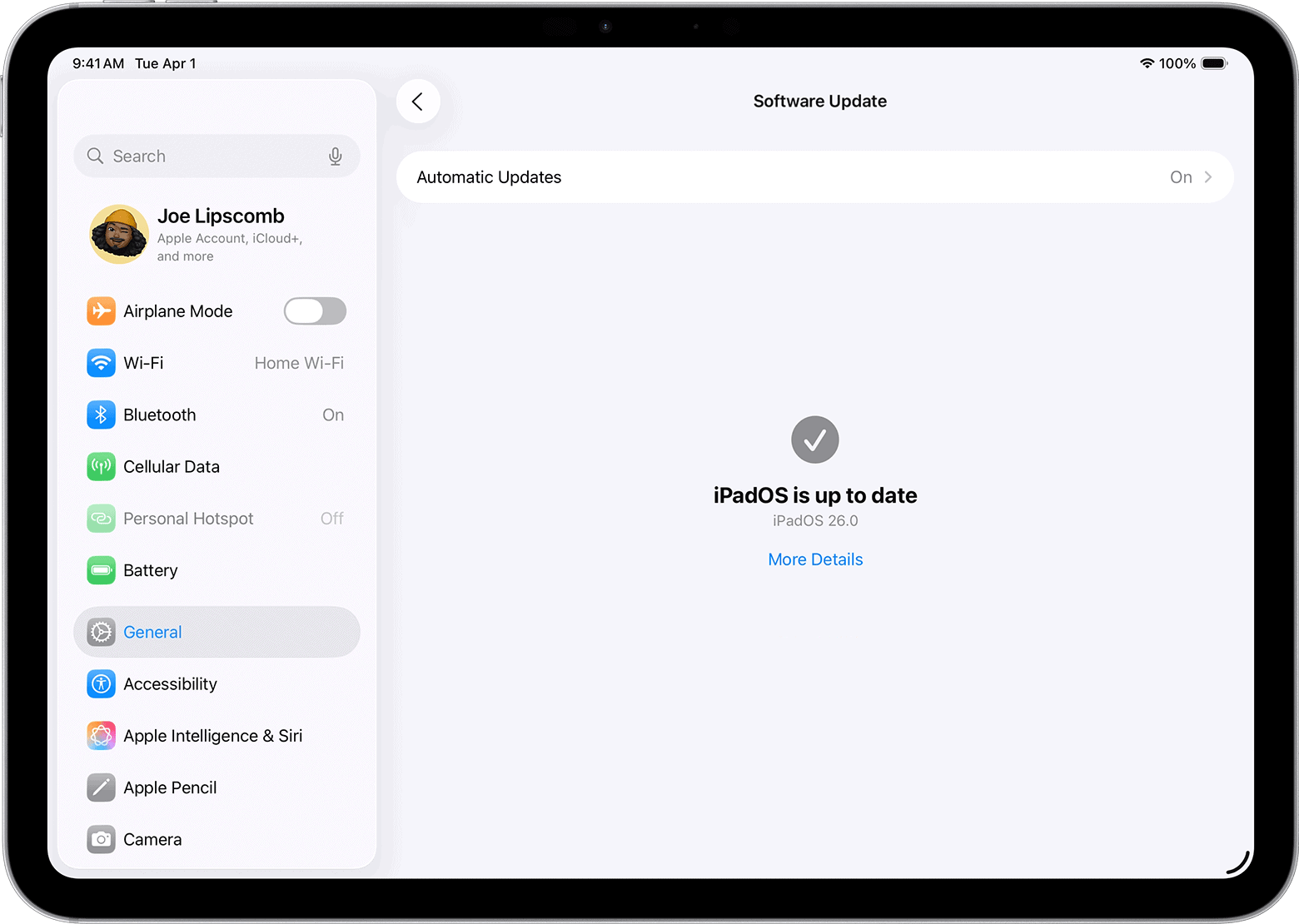
- Make sure your iPad is updated to the latest version of iPadOS
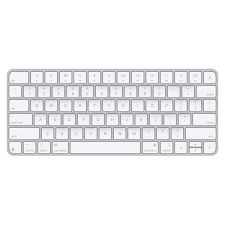
- Place the Magic Keyboard on a flat surface
- Align your iPad with the magnetic connector on the keyboard
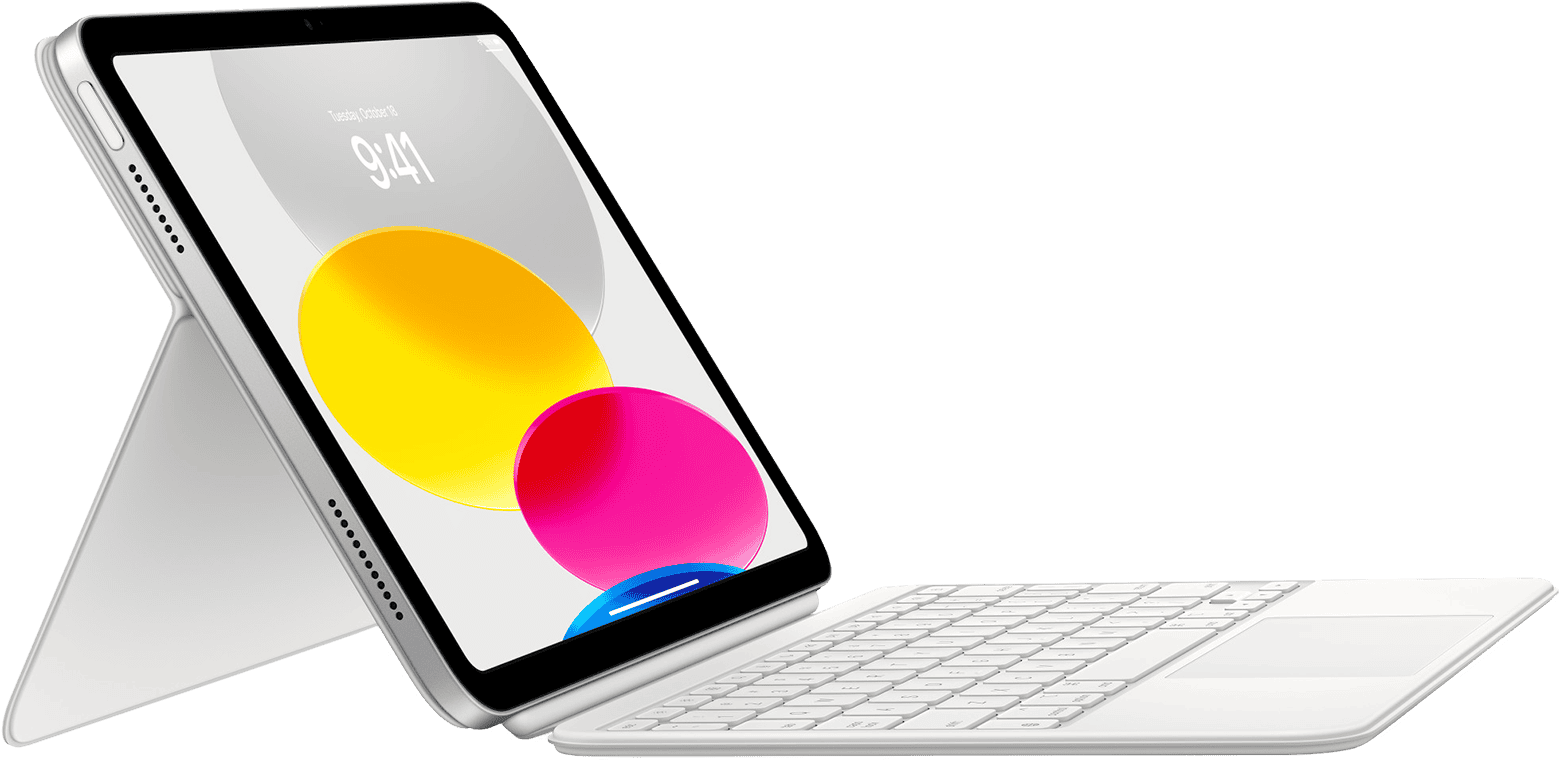
- Let the magnets snap the iPad into place


Once attached correctly, the Magic Keyboard connects automatically using the Smart Connector. There’s no setup screen or confirmation message; typing should work immediately.
Apple also outlines the official connection method in its guide on how to connect Magic Keyboard to iPad, which confirms that no Bluetooth pairing is required.
How to Confirm the Connection Is Working
After attaching the keyboard:
- Open Notes or Safari
- Start typing to confirm input
- Use the trackpad to check cursor movement
If the keyboard and trackpad respond, the connection is complete.
What to Do If Magic Keyboard Isn’t Connecting
If typing doesn’t work or the trackpad isn’t responding, the issue is usually related to alignment, debris on the connector, or a software glitch.
Common fixes include:
- Detaching and reattaching the iPad
- Restarting the iPad
- Cleaning the Smart Connector with a dry cloth
- Updating iPadOS
MacObserver has a dedicated troubleshooting guide for this scenario in its article on Magic Keyboard not connecting or working, which walks through solutions in more detail.
Magic Keyboard vs Bluetooth Keyboards
Unlike Bluetooth keyboards, the Magic Keyboard:
- Doesn’t need pairing
- Doesn’t need charging
- Connects instantly via the Smart Connector
This makes it more reliable once properly attached, but also means compatibility is limited to specific iPad models.
When You Might Need to Reconnect the Magic Keyboard
You typically don’t need to reconnect the Magic Keyboard unless:
- You remove the iPad frequently
- iPadOS updates cause temporary input issues
- The Smart Connector becomes dirty
In most cases, simply detaching and reattaching the keyboard resolves the problem.
Final Takeaway
Knowing how to connect Magic Keyboard to iPad is straightforward once you understand how Apple’s Smart Connector works. Aligning the iPad correctly is usually all it takes for the keyboard and trackpad to start working instantly.
If connection problems occur, basic troubleshooting or a quick restart often resolves them. When everything is set up properly, the Magic Keyboard offers a stable, laptop-like typing experience for compatible iPads.


Discussion