

It happens to the best of us. You unlock your iPad to download a new game or update an app, and suddenly you realize the blue “A” icon is gone. Panic sets in. Did you accidentally delete the most important app on your tablet? The good news is that you actually cannot delete the App Store from an iPad. It is a system application that is baked into the operating system.
If the icon is missing, it is likely just hidden in a folder, removed from the Home Screen, or disabled via restrictions. This guide will walk you through exactly how to bring it back so you can get back to downloading your favorite apps.
Table of contents
What You Need to Restore the App Store
Before we start troubleshooting, you should know that you do not need to download an installation file or connect to a computer. The App Store is still on your device; we just need to find where it is hiding.
Don’t miss the best of The Mac Observer
Set us as a preferred source and our Apple reporting ranks higher in your Google Search results and Discover feed — one tap, no account changes.
The only “key” you might need is your Screen Time passcode. If you (or a parent) set up restrictions on the device to prevent accidental downloads, you will need that 4-digit code to unlock the settings. Aside from that, just ensure your iPad has enough battery to navigate the menus. If you are setting up a brand new tablet and feeling overwhelmed, our iPad setup guide to get started can help you navigate these initial configurations.
Here’s How to Restore the App Store
1. Check Content & Privacy Restrictions
This is the most common reason the App Store disappears. If you or someone else disabled “Installing Apps” in the settings, the App Store icon completely vanishes from the interface.
- Open the Settings app on your iPad.
- Scroll down and tap on Screen Time.
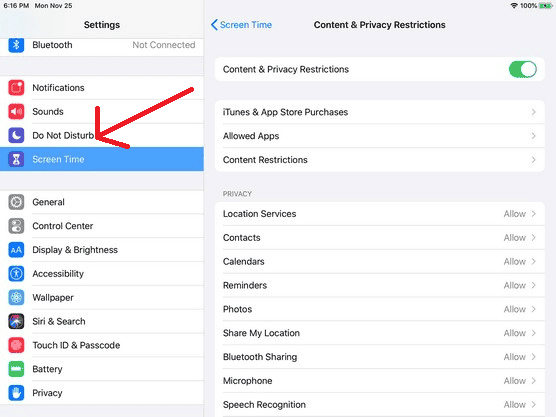
- Tap on Content & Privacy Restrictions. You might be asked to enter your Screen Time passcode here.
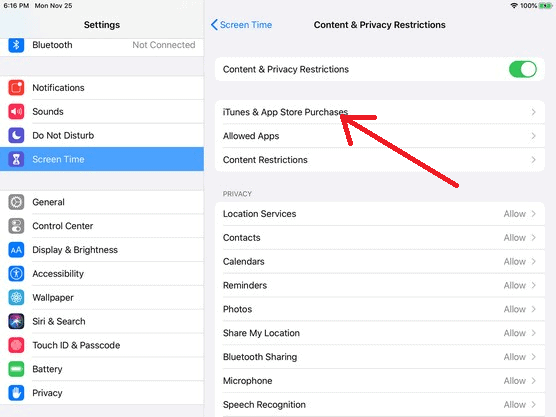
- Select iTunes & App Store Purchases.
- Look at the setting for Installing Apps. If it says “Don’t Allow,” tap on it and switch it to Allow.
- Return to your Home Screen. The App Store icon should reappear immediately.


2. Search the App Library
If restrictions were not the issue, you might have simply removed the icon from your main Home Screen without deleting the app.
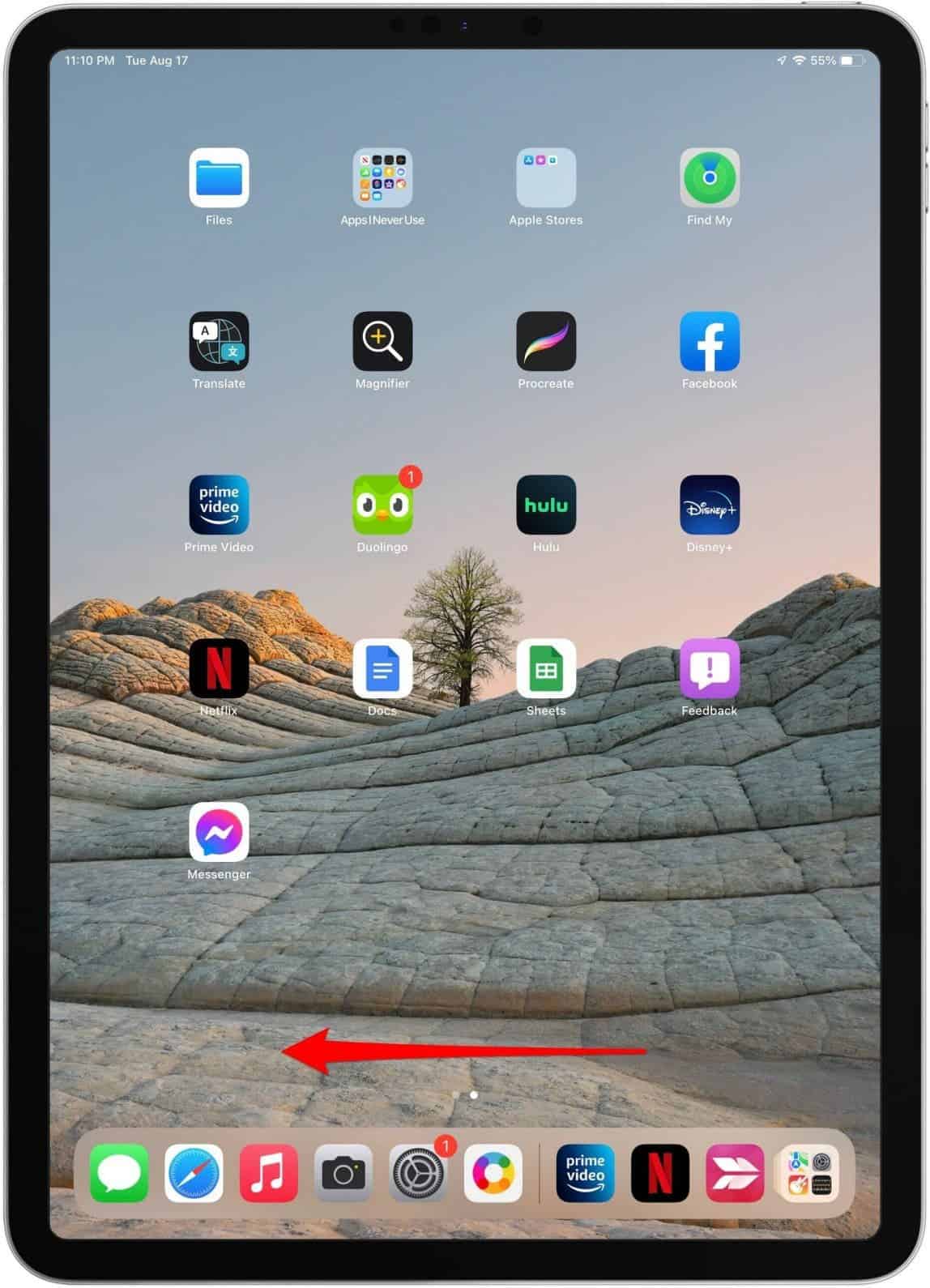
- Swipe left on your Home Screen until you reach the App Library (the very last page).
- Tap the search bar at the top and type “App Store.”
- If the icon appears, press and hold it.
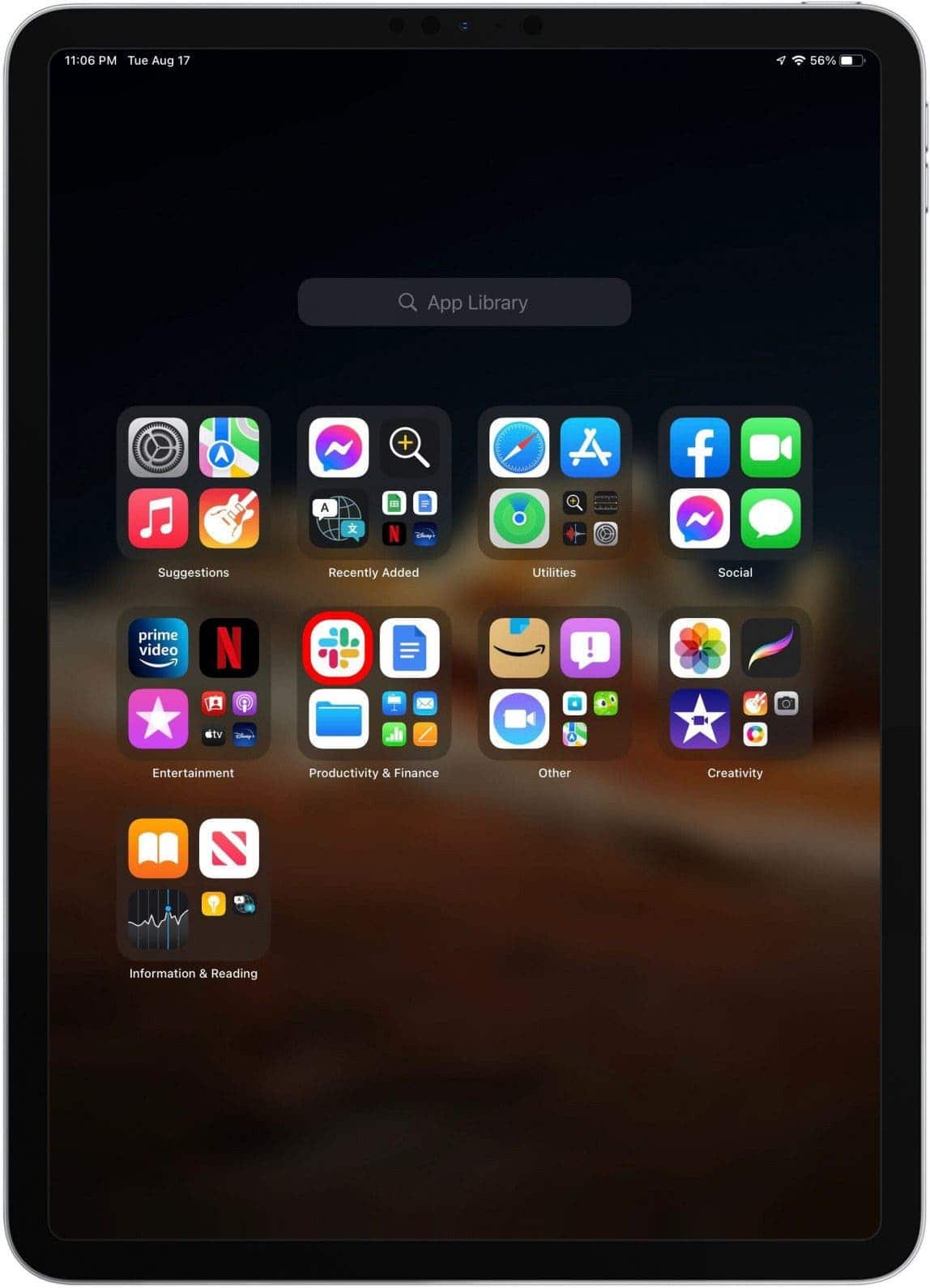
- Select Add to Home Screen from the menu. If that option is missing, it means the icon is already on one of your Home Screen pages, just hidden in a folder.


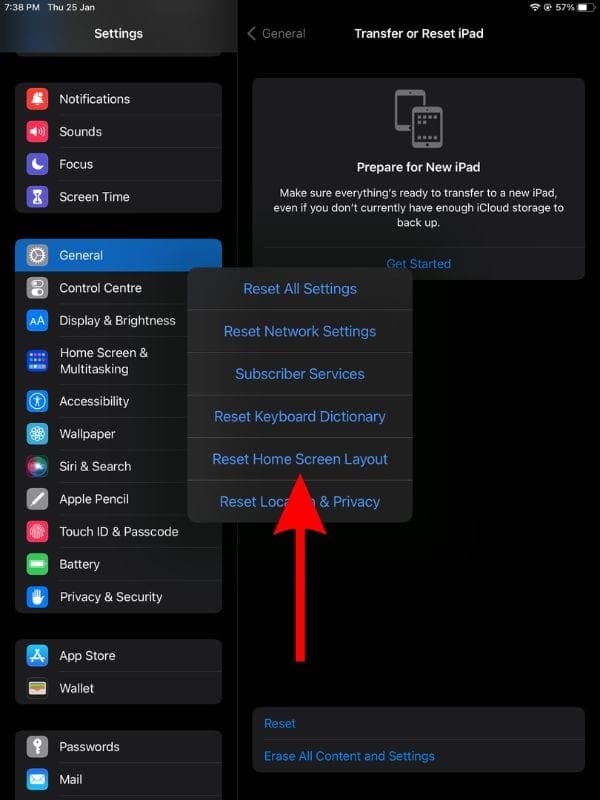
3. Reset Home Screen Layout
If you still cannot find it, you can force the iPad to rearrange all icons to their factory default positions. This will destroy your custom folders, but it guarantees the App Store will return to the first page.
- Go to Settings > General.
- Scroll to the bottom and tap Transfer or Reset iPad.
- Tap Reset.
- Choose Reset Home Screen Layout.

Additional Tips
Once you have your App Store back, you might encounter other hiccups. If the app opens but freezes or refuses to load content, you might need to refresh it. Knowing how to close and force quit apps on iPhone and iPad is a basic troubleshooting skill that solves most minor glitches.
If you are frustrated with Apple’s ecosystem restrictions, you might be curious about alternatives. While the App Store is the standard, recent EU regulations are changing things. Users in certain regions can now install third-party app stores on iPad, offering a completely different catalog of software. Even without alternative stores, some advanced users explore ways to install apps outside the App Store using web apps or enterprise certificates, though this comes with its own security risks.
Final Thoughts
Losing the App Store icon is usually a simple case of misplaced settings rather than a deleted app. By checking your Screen Time restrictions or searching the App Library, you can usually fix the problem in under a minute. It is one of those essential system features that Apple makes very hard to break permanently, so you can breathe easy knowing your access to apps is safe.
FAQs
No, the App Store is a system app on iPadOS. You can hide it or disable it via restrictions, but you cannot delete the binary file from the device.
The most likely cause is that “Installing Apps” has been disabled in the Screen Time / Content & Privacy Restrictions menu.
Rarely. A factory reset should be a last resort. Resetting the Home Screen Layout is a much less destructive way to make the icon reappear.


Discussion