
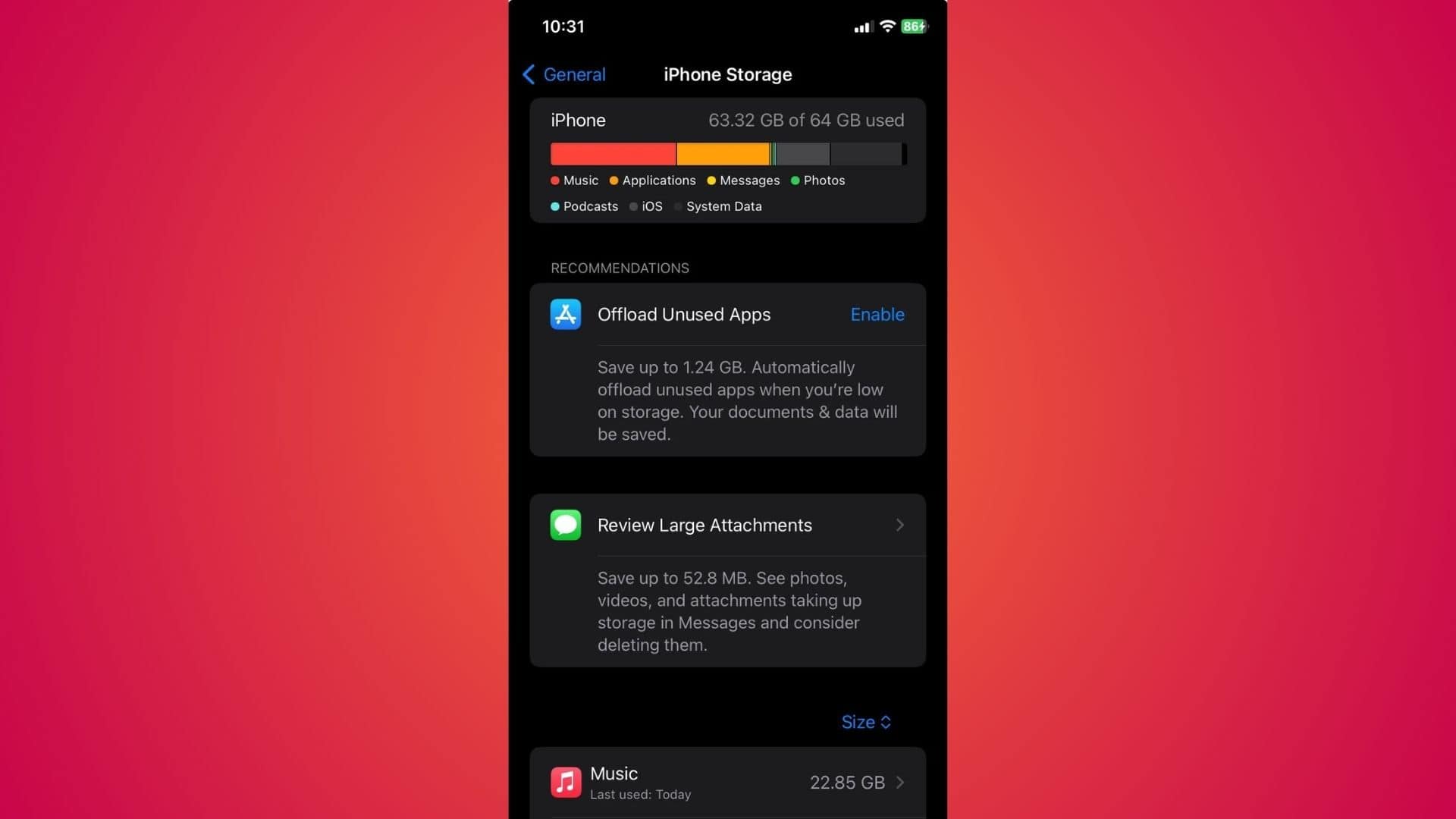
In some cases, the Music app can take up far more storage than expected due to cached audio files, large synced libraries, or a software bug that prevents temporary data from clearing properly.
The good news is that in many situations, the issue can be resolved by deleting and reinstalling the app, since your Apple Music library is stored in the cloud and will resync automatically.
Here’s what’s going on and what you can do.
Don’t miss the best of The Mac Observer
Set us as a preferred source and our Apple reporting ranks higher in your Google Search results and Discover feed — one tap, no account changes.
Table of contents
Why Apple Music Storage Can Grow Unexpectedly
The Apple Music app stores more than just songs you’ve downloaded for offline listening. Over time, it can accumulate cached audio, album artwork, and playlist and library metadata.
If you’ve been subscribed for years or uploaded a large personal library when you first joined, the metadata alone can take up a noticeable amount of space. Some long-time subscribers report the app consuming 3GB to 5GB or more without actively downloading music.
How to Check How Much Space Apple Music Is Using
To see the exact amount:
- Open Settings
- Tap General
- Select iPhone Storage
- Scroll down and tap Music

This screen shows the total storage used by the app, including downloaded content.
Fix: Delete and Reinstall the App
If storage usage seems unusually high, deleting and reinstalling the Music app can significantly reduce it.
- Go to Settings > General > iPhone Storage
- Tap Music
- Select Delete App
- Reinstall it from the App Store
Because your library is tied to your Apple Account and stored in the cloud, deleting the app does not erase your saved music, playlists, or albums. After reinstalling, your library will resync within a few minutes.
Users report that storage usage can drop substantially after reinstalling. For example, an app footprint of around 4GB may decrease to closer to 1.5GB once cached data is cleared.
Apple Music stopped working on your iPhone? Check out our guide on how to fix it!
Also Check Downloaded Music
If you download albums or playlists for offline listening, those files will take up local storage.
To remove downloads:
- Open Settings → General → iPhone Storage → Music
- Review artists or albums listed under Downloads and delete as needed
You can also manage downloads directly inside the Music app under Library > Downloaded.
Keep iOS Updated
If the issue persists, make sure your device is running the latest version of iOS, as Apple occasionally addresses storage reporting or caching bugs in software updates.
In many cases, unexpectedly high Apple Music storage usage is the result of cached data or a syncing issue rather than actual downloaded music. A quick reinstall often restores the app to a more reasonable size without affecting your library.




Discussion