

If you want to know how to SharePlay on Apple Music, the good news is that Apple now gives you more than one way to do it. You can listen together during a FaceTime call, or you can start a shared music session on a HomePod, Apple TV, Bluetooth speaker, or in a car with CarPlay. In many cases, only the host needs an Apple Music subscription, while other people can still join and control playback from their own iPhones.
This makes SharePlay one of the easiest ways to build a group music queue without passing one phone around. Everyone in the session can usually pause, play, skip tracks, and add songs, while the music keeps playing through the main device or speaker the host is using. Apple’s current support pages also say participants need an iPhone with recent software, Bluetooth turned on, and an internet connection for music sessions.
Below is the full guide, including every main method, step-by-step instructions, useful tips, FAQs, and a quick summary.
Don’t miss the best of The Mac Observer
Set us as a preferred source and our Apple reporting ranks higher in your Google Search results and Discover feed — one tap, no account changes.
Method 1: SharePlay Apple Music in a FaceTime call
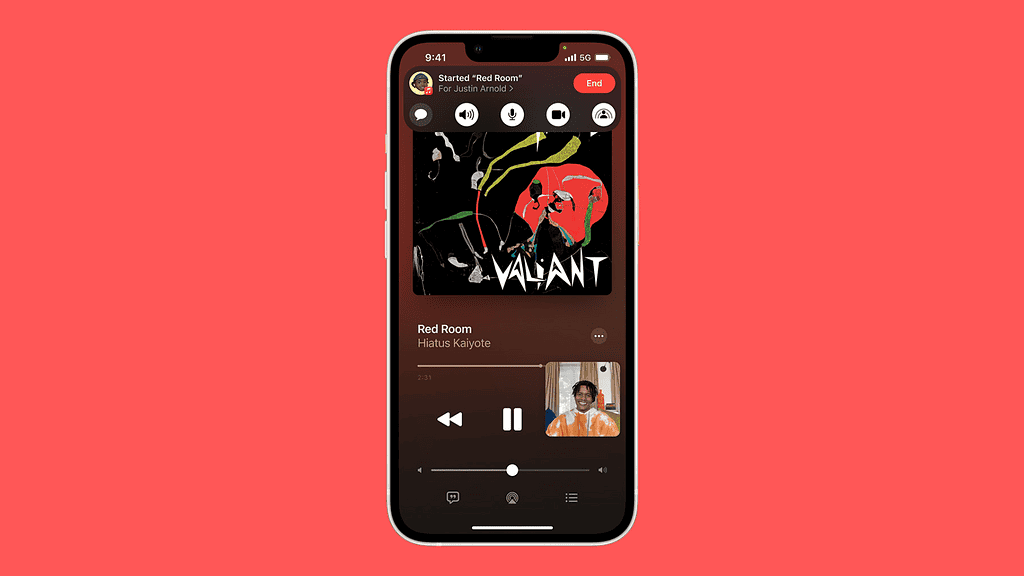
This is the classic SharePlay method. It works when you want to listen to music in sync while talking to friends or family on FaceTime. Apple supports SharePlay for music inside FaceTime on iPhone, and similar support is available across Apple devices that support SharePlay.
How this method works:
You start a FaceTime call, open Apple Music, play a song, and begin SharePlay so everyone in the call can listen together.
- Open FaceTime on your iPhone and start a call with the people you want to listen with.
- Once the call is active, open the Apple Music app.
- Play the song, album, or playlist you want to share.
- When prompted, tap SharePlay.
- Everyone in the FaceTime call can then join the listening session.
- Use the playback controls to pause, play, skip, or choose more songs together.
What to know about this method:
- It is best for remote listening with friends and family.
- Playback stays synced for the group.
- Some apps and content may require subscriptions, and availability can vary by region.
Method 2: Start a SharePlay music session from your iPhone to a speaker, Apple TV, or HomePod
Apple also supports a different Apple Music SharePlay mode that does not require a FaceTime call. In this setup, one person hosts the session from an iPhone connected to a playback device such as a HomePod, Apple TV, or Bluetooth speaker, and others join by scanning a QR code. Apple says the host needs an Apple Music subscription, but people joining do not need their own subscription for this type of session.
How this method works:
Your iPhone becomes the host. It sends music to the output device, and other people nearby use their iPhones to join and control what plays.
- Connect your iPhone to a HomePod, Apple TV, or Bluetooth speaker.
- Open the Apple Music app on your iPhone.
- Start playing music.
- Tap the Now Playing bar at the bottom of the screen.
- Tap the SharePlay button.
- A QR code appears on the host device.
- Ask the other people to scan the QR code with their iPhones.
- They tap Connect on their phones.
- The host approves the join request.
- After approval, everyone can use Apple Music on their iPhone to control playback.
Supported setup details from Apple:
- The host needs an Apple Music subscription.
- The host needs an iPhone updated to the latest version of iOS.
- People joining need an iPhone updated to the latest version of iOS.
- Everyone needs Bluetooth turned on.
- Everyone needs an internet connection.
Method 3: Use SharePlay with Apple Music in the car with CarPlay
This is one of the most useful SharePlay features for real-world use. Apple lets drivers and passengers share music control through CarPlay, so passengers can add songs and manage playback without touching the driver’s phone.
How this method works:
The driver starts the session through CarPlay or from the connected iPhone, and passengers join from their own phones.
- Connect the driver’s iPhone to the car using CarPlay or Bluetooth.
- Open Apple Music and start playing a song or playlist.
- Open the Now Playing screen in CarPlay.
- Tap the SharePlay button.
- Show the QR code on the car screen or on the host iPhone.
- Passengers scan the QR code with their iPhones or join through a notification.
- The host approves the request.
- Once connected, passengers can add tracks and control playback.
Why this method is useful:
- Passengers help build the queue.
- The driver does not need to hand over their phone.
- Only the driver needs an Apple Music subscription.
Method 4: Use SharePlay with Apple Music on Apple TV 4K
Apple also supports music SharePlay on Apple TV 4K. This is useful for parties, living rooms, and family listening sessions. The host can start music on Apple TV, and other people in the room can join through the Music app on their devices.
How this method works:
The Apple TV becomes the playback hub while iPhones act as remote music controllers.
- Open the Music app on Apple TV 4K.
- Start playing a song, album, or playlist.
- Go to the Now Playing screen.
- Start the SharePlay session.
- Others join using the Music app on their devices.
- Everyone can control the queue and playback.
Best use cases:
- House parties
- Family listening in a living room
- Shared control without one person managing the playlist
Tips
- Keep all iPhones updated to the latest iOS version.
- Turn on Bluetooth before starting or joining.
- Make sure the host has an active Apple Music subscription.
- Stay connected to the internet during the session.
- Check device connection if SharePlay does not appear.
- Use the Now Playing screen to find SharePlay options.
FAQs
Do all participants need an Apple Music subscription?
No. The host needs a subscription, but others can usually join without one.
Do I need FaceTime to use SharePlay on Apple Music?
No. You can also use it through speakers, Apple TV, and CarPlay without FaceTime.
Can passengers control Apple Music in the car?
Yes. Passengers can join and control playback from their own iPhones.
What devices can I use for Apple Music SharePlay?
You can use HomePod, Apple TV, Bluetooth speakers, and cars with CarPlay.
Why can’t I join a SharePlay session?
Check iOS version, Bluetooth, internet connection, and host approval.
Summary
- Use FaceTime for remote listening.
- Use an iPhone with speakers or Apple TV for local sessions.
- Use CarPlay for shared control in cars.
- Only the host needs Apple Music in most cases.
- Ensure updated iPhones, Bluetooth, and internet connection.
Conclusion
If you were searching for how to SharePlay on Apple Music, start with the method that fits your setup. Use FaceTime for long-distance listening, speakers or Apple TV for group sessions, and CarPlay for music in the car. Once the session starts, everyone can join and control the music easily.




Discussion