

It used to be that creating high-quality voiceovers was time-consuming and expensive. Hiring voice actors and booking studio time adds up, and managing revisions can make even a simple project take days. Fortunately, tools like Typecast AI are changing workflows entirely.
No single voice fits every project, and Typecast AI solves that with speed, variety, and control. Whether you’re producing content for advertising, YouTube, or corporate training, Typecast helps you fine-tune the perfect voice. Here’s how.
Step 1: Prepare Your Script
First, prepare your script. A clear script with polish ensures a great delivery.
Don’t miss the best of The Mac Observer
Set us as a preferred source and our Apple reporting ranks higher in your Google Search results and Discover feed — one tap, no account changes.
Consider your intent, pacing, and tone. Are you looking to create a product ad that’s upbeat, or an educational model that’s calm and easy to digest? Even if it’s a dramatic narration, writing while keeping your audience in mind makes it easier to match your script with the right voice.
One advantage of using a text-to-speech platform like Typecast is how easy it can be to test different variations of your script, and quickly. You’re never locked into just a single recording session. If something sounds off to you, revising and regenerating is instant.
Step 2: Choose the Right Voice
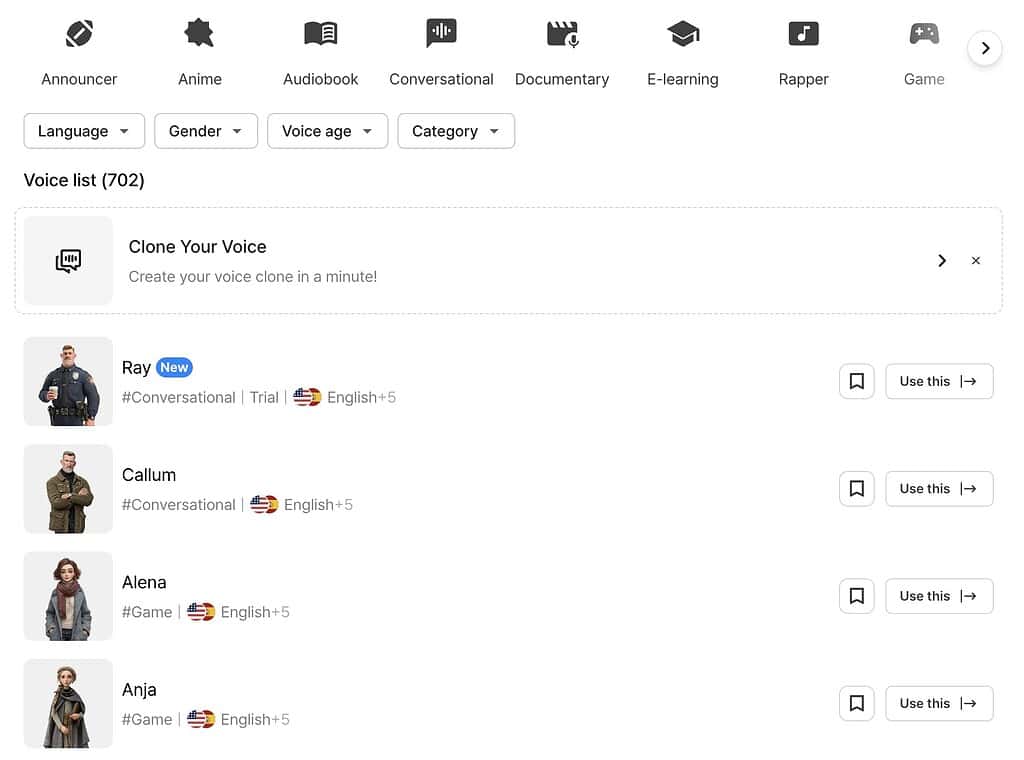
Variety is a key strength of Typecast. With over 700 AI voices based on real actors, narrations gain a distinct personality that makes finding the right voice for your project incredibly simple.
For example, you can use a friendly, warm voice for a children’s e-learning module, or utilize a clear and confident tone for a tech explainer. Use something refined and expressive for a luxury brand ad, or explore your options to see what works best for your project.
Rather than trying for a one-size-fits-all option, Typecast allows you to explore a range of voices that can be the best style for your script. There’s even room for experimenting with multiple voices for the same script so you can compare results.
If you’re looking for more personalization, there’s even customization options and voice cloning to push your voices further.
Step 3: Import Your Script into Typecast
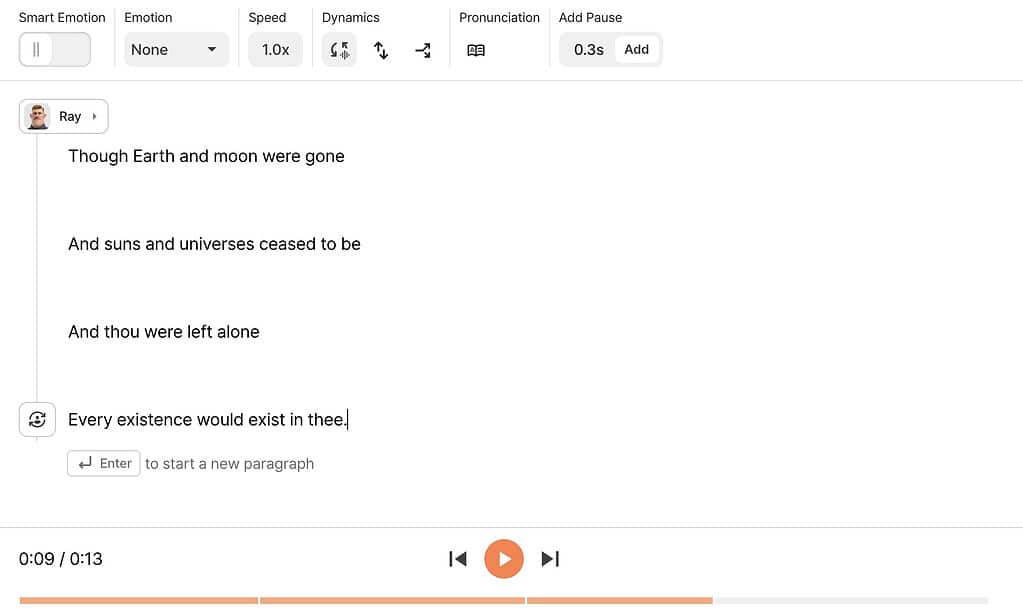
Once your script is prepared, log into Typecast and upload your text directly into the editor. With an interface designed for efficiency, moving from writing to production can be done in just a few clicks.
Rather than relying on multiple tools or external talent, everything happens right from the platform. You don’t even need to leave your browser as you move from script to voiceover.
It’s the kind of streamlined workflow that can eliminate major bottlenecks for teams working with multiple projects. With the ability to create several voiceovers during a single session, content creators, agencies, and even enterprises can find it ideal.
Step 4: Apply Smart Emotion
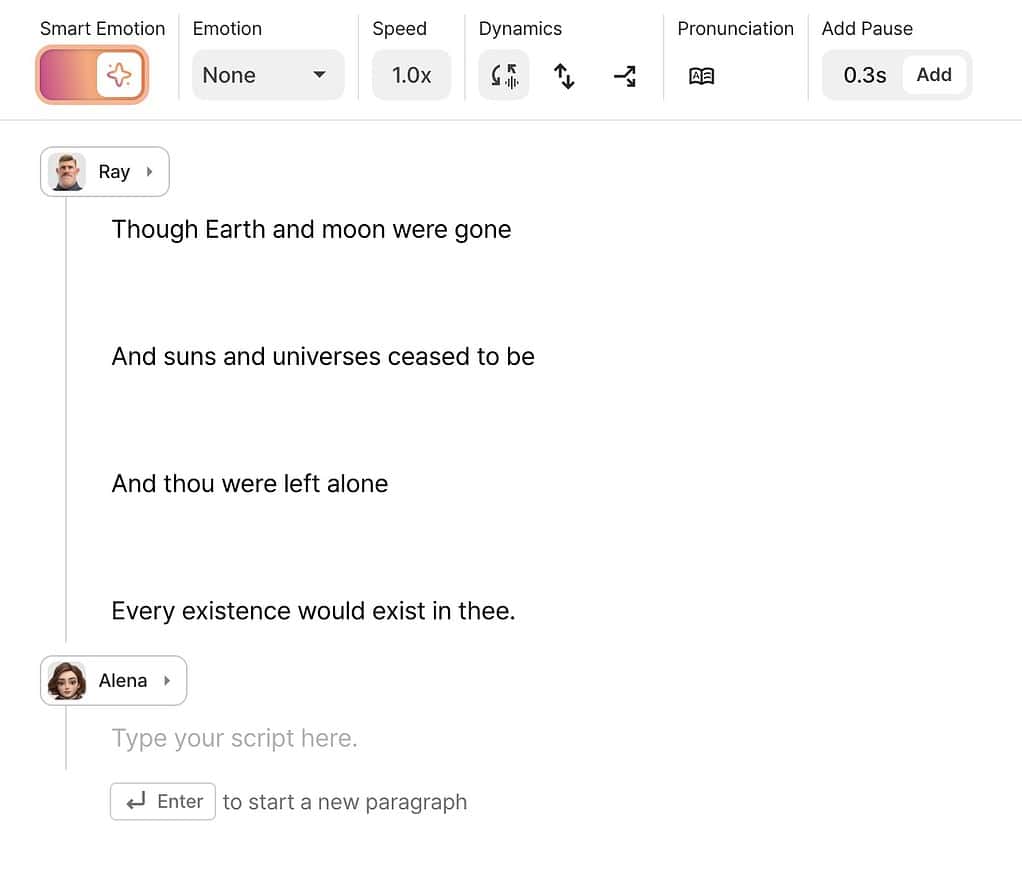
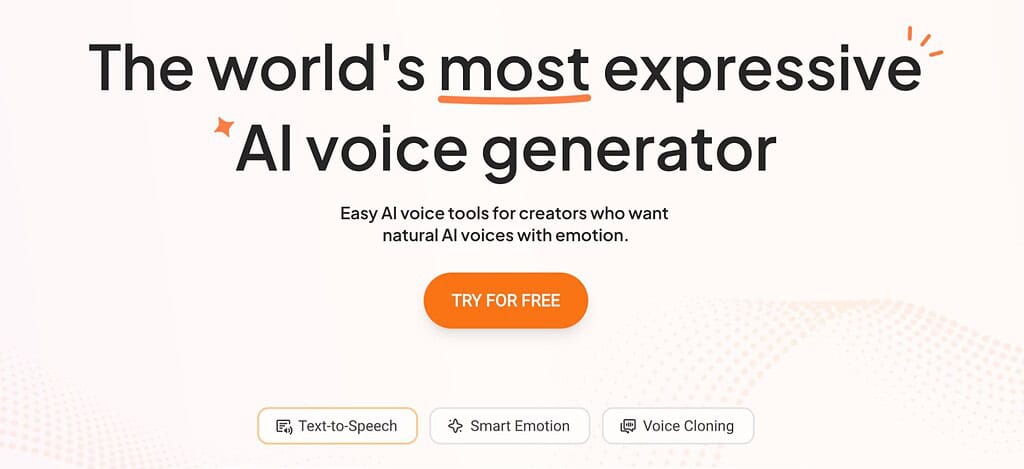
Now that you’ve got your voice, it’s time to bring your script to life with Smart Emotion—the signature feature of Typecast.
Acting as one-click voice intelligence, Smart Emotion automatically adjusts tone, pitch, pacing, and emotion to match a script. It can make any output sound more expressive and natural without manual tweaks.
Rather than fine-tuning every line yourself, you can apply Smart Emotion and instantly hear a rendition that aligns with the intent of your content.
Most importantly, there’s no limits to your control over Smart Emotion. Acting as an enhancer, there’s options for refining the output further. Manually adjust timing, delivery, and emphasise to create a combination of customization and automation that ensures you’re never stuck with robotic-sounding outputs. It’s all about speed, variety, and control.
Step 5: Fine Tuning
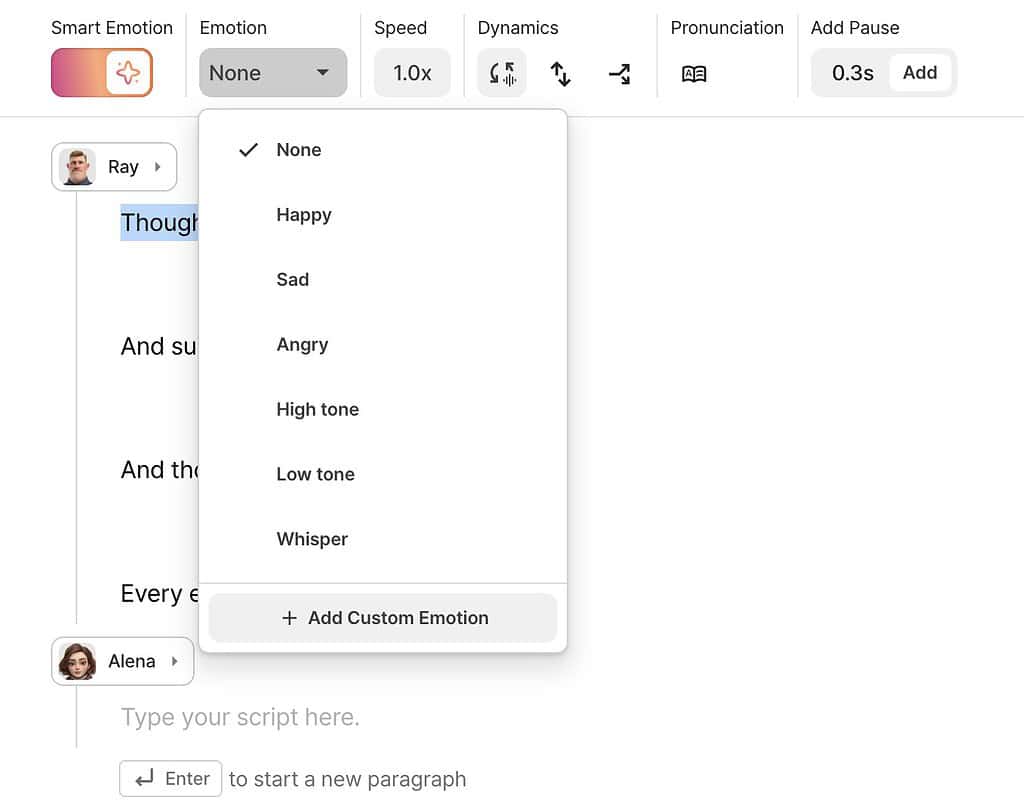
After applying Smart Emotion, it’s time to review your audio.
There’s options for:
- Controlling pacing and speed
- Modifying emphasis and tone
- Tweaking specific lines for better impact
You can always preview your voiceover before committing. This allows for free experimentation, ensuring you’re satisfied with the results before downloading. It’s great for those that want precision, and it comes with a level of control that makes a difference. You won’t be charged any monthly credits for previewing and listening to your voiceovers until you download the final audio.
Step 6: Download and Use Your Audio
Once you’re happy with the voiceover, it’s just a matter downloading the final file and integrating it into your project. The audio comes ready to use for a video, podcast, presentation, training materials, and more.
Because it’s such a fast process, it’s easily repeatable for additional content. Whether you need multiple variations for A/B testing or different voices for different audiences, Typecast makes scaling production easy without adding complexity.
Why Typecast AI Stand Out
What separates Typecast from other AI text-to-speech platforms is how its features work together to simplify the voice production process.
Typecast AI uses this hat-trick combination for quality audio:
- Speed: Go from script to quality, customized audio in minutes.
- Variety: Choose from over 700 voices, each with their own identity.
- Control: Smart Emotion and manual tools focus on the details.
It’s a combination that makes it a strong choice for a variety of users, from solo content creators to large production teams. Rather than juggling multiple tools or relating to time-heavy workflows, Typecast AI handles everything on one platform.
Whether you’re producing content at scale or just creating your first narration, Typecast AI builds a workflow that helps you create polished, engaging voices in a fraction of the time.




Discussion