
Apple is adding new security controls to its Passwords app in macOS 27.3, allowing Mac users to decide how long their saved passwords remain accessible before the app automatically locks. The change replaces the current fixed three-minute inactivity timeout with several options, giving users more flexibility when managing their login credentials.
The feature was first spotted by code explorer pdfu in the macOS 27.3 beta, which Apple released to developers on November 3. It is expected to reach everyone with the public update in December.
macOS 27.3 Adds Five Passwords App Lock Options
Currently, the Apple Passwords app automatically locks after three minutes of inactivity, requiring users to authenticate again before accessing their saved credentials. With macOS 27.3, users can customize this behavior through a new “Automatically lock” setting.
Don’t miss the best of The Mac Observer
Set us as a preferred source and our Apple reporting ranks higher in your Google Search results and Discover feed — one tap, no account changes.
The update introduces five options:
- After 1 Minute of Inactivity: Locks the app sooner for additional privacy.
- After 3 Minutes of Inactivity: Keeps the existing default behavior.
- After 10 Minutes of Inactivity: Allows longer access without repeated authentication.
- When Mac Locks or Sleeps: Locks the Passwords app alongside the Mac.
- Never: Disables the app’s automatic locking mechanism.
The new controls are particularly useful for people who frequently access saved passwords or verification codes while working. However, choosing the Never option means the app can remain accessible on an unlocked Mac, increasing the risk of unauthorized access.
How to Change Passwords Auto-Lock Settings on Mac
Users running the macOS 27.3 beta can adjust the timeout directly inside the Passwords app by following these steps:
- Open the Passwords app on your Mac.
- Click Passwords in the menu bar.
- Select Settings.
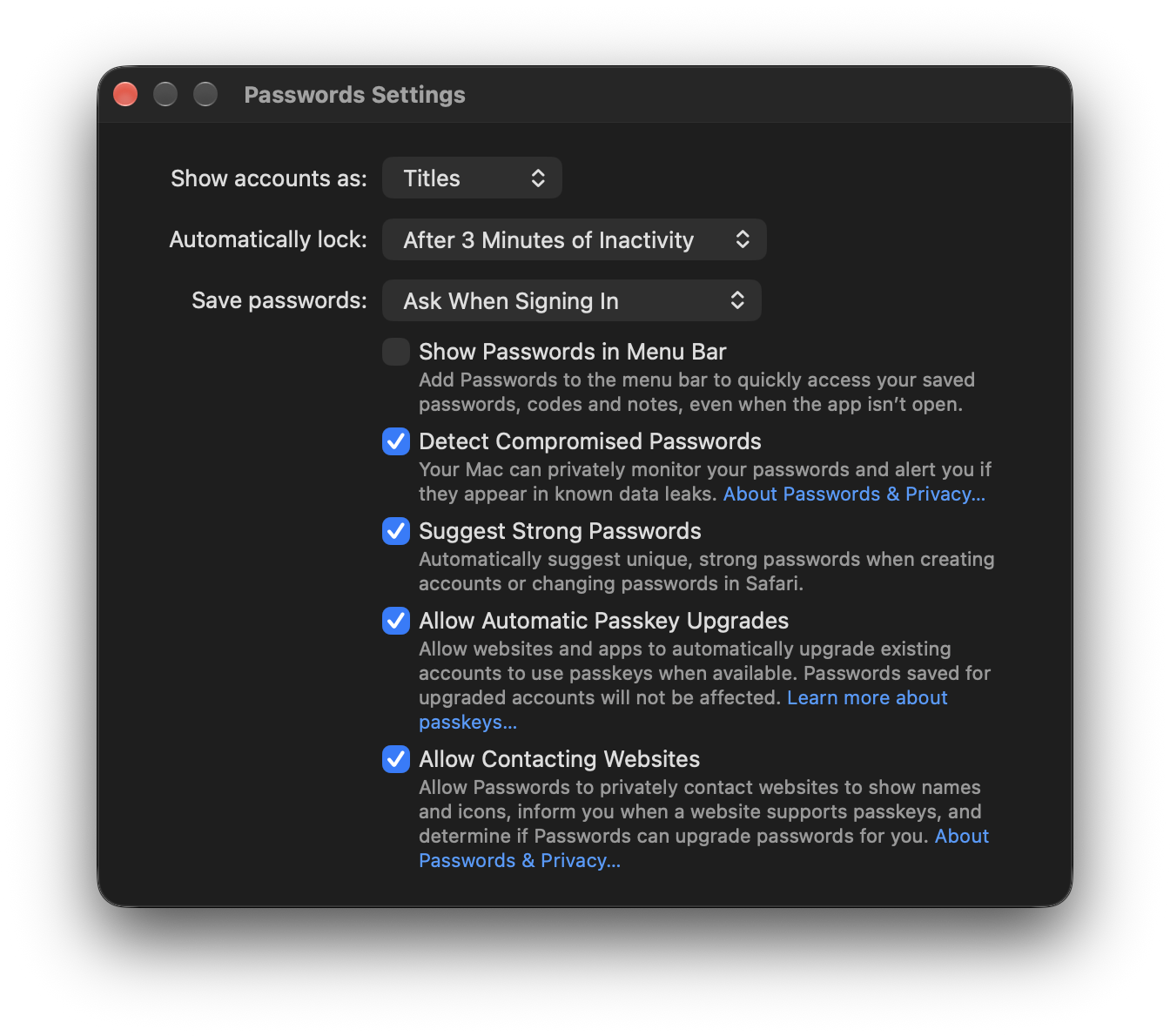
- Find the new Automatically lock dropdown menu.
- Choose your preferred locking interval.
Apple introduced the standalone Passwords app with macOS Sequoia in September 2024, bringing passwords, passkeys, verification codes, and Wi-Fi credentials into one place.
The latest addition builds on those existing password management features while allowing users to balance convenience and security according to their needs.
The new setting is currently available in the macOS 27.3 Golden Gate beta, with a wider release expected in December 2026.



Discussion