
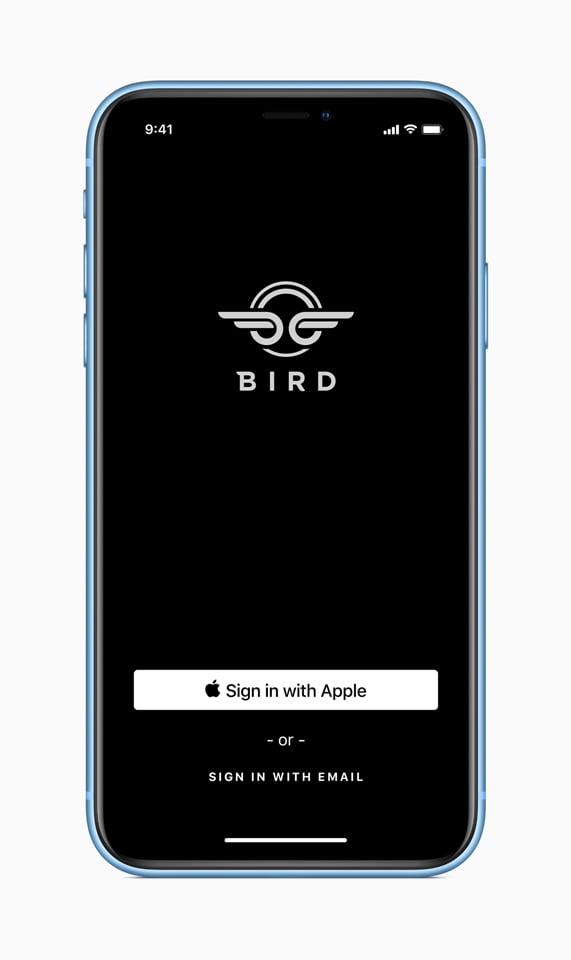
Nintendo is ending Sign in with Apple and Google sign-in for Nintendo Accounts. According to Nintendo’s support notice, starting January 26, 2027, you can no longer log in to a Nintendo Account with an Apple or Google account, and you can’t create a new account that way either.
If you made your account years ago by tapping the Apple button on your iPhone, there’s a good chance you never set a Nintendo password. That’s the account at risk. You have a little over two months to fix it, and the fix is far easier before the cutoff than after it.
Nintendo’s January 26, 2027 cutoff ends Apple and Google login, new sign-ups and a Platinum Points mission
The notice covers Nintendo Accounts used on Nintendo Switch 2, Nintendo Switch, Nintendo Switch Lite and Nintendo Switch OLED Model. From January 26, 2027, three things change:
Don’t miss the best of The Mac Observer
Set us as a preferred source and our Apple reporting ranks higher in your Google Search results and Discover feed — one tap, no account changes.
- You can’t log in to a Nintendo Account with a Google or Apple account.
- You can’t create a new Nintendo Account with a Google or Apple account.
- The My Nintendo Platinum Points mission for linking a Google account to a Nintendo Account goes away.
Nintendo adds a footnote saying the exact end time may be delayed depending on how its system change work progresses. So the date could slip later, but you shouldn’t plan around that. Nintendo doesn’t give a reason for the change and simply apologizes to people who used these sign-in options.
This isn’t the first time Nintendo has cut a third-party login. It ended Facebook and Twitter sign-in for Nintendo Accounts on October 25, 2022. Google was the obvious fallback for many Apple users back then. That door now closes too.
Set a Nintendo password before January 26 if you only ever used Sign in with Apple
Nintendo says you may not need to log in again on a device where you’re already signed in. But the next time a login page appears, Apple won’t be an option. You’ll need your Nintendo Account email address or Sign-In ID plus a password, or a passkey.
If you never created a password, or forgot it, Nintendo’s own instructions are short:
- Go to the Nintendo Account login page at accounts.nintendo.com.
- Select “Forgot your password?” and follow the steps to get a reset email.
- If the email doesn’t show up, wait a while, then add [email protected] to your address book and safe-sender list.
- If you can’t reach the email address on the account at all, contact Nintendo support to update it.
There’s one more wrinkle for Switch owners. Nintendo’s UK support page says an Apple Account has never been a sign-in option on the Switch console itself. People with Apple-only accounts already had to finish setup from a phone or computer, often by linking Google. Both of those shortcuts disappear in January, so a password is now the baseline for everyone.
Hide My Email relay addresses can stop Nintendo’s password reset email from reaching you
Nintendo’s notice doesn’t mention Hide My Email, but this is where Apple users are most likely to get stuck. If you picked Hide My Email when you first used Sign in with Apple, Nintendo never got your real address. Apple’s Hide My Email support page says these relay addresses end in @privaterelay.appleid.com or @private.icloud.com, and only mail from the app’s designated addresses gets forwarded to you.
That means Nintendo’s password reset email goes to the relay address and lands in your inbox only while forwarding is on. Check it before you request the reset:
- Open Settings on your iPhone, tap your name, then tap Sign in with Apple and choose Nintendo. If you used Hide My Email, the relay address shows here.
- To confirm forwarding is on, go to Settings, tap your name, tap iCloud, then Hide My Email under iCloud+ Features, select Nintendo and check Forward To.
Don’t delete Nintendo from your Sign in with Apple list until you’ve set a password. Apple’s app management page says deleting an app there signs you out of it, and you’d be stuck going through the reset flow anyway. Once you have a working password, replacing the relay with an email address you fully control saves you from depending on Apple’s forwarding in the future.
Nintendo passkeys work on iPhone, iPad and Mac but still need your password as a backup
Nintendo recommends a passkey for faster sign-in with Face ID or Touch ID. Its passkey guide lists support for iPhone with iOS 16 or later, iPad with iPadOS 16 or later, Mac with macOS 13 or later, and Android 9 or later. You can register up to 10 passkeys per account, one per device.
To add one, sign in at accounts.nintendo.com on the device you want to use, open Sign-in and security settings, select Passkeys and edit, then verify the code Nintendo emails you. Choose Register a new passkey, enter your Nintendo Account password and follow your device’s prompts.
Notice that step asks for your password. A passkey isn’t a way around setting one, and Nintendo says your password and email address stay necessary as a backup in case you lose or change your device. So the order is simple: password first, then passkey. If you keep that password in Apple’s Passwords app, our guide on exporting your iPhone passwords to a CSV file shows how to keep a backup copy.
Google sign-in users face the same deadline and the same steps. The only difference is that Google accounts don’t use Apple’s relay addresses, so your reset email should arrive at your Gmail address without any extra checks.

Discussion