
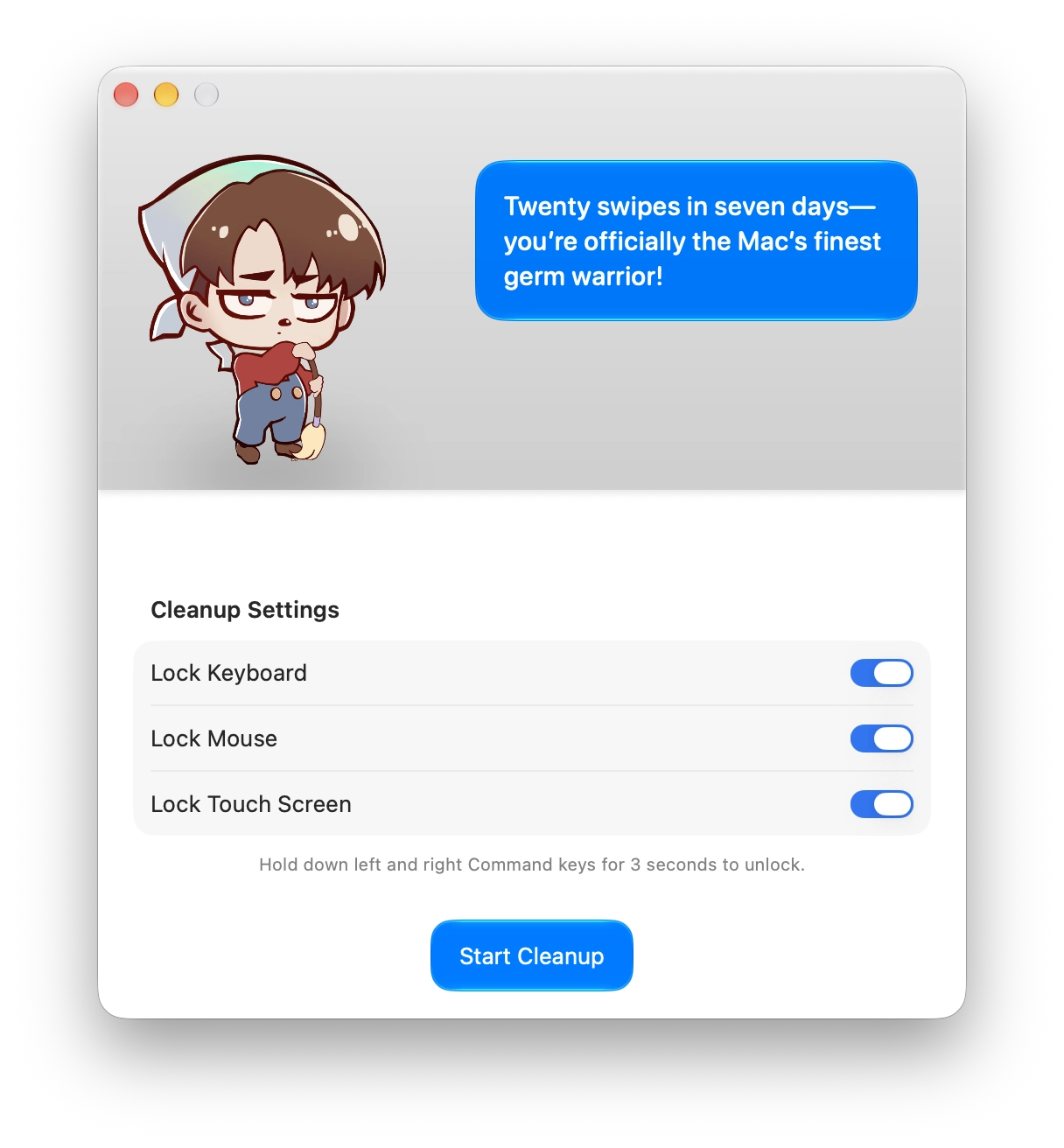
Wiping fingerprints off the new touchscreen MacBook Pro can click buttons, scroll pages and move windows, and CleanupBuddy 2.0 now stops that. Developer Gui Rambo says the Mac app can lock the touch screen while you clean, along with the keyboard and trackpad it already locked. His CleanupBuddy site now pitches it as the app that “helps you clean your Mac’s keyboard, trackpad, and touch screen.”
Rambo tied the update straight to Apple’s new hardware. In his announcement, he wrote: “That new PROLED MacBook Pro looks even better without your fingerprints on it.” He added that CleanupBuddy 2.0 now supports locking the touch screen for cleaning.
Why the touchscreen MacBook Pro needs a cleaning lock older MacBooks never did
On every MacBook before this one, the screen was just glass. You could wipe it with the lid open and nothing would happen. That changed with the MacBook Pro with PROLED XDR Display. Apple says the touch sensor is built directly into the display panel and that “macOS automatically translates touches into clicks,” so existing apps respond to touch right away.
Don’t miss the best of The Mac Observer
Set us as a preferred source and our Apple reporting ranks higher in your Google Search results and Discover feed — one tap, no account changes.
That’s great when you mean it. It’s less great when a microfiber cloth drags across the screen. Apple’s touch gestures include swiping to scroll, pinching to zoom, and double-tapping a window to fill the screen or flicking it to tile it into place. A cleaning pass can trigger any of those. A wipe across the Dynamic Island could pause your music too, since Apple says a tap there does exactly that.
We’ve already looked at how touch works on the new MacBook Pro in macOS 27. Apple’s announcement doesn’t mention a built-in way to pause touch input for a quick clean, and that’s the gap CleanupBuddy fills.
CleanupBuddy locks the keyboard, trackpad and touch screen so you don’t have to shut down
The idea behind CleanupBuddy hasn’t changed. It blocks your input devices so you can clean your Mac “without having to turn it off and without typing a bunch of gibberish during the process,” as the developer’s site puts it. Version 2.0 adds the touch screen to that list:
- Keyboard: locked, so wiping the keys doesn’t type into whatever app is open.
- Mouse or trackpad: locked, so pressing on the trackpad doesn’t click.
- Touch screen: locked on a supported touch display, so wiping the glass doesn’t tap or scroll.
The screenshot on the developer’s site shows each lock as its own switch, labeled Lock Keyboard, Lock Mouse and Lock Touch Screen, above a Start Cleanup button. So you can lock only the screen if that’s all you’re wiping. When you’re done, you hold down the left and right Command keys for 3 seconds to get control back. That’s a smart choice, because it’s a combo you’re very unlikely to press by accident while scrubbing the keyboard.
The app keeps its personality, too. The site promises “an animated character and snarky remarks to keep you entertained” while you clean. In the same screenshot, the character congratulates the user on twenty swipes in seven days and calls them the Mac’s finest germ warrior. It’s a small utility, and it doesn’t pretend to be anything else.
Apple’s own cleaning advice says shut down first, so here’s where the app fits
Apple’s official guidance is stricter than CleanupBuddy’s approach. Its Mac screen cleaning guide tells you to shut down your Mac and disconnect its power cord and any connected devices first. Then you dampen a clean, soft, lint-free cloth with water and wipe the screen.
Apple also lists what to avoid. Never spray cleaner directly on the screen, because liquid can drip inside the display. Skip acetone, window or household cleaners, aerosols, solvents, ammonia, abrasives and hydrogen peroxide.
If you paid for the optional nano-texture glass, Apple’s nano-texture cleaning page lists MacBook Pro and says to use an Apple Polishing Cloth, another microfiber cloth made for displays, or a cotton and elastane or spandex blend. For stubborn smudges, you can occasionally moisten the cloth with 70 percent isopropyl alcohol.
So think of CleanupBuddy as the tool for the daily fingerprint wipe between meetings, when a full shutdown feels like overkill. For a deep clean with a damp cloth, follow Apple’s steps and power down.
CleanupBuddy 2.0 requires macOS Sonoma and is sold through the developer’s Gumroad store
The developer’s site says CleanupBuddy requires macOS Sonoma or later, so it runs on far more Macs than the new touchscreen model. On a Mac without a touch display, you still get the keyboard and trackpad lock. The site’s download button points to Rambo’s Gumroad page, and we couldn’t find a Mac App Store listing.



Discussion