
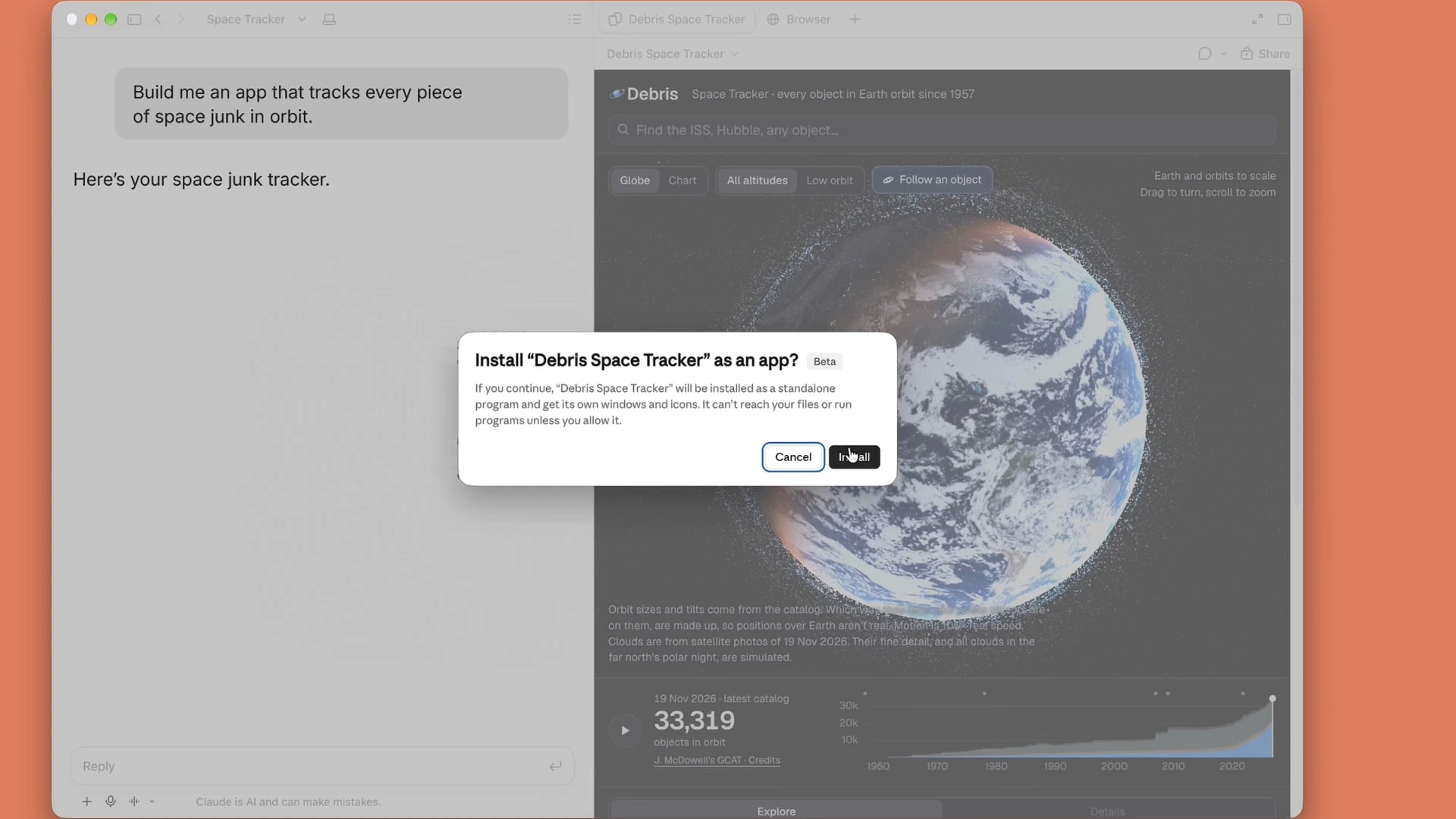
Anthropic has introduced a new feature that lets you install Claude artifacts as desktop apps on Mac and Windows. Called “Install as app,” the feature started rolling out in beta on November 24 across free and paid Claude plans, allowing users to build and run personalized applications using simple prompts.
Each installed artifact gets its own application icon and dedicated window, allowing you to launch it directly from your computer without navigating through Claude conversations.
Claude Artifacts Can Now Work Like Desktop Apps
According to Anthropic’s announcement, installed artifacts can access connected services, use Claude’s AI capabilities, send notifications, and add items to the macOS menu bar or Windows system tray.
Don’t miss the best of The Mac Observer
Set us as a preferred source and our Apple reporting ranks higher in your Google Search results and Discover feed — one tap, no account changes.
Anthropic has demonstrated several applications built using this feature, including an image editor with layer support, a file manager, an AI-powered terminal, and a system performance monitoring tool.
The company offers three permission levels for installed applications:
- Default: Restricts applications to standard browser capabilities.
- App permissions: Enables notifications, global keyboard shortcuts, and always-on-top windows.
- Full computer access: Allows applications to execute programs and read, modify, or delete local files.
The expanded permissions build on Anthropic’s earlier efforts to let Claude control your Mac and interact with local files. However, Anthropic does not independently review these applications before installation.
How to Install Claude Artifacts on Mac and Windows
You can install an artifact by following these steps:
- Update the Claude desktop application.
- Create or open an existing interactive artifact.
- Open the Share menu and select Install as app.
- Confirm the installation and configure the required permissions.
You do not need to package the application, sign its code, or configure an API key. Installed applications also receive automatic updates whenever you modify their underlying artifacts.
However, you must remain signed into Claude and maintain an active internet connection to launch these applications. AI requests count toward your subscription’s usage limits, while Claude Docs, Slides, and Sheets currently remain ineligible for desktop installation.




Discussion