

If you are looking to force quit an application on your Mac, there are actually several options that you can consider. If you know that you are dealing with frozen programs, there are several methods, including an in-built program, that can help you with your issue. I detail this choice below.
1. Using the Apple Menu
One of the easiest ways to force quit an app on Mac is through the menu bar at the top of your screen. This is typically one of the easiest routes when it comes to performing this task, and you may already be familiar with most of the steps.
Time needed: 1 minute
To use the menu bar to force quit an application, simply follow these steps:
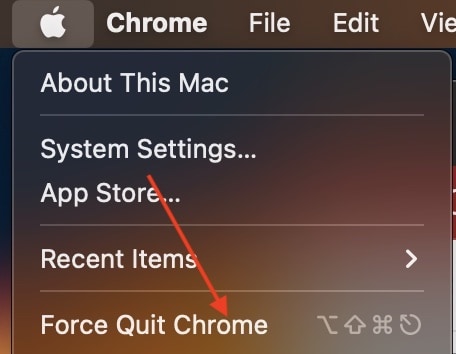
- On your Mac, go to the menu bar at the top of your screen and select the Apple icon.
- Select Force Quit.
- The Force Quit app will open. From the list of options, select the app that you need to force quit. If you’re within the app that is crashing, you may also just have the option to force quit the app directly from the menu bar by pressing Shift.
- Click the Force Quit button.
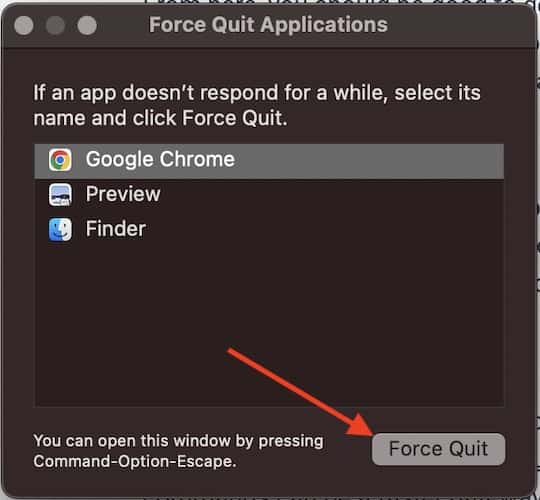


From here, you should be good to go. Your Mac will quit the unresponsive app, and you can reopen it and try again. This is my preferred method of force quitting an application, but let’s take a look at some other methods that are available as well.
Don’t miss the best of The Mac Observer
Set us as a preferred source and our Apple reporting ranks higher in your Google Search results and Discover feed — one tap, no account changes.
2. Using a Keyboard Shortcut
You should be aware that you can bring up the Force Quit menu via keyboard shortcuts. This can be slightly faster than navigating the menu bar, as it will automatically bring up the Force Quit application. Simply press Command + Option + Esc at the same time to bring about the Force Quit menu. You can then select the unresponsive app from the pop-up menu, and then choose Force Quit.
You should also be aware that not only is there a keyboard shortcut to force quit an application, but there’s a variety of other shortcuts that are beneficial to know as well. Knowing these quick commands can be a faster gateway to your device.
3. Using the Activity Monitor
While there are options to force quit an application via your keyboard and through the menu bar, there’s also a particularly helpful built-in tool that can accomplish this task while also providing some additional benefits as well. For those that don’t know, Activity Monitor can be a Mac user’s best friend. Not only are you able to force quit applications through this program, but you can also get insights and information concerning your device, including what’s using up your CPU and your RAM.
To Force Quit an app using Activity Monitor, simply follow these steps:
- Open Activity Monitor. It can typically be found in Applications > Utilities.
- Choose an application from the list top-left corner.
- Select the X.
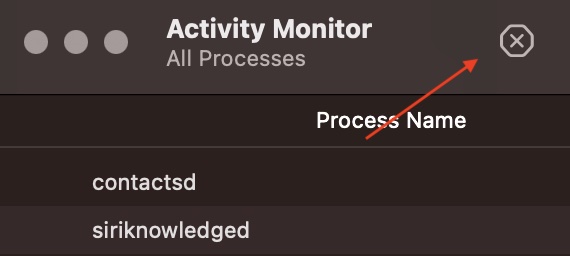
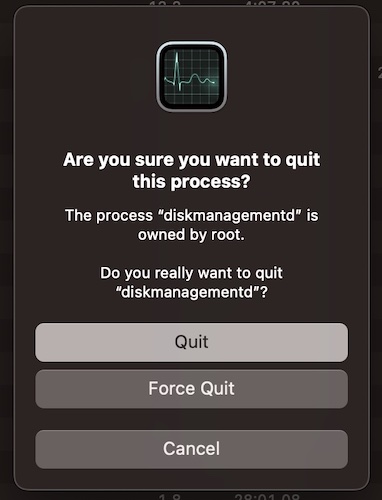
- You will then have two options: Quit or Force Quit. If you select Quit, the app will only close when your device determines it is safe to do. Force Quit will kill the app completely.


4. Using the Dock
If the other three methods don’t work for you, there’s also a way to force quit an app from your Dock. Not only is the Dock a great place to store apps for quick access, but it also lets you know what’s currently running on your machine. You can also quit applications from the Dock, or even force quit them.
To force quit an application from the Dock, simply right-click on the app icon. Then, hold the Option key to have the pop-up window change from Quit to Force Quit. Select Force Quit, and the app will close.

What To Do if Force Quit Doesn’t Work
If none of the above options are helping you, it may be time to get into more serious measures. You may want to try resetting your Mac. To do this while an app is unresponsive, you can always go to Apple > Restart from the menu bar. However, if this isn’t an option, you can try pressing Command + Control + Power button to restart your machine. Using this combination, your Mac will save your progress within responsive apps, quit all applications and then restart. Note that if you have an Eject button on your keyboard, use this button rather than the Power button.
You can also press and hold your Power/Eject button to force your Mac to restart. However, force restarting your Mac will not save any of your progress. It may also cause further issues.
5. Using Terminal to Kill an App
Another thing to try is using Terminal to quit an app. This can be particularly useful if the program in question is giving you problems while closing. Fortunately, following the steps is rather easy, though the important thing will be to pay attention to what you are typing into Terminal.
- Open Terminal. It can typically be found in Applications > Utilities.
- Within the command line, type killall and then the name of your app. Make sure that you are spelling it the same way as it appears in your Dock/Applications folder. This includes case sensitivity. If it two words or more, you will need to put quotation marks around the name of the app.
- If you are still having issues, try sudo killall [name of app]. This will give you administration privileges, so you may need to enter the password that you use to log into your Mac.
And that’s all there is to it! Terminal will close the app for you, though remember it is likely that you will lose any unsaved data. If you are having issues with this method, remember to check your spelling, as it needs to be perfect. The name of the app in Terminal needs to be the exact name of the app as it appears on your Dock or within the Applications folder.
How to Prevent Potential Freezes
While there is no guaranteed method of preventing an app from freezing, there are some things you can do to try and prevent it from happening. One of the most important things you can do is ensure that your apps are up to date. If your apps don’t inform you that an update is available, you can always check the Apple App Store or the website from which you got the app. Not only does keeping your apps up to date prevent the risk of security exploits and corrupted files, but it can also ensure that the offending programs potentially receive critical updates that may prevent your issue in the first place.
It may also be a good idea to clear the cache of certain apps whenever possible. While applications can have various methods for clearing cache, we’ve got you covered concerning what you need to do when it comes to clearing the cache for some of Mac’s most popular internet browsers.
Of course, if you find anything within our guide to be particularly helpful, feel free to share your own experiences in the comments.



Great tips! The keyboard shortcuts are especially helpful. I didn’t know about the Activity Monitor method—definitely a game changer for me. Thanks for sharing!
“Should your Mac have a DVD drive, press Command + Control + Eject”.
That also works with Macs without DVD drive. It restarts the Mac. Other is (shuts down the Mac):
Control Option Command Eject
Wait about one minute because they may take time.