

Managing your business finances on a Mac doesn’t have to be a headache. We know many accounting tools are built for Windows first, leaving Mac users with fewer choices or clunky ports. After thorough testing on our own Macs, we’ve rounded up the best accounting software for Mac that streamline bookkeeping, support macOS features, and keep your financials in check in 2025.
Table of contents
- How We Made This List
- Before You Start (Mac User Tips)
- 1. QuickBooks Online : Best overall accounting software for Mac users
- 2. FreshBooks : Best for freelancers and service-based businesses
- 3. Sage Accounting : Best for growing businesses (scalable features)
- 4. Xero: Best for collaborative bookkeeping (unlimited users)
- 5. Zoho Books: Best free tier (part of Zoho business suite)
- 6. AccountEdge Pro: Best offline desktop accounting app for Mac
- 7. Wave Accounting: Best free accounting software for Mac (truly $0)
- 8. ZipBooks: Best for simple invoicing & bookkeeping (free & affordable plans)
- 9. Synder: Best for e-commerce and automation (AI-powered accounting)
- 10. FreeAgent (Honorable Mention): Best for freelancers in UK & worldwide
- FAQ (Mac Accounting Software Questions)
- Comparison List: Mac Accounting Software at a Glance
- Tips for Mac Accounting Success
- Summary – Choosing & Using Your Mac Accounting Software
- Conclusion
How We Made This List
We reviewed over a dozen accounting platforms on our MacBook Pro (M2) and iMac to see which perform best for Apple users. Our evaluation criteria included:
- Mac Compatibility: Does it run smoothly on macOS (including the latest Apple Silicon chips)? Any native Mac app or iOS companion app?
- Core Features: Invoicing, expense tracking, bank syncing, financial reports, and payroll – we made sure each pick covers the essentials for small business accounting.
- Ease of Use: We favored intuitive, user-friendly interfaces since many Mac users are solo entrepreneurs or small biz owners without an accounting background.
- Pricing & Value: We checked free trials, free tiers, and overall cost for what you get – important for budget-conscious users.
- Support & Integrations: Quality of customer support and the ability to integrate with other tools (like payment processors or project management apps) were bonus points.
By focusing on these aspects, we’re confident the tools below are truly the top accounting solutions for Mac users this year.
Don’t miss the best of The Mac Observer
Set us as a preferred source and our Apple reporting ranks higher in your Google Search results and Discover feed — one tap, no account changes.
Before You Start (Mac User Tips)
- Cloud vs. Desktop: Most Mac accounting software are cloud-based web apps. That’s actually good news – you can access them on any Mac (or PC) via browser, and they’re always up-to-date. If you prefer offline use, we note which tools offer a desktop Mac application.
- Apple Silicon Support: All of our picks work on the latest M1/M2 Macs. In fact, most run natively or via the browser. (One legacy app, AccountEdge, requires Apple’s Rosetta 2 for M1/M2 since it’s not yet optimized, but it still runs well.)
- QuickBooks on Mac: Intuit discontinued the old QuickBooks Desktop for Mac in 2021. Our recommendation is QuickBooks Online, which works perfectly on Mac through your web browser and has Mac-friendly features (like a macOS desktop app wrapper and great iPhone/iPad apps).
- Security: All these solutions use bank-grade encryption and secure cloud storage. Just because you’re on a Mac doesn’t mean you should skip good security practices – use strong passwords and enable two-factor authentication for your accounting software.
- Free Options Exist: If you’re just starting out or on a tight budget, there are free accounting tools for Mac (Wave, ZipBooks, etc.). We include them below – just be aware of their limitations (often user or feature caps).
Alright, let’s dive into the top picks!
1. QuickBooks Online: Best overall accounting software for Mac users

QuickBooks is practically synonymous with small-business accounting, and QuickBooks Online earns our top spot on Mac. It’s a cloud-based solution, so you access it through Safari (or any browser) on your Mac – no need for Windows emulators or outdated Mac desktop versions. We love how comprehensive QuickBooks Online is: you can manage invoices, expenses, payroll, inventory and more, all in one place. Despite its powerful features, the interface is modern and fairly easy to navigate, even if you’re not an accountant. Mac users also benefit from QuickBooks’ mobile apps on iPhone/iPad, and there’s a Mac desktop app (basically a wrapper for the web version) if you prefer having an app icon in your dock.
Pros:
- Robust all-in-one feature set (invoicing, expenses, reports, payroll, inventory – you name it)
- Massive ecosystem of 750+ integrations (connects with Shopify, Stripe, PayPal, etc., so your Mac-based business tools sync up)
- Multi-user collaboration with accountant-specific tools (many accountants use QuickBooks, so sharing access is easy)
- Mac-friendly extras: Has an OSX desktop app available and excellent iOS apps for on-the-go finance checks
Cons:
- Pricing is on the higher side (monthly plans can add up, especially once initial discounts expire)
- Steeper learning curve for newbies than some competitors (so many features can feel overwhelming)
- Occasional bank syncing issues reported (transactions not updating in real-time)
- Time-tracking and project features aren’t as intuitive as specialized tools (may require add-ons)
How to get started with QuickBooks on your Mac:
1) Sign up for QuickBooks Online on Intuit’s website – you can even do this through Safari on Mac.
2) During setup, connect your bank accounts and credit cards (QuickBooks will import transactions for you).
3) Customize your invoice template with your logo, and you’re ready to create your first invoice on your Mac!
Bonus: Download the QuickBooks Mac app from the Intuit site if you want the desktop experience; it’ll let you launch QuickBooks from your Applications folder like a native app.
2. FreshBooks: Best for freelancers and service-based businesses

FreshBooks is a top pick for solo entrepreneurs, freelancers, and small agencies using Mac. Its interface is exceptionally easy to use – in our experience, it has the most straightforward invoicing system of all. You can create professional-looking invoices in seconds, track time (via a Mac or mobile timer app) for projects, and capture expenses (snap receipts with your iPhone and it syncs to FreshBooks). FreshBooks is cloud-based; there’s no native Mac app, but their web app is very responsive on Safari/Chrome. They’ve also added some Mac-specific conveniences, like accepting Apple Pay on invoices, which your Mac-using clients might find handy.
Pros:
- Incredibly beginner-friendly UI – ideal if you’re new to accounting software (we were sending invoices right after signup, no steep learning)
- Great for tracking billable hours and project-based billing (freelancers can log time and automatically put it on invoices)
- Supports Apple Pay and credit card payments for invoices, making it easy for clients to pay you
- Responsive customer support with a reputation for helping small business owners (and a good knowledge base with Mac-specific how-tos)
Cons:
- Scaling up: Not as feature-rich in advanced accounting as some others (e.g., lacks complex inventory or budgeting tools – FreshBooks is starting to add more reports, but it’s not an ERP)
- Additional users cost extra (each team member you add incurs a fee on lower plans, unlike Xero’s unlimited user model)
- The mobile app is excellent, but there’s no separate FreshBooks desktop app for Mac – you’ll be in the browser
- Doesn’t have built-in payroll (you’d need an integration for that)
How to get started with FreshBooks:
1) Create a FreshBooks account (they often offer a 30-day free trial).
2) On your Mac, go to Settings > Company to personalize your logo, branding, and invoice preferences.
3) Create your first invoice by clicking Create New > Invoice – FreshBooks will guide you through adding a client, item, and sending it. If you have an iPhone, install the FreshBooks app to snap a picture of any receipts – they’ll sync to your Mac’s FreshBooks account for easy expense tracking.
3. Sage Accounting: Best for growing businesses (scalable features)
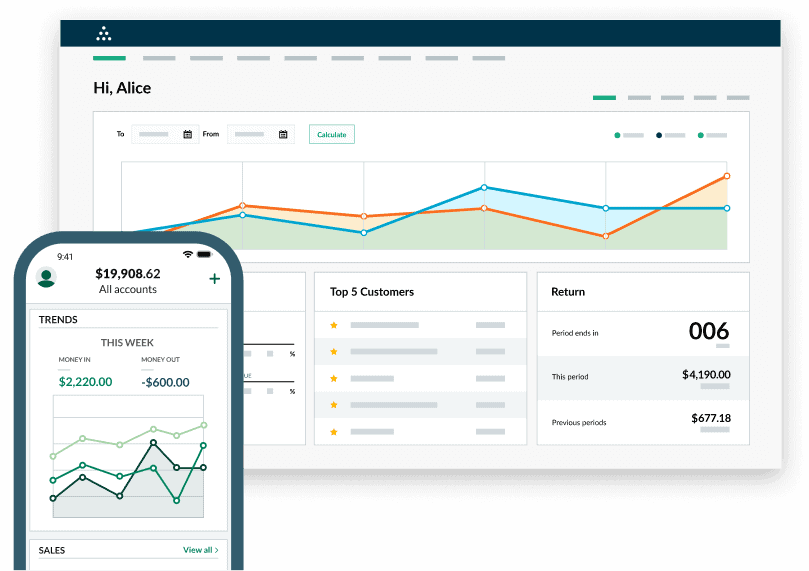
Sage has long been a player in accounting, and Sage Business Cloud Accounting (often just called Sage Accounting) is their small-business cloud product that works nicely on Macs. We recommend Sage if you anticipate rapid growth or need more advanced accounting that can scale. The software itself is accessed via your Mac’s browser. It’s not as flashy in UI as FreshBooks or Xero, but Sage is very solid in terms of accounting fundamentals. You get strong reporting (cash flow forecasts, balance sheets, etc.), and features like purchase order management and even inventory tracking on higher plan. Sage is also known for excellent support and an extensive knowledge base – helpful as your business needs get more complex.
Pros:
- Great reporting and analytics tools for deeper financial insights (helpful as your business grows beyond the basics)
- Can handle more complex needs: project tracking, vendor billing, quotes to invoices, etc. – a bit closer to mid-market accounting software features
- Scalable plans: as you hire employees or expand, Sage has mid-tier solutions and even ERP systems that you can transition into (the ecosystem is there)
- Offers a Mac-friendly mobile app (“Sage Accounting”) for invoicing and expense capture on the go
Cons:
- The user interface, while functional, feels a bit more utilitarian – not as modern or intuitive for novices as some other picks
- No native desktop app for Mac; must use in browser
- The entry-level plan is very limited (1 user, no quotes) – you’ll likely need the higher tier for multi-user access and advanced features, which is pricier
- Fewer third-party integrations compared to Xero or QuickBooks (Sage has some, but it’s not in the 500+ range; mostly connects with payment providers and a few key apps)
How to get started with Sage Accounting:
1) Head to Sage Accounting’s website and start a trial (usually 30 days free).
2) On first login (using your Mac browser), Sage will ask a few setup questions (business type, what features you need – you can skip what you don’t use to simplify the interface).
3) Check out the Dashboard, which on Mac should show graphs for income, expenses, etc. Connect your bank to populate those.
4) If you’re migrating from another system, use Sage’s import tools or consider hiring a Sage Certified Consultant (Sage’s site helps you find one) to ensure all your historical data comes in right as you grow.
4. Xero: Best for collaborative bookkeeping (unlimited users)

If you have a team or need your accountant and bookkeeper in the loop, Xero is a fantastic choice – it lets unlimited users join your account at no extra cost. Xero is entirely cloud-based and works smoothly on Macs. In our testing, Xero’s clean interface really stood out; it feels streamlined and Mac-like in its simplicity. You can reconcile bank transactions in a few clicks and generate beautiful reports. It also supports over 160 currencies and has strong multi-currency accounting, great if your Mac-based business deals internationally. Xero doesn’t have a native Mac app, but its web app is fast, and there’s an iPhone/iPad app for doing quick tasks on the go.
Pros:
- User-friendly, intuitive design that Mac users appreciate (minimalistic and modern UI)
- Includes unlimited users on all plans – invite your accountant or team without extra fees
- Over 1,000 integrations in Xero’s marketplace (inventory management, POS, CRM tools that many Mac small businesses use)
- Solid mobile apps and even an Apple Watch app (view balances or invoice notifications from your wrist)
Cons:
- No dedicated desktop app for Mac (browser only, which is okay for most, but some prefer a local app)
- Bank feed reliability can occasionally hiccup (we saw one of our bank connections require re-authentication a few times)
- Lacks built-in payroll in some regions (in the US, Xero integrates with Gusto for payroll, which is an added cost)
- Not as universally adopted by accountants as QuickBooks (some accountants may ask you to export data to QuickBooks format)
How to get started with Xero on Mac:
1) Sign up for a Xero trial from their website (no credit card needed for the trial).
2) Follow the setup guide to connect your bank accounts – on Mac, you can drag-and-drop import a bank statement if needed, or use direct feeds.
3) Add your team or accountant’s email under Users to collaborate. Xero’s interface will feel at home on your Mac, and you can even set up a shortcut in Chrome/Safari to launch it like an app.
5. Zoho Books: Best free tier (part of Zoho business suite)

Zoho Books stands out by offering a robust free plan for small businesses (under a certain revenue or number of users) – making it arguably the best free accounting software for Mac users who qualify. Even its paid plans are very affordable compared to others. Zoho Books is part of the larger Zoho ecosystem, which means if you’re already using Zoho CRM, Zoho Invoice, etc., it integrates seamlessly. On Mac, you’ll use Zoho Books in the browser; it’s a clean, modern interface. We found Zoho Books covers all the core needs: invoicing (with a client portal for approvals), expense tracking, basic inventory, banking, and even project time tracking. It also supports up to 50+ integrations and has a Mac desktop shortcut via the Zoho app if needed.
Pros:
- Generous free plan for businesses with revenue below a threshold (includes invoicing, expenses, and even workflow automation on free tier)
- Paid plans are budget-friendly and scale up as you grow (still cheaper than many competitors for similar features)
- Integrates with other Zoho apps (CRM, Projects, Inventory) which is great if you want a one-stop business suite on your Mac
- Multi-currency and multi-language support built-in – good for international Mac-based freelancers or businesses
Cons:
- Not as well-known in the US market as some rivals (your accountant might be less familiar with it, though they can still work with the data)
- The ecosystem approach can be overwhelming – many features and cross-app integrations, which means initial setup might take longer to tailor to your needs
- No native Mac app; the web UI is good but occasionally we experienced a slight lag on large reports
- Payroll is not included (Zoho does accounting and has a separate payroll app in some countries, but not all – e.g., Zoho Payroll is India/US only)
How to get started with Zoho Books:
1) Sign up on the Zoho Books website – you can use your Google/Apple ID or create a Zoho account.
2) During setup, indicate your business details; Zoho Books will customize tax settings (it even supports GST/VAT if applicable).
3) Import any existing data: Zoho makes it easy to import contacts or even past invoices via CSV, which you can prepare on your Mac (Numbers or Excel).
4) Connect your bank feeds for automatic transaction import. With that, you’re ready to use Zoho Books – send an invoice or reconcile a bank transaction to get a feel for it.
6. AccountEdge Pro: Best offline desktop accounting app for Mac

Need to work offline or prefer a traditional desktop application? AccountEdge Pro is a veteran accounting software that offers a dedicated Mac desktop program. It’s actually one of the few full-featured accounting systems still supporting macOS natively. This is ideal for those who don’t want their books in the cloud. AccountEdge on Mac looks and feels like a classic accounting system – you get modules for general ledger, sales, purchases, payroll, inventory, and time billing. We were impressed by some Mac-specific touches: it supports Retina displays, and you can backup files to iCloud or Dropbox easily. Do note, AccountEdge is a one-time purchase (with optional upgrades), not a subscription, which can save money long-term if you’re in it for the long haul.
Pros:
- Runs locally on your Mac – you have full control of your data (some industries or users require on-premise software for compliance)
- Very comprehensive feature set (on par with QuickBooks Desktop in functionality, including job costing and departmental accounting)
- One-time license fee option (no monthly payments) – you can buy the software outright; multi-user licenses available for Mac networks
- Mac-oriented design for a desktop app: Menu bar integration, uses Mac UI elements, and even has an iPhone companion app (AccountEdge Mobile) to record receipts or time and sync back to your Mac
Cons:
- No cloud access (unless you use their optional “AccountEdge Connect” add-on, which has a cloud portal – but it’s not as seamless as true cloud software)
- Apple Silicon note: As of 2025, AccountEdge Pro is still an Intel-based app. It will run on M1/M2 Macs using Rosetta 2 translation. It ran fine in our tests, but this is worth noting for future compatibility.
- Lacks some of the shiny new integrations – for example, you won’t directly integrate AccountEdge with online services like Shopify without manual import or third-party tools
- Updates and support require annual fees if you want upgrades – the upfront cost is higher (and you’ll pay for major version upgrades if you choose to get them)
How to get started with AccountEdge on Mac:
1) Purchase and download AccountEdge Pro for Mac from their official site. Install it like any app (drag to Applications folder).
2) On first run, create a new company file and go through the Express Setup (you can choose a template chart of accounts based on your business type).
3) Familiarize yourself with the Command Center – a floating panel that navigates to all modules (Accounts, Banking, Sales, etc.). Because it’s offline, remember to set up a backup routine – e.g., use Time Machine or AccountEdge’s backup function to save your files to iCloud or an external drive regularly.
7. Wave Accounting: Best free accounting software for Mac (truly $0)

Wave is a totally free accounting software that works excellently on Mac through your browser. It’s one of the few no-cost solutions with a solid feature set: professional invoicing, expense tracking, receipt scanning (via a mobile app), and basic reports are all included without fees. For freelancers, consultants, or very small businesses, Wave can handle accounting basics without forcing you to upgrade. On Mac, we accessed Wave via Safari and found the interface clean and modern – it doesn’t feel like “free” software in design. It even supports multiple businesses in one account (handy if you have side hustles). The main catch: Wave’s free version is subsidized by their paid payment processing and payroll services (optional). Also, note that as of late 2022, Wave limited bank payment support to the US and Canada, so international users will primarily use manual transaction uploads.
Pros:
- Completely free for accounting, forever (no trials, no expiration – core features are free to use)
- Unlimited number of invoices, customers, expenses, and users on the free plan
- Beautiful invoice templates and an easy invoice editor (rivals paid tools in invoice appearance)
- Integrated receipt scanning app (Wave Receipts for iOS – snap receipts with your iPhone and they auto-upload to your Wave account on Mac)
Cons:
- No direct phone support – support is mostly self-serve (documentation) unless you pay for add-ons. Free users rely on the community forum or help center for troubleshooting.
- Limited integrations (Wave isn’t as extendable; it’s pretty self-contained. No official marketplace of add-ons like Xero/QBO)
- Payroll is only available in North America (USA and Canada) and costs extra. Outside those regions, payroll and some bank connections won’t work.
- Wave has had some feature changes (e.g., discontinuing bank connection outside North America), which could affect users in other countries.
How to get started with Wave:
1) Sign up for a free Wave account with your email.
2) Follow the setup wizard on your Mac browser – you’ll input your business name and type.
3) Connect your bank accounts (if you’re in the US/Canada, you can link them for auto-import; elsewhere, you may import statements via CSV which you can download from your bank on your Mac).
4) Head to the Sales section and try creating an invoice to see how easy it is. If you have an iPhone, download Wave’s receipts app and scan a receipt – it will show up in your Wave account in the Transactions for you to review.
8. ZipBooks: Best for simple invoicing & bookkeeping (free & affordable plans)

ZipBooks is another great option for Mac users, offering a blend of free and paid plans. Think of ZipBooks as a step up from Wave in some ways: it has a free tier that covers unlimited invoicing, basic reports, and one user accountant access. Its paid plans add advanced features (like smart tagging, more automation, and phone support). On our Mac, ZipBooks’ web interface was snappy and user-friendly – it’s clearly designed for non-accountants. A standout feature is the “business health score” ZipBooks provides, which uses an algorithm to rate your business’s financial health and even gives tips (this feels a bit like having a simple AI advisor). While not as famous as other tools, ZipBooks has carved out a niche for being user-centric and budget-friendly.
Pros:
- Free tier available (unlimited invoices & vendors, plus basic bookkeeping for a single user – perfect for a freelancer or new biz on Mac)
- Smart insights: ZipBooks uses machine learning to give you a “score” and recommendations, which is unique in this list
- Simple, clean interface – even the reports are presented in a very digestible way (great for Mac users who appreciate good UI design)
- Can accept credit card payments on invoices (through ZipBooks payments or integration with Square/PayPal) to get you paid faster
Cons:
- No native Mac app (web-only, like most modern platforms)
- Limited integrations compared to big players (it connects with payment processors and basic ones like Gusto for payroll, but not a huge marketplace of apps)
- The free plan doesn’t include bank reconciliation or time tracking – those come in the paid version, so truly free use is best for very simple needs
- Some advanced accounting features (like budgeting or inventory management) are missing – ZipBooks sticks to core bookkeeping/invoicing
How to get started with ZipBooks:
1) Go to the ZipBooks website on your Mac and create a free account.
2) Choose the plan (start with free to test it out; you can upgrade later in the app if needed).
3) Add your first client and try sending an invoice – the guided setup will prompt you.
4) Connect your bank or credit card for expense tracking (ZipBooks supports automatic imports for many banks; if yours isn’t supported, you can upload statements manually periodically).
5) Check out the Dashboard for your “business health score” once you’ve been using it for a bit – it’s a quick way to see how you’re doing financially.
9. Synder: Best for e-commerce and automation (AI-powered accounting)

Synder is a more specialized tool on our list, but worth mentioning for Mac users running e-commerce or online sales. Synder’s claim to fame is its AI-powered bookkeeping automation – it can sync and categorize transactions from platforms like Shopify, Amazon, Stripe, PayPal, Square, and more, into one accounting system. Essentially, Synder sits between your sales channels and your accounting ledger, saving you tons of manual entry. It’s not a full-blown accounting software on its own (it actually can integrate with QuickBooks or Xero, or operate standalone for bookkeeping records). We include it because if you’re selling online heavily, you might use Synder alongside a basic accounting setup to handle the data flood. On Mac, Synder is accessed via web and the UI is modern and easy to set up, despite the complex integrations under the hood.
Pros:
- Excellent for e-commerce integration: Connects with Etsy, Amazon, Shopify, WooCommerce, Stripe, etc., and auto-records sales, fees, taxes into accounting entries
- Consolidates data from multiple sources – great if you sell on several channels and want one unified ledger without hours of CSV imports
- Offers an AI-categorization and duplicate detection to clean up data (uses machine learning to suggest how to categorize transactions)
- Can work with your existing accounting software or output reports itself; flexible usage
Cons:
- Synder is somewhat niche – if you don’t sell online or only have one sales channel, you may not need this level of automation
- It’s not a full accounting package (consider it an add-on) – service-based businesses without e-com don’t need it
- The pricing is separate from your main accounting software, and based on number of transactions (for high volume businesses, it’s another cost to consider)
- No mobile app or desktop app – it’s a specialized web tool, primarily focused on background syncing rather than daily user interaction
How to get started with Synder:
1) Sign up for Synder on their website (they have a free trial with a certain number of transactions).
2) In the Synder dashboard (accessible on your Mac browser), connect the platforms you use – for example, link your Shopify store, Stripe account, PayPal, etc.
3) Next, connect your accounting destination: either connect QuickBooks Online, Xero, or choose Synder’s own books if you want to use it standalone.
4) Configure how you want transactions synced (Synder will walk you through mapping things like which account sales go into, how to handle taxes). Once set, Synder will automatically start pulling in your new sales and payments and logging them. Check back after a day of sales – you’ll see those entries without lifting a finger!
10. FreeAgent (Honorable Mention): Best for freelancers in UK & worldwide

FreeAgent deserves a shout for Mac users, especially freelancers or small businesses in the UK. It’s a popular cloud accounting tool known for its friendly interface and strong freelancer features (like time tracking and project accounting). FreeAgent wasn’t in our top North America-focused list, but many international Mac users swear by it. It’s included here as an “honorable mention” in case you’re exploring alternatives. FreeAgent works via web on Mac, has a great iOS app, and even has some unique touches like a “Tax Timeline” for UK users to keep on top of HMRC filings. Pricing is free if you have a business banking account with certain UK banks (like NatWest/RBS), otherwise it’s a monthly subscription.
Pros:
- Very friendly for non-accountants – dashboard shows you a nice overview (including upcoming tax obligations, which is awesome for UK folks on Mac)
- Built-in time tracking and project management features, ideal for freelancers who bill by time/projects
- Unlimited clients, invoices, users on all plans (no nickel-and-diming as you grow your client list)
- UK payroll and tax filing features integrated (if you’re UK-based, it can even submit VAT returns via Making Tax Digital)
Cons:
- Not as well suited if you need inventory management or more complex accounting – it’s focused on service-based businesses
- Fewer integrations in the US market – connects to UK banks nicely, but a smaller profile in North America (though it still works for US or worldwide users, just without region-specific tax integrations)
- The UI, while easy, is a bit opinionated – it automates a lot, which is great unless you want more customization on your accounting processes
- Pricing is mid-range; if you can’t get it free through a bank perk, you might find cheaper options for what you need
FreeAgent isn’t in our main top 9 list, but if you’re a Mac user outside the US or specifically freelancing in a place like the UK, it can be one of the best options for you. It’s worth checking out.
FAQ (Mac Accounting Software Questions)
Yes. The recommended way is to use QuickBooks Online on your Mac’s web browser – it’s fully Mac-compatible and you get all the latest features. QuickBooks also offers a Mac desktop app (essentially a wrapper for QuickBooks Online) if you prefer launching it like a regular app. Note: Intuit no longer updates “QuickBooks Desktop for Mac” (the old offline software), so Mac users should stick to QuickBooks Online for the best experience.
If you need free, Wave is the top truly free accounting software on Mac – it provides invoicing, expense tracking, and basic reports without any subscription. Another great free option is ZipBooks’ free tier, which includes unlimited invoicing and accounting for a single user. Zoho Books also has a free plan (with an annual revenue cap and one user). Keep in mind that free plans may have limitations (Wave, for example, has no phone support and no international bank sync). They’re best for very small operations or for trying out before upgrading to a paid solution as you grow.
Yes, AccountEdge Pro is a desktop program that stores data locally on your Mac, so you can use it offline. It’s a solid choice if cloud software is a no-go. Another offline tool is Manager.io, an open-source accounting app for Mac, though it’s more bare-bones. Most other popular options (QuickBooks, Xero, FreshBooks, etc.) are cloud-based and do require an internet connection. If you choose a cloud app, you can usually work on a Mac laptop + hotspot if you’re in a pinch without Wi-Fi, but purely offline use isn’t possible with those.
FreshBooks is often praised for its ease of use – it’s very approachable for non-accountants and the UI is clean on Mac browsers. Wave is also quite easy and has a friendly design (plus it’s free, so no harm in trying). ZipBooks and FreeAgent are other user-friendly ones. QuickBooks and Xero, while more powerful, have a bit more learning curve but are still manageable. We’d suggest FreshBooks for a solo Mac-using freelancer who’s never done bookkeeping before – it feels the least intimidating.
If you pick a cloud-based accounting software, integration options are plentiful. QuickBooks Online and Xero lead in integrations – connecting with CRM systems, e-commerce platforms (like Shopify/Amazon), project management tools, and more. Zoho Books connects naturally with other Zoho apps and has APIs for custom integrations. FreshBooks and Sage have decent integration libraries (payment processors, Zapier, etc.). If you’re specifically looking at Mac productivity apps: many accounting tools let you import/export with Excel/Numbers, and some have Mac Mail or Contacts integration via Zapier. Be sure to check each provider’s “Integrations” page to see if your favorite tool (e.g. Stripe for payments, or your POS system) is supported.
Start by assessing your business needs: How big is your business? (solo vs. multiple employees), What features are must-haves? (invoicing, inventory, payroll, time tracking, etc.), and What’s your budget? If you’re a freelancer or just starting, a free or inexpensive tool like Wave or FreshBooks might suffice. If you have a growing business or need inventory management, consider QuickBooks or Sage. Also, decide if you’re okay with cloud-based (most people are, and it’s simplest on Mac) or if you absolutely need offline access (then AccountEdge or similar). We’ve included a comparison table below to help. Finally, take advantage of free trials – install or sign up for 2–3 of the top options on your Mac and see which interface and functionality you prefer. The “feel” can be important since you’ll be in this software often.
Absolutely – reputable accounting software use high-level security regardless of using them on Mac or PC. Data is typically encrypted (both in transit and at rest on their servers). Cloud solutions often have redundant backups, so your data is safer than on one computer. Mac users should ensure their OS is updated and that they access these services over secure internet connections. If you’re using a desktop app like AccountEdge, you have control of your data – so then security depends on your Mac’s security (use FileVault, regular backups, etc.). In all cases, use strong passwords and enable two-factor authentication when available, for peace of mind.
Now, let’s compare the key features of the top products side by side to help you decide.
Comparison List: Mac Accounting Software at a Glance
QuickBooks Online
- Type: Cloud (Web/App)
- Core Use: All-in-one small business accounting
- Platforms: Browser (any OS), Mac app wrapper, iOS/Android apps
- Setup: Moderate — setup wizard helps, but many features to configure
- Performance: Low (cloud-based, minimal Mac resource use)
- Pricing: Starts ~$30/month (often 50–90% off first 3 months; payroll extra)
- Best For: Most small businesses; robust and versatile accounting solution
Xero
- Type: Cloud (Web/App)
- Core Use: Collaborative bookkeeping
- Platforms: Browser, iOS/Android (no native Mac app)
- Setup: Easy — intuitive UI and onboarding
- Performance: Low (browser/cloud workload)
- Pricing: Plans from $13/month (cheapest tier has limits; unlimited users for all plans)
- Best For: Growing and multi-user businesses needing collaboration
FreshBooks
- Type: Cloud (Web/App)
- Core Use: Invoicing and time-tracking
- Platforms: Browser, iOS/Android apps (Apple Pay integration)
- Setup: Very Easy — designed for non-accountants
- Performance: Low (cloud-run)
- Pricing: Plans from ~$17/month (often 60% off promos; lower tiers have user limits)
- Best For: Freelancers and service-based entrepreneurs
Zoho Books
- Type: Cloud (Web/App)
- Core Use: Integrated small business suite
- Platforms: Browser, iOS/Android apps; part of Zoho suite
- Setup: Easy — smoother if already using Zoho tools
- Performance: Low (cloud-run)
- Pricing: Free plan (1 user); paid from $15/month; very affordable scaling
- Best For: Budget-conscious businesses and Zoho ecosystem users
Sage Accounting
- Type: Cloud (Web/App)
- Core Use: Advanced accounting and reporting
- Platforms: Browser, iOS app; Sage cloud backend
- Setup: Moderate — guided, but some learning curve
- Performance: Low (report-heavy use may lag slightly)
- Pricing: ~$25/month (Sage Accounting Plus for multi-user; discounts via partners)
- Best For: Businesses needing detailed reports; popular in UK/Canada
AccountEdge Pro
- Type: Desktop App (Mac)
- Core Use: On-premise, full-featured accounting
- Platforms: macOS app with optional cloud sync
- Setup: Moderate — traditional software install and data import
- Performance: Medium (runs locally, uses CPU/RAM heavily with large data)
- Pricing: ~$399 one-time per license (upgrade fees apply; no monthly subscription)
- Best For: Offline use and traditional accountants; Mac loyalists who want local control
Wave
- Type: Cloud (Web/App)
- Core Use: Basic bookkeeping
- Platforms: Browser, iOS receipt app; cloud backend
- Setup: Easy — simple UI and process
- Performance: Low (lightweight cloud app)
- Pricing: Free for accounting & invoicing (pay-per-use payroll and payments)
- Best For: Very small businesses and freelancers on tight budgets
ZipBooks
- Type: Cloud (Web/App)
- Core Use: Simple accounting with AI insights
- Platforms: Browser-based (no dedicated app)
- Setup: Easy — quick and clean UI
- Performance: Low (cloud-run)
- Pricing: Free starter plan; paid from $15/month (Smarter plan with more features)
- Best For: Small teams wanting ease-of-use, free entry, and smart insights
Synder
- Type: Cloud (Web)
- Core Use: Automation for e-commerce accounting
- Platforms: Browser dashboard; syncs via cloud APIs
- Setup: Moderate — requires connecting multiple platforms
- Performance: Low (runs in cloud background)
- Pricing: Starts ~$19/month (limited transactions; higher tiers for unlimited)
- Best For: Online sellers syncing Shopify, Stripe, Amazon, etc. into books
FreeAgent
- Type: Cloud (Web/App)
- Core Use: Freelancer-oriented accounting
- Platforms: Browser, iOS/Android apps; UK-focused features
- Setup: Easy — tailored for freelancers with simple terms
- Performance: Low (cloud-run)
- Pricing: ~£19–29/month in UK (free with some bank accounts)
- Best For: Freelancers and contractors, especially in the UK
Type: Indicates if it’s cloud-based (access through web and mobile) or a native Mac app.
Platforms/Scope: Explains where it runs – e.g. LAN = local (offline), WAN = internet/cloud. Also notes mobile app availability and any Mac-specific platform notes.
Setup Difficulty: Subjective ease of initial setup on a Mac (account creation, configuration).
Performance Impact: How running the software affects your Mac’s performance (cloud apps have minimal impact, desktop apps use more resources).
Pricing Notes: Rough indication of cost – $ = low, $$ = moderate, $$$ = high. Also notes free plans or trials.
Best For: Summary of who benefits most from the software.
Tips for Mac Accounting Success
- Leverage Your Mac’s Ecosystem: If your accounting software has an iPhone app, install it. It can let you scan receipts with your camera, add expenses on the go, or send invoices from anywhere. Mac users can often AirDrop or iCloud-share documents straight into their accounting software (for example, scan a receipt with your iPhone’s Notes app and import to your accounting app).
- Automate Data Entry: All the tools we listed support bank feeds – use them! Link your business bank and credit card accounts so transactions import automatically into the software. This saves tons of time and reduces errors from manual entry. On a Mac, you might get notifications of new transactions if you allow it.
- Regular Backups or Exports: Cloud software is backed up by the provider, but it’s good practice to periodically export key data (financial statements, general ledger) and/or backup your company file (if using a desktop app like AccountEdge). You can save these exports to your Mac or an external drive for peace of mind.
- Use Templates and Integrations: On a Mac, you can create nice invoice and report templates – take advantage of that design flair! For instance, upload a high-resolution logo and choose invoice colors that match your brand. Also, integrate with Mac-friendly services: if you use macOS Contacts, some software let you import clients from there; or use Calendar reminders for invoice due dates. Little integrations like that can streamline your workflow.
- Stay Updated: Keep your Mac OS and browsers updated to the latest versions for compatibility and security. Likewise, if using a desktop app, ensure you’re on the latest release. An updated system helps the accounting software run optimally (e.g., Safari updates can improve performance or fix display quirks in web apps).
By following these tips, you’ll ensure a smooth accounting experience on your Mac, letting you focus on your business instead of troubleshooting software issues.
Summary – Choosing & Using Your Mac Accounting Software
- Identify Your Needs: Start by listing what you need (e.g. invoicing, inventory, payroll, multi-currency). This will immediately narrow your options. For example, if you need project time tracking, FreshBooks or FreeAgent might jump out; if you need advanced inventory, QuickBooks or Sage could be better.
- Compare Top Options: Use our comparison table above to weigh the top candidates. Pay attention to whether you prefer cloud vs. desktop. On a Mac, we generally recommend cloud solutions like QuickBooks Online or Xero for most users due to their convenience and full feature sets.
- Take Advantage of Free Trials: Almost every paid software listed offers a free trial (typically 14 to 30 days). Sign up for one or two that seem like a good fit. There’s no risk, and you can test drive the interface on your Mac. Create some test invoices, try connecting a bank (with dummy data if you prefer), and see how you like the workflow.
- Evaluate Mac-Specific Functionality: During your trials, note any Mac-specific perks or issues. Does the software play nice with macOS notifications? Can you use Touch ID on your MacBook for logging in (some browser password managers allow this)? Little things like that improve day-to-day use. Also, if you’re on an M1/M2 Mac, confirm the speed – it should be snappy.
- Make Your Choice & Set Up Fully: Pick the software that felt best and meets your needs. When setting it up fully, import your prior data (most apps let you import CSV or connect to old software to carry over balances). Customize your invoice template with your branding. And integrate any services (like payment processing or your e-commerce store).
- Learn & Optimize: Spend a bit of time learning the ins and outs. Many of these companies have excellent tutorial videos or webinars – perhaps watch the “Getting Started on Mac” guides they offer. This upfront investment will pay off when you discover features that can automate tasks (like recurring invoices or auto-categorization rules).
- Keep it Consistent: Once you’re up and running, consistency is key. Reconcile your bank transactions on your Mac at least monthly (or enable auto-reconciliation if available), send invoices promptly, and review your financial reports each month. Using your software regularly will give you the most value – and your Mac can handle it, so don’t worry about having it open alongside all your other apps!
Following these steps, you’ll be well on your way to painless accounting on your Mac. The right software will save you time, help you get paid faster, and give you clearer insights into your business finances.
Conclusion
Finding the best accounting software for Mac might have felt like searching for a needle in a haystack – but it boils down to matching the tool with your business needs. In summary, if you want the powerhouse solution, go with QuickBooks Online; for a balance of simplicity and capability, Xero or FreshBooks won’t let you down. Those on tight budgets can start with Wave or Zoho’s free tier, and if you insist on offline work, AccountEdge has you covered. The Mac ecosystem today is well-supported by these accounting platforms, so you no longer have to settle for second-best as a Mac user.
Our recommendation: pick one of the top solutions above, take it for a test run on your Mac, and see how it streamlines your bookkeeping. With the right software in place, you’ll spend less time crunching numbers and more time growing your business – and that’s ultimately the goal. Happy accounting on your Mac!


Discussion