

If you’re new to the service or feel like you’re not using it fully, understanding how Apple Music works can make a big difference. It offers more than just streaming; it includes offline listening, smart recommendations, curated playlists, and deep integration across Apple devices.
This guide walks through the basics of using the app, from getting started to managing downloads and subscriptions.
Table of contents
Getting Started With Apple Music
Apple Music’s app comes preinstalled on iPhone, iPad, and Mac. Once you sign in with your Apple ID, the app immediately starts learning your preferences based on what you listen to.
Don’t miss the best of The Mac Observer
Set us as a preferred source and our Apple reporting ranks higher in your Google Search results and Discover feed — one tap, no account changes.
At the start, it asks you to:
- Choose your favorite artists and genres
- Allow recommendations to update automatically
- Sync your library across devices using iCloud
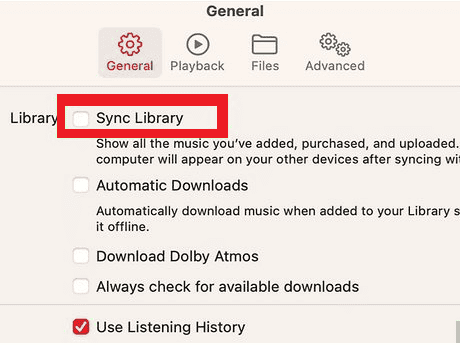

This setup helps Apple Music personalize playlists and suggestions over time.
Finding and Playing Music
You can search for music in several ways:
- By song, album, artist, or genre
- Through curated playlists
- Using the Listen Now tab for recommendations
Unlike radio-style services, Apple Music lets you play exact songs on demand. You’re not limited to shuffled stations unless you choose them.
Download Songs for Offline Listening
One of the most useful features to learn when exploring Apple Music basics is offline playback. Downloaded songs remain available even without an internet connection.
To download music:
- Open a song, album, or playlist
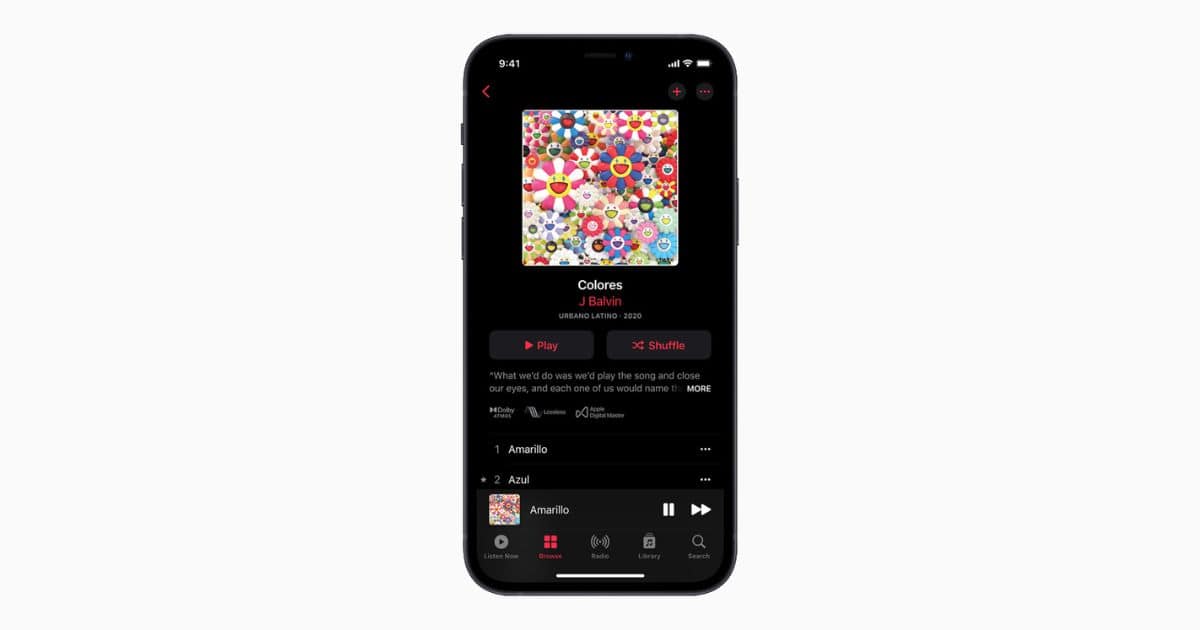
- Tap the three dots (…)

- Select Download
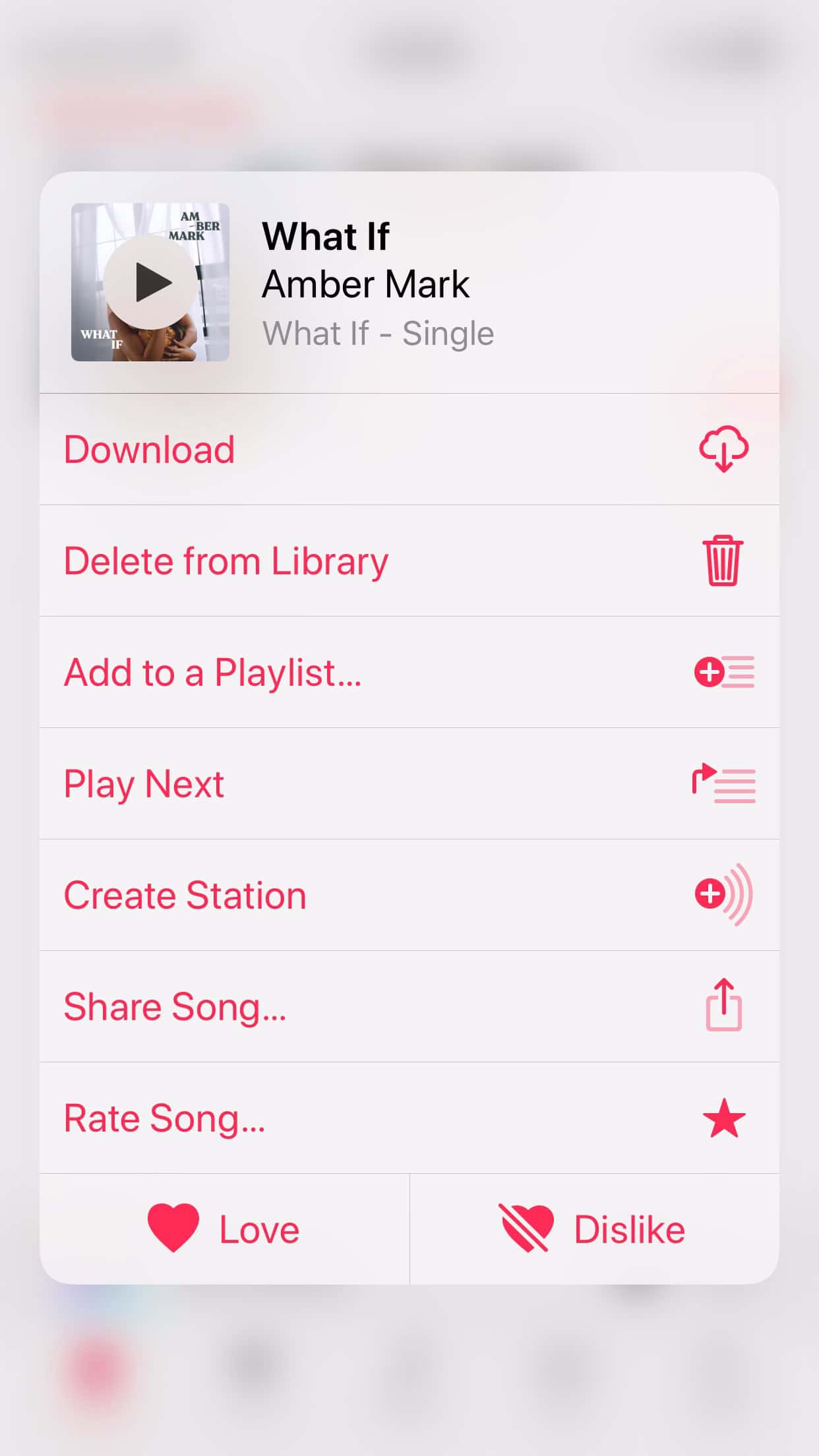


Downloaded tracks appear in your library and are marked for offline use. MacObserver has previously covered download behavior in the app, including how downloaded songs interact with system features, in its guide on downloaded songs in Apple Music.
Managing Your Library Across Devices
Apple Music utilizes iCloud Music Library to keep your songs synced across all your devices. Songs you add or download on your iPhone appear on your iPad and Mac automatically, as long as you’re signed in with the same Apple ID.
On a Mac, you can also organize music manually by:
- Creating smart playlists
- Editing song metadata
- Sorting music by artist or album
Using Apple Music on the Web and Mac
If you don’t want to install the app or are using a shared computer, Apple provides a browser-based experience. The official Apple Music web user guide explains how playback, libraries, and playlists work when accessed online.
The interface mirrors the app closely, making it easy to switch between devices without relearning controls.
Understanding Apple Music Features
The app includes more than standard streaming. Core features include:
- Curated and algorithm-based playlists
- Lyrics view and sing-along mode
- Lossless audio and Spatial Audio on supported devices
Apple outlines everything included in Apple Music features, and there’s less variation between plans compared to other streaming services.
Managing or Cancelling Your Subscription
If you’re trying Apple Music and decide it’s not for you, subscription management is straightforward. MacObserver has already explained how to cancel an Apple Music subscription directly from your iPhone or Apple ID settings.
Once canceled, access continues until the end of the billing period.
Final Takeaway
Learning how to use Apple Music effectively helps you get more out of the service beyond simple streaming. It works best when you take advantage of its on-demand playback, offline downloads, and cross-device syncing.
Whether you’re listening casually or building a full music library, Apple Music offers enough flexibility to suit different listening habits as long as you know where its key features are and how to use them effectively.


Since the last iPhone update my Apple Music screen is black and I can’t shuffle my music. What has happened?
Pair devices