
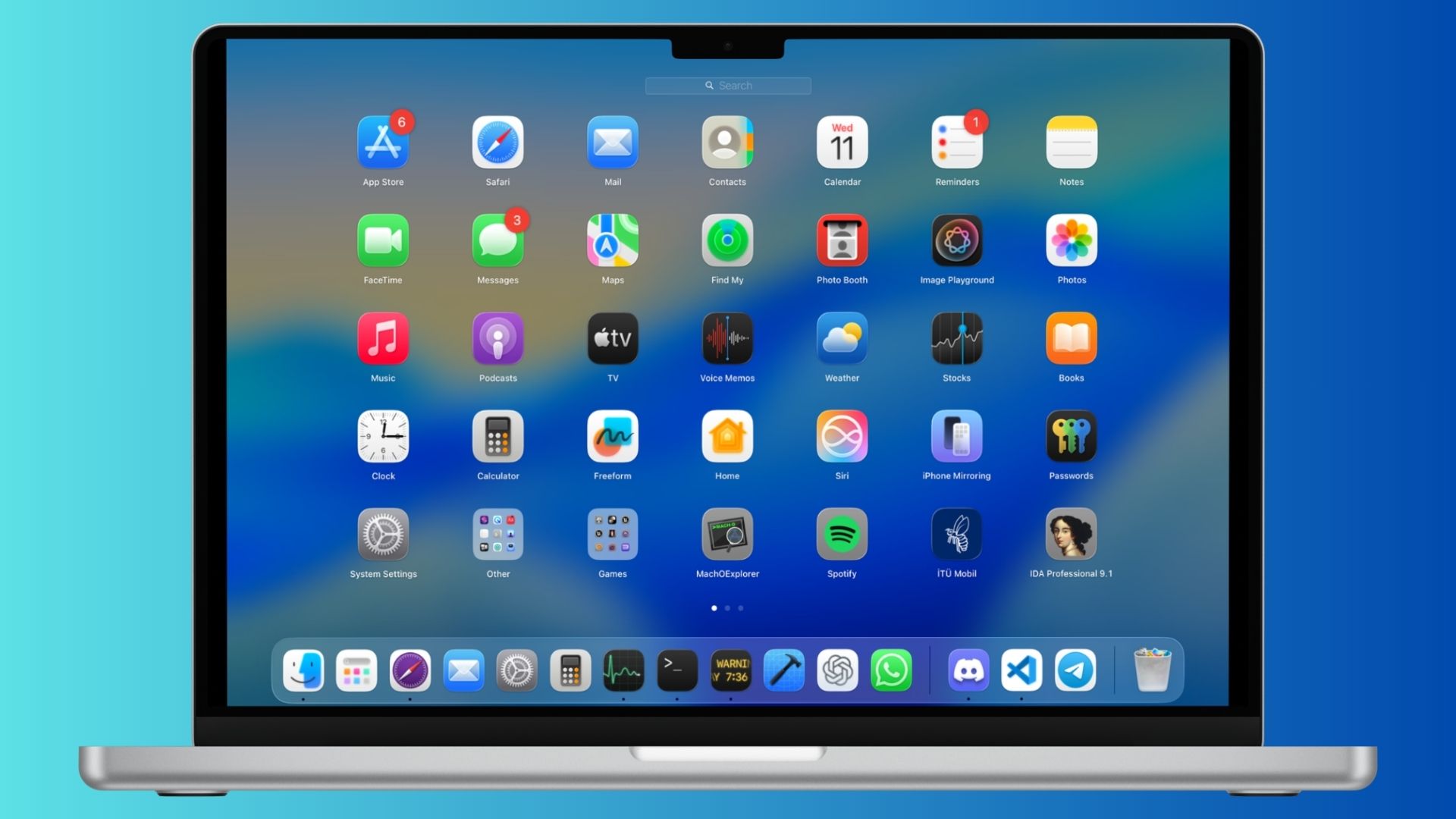
The official release of macOS 26 Tahoe confirms the permanent end of Launchpad, the full-screen app organizer that had been part of the Mac experience since OS X Lion in 2011. During early betas, users could restore Launchpad through a Terminal command, but this workaround no longer functions in the final build.

Apple has replaced Launchpad with a redesigned Spotlight and a new Apps interface. Spotlight now integrates app launching along with features such as clipboard history and Shortcuts support, while Apps offers a simplified list or grid view of installed software. What users lose is the ability to create folders, organize multiple pages, and visually arrange apps.
Why the trick fails now
In macOS 26 betas, advanced users could run system-level commands in Terminal to disable Spotlight’s new interface and re-enable Launchpad. The method required creating a feature flag directory and modifying Spotlight preferences with sudo commands. When successful, Launchpad returned but at the cost of disabling new Spotlight features.
Don’t miss the best of The Mac Observer
Set us as a preferred source and our Apple reporting ranks higher in your Google Search results and Discover feed — one tap, no account changes.
That loophole is closed in the public release. If you attempt the same steps in Tahoe’s final version, Spotlight and the new Apps interface stop working. Restoring them requires running the reverse commands in Terminal. Apple has effectively removed the hooks that allowed Launchpad to be revived, signaling the end of official support.
Step-by-step: What worked during the beta
For historical reference, this was the method that temporarily restored Launchpad during the macOS 26 beta period:
- Open Terminal from Applications > Utilities.
- Run:
sudo mkdir -p /Library/Preferences/FeatureFlags/Domain - Enter your Mac admin password when prompted.
- Run:
sudo defaults write /Library/Preferences/FeatureFlags/Domain/SpotlightUI.plist SpotlightPlus -dict Enabled -bool false - Restart your Mac.
To revert back to Spotlight, you would repeat the steps but run this command in step 4 instead:
sudo defaults write /Library/Preferences/FeatureFlags/Domain/SpotlightUI.plist SpotlightPlus -dict Enabled -bool true
This process only worked on certain beta builds. By beta 4, it broke Spotlight entirely, and with the public release, it no longer works at all.
Why Launchpad still mattered
For some users, Launchpad offered more than nostalgia. It acted as a visual extension of the Dock, especially for people with many applications. It provided a grid layout, folders, and multiple pages that made it easier to locate utilities without recalling exact names. Apps in Tahoe, by contrast, functions more like a simplified Applications folder. You can sort apps by category or name, but customization is gone.
Macworld reported that Launchpad’s removal had been planned for macOS 26 and that the Terminal trick only remained functional in early betas. The site confirmed on September 18, 2025, that the workaround no longer works in the final release.
Launchpad had been part of macOS since 2011 and its removal aligns with Apple’s push to unify search and app launching into Spotlight.


What a step backward! Back to the world of creating shortcuts and placing them on the desktop. I have not done so yet so i dont know if that is possible or even if it would work. Does Apple still include Human Factors in its design process?
I used launchpad folders to organize workflows so that apps I used together or that accomplish the same tasks were accessible within the same folder. I can’t even use categories in the new spotlight app to accomplish this because they are immutable and inaccessible. Spotlight is the antithesis of a UI. I suppose the next “upgrade” will feature a command line only interface?!
Yep. I use launchpad all the time. And I dearly miss it. Apple could have left Launchpad and introduce the better Spotlight. This “Apps” is completely backward – one needs to search for that app that is not used very often; I don’t know its name so that I can’t type; And because there is no folder, I need to scroll through a list of apps that no one uses (dictionary, font book, Photo Booth, even Mission Control: no one goes into the App list to click on Mission Control). This is a really bad apple!