

Apple has released iOS 26.2, a significant mid-cycle update with highly anticipated features and critical stability enhancements. It refines the user experience by debuting a sophisticated set of enhancements to the Reminders app, Apple Music, Apple Podcasts, and Liquid Glass design elements, along with improvements to AirDrop safety and general system reliability.
The update also brings extensive performance optimizations to ensure all devices run smoother and more efficiently. Crucially, iOS 26.2 delivers security fixes and refinements to reminder alerts, display customization, and media features, addressing several usability concerns reported by users. These adjustments make troubleshooting and managing your iPhone’s longevity easier and faster than ever.
Table of contents
Methods
The Battery screen highlights unusual activity and gives clear steps to address it. Below are the practical methods you can use, with step-by-step actions for each method.
1. Check the New Battery Graph
The graph compares your recent battery drain to expected patterns. Use it to spot sudden drops or spikes that indicate abnormal drain.
- Open
Settingson your iPhone. - Tap Battery.
- Examine the graph that shows current drain versus normal usage.
- Note any spikes or sustained drops that do not match your activity.
2. Identify Problem Apps with Orange Highlights
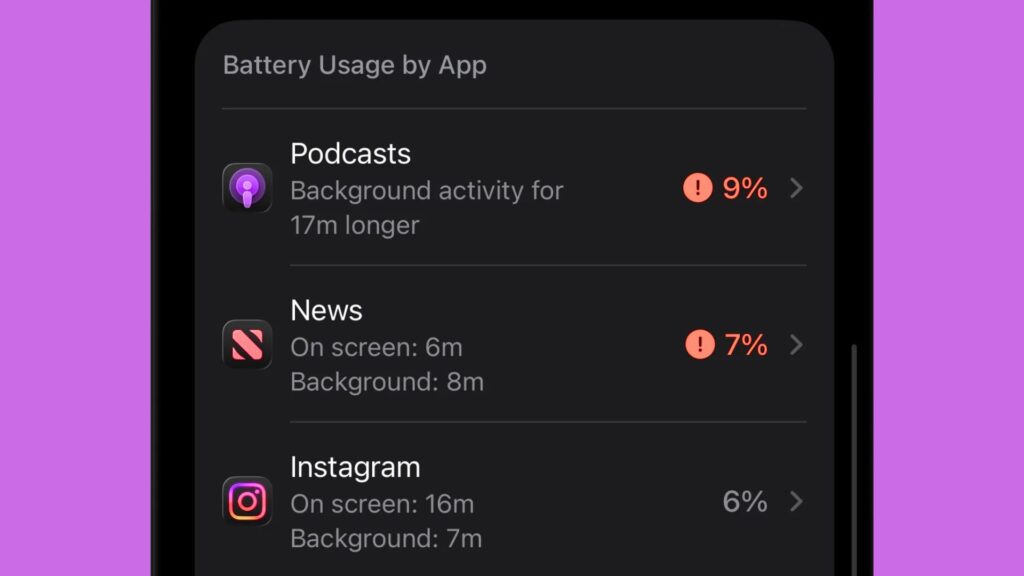
Apps that use more power than expected receive an orange highlight. This visual cue saves you from scanning long lists and guessing which app is at fault.
- Open
Settingsand go to Battery. - Scroll the app list and look for items marked in orange.
- Tap a highlighted app to view on-screen and background activity details.
- Compare the app’s usage with how much you actually used it. If the numbers do not match, take corrective action such as updating, restricting background activity, or reinstalling the app.
3. Act on Intelligent Suggestions
iOS 26.2 displays suggestions tied to the abnormal behavior it finds. Follow these to eliminate common causes quickly.
- In Battery, look for suggestion cards under the graph.
- Read the suggested cause, such as background activity or outdated app code.
- Apply the recommended action: update the app, disable background refresh, or close the feature noted.
- Monitor battery behavior for the next 24 to 48 hours to confirm improvement.
4. Force Quit Problem Apps
Force quitting can stop runaway background processes immediately. Use this as a short-term fix while you investigate persistent causes.
- From the Home screen, swipe up and hold to open the app switcher.
- Find the app flagged in the Battery screen.
- Swipe the app up and off the screen to close it.
- Check the Battery screen again after a few hours to verify reduced drain.
Tips
- Restart your iPhone if battery drain continues after following suggestions.
- Keep apps and iOS updated to fix bugs that cause abnormal battery use.
- Limit Background App Refresh for apps that do not need it.
- Avoid force-quitting apps regularly, since iOS handles memory efficiently when you do not need a quick fix.
- If an app repeatedly shows orange highlights, reinstall it or contact the developer.
FAQs
No. Orange means the app consumed more power than expected based on your recorded usage. It does not mean the app is malicious.
As of iOS 26.2, Apple does not offer a toggle to disable these suggestions inside Battery settings.
Yes. Reinstalling clears caches and corrupted local data that can cause abnormal background activity.
Yes. The feature highlights both apps and system activity that appear to draw more power than normal.
Summary
- iOS 26.2 adds features and critical stability and performance improvements.
- The update significantly enhances the iPhone’s Battery management screen.
- A new Battery graph helps users spot sudden, abnormal power drain spikes.
- Apps using excess power are now clearly marked with an orange highlight.
- Intelligent suggestions offer targeted, quick fixes for battery problems.
If you’re experience more issues, see our guide on known iOS 26.2 bugs and their fixes.
Conclusion
The iOS 26.2 Battery screen turns passive data into action. It points you to the apps and processes that cause unexplained battery loss and offers targeted fixes you can apply immediately. If your iPhone has been losing charge faster than you expect, open Settings, check the new Battery screen, follow the suggestions, and you will likely stop the problem quickly.


