

The Notes app got a big upgrade in iOS 18 and iPadOS 18. This widely requested update introduces native text highlighting. This simple addition changes how users work with notes. It moves beyond plain text for better organization. Students and professionals love this new feature. Highlighting brings useful new functionality to iPhone and iPad.
Table of contents
Enhancing Note Organization and Readability
Highlighting text is a major improvement. It benefits anyone using the Notes app frequently. This feature finally allows for better color-coding. It also helps visually structure complex notes. Key information becomes instantly recognizable. Moreover, this tool works well with other features. It pairs nicely with the ability to colorize text in the Notes application.
Activating the Text Highlighting Feature
Implementing a highlight is fast and very easy. You can mark up important text quickly. This core process improves notes instantly. It adds clarity to your visual hierarchy. For a full guide on How To Highlight Text in Notes in iOS 18 and iPadOS 18, follow these simple steps:
1. Open the Notes App and Select Text
Start by launching the Notes app on your device. Next, find the text you need to emphasize. Select the specific word or phrase you want to highlight. You can select single words or entire paragraphs easily.

2. Access the Formatting Menu
After selecting your text, tap the Aa icon. This icon sits just above the virtual keyboard. Tapping it opens the text formatting menu. This menu contains all your styling options.

3. Choose the Color Palette
Within the formatting menu, find the color palette icon. This icon is usually located on the right side. Tap it to expand the color choices. This action brings up the highlight color options.
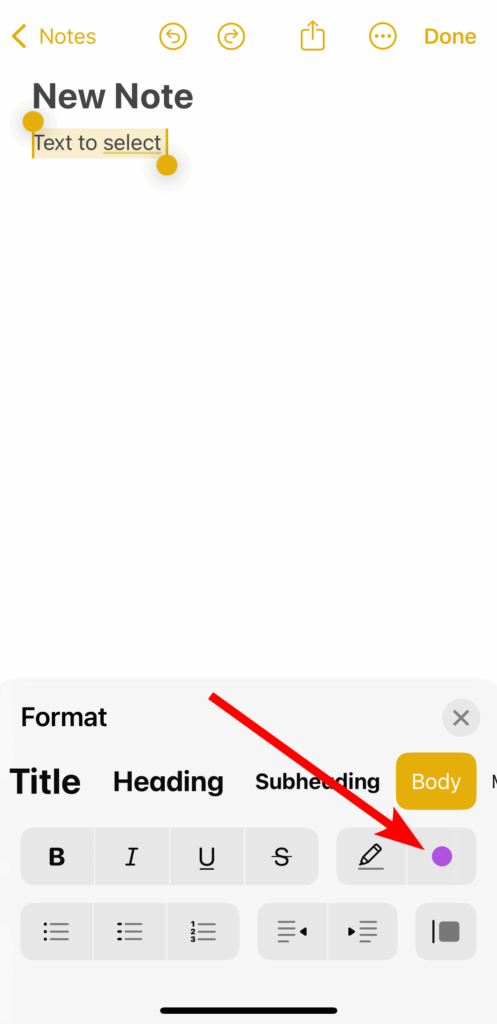
4. Select Your Highlight Color
Finally, scroll through the available colors. Options include purple, pink, orange, mint, and blue. Choose the color you want to apply.

The selected text will instantly display the highlight color. This makes the text stand out immediately.

This new tool is one of many useful new features. You should also check out 8 powerful new iOS 18 features available now.
FAQ
Yes, both iOS 18 and iPadOS 18 include highlighting. The feature works on both iPhone and iPad.
Yes, the app is very flexible. You can apply different colors to phrases. This works even within the same sentence.
Colors include purple, pink, orange, mint, and blue. These options support many color-coding strategies.
Maximizing Productivity with iOS 18 Notes
The new text highlighting feature is excellent. It is a big improvement in the quality of life. Highlighting greatly increases the Notes app’s value. The app now acts more like a real digital notebook. It offers tools for better visual organization. Users can now easily color-code their content. This helps with efficient work and study. Learn the simple steps to select and color text. You will transform your notes into readable documents. To explore more key iOS features and guides, visit the iOS features section of The Mac Observer.


This does not describe highlighting, it is text color. I want the equivalent of a yellow highlighter.
Did not find this to work on iphone. Is it mac only?