
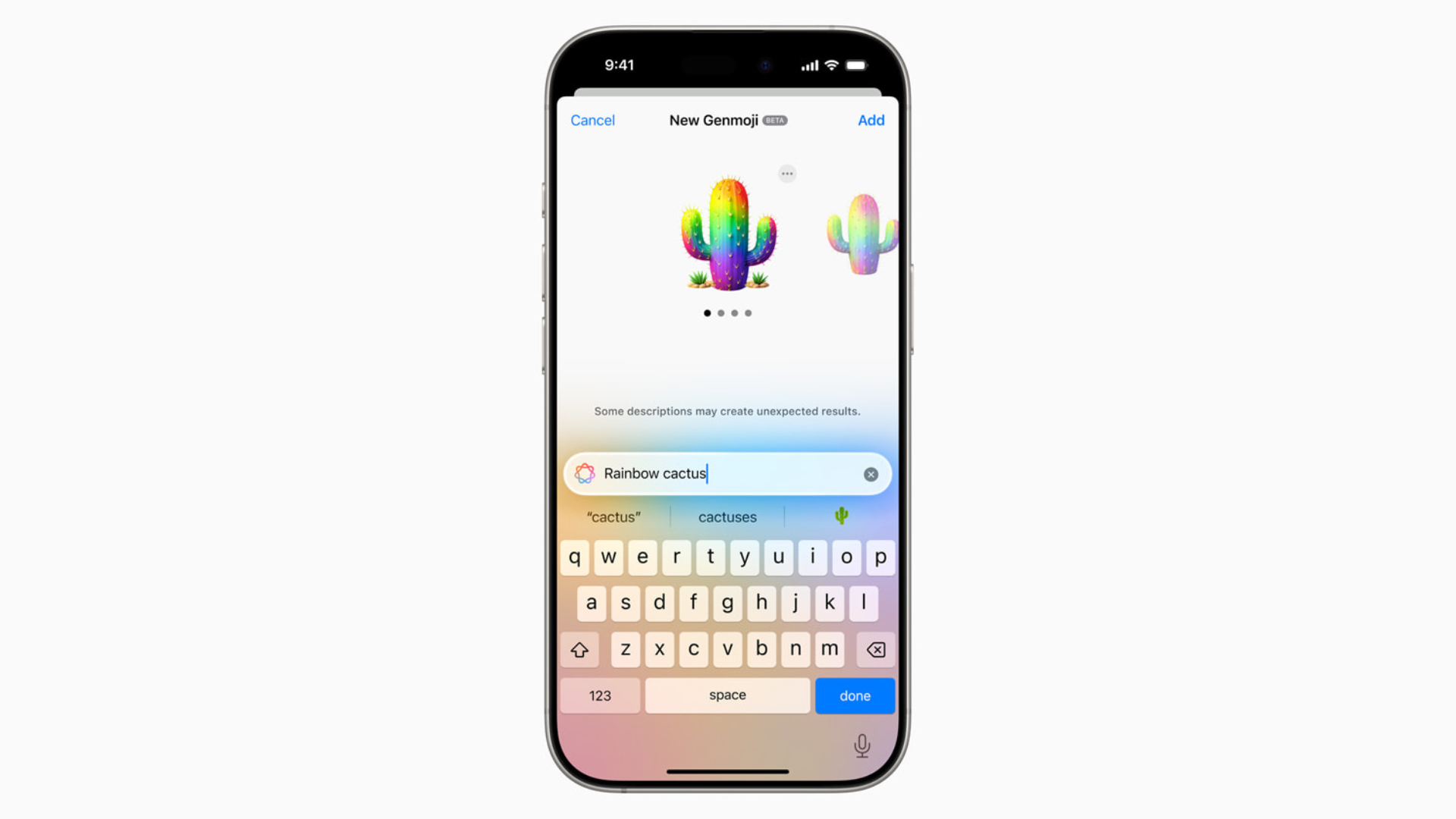
With the release of iOS 18 and Apple Intelligence, Genmoji has become one of the most talked-about features, allowing users to create personalized emojis using text prompts and facial expressions. However, some iPhone users have encountered a frustrating issue: Genmoji getting stuck on “Downloading Support.” This bug prevents the feature from loading properly, even on compatible devices. Fortunately, there are several ways to resolve it.
Table of contents
Why Genmoji Gets Stuck on “Downloading Support”
The “Downloading Support” message typically appears when Genmoji is trying to fetch necessary assets from Apple’s servers. This can happen due to:
- Incomplete iOS installation
- Network connectivity issues
- Server-side delays
- Device compatibility problems
- A bug in the Genmoji framework
Before diving into fixes, ensure your iPhone is running iOS 18 or later and supports Apple Intelligence features.
Step-by-Step Fixes for Genmoji Downloading Issues
Check Your Internet Connection
A stable internet connection is essential for Genmoji to download its support files. If you’re on cellular data, switch to a reliable Wi-Fi network. Avoid using VPNs, proxies, or firewalls that might interfere with Apple’s servers. These can block or delay the download process, especially if Apple Intelligence features are trying to authenticate in the background.
Restart Your iPhone
Sometimes, a simple reboot can clear temporary system glitches. Restarting your iPhone refreshes background processes and may allow Genmoji to resume its download. To do this:
- Press and hold the side button and either volume button.
- Slide to power off.
- Wait a few seconds, then turn your device back on.
Toggle Apple Intelligence Off and On

Toggling Apple Intelligence off and back on can sometimes help fix Genmoji when it’s stuck on “Downloading Support.” This action forces the system to reinitialize the Genmoji framework and may trigger a fresh attempt to download the necessary support files.
- Go to Settings > Apple Intelligence & Siri.
- Find the Apple Intelligence toggle and tap it to turn it off.
- Confirm your choice by tapping Turn Off if prompted.
- Restart your iPhone.
This refresh can be especially effective if the initial download was interrupted or if the system failed to authenticate the feature properly.
Sign Out and Back Into iCloud
Genmoji relies on iCloud for syncing and personalization. If there’s a sync issue, signing out and back in can help:
- Go to Settings > [Your Name] > Sign Out.
- Restart your device.
- Sign back into iCloud and check if Genmoji resumes downloading.
Be sure to back up your data before signing out to avoid losing any unsynced content.
Reset Network Settings
Misconfigured network settings can block Apple services. Resetting them restores default configurations:
- Go to Settings > General > Transfer or Reset iPhone > Reset.
- Tap Reset Network Settings.
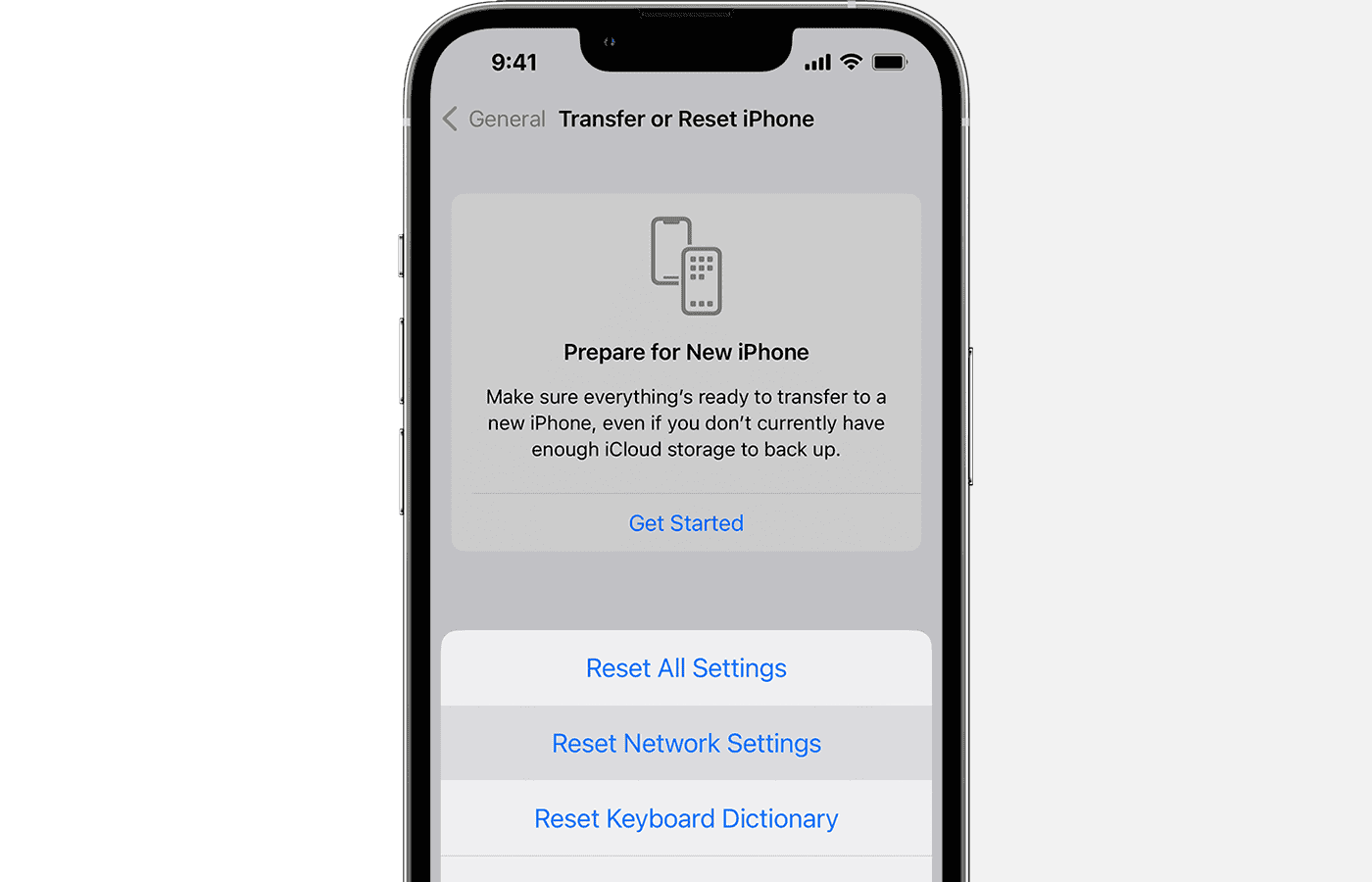
- Confirm your passcode and restart your device.

Note: This will remove saved Wi-Fi networks and VPN settings, so reconnect manually afterward.
Try Creating a Genmoji

Sometimes, initiating a Genmoji creation can force the download to complete. Learn how to make your own emojis using iOS 18’s built-in tools. If Genmoji still doesn’t appear, follow this guide to fix Genmoji not showing up.
FAQ
No. Genmoji requires iOS 18 and Apple Intelligence, which is limited to newer models like iPhone 15 Pro and Pro Max.
Initial downloads require internet access, but once installed, Genmoji creation can work offline.
No, but it may remove temporary files. Always back up your device before performing resets.
Yes, check out these genmoji designs to try for inspiration.
Get Genmoji Working Again
If Genmoji is stuck on “Downloading Support,” the issue is usually temporary and solvable with the steps above. Apple may also release patches to improve server-side reliability. For users exploring the latest enhancements, Genmoji 2.0 offers deeper customization and smarter emoji generation—making it worth the effort to get Genmoji working smoothly.


None of this works. Need a patch!