The Mac Observer

OS X Lion: Screen Recording in QuickTime X

TMO Talk (104)

I like QuickTime X a lot. A whole lot. I’ve been using its screen recording feature to help out my less tech-savvy acquaintances since it was introduced in Snow Leopard. For Lion, Apple’s upped the ante a good bit on what you can do with this, and I’m here to show you what’s new and how to use it. We’ll have fun, so don’t you worry your pretty little heads about that.

If you aren’t already familiar with the program, QuickTime is Apple’s video player. It does a lot more than that, however—you can make audio and movie recordings with it, do some basic video editing, and export your creations to different websites and applications. The screen recording feature is my favorite thing about it, though. Whenever you need to show your Uncle Ronnie just how to access iTunes’ preferences or how to edit that document you sent him, a video is an invaluable tool for doing so, especially for the folks that have a hard time with e-mailed instructions. Plus, let’s face it—sending a how-to video earns you major geek points, and who wouldn’t want that? 

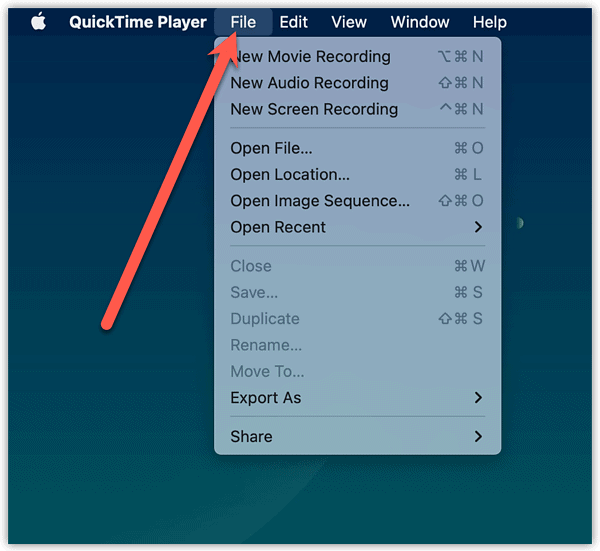
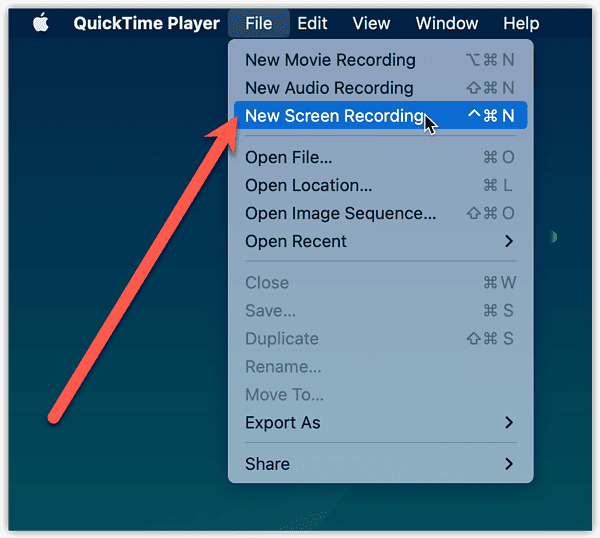
So go to your Applications folder and open QuickTime Player. (If you see QuickTime Player 7 there, too, that’s not what we’re looking for—that’s an older version of the software.) If you haven’t opened the program before, you’ll probably just see the menu bar appear. From there, choose File > New Screen Recording (or hit Control-Command-N). 

You’ll get a little black Screen Recording window from which to control your options and start recording. When you click the drop-down arrow, you’ll see even more stuff you can change, including the location where your movie will be saved.

Make sure to toggle the “Microphone” option off of “None” if you’d like your viewers to be able to hear you talk while they’re watching your video.


The choice I have highlighted above—“Show Mouse Clicks in Recording”—is an especially helpful new feature in Lion. With this, clicking on something during the recording will make a small circle appear briefly around your cursor to give your audience a visual cue about where you’ve clicked.

Another shiny new plaything is the ability to choose an area of your screen to record rather than having to make a video of the entire thing (as was the case in Snow Leopard). When you click the record button, here’s what QuickTime will tell you all polite-like:

So drag to select an area that you’d like to record, and then when you release your mouse button, you’ll be able to resize the box you’ve made by dragging the familiar handles around it. You can also click and hold on the interior of the box and drag to adjust its position on your screen.

When you’re satisfied, click “Start Recording,” or you can hit Escape to exit out of the box-adjusting window if you don’t want to actually record anything. You tease.

After you’re finished making an instructional video for your technophobe uncle, click the stop button on the black Screen Recording window. QuickTime will then process your work and save the .mov file to wherever you’ve assigned it to do so. Using the “Share” menu option, you can publish your tutorial to YouTube, send it directly to an e-mail, or even put it on Facebook (if you must).

Pretty neat! If you’re interested, you can check out Apple’s full list of new QuickTime features. I sincerely hope, though, that my relatives never find out about this stuff. I give them enough free tech support as it is.

Sorry, Uncle Ronnie.

Post A Comment or Log-in. Need an account? Register here.

13 Observer Comments

Nice!  I hadn’t tried this yet, and now I definitely will!

   Actions Paul Goodwin said on September 10th, 2011 at 10:17 AM (Edited: 09/10/2011 10:20 AM):

Melissa. I like this. My head is big and pretty. Can you clarify what features in QuickTime X don’t work in Snow Leopard? Or point me to a resource? I have a 2006 MacBook Pro that can’t run the new OS. Is QuickTime X the replacement for what used to be called QuickTime Pro? I haven’t researched QuickTime in a while. 

Thanks

Excellent tip, I had no idea that QuickTime X had this built-in.  Thanks for sharing!

This is terrific! This raises more questions though. Does capturing a smaller area of the screen improve framerates? I would presume it does. And what is the “cap” on the framerate? Can it be set?

If I wanted to use this as a quick and dirty way of converting a GIF or Flash animation to video I may prefer to cap the framerate to something small, but if I’m capturing my sweet moves in some video game I wouldn’t want my exploits to be capped at, say, 30fps, if my computer had the horsepower to do better.

You’re welcome, Ross and Substance! smile

   Actions Melissa Holt said on September 12th, 2011 at 5:01 PM (Edited: 09/12/2011 5:03 PM):

Melissa. I like this. My head is big and pretty. Can you clarify what features in QuickTime X don’t work in Snow Leopard? Or point me to a resource? I have a 2006 MacBook Pro that can’t run the new OS. Is QuickTime X the replacement for what used to be called QuickTime Pro? I haven’t researched QuickTime in a while. 

Hello big-and-pretty-head Paul,

Snow Leopard’s missing the “select a portion of the screen to record” feature (in SL, all you could do was the full screen). Also absent is the “Show Mouse Clicks in Recording” option. If you’d like a complete list of what’s new, here it is!

QuickTime X isn’t really a replacement for QuickTime Pro; the feature set is quite different. For example, you can’t do screen recording at all in Pro, and you don’t have nearly as many exporting formats and options in X as you did in Pro. You can read the Wiki article on QuickTime for more information if you’d like.

I hope that’s what you were looking for, and thanks for reading!
—Melissa

Thanks Melissa. That was informative and useful, like all your articles. Actually my wife is the video expert with the 2006 MBP. Jeez. She finds all this out she’ll either horn in on my iMac or go after a new MPB. The Lion only features by themselves are pretty key.

I hate to ask another question, but Is QT X included in any of Apple’s other video software?

This raises more questions though. Does capturing a smaller area of the screen improve framerates? I would presume it does. And what is the “cap” on the framerate? Can it be set?

It seems that capturing a smaller area does increase frame rate. A full-screen recording I just took has a FPS of 14; one I took of the smallest size QuickTime will allow has 37. Excellent question!

I don’t know if there’s a cap on the frame rate (I’m no video expert by far). And as far as I know, you can’t set it. I checked the .plist file, and I didn’t see anything relevant to change.

As I said, though, I’m no video maven, so it’s completely possible that there are ways to do so of which I’m not aware. I’m sure that using third-party software would probably be a good bet for you, too, considering that you need such control. I use Snapz Pro X for all of my screenshots, for example, and I know it will let you set the frame rate of screen recordings.

Hope that’s helpful!
Melissa

I hate to ask another question, but Is QT X included in any of Apple’s other video software?

I appreciate your kind words, Paul. smile

As far as I know, QuickTime X is not included with Final Cut Pro or Studio. I’m pretty sure its only distribution outlet is in its being bundled with the OS.

Great article - thanks!  Is there a way to combine regular video and screen capture in one video ?

   Actions ilikeimac said on November 5th, 2011 at 7:24 PM (Edited: 11/05/2011 7:27 PM):

@T: Yes, you can take screen recordings and edit them like other video. Here’s a tutorial on some tools for capturing the screen and the webcam at once.

http://macmost.com/screen-capture-plus-camera.html

Thank you, that was very helpful

Hey T,

I second ilikeimac’s excellent comment, and I’d like to add that I too recommend Wirecast. I’ve used it and thought it was great.

—Melissa

Post A Comment or Log-in. Need an account? Register here.
 

Recent Headlines - Updated May 27th

Sat, 10:00 AM
MacOS KenDensed - MacOS KenDensed: Apple’s Patent Lawsuit & Antitrust Shuffle
Fri, 5:58 PM
News - Sotheby’s to Auction Steve Jobs Atari Memo (Photo Gallery)
5:42 PM
Free on iTunes - 3 Free iOS Apps for News Hounds
3:00 PM
Rumor - Nest Thermostat Reportedly Coming to Apple Retail Stores
2:40 PM
Particle Debris - The TV Industry’s Dreadful Little Secret
2:33 PM
News - Mobile Devices Account for 20% of Web Traffic in US, Canada
12:49 PM
News - Apple Now Offering “Free App of the Week” for iOS
12:21 PM
News - Tim Cook Declines $75 Million Dividend Payout
11:25 AM
News - Absinthe 2.0 Provides Untethered Jailbreak for iOS 5.1.1
11:09 AM
Quick Look Review - F18 Carrier Landing (iOS) is a Boatload of Fun
10:51 AM
TMO Appearances - Jeff Gamet talks Cool Apps & Accessories on Not Another Mac Podcast
10:12 AM
Hot Forum Topic - Forum Poll: Which is Your Favorite Photo Sharing Service?
 

The Mac Observer Reader Specials

  • Macsales for the Right Mac Memory. Easy to Use Online Guide for no Guesswork! Mac Pro up to 128GB, iMac up to 32GB. MacBook/MB Pro, & Mac mini up to 16GB. - Macsales.com
  • Mac RAM Upgrades: MacBook Pro 16GB kits $475, 8GB Kits for $119.99! iMac 16GB RAM Kits (4x 4GB) for $229.99! Mac Pro Memory 32GB Kit for $399.99, 64GB Kit for $889.99! Mac Hard Drives 2TB Seagate SATA II for $249.99! Click Here!
  • Macpokeronline.com If you're using a Mac, then you've gotta check out PokerOnAMac.com. Online casinos and poker rooms are literally giving away cash and the casino sites at Poker on a Mac do the unthinkable, they actually reward! Join today, the download is free!
  •  Looking to find online casinos for mac? We can help you find the best real money casino sites where you can play your favorite casino games including blackjack and slots.

Apple Stock Quote (AAPL)

Loading...

Hot Topics

TMO Express

Join the TMO Express Daily Newsletter to get the latest Mac headlines in your e-mail every weekday. Find out more!

Top Deals From DealBrothers.com

Recent Features

Support The Mac Observer

We noticed you may be running AdBlock on your computer. It takes real money to run this site and to deliver the news, tips, and opinions you love to read.

If you wish to block the ads that pay for the creation of our content, we ask that you instead support TMO Directly, either with a $5 monthly recurring contribution, or a one-time donation of any amount of your choice. Thanks!

Subscribe with Paypal Donate with Paypal