

Finder is the command center of your Mac’s file system. It’s where you move documents, delete apps, copy folders, and basically manage everything on your drive. So when a core function like copy-and-paste keeps breaking, it’s hard to troubleshoot because there’s really nowhere else to go.
The best approach is to zero in on the most likely causes. If you’ve already restarted your Mac and the problem persists, here’s what you can try next.
1. Relaunch Finder from Activity Monitor
If Finder’s background processes freeze or glitch, copy-and-paste commands can fail as a result. Manually force-quitting Finder resets its memory state without restarting your entire Mac. It’s a faster and more targeted fix than a reboot, and often all you need. Just follow these steps:
Don’t miss the best of The Mac Observer
Set us as a preferred source and our Apple reporting ranks higher in your Google Search results and Discover feed — one tap, no account changes.
- Press Cmd + Space and search for Activity Monitor.
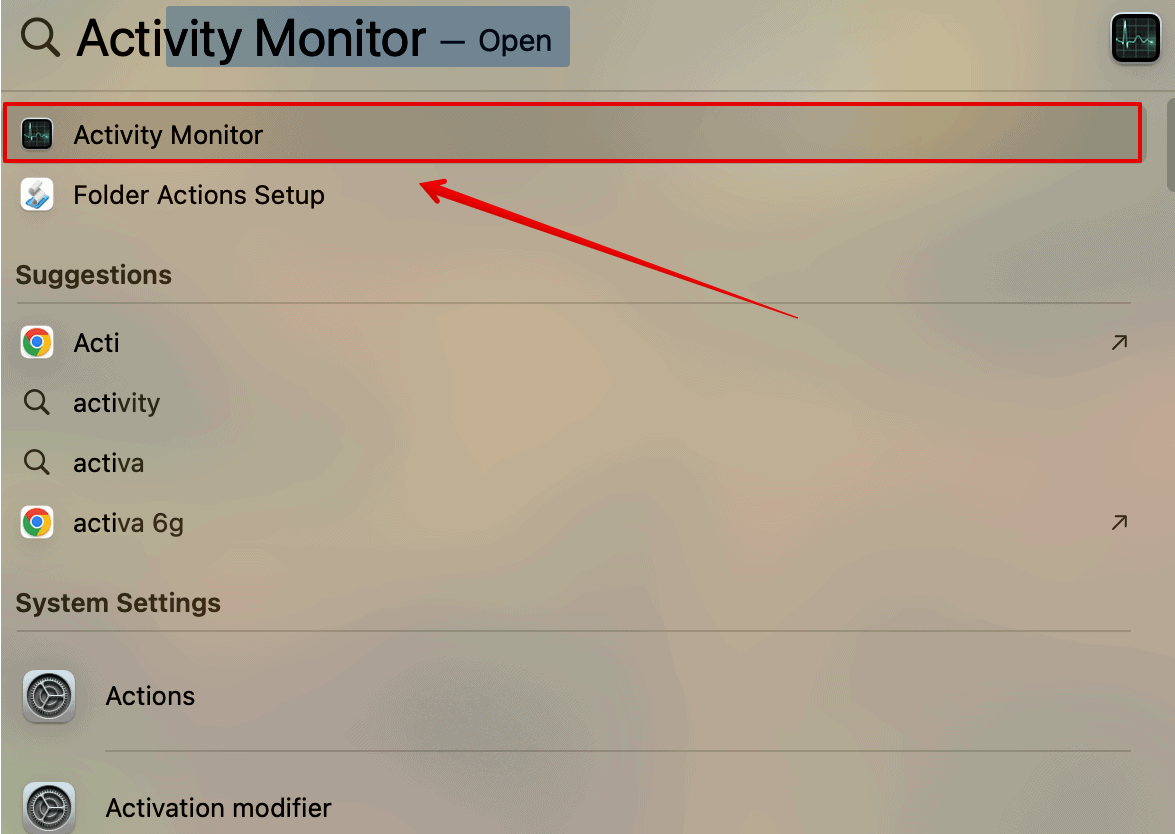
- Open it, then search for Finder in the top-right search bar.
- Select Finder, then click the Stop (X) icon.
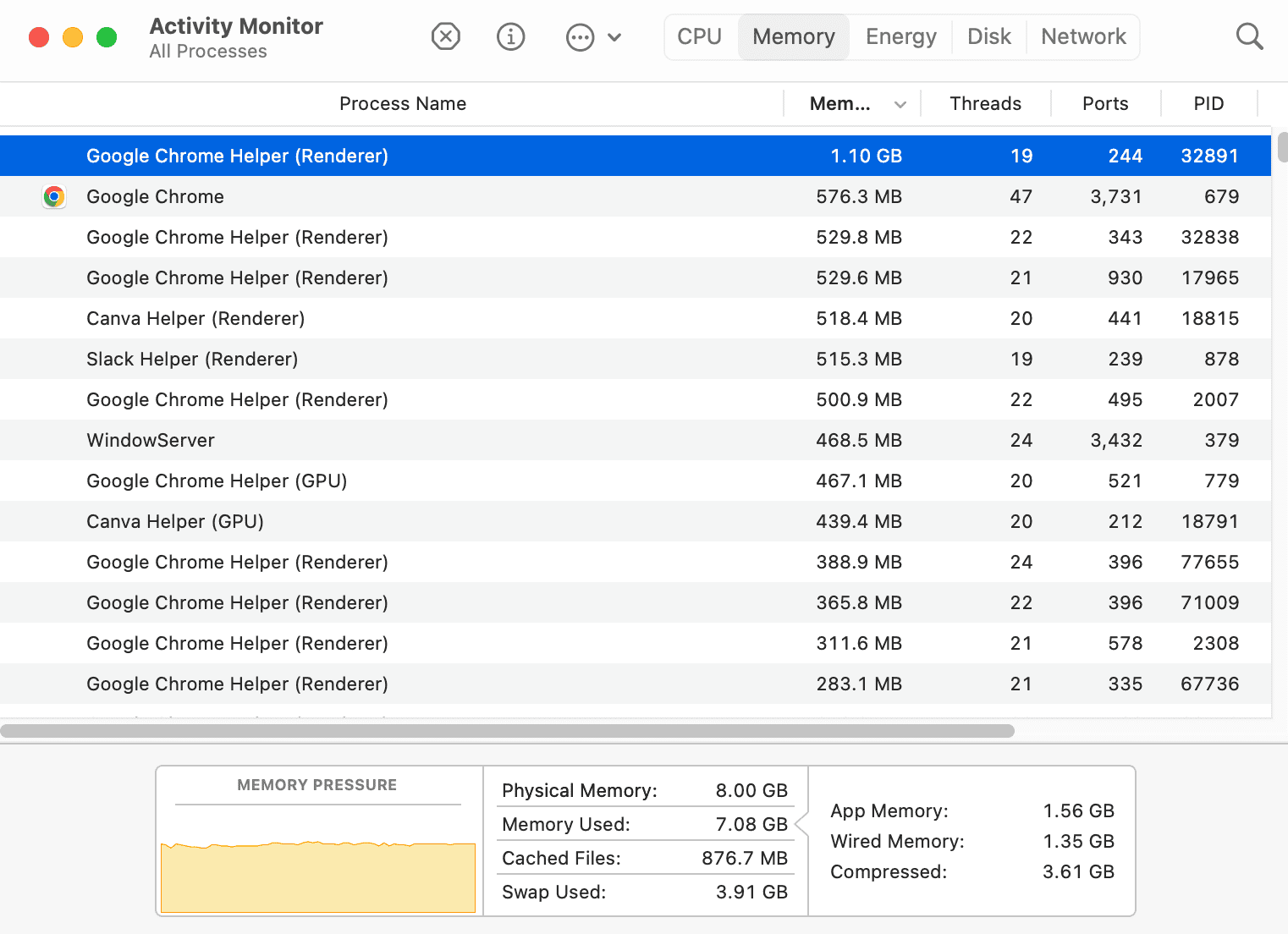
- Click Force Quit to relaunch it.


2. Delete Finder’s Preference File
macOS stores Finder behavior settings in a .plist (preference list) file. If this file becomes corrupted, say, after a system update, it can cause persistent bugs like broken copy/paste. Removing the file forces macOS to rebuild it with fresh defaults.
- Open Finder, press Cmd + Shift + G.
- Type
~/Library/Preferencesand hit Return.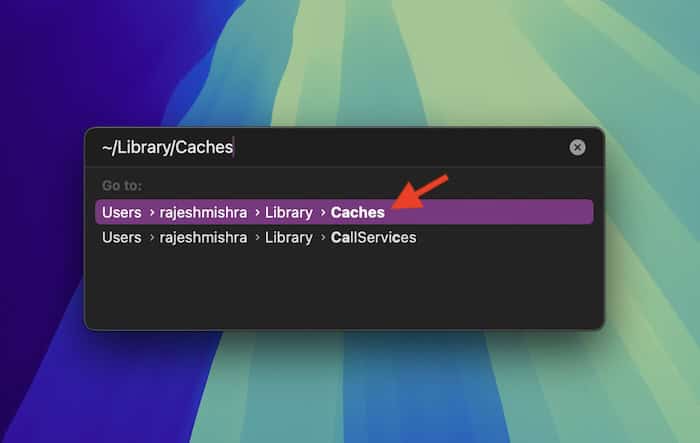
- Find the file named
com.apple.finder.plist. - Move it to the Trash, then restart your Mac.

3. Reset Clipboard Services via Terminal
The system clipboard sometimes desyncs between processes. This can happen after app crashes, memory leaks, or shell-level bugs in macOS 15. Resetting the pboard, the background service responsible for clipboard actions, clears the stale state and restores copy/paste functionality.
- Open Terminal from Spotlight (Cmd + Space, then search “Terminal”).
- Paste
sudo killall pboardand hit Return.
- Press Return, then enter your password if prompted.
- Try copying and pasting again in Finder.

4. Rebuild Launch Services Database
If Finder isn’t recognizing files properly or failing to pass clipboard data between apps, the Launch Services database might be to blame. Rebuilding this macOS-level index can fix deeper issues tied to copy, paste, and file interactions.
- Open Terminal.
- Paste
/System/Library/Frameworks/CoreServices.framework/Frameworks/LaunchServices.framework/Support/lsregister -kill -r -domain local -domain system -domain userand hit Return.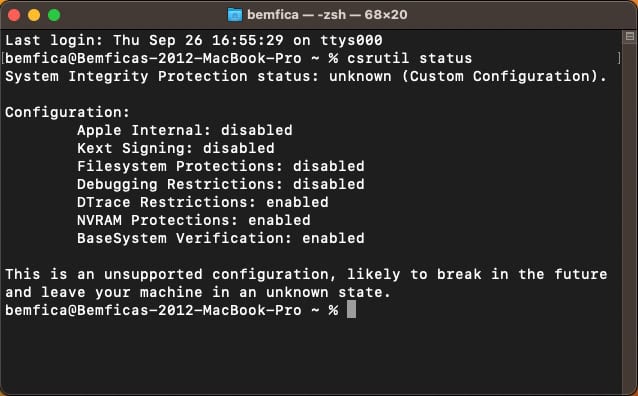
- Reboot your Mac.

5. Check for Conflicting Clipboard Managers or Extensions
Clipboard utilities or Finder extensions can hijack copy-paste behavior, especially if they haven’t been updated for macOS 15. Conflicts often result in partial pastes, broken commands, or missing items in the clipboard stack.
- Go to System Settings > General > Login Items.
- Scroll to Allow in the Background.
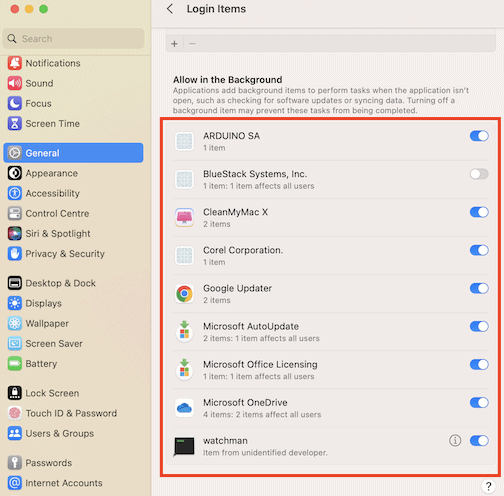
- Disable any third-party clipboard or Finder extensions.
- Restart Finder and test again.

6. Use Disk Utility to Repair Disk Permissions
System permission inconsistencies may prevent Finder from writing to specific directories, causing paste failures. This is rare but can happen after interrupted updates or failed migrations. Running First Aid on your disk resets permission-related issues without deleting files.
- Open Disk Utility (search via Spotlight).
- Select Macintosh HD (or your main volume).
- Click First Aid, then click Run.

- Wait for the process to complete, then reboot.

7. Factory Reset Mac
If Finder’s copy-and-paste feature is still broken after targeted fixes, you might be dealing with a deeper macOS issue. System-level frameworks like FinderSync, launch agents, or even corrupted iCloud metadata could be interfering with file operations. A factory reset removes all user data, installed apps, and conflicting services, bringing your Mac back to a clean slate.
- Click the Apple menu icon > System Settings.
- Select General and scroll down to Transfer or Reset.
- Click Erase All Content and Settings, enter your admin profile’s password, and then wait for your Mac to reboot.
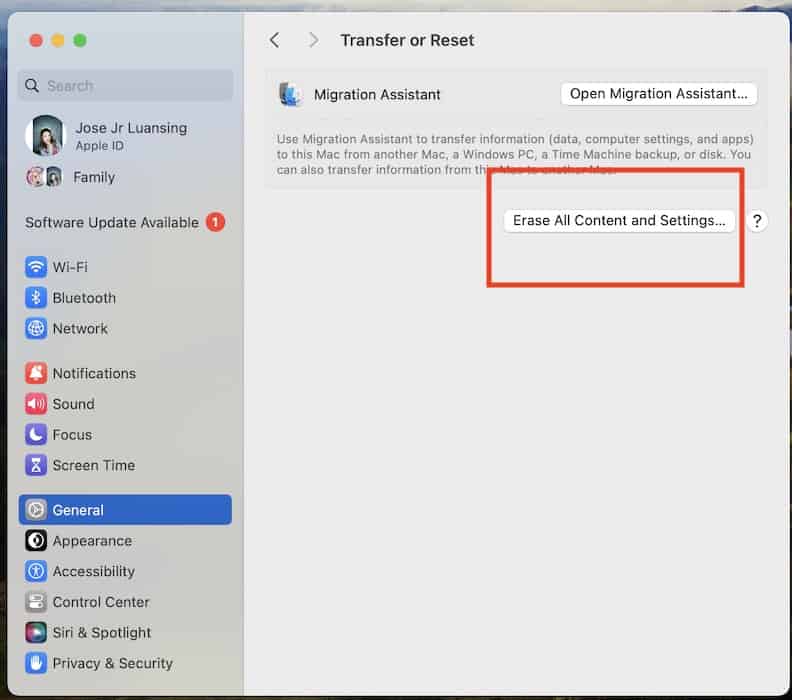
- Restore from Time Machine once it starts up again.

If Finder is still acting up even after a factory reset, you might be looking at a system-level bug tied to macOS 15 itself. You can reach out to Apple Support. Apple’s file manager has already had issues before. If you want to continue troubleshooting, however, check out our guide on what to do if Finder isn’t responding. The app itself might be down.
Does copy and paste keep breaking on Finder? Your files aren’t stuck—don’t worry. Here’s how to troubleshoot Apple’s file manger!


Discussion