

Your Mac’s internal drive is fine for everyday use. But if you frequently download large files or work with media projects, it’s often better to save directly to an external drive. It’s faster and cleaner, plus it keeps your Mac from getting bogged down. You’ll notice it especially when you’re juggling RAM-heavy apps in the background.
Safari generally handles this well, but glitches do happen. And the problem is, you might not realize the download failed until it’s too late. Here’s where to check if Safari won’t save files to your external drive.
1. Check Safari’s Default Download Location
Safari might still be set to download files to your internal drive. If the external drive was previously selected but got disconnected or renamed, macOS reverts to the default location. Try updating the path so that Safari knows where to write new files.
Don’t miss the best of The Mac Observer
Set us as a preferred source and our Apple reporting ranks higher in your Google Search results and Discover feed — one tap, no account changes.
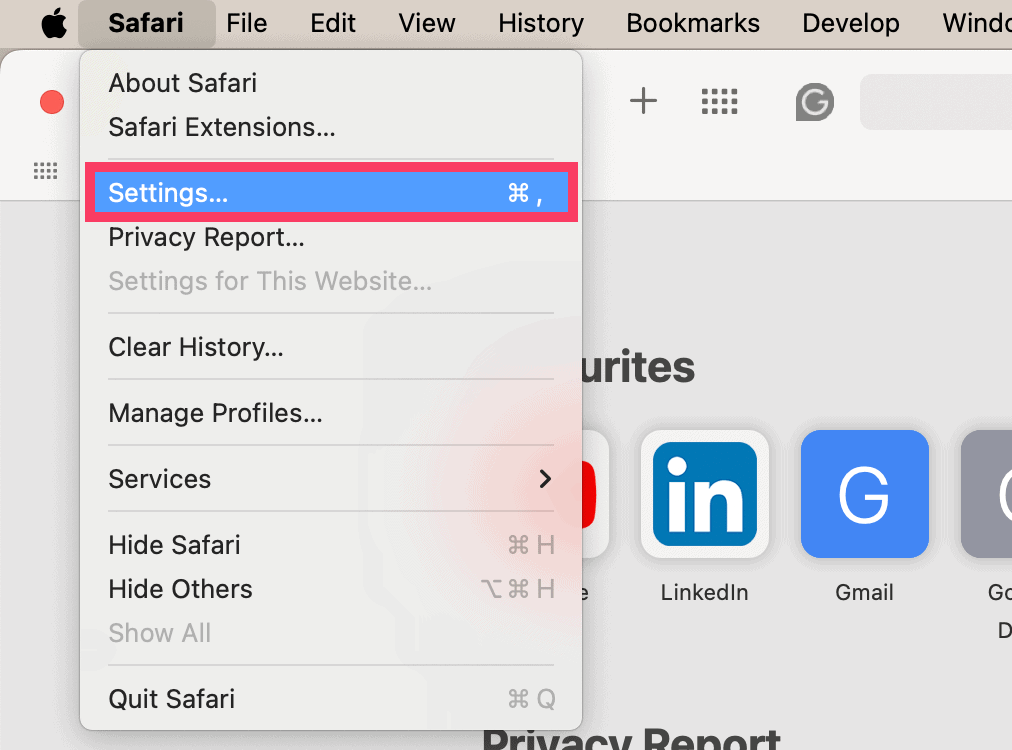
- Open Safari, then click Safari > Settings in the menu bar.
- Go to the General tab.
- Look for the file download location.
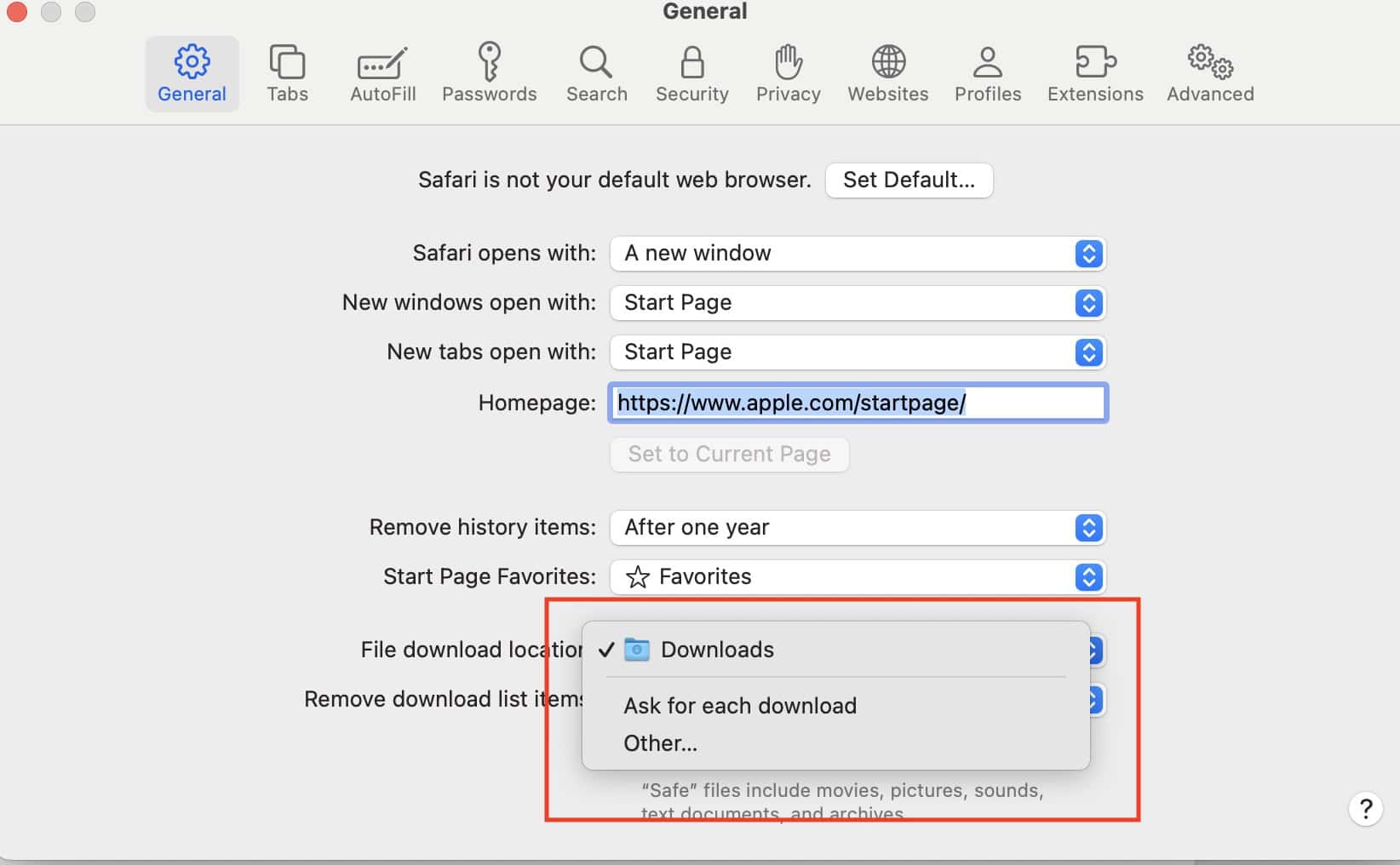
- Choose Other and manually select your external drive.
- Try downloading a file again.


2. Grant Full Disk Access to Safari
macOS restricts third-party and system apps from accessing certain drives unless explicitly granted. If your external drive isn’t formatted in a compatible way (or if Safari lacks permission) you may get a silent failure when attempting to write. Giving Safari full disk access ensures proper write privileges.
- Go to System Settings > Privacy & Security.
- Scroll down and select Full Disk Access.

- Click the plus button (+) and add Safari if it’s not already listed.
- Toggle Safari on and restart the app.

3. Check External Drive Format and Ownership
Safari may fail to download to drives formatted in NTFS or drives mounted with incompatible permissions. macOS prefers APFS or exFAT for full read-write support. You should also check if the drive’s ownership is set to your user account to avoid permission errors.
- Open Disk Utility and select your external drive.
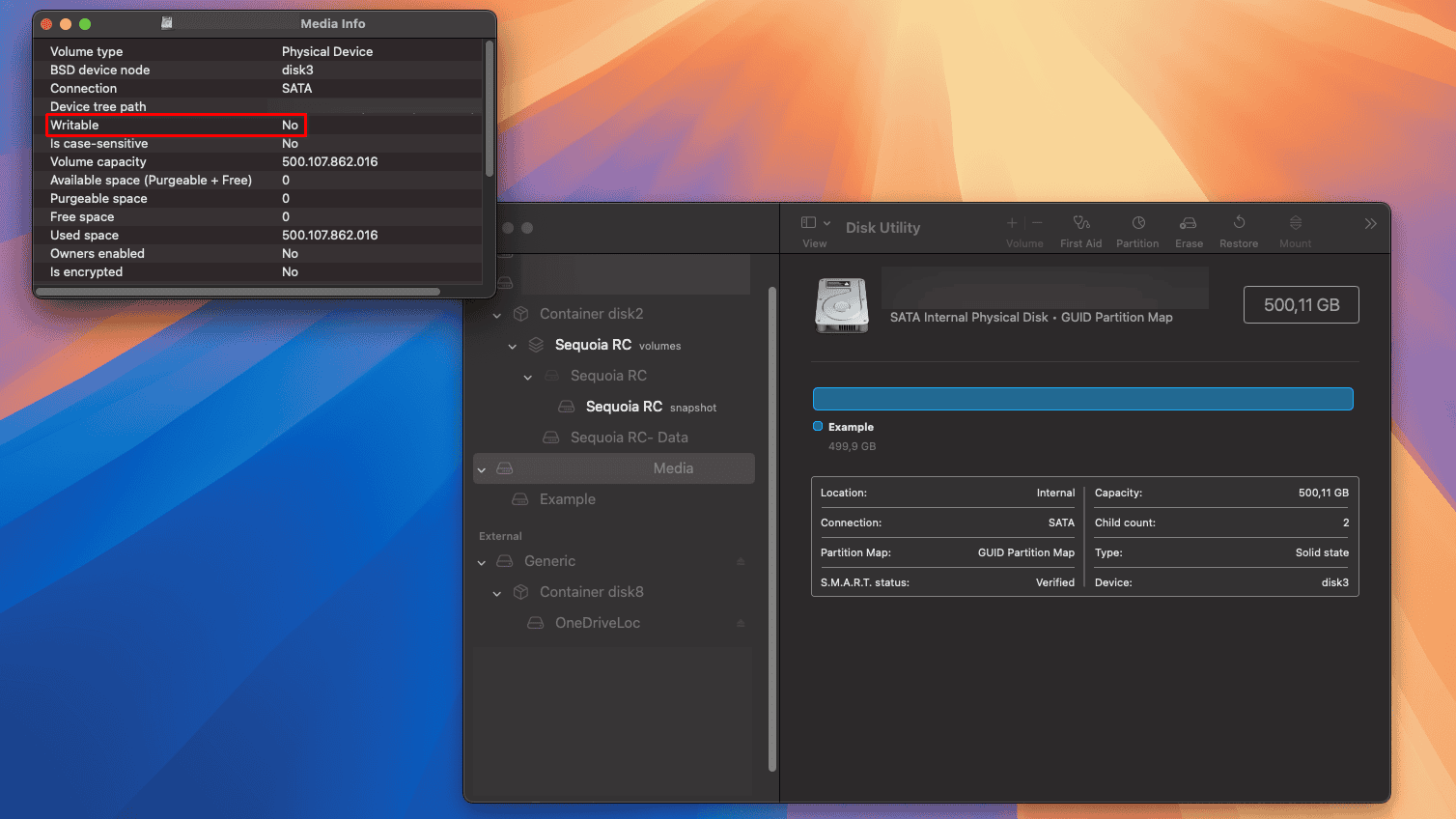
- Look at the format in the info sidebar (APFS, exFAT, etc.).
- If it’s NTFS, reformat the drive using Erase > Format: exFAT.
- Alternatively, right-click the drive on your desktop, click Get Info, and ensure “Ignore ownership on this volume” is unchecked.

4. Disable Safari Extensions That Intercept Downloads
Some download managers or content blockers can interfere with Safari’s native download process, especially when writing to non-default locations. If Safari starts the download but never finishes, it’s worth disabling third-party extensions that modify behavior.
- In Safari, go to Safari > Settings > Extensions.
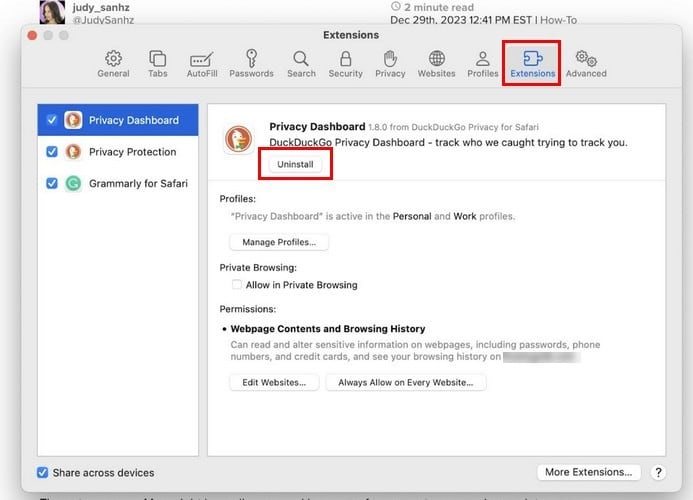
- Disable all active extensions.
- Restart Safari and attempt the download again.
- Re-enable extensions one by one to find the culprit if the issue is resolved.

5. Reset Safari Preferences
Corrupted Safari preferences can interfere with everything from page rendering to file downloads. Resetting these settings forces Safari to rebuild a clean preference file, resolving conflicts that may be preventing external downloads from working properly.
- Quit Safari completely.
- Open Finder, then press Cmd + Shift + G.
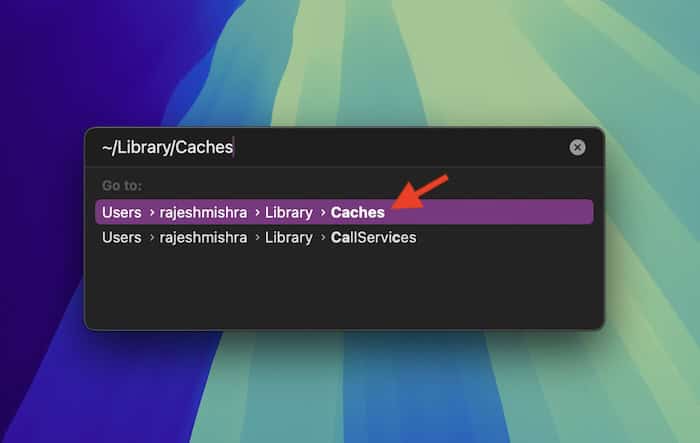
- Type:
~/Library/Preferences/and hit Return. - Find and
delete com.apple.Safari.plist. - Reopen Safari and reconfigure your download path.

6. Factory Reset macOS
As a last resort, you can consider factory resetting your Mac. Since you can’t pinpoint the specific bug or feature causing this issue, revert everything to its default. Just remember to back up your Time Machine beforehand. Otherwise, you might lose your files permanently, including the ones you can’t transfer from Safari to your external drive.
- Click the Apple menu icon > System Settings > General.
- Scroll down to Transfer or Reset.
- Click Erase All Content and Settings.
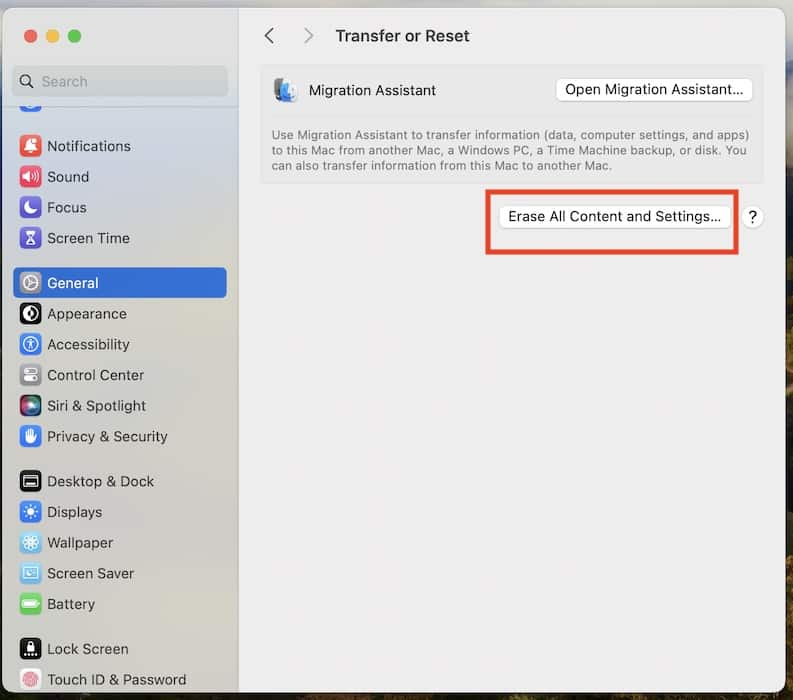
- Wait for your Mac to reboot before backing up from Time Machine.

Should issues persist, it’s best to call Apple Support. They can walk you through system-specific troubleshooting steps, especially if the issue is tied to Safari or macOS permissions. But if the problem lies with the external drive itself, you may need to contact the manufacturer for diagnostics or repairs.
Are you having trouble downloading files to your external drive from Safari? Here’s what you can do on your Mac.


Discussion