

iPhones don’t get “PC-style” viruses often, thanks to Apple’s security model. But you can run into malicious profiles, sketchy apps (especially if sideloaded), browser hijacks, phishing, and zero-day exploits. Here’s the skimmable, step-by-step playbook to stay safe, and what to do if your iPhone acts weird.
Table of contents
Apple’s Official Answer
According to Apple:
- iOS is built with security at its core. Apps are sandboxed, meaning they can’t access data outside their container.
- The App Store is reviewed. All apps are checked before being published, which blocks most malware before it reaches users.
- Software updates are critical. Apple emphasizes installing updates promptly since they contain security patches for newly discovered exploits.
- User consent is required. Apps and profiles can’t be installed silently—you must tap to allow them.
Apple’s official position is that viruses on iPhones are “extremely rare,” but social engineering, unsafe configurations, and untrusted sources can still put your iPhone at risk.
Don’t miss the best of The Mac Observer
Set us as a preferred source and our Apple reporting ranks higher in your Google Search results and Discover feed — one tap, no account changes.
Our Answer
Can iPhones get viruses? Rarely. Traditional self-replicating viruses are uncommon on iOS due to sandboxing, code signing, and App Review. However, iPhones can still be compromised by malicious profiles, risky sideloading, phishing links, abused enterprise certificates, or unpatched vulnerabilities. The fixes below cover both “soft” hijacks (pop-ups, redirects) and deeper issues.
Before You Start
- Back up first: Settings › [your name] › iCloud › iCloud Backup (or Finder/iTunes).

- Update iOS: turn on Automatic Updates. Rapid patching matters.
- Know your Apple ID password & 2FA: you’ll need it if you reset or restore.
- Have a clean network: if possible, use trusted Wi-Fi (avoid captive/unknown Wi-Fi while troubleshooting).
- EU note: If you’re in the EU and use alternative app marketplaces, stick to reputable ones and avoid unknown sources.
You can also use a specialized tool such as Tenorshare iCareFone to create a more secure and detailed backup for your iPhone.
Step-by-Step: Fix a Suspicious or “Infected” iPhone
- Confirm it’s not just a bad webpage
Open Safari › Tabs, close everything, then go to Settings › Safari › Clear History and Website Data. Reboot your iPhone.
Why: Many “iPhone virus” scares are just aggressive site pop-ups or notification spam. - Update iOS immediately
Go to Settings › General › Software Update and install updates.
Why: Most real compromises rely on bugs that updates patch.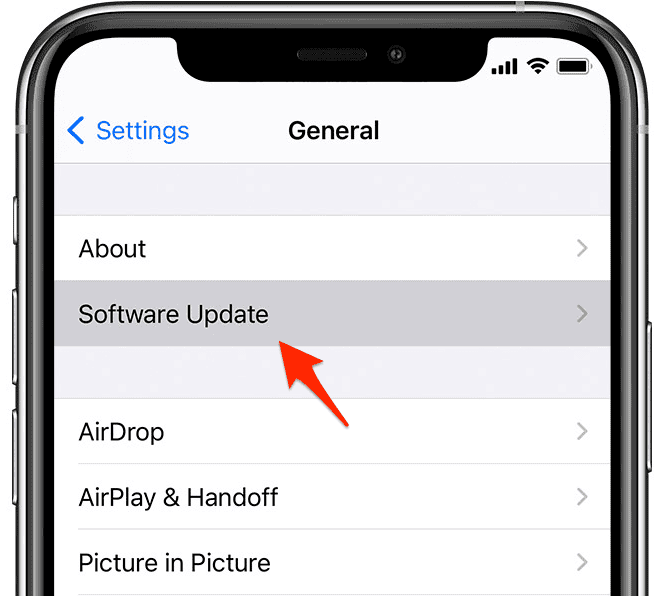
- Delete suspicious apps
Long-press the app icon → Remove App. If you recently installed from an alternative marketplace or via TestFlight/enterprise links you don’t trust, remove those first.
Why: Uninstalling removes the app’s sandbox and its permissions. - Remove unknown profiles, VPNs, or device management
Go to Settings › General › VPN & Device Management (or Profiles). Delete anything you don’t recognize (MDM, configuration profiles, root certificates, VPNs).
Why: Malicious profiles can reroute traffic, install web clips, or change policies. You might also want to read our article on how to get a VPN on your iPhone. - Reset your browser & notification permissions

- Safari: already cleared in step 1.
- Other browsers: clear site data in their settings.
- Notifications: Settings › Notifications: turn off sites/apps that spam alerts.
Why: Cuts off common “hijack” behaviors that look like malware.
- Review app permissions
Settings › Privacy & Security → check sensitive items (Location, Contacts, Photos, Bluetooth, Local Network). Revoke anything that feels wrong.
Why: Limits what remaining apps can access. - Change your passwords & enable passkeys/2FA
Start with Apple ID and email. Use a strong unique passwords, passkeys where possible, and turn on 2FA.
Why: If phishing was involved, your accounts, not just the phone, may be at risk. - Reset network settings (optional)
Settings › General › Transfer or Reset iPhone › Reset › Reset Network Settings.
Why: Clears odd DNS/proxy changes that cause redirects.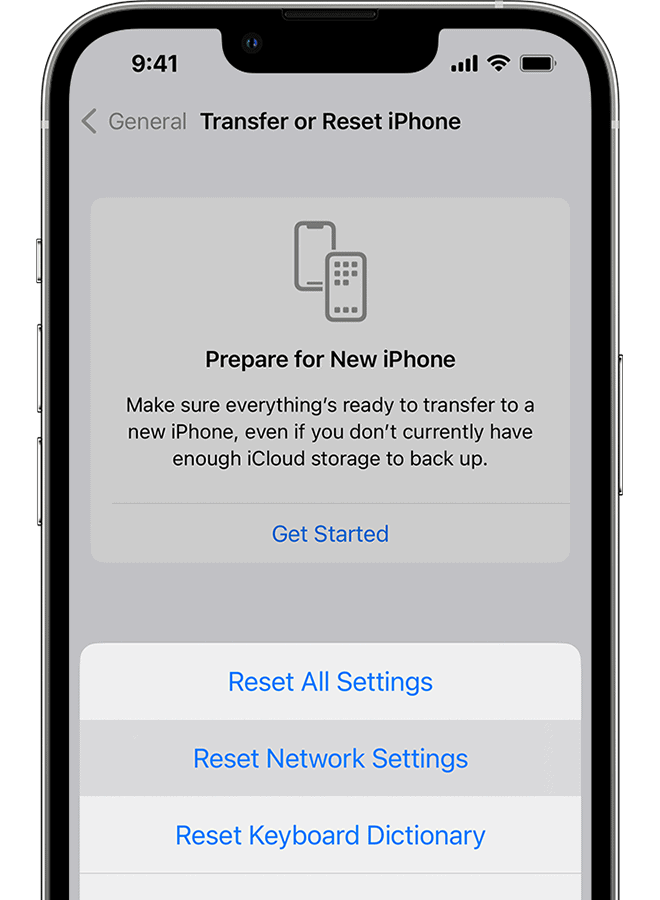
- Erase all content & settings (if issues persist)
Make a fresh backup first, then Settings › General › Transfer or Reset iPhone › Erase All Content and Settings and set up as New iPhone. Test before restoring your backup.
Why: A clean slate removes lingering configuration or profile changes. - Restore from a known-good backup (last resort)
If all’s well when set up as new, restore from a backup made before problems started. If the issue returns, the backup likely re-imports it—rebuild manually.

Real iPhone Threats and What To Do
- Scareware pop-ups (“Your iPhone is infected!”)
- How it happens: Malicious websites, push-notification spam
- Risk level: Low
- Quick fix: Clear Safari data, block notifications, update iOS
- Prevent it: Use content blockers; avoid sketchy sites
- Configuration profiles / unknown VPNs
- How it happens: Phishing links, “set up this profile” prompts
- Risk level: Medium–High
- Quick fix: Remove profiles (Settings › General › VPN & Device Management)
- Prevent it: Never install profiles you don’t trust
- Sideloaded or risky marketplace apps (EU)
- How it happens: Installing apps outside the App Store
- Risk level: Medium
- Quick fix: Delete the app, review permissions, update iOS
- Prevent it: Only use reputable sources; vet publishers
- Phishing & account takeovers
- How it happens: Fake login pages, SMS/email scams
- Risk level: High
- Quick fix: Change passwords, enable 2FA or passkeys
- Prevent it: Use a password manager; keep 2FA everywhere
- Zero-day exploits / targeted attacks
- How it happens: Rare, high-end exploits (e.g., messaging apps)
- Risk level: High (but rare)
- Quick fix: Update iOS; consider Lockdown Mode if high-risk
- Prevent it: Keep auto-updates on; minimize attack surface
- Stalkerware or MDM abuse
- How it happens: Device access + malicious profile install
- Risk level: Medium–High
- Quick fix: Remove MDM/profile, change Apple ID, erase device if needed
- Prevent it: Don’t share your passcode; audit installed profiles regularly
Tips
- Keep Automatic Updates on for both iOS and app updates.
- Use a strong passcode (alphanumeric if possible) and Face ID/Touch ID.
- Disable “Install Unknown Profiles” moments: if any site/app asks you to install a profile, bail unless you 100% trust the source.
- Consider Lockdown Mode if you are at elevated risk (journalists, activists).
- Back up regularly so you can roll back to a clean state if needed.
FAQs
Generally, no. iOS sandboxes apps and limits scanning. Focus on updates, profiles, and safe habits.
A site can’t install apps silently, but it can flood you with pop-ups or try to trick you into installing a profile or entering credentials. Clear Safari data and avoid granting permissions.
They’re vetted, which greatly reduces risk, but nothing is 100%. Check developer reputation and permissions.
Jailbreaking disables key protections and massively increases risk. Avoid it on devices with sensitive data.
Yes, for almost all consumer-level issues. Set up as new first; if clean, restore from a backup made before the problem began.
Settings › General › VPN & Device Management (or Profiles) → delete anything you don’t recognize, then reboot.
Drive-by infections are extremely rare. Keep iOS updated, set AirDrop to Contacts Only, and turn off Bluetooth/AirDrop when not needed if you’re worried.
Conclusion
iPhones almost never get classic “viruses,” but they’re not invincible. Most problems come from bad sites, risky installs, or social engineering. If your phone acts off, follow the steps above: clear the browser, update, remove profiles/apps, tighten permissions, and reset if necessary. Keep backups and updates on, and you’ll stay ahead of nearly every threat.


Discussion