

Network Error POSIX 61 can suddenly stop your Mac, iPhone, or iPad from connecting to apps or services. This error usually shows as “Cannot Get Mail” and happens when your device cannot reach a server. It can be caused by network settings, firewalls, VPNs, or outdated software.
The good news is that with the right steps, you can fix it quickly and get your connection working again!
How to Fix Network Error POSIX 61?
1. Verify Server Availability
Ensure that the server you are attempting to connect to is up and running. A common cause of this error is trying to connect to a server that is not operational.
Don’t miss the best of The Mac Observer
Set us as a preferred source and our Apple reporting ranks higher in your Google Search results and Discover feed — one tap, no account changes.
- Check if the server is powered on and accessible.
- Use tools like ping or telnet to test the server’s responsiveness.
- Confirm that the server is not experiencing downtime or maintenance.
2. Check Firewall and Security Settings
Firewalls can block incoming connections, leading to a “Connection refused” error.
- Review your firewall settings to ensure they allow connections on the required ports.
- Temporarily disable the firewall to test if it is the source of the issue.
- If disabling the firewall resolves the problem, adjust its settings to allow the necessary connections.
3. Inspect VPN Configurations
VPNs can sometimes interfere with network connections, causing errors like POSIX 61.
- Disconnect from any active VPNs.
- Attempt to establish the connection again.
- If the connection succeeds without the VPN, consider adjusting the VPN settings or contacting your VPN provider for assistance.

Disabling the VPN also helps fix the POSIX 96 error on iPhone.
4. Reboot Devices and Network Equipment
A simple reboot can resolve many network-related issues.
- Restart your computer or device.
- Reboot your router or modem.
- After restarting, try connecting again to see if the issue persists.
5. Update Software
On Apple devices, network drivers are included within system updates, so keeping your operating system up to date ensures your drivers are current. Outdated system software can cause connection issues, including POSIX 61.
- Check for macOS or iOS updates
- On macOS, go to System Settings > General > Software Update.
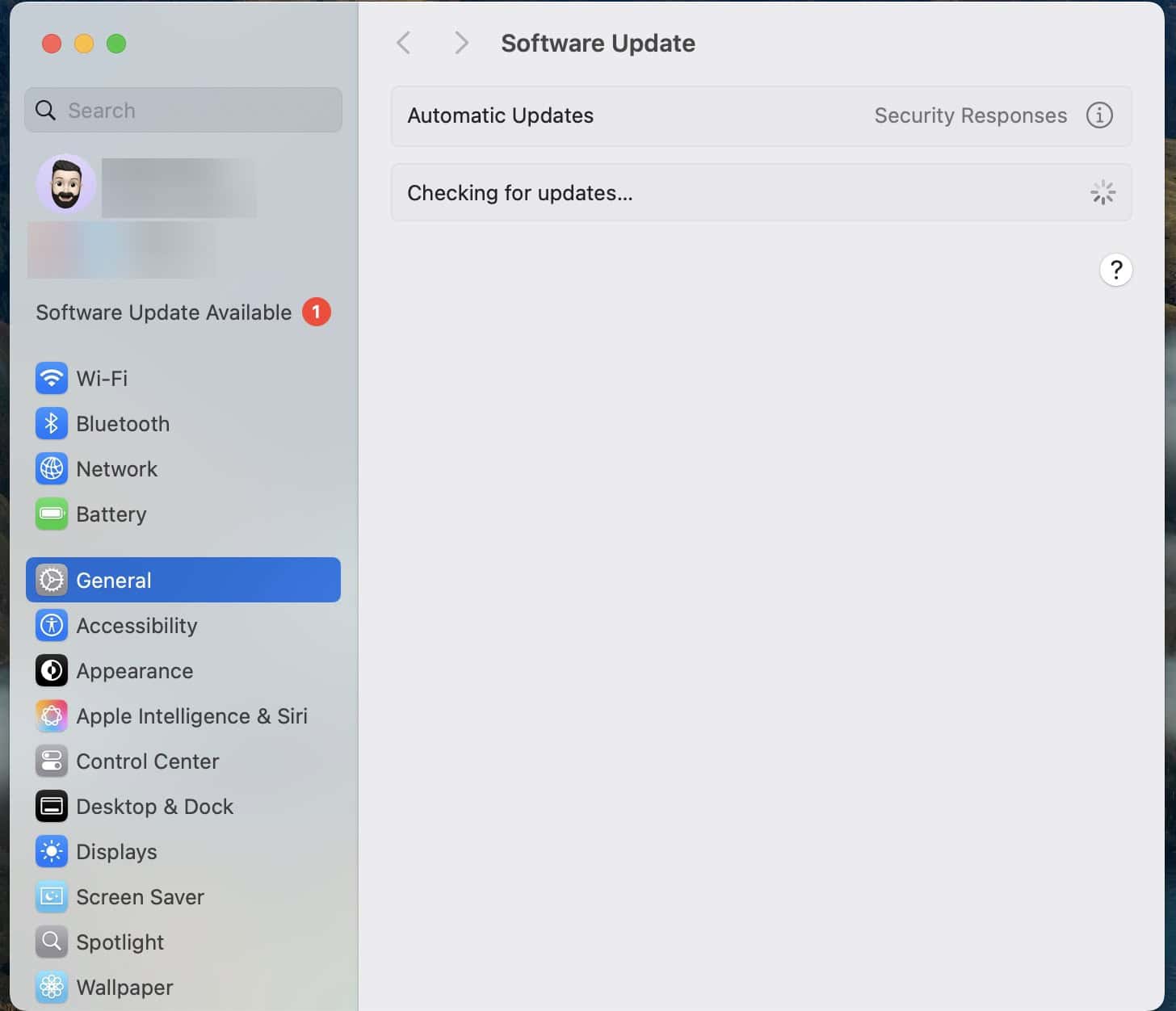
- On iOS or iPadOS, go to Settings > General > Software Update.
- Install any available updates.
- On macOS, go to System Settings > General > Software Update.
- Restart your device
- After updating, reboot your Mac, iPhone, or iPad to apply the changes fully.
- Reset network settings if needed
- On iOS or iPadOS, go to Settings > General, Transfer or Reset iPhone > Reset, then Reset Network Settings.
- On macOS, remove and re-add Wi-Fi networks under System Settings > Network.
- Update router or external network hardware firmware
- While Apple updates cover internal network drivers, external devices like routers or Wi-Fi adapters may require firmware updates from their manufacturer.

This also helps fix cellular network-related issues on iPhone.
6. Test with a Different Network
Sometimes, the issue may be related to your current network environment.
- Connect to a different Wi-Fi network or use a mobile hotspot.
- Attempt to establish the connection on the new network.
- If the connection succeeds, the issue may be with your original network setup.
7. Reinstall Affected Applications
Corrupted application files can cause connection issues.
- Uninstall the application experiencing the error.
- Download the latest version from the official source.
- Install the application and check if the issue is resolved.

8. Consult System Logs for Detailed Errors
System logs can provide more insight into the specific cause of the error.
- Access system logs through the Console application on macOS.
- Look for entries related to the POSIX 61 error.
- Analyze the logs to identify any specific issues or patterns.
Tips:
- Keep your macOS, iOS, or iPadOS updated to ensure all network drivers and system components are current.
- Regularly check and configure your firewall to allow necessary connections.
- Avoid using unstable or misconfigured VPNs that may block network traffic.
- Maintain a reliable network environment by updating routers and network hardware firmware.
- Backup and reset network settings periodically to prevent corrupted configurations from causing errors.
Frequently Asked Questions
POSIX 61 refers to a “Connection refused” error, indicating that a network connection attempt was unsuccessful because the target machine actively rejected the connection
Yes, VPNs can interfere with network connections and may lead to a POSIX 61 error if they block or reroute traffic incorrectly
While commonly associated with macOS and iOS, POSIX 61 errors can occur on any operating system if network connections are refused
Regularly update your software, maintain proper firewall settings, and ensure your network equipment is functioning correctly to minimize the risk of encountering this error
Summary
- Verify that the server you are connecting to is operational
- Check and adjust firewall and security settings as needed
- Disconnect from VPNs to rule out interference
- Reboot your devices and network equipment
- Update your software and drivers to the latest versions
- Test the connection on a different network
- Reinstall any affected applications
- Consult system logs for detailed error information
Conclusion
The “Network Error POSIX 61” is a common issue that can disrupt your connectivity. By systematically following the steps outlined above, you can identify and resolve the underlying cause of the error.
Whether it is adjusting network settings, updating software, or consulting system logs, these solutions should help restore your connection and prevent future occurrences.
Before you leave, find out how to boost the download speed for Apple Store on Mac!


Discussion