

Sometimes apps on your Apple Watch slow down, freeze, or drain resources. In such cases, closing or force-quitting them helps restore performance. With watchOS 10, Apple changed how the App Switcher works, so the method differs depending on your version. Here’s a clear guide to closing apps on any Apple Watch, along with force-quit steps for unresponsive apps.
Table of contents
Methods
Apple Watch gives you a few different ways to close or force-quit apps depending on the watchOS version you’re running. The most common approach is through the App Switcher, which lets you remove apps from the recent apps view. For frozen or unresponsive apps, the long-standing force-quit gesture works across all versions. Accessibility settings and restart options provide additional ways to manage app behavior when normal inputs fail.
1. App Switcher in watchOS 10 and Later
Starting with watchOS 10, Apple reassigned the Side button to Control Center and moved the recent apps view to the Digital Crown. Double-pressing the Digital Crown now opens the App Switcher, where your recent apps appear as a horizontal row of cards. Removing a card from this list closes that app’s session and clears it from the dock. This is the intended, everyday method to close apps when they slow down or misbehave.
- From the watch face or Home Screen, double press the Digital Crown to open the App Switcher.
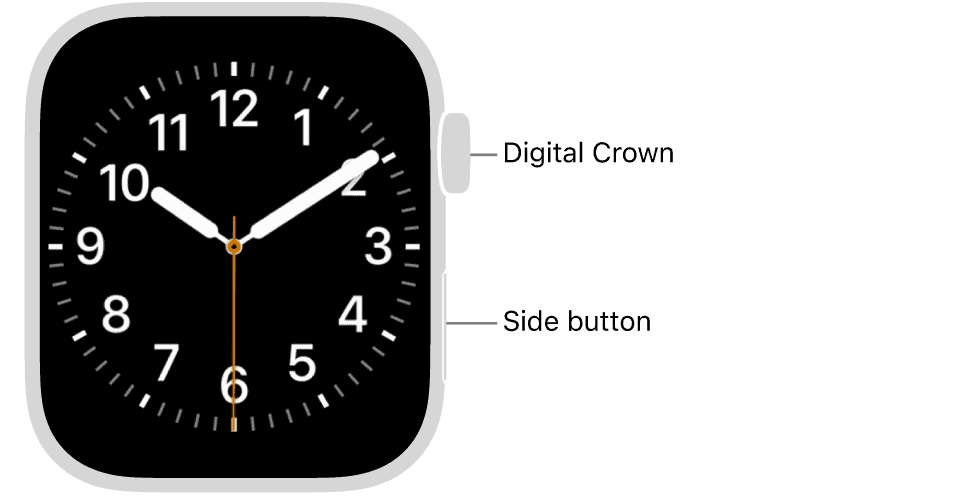
- Scroll through the cards by swiping on the screen or turning the Digital Crown until you find the app.
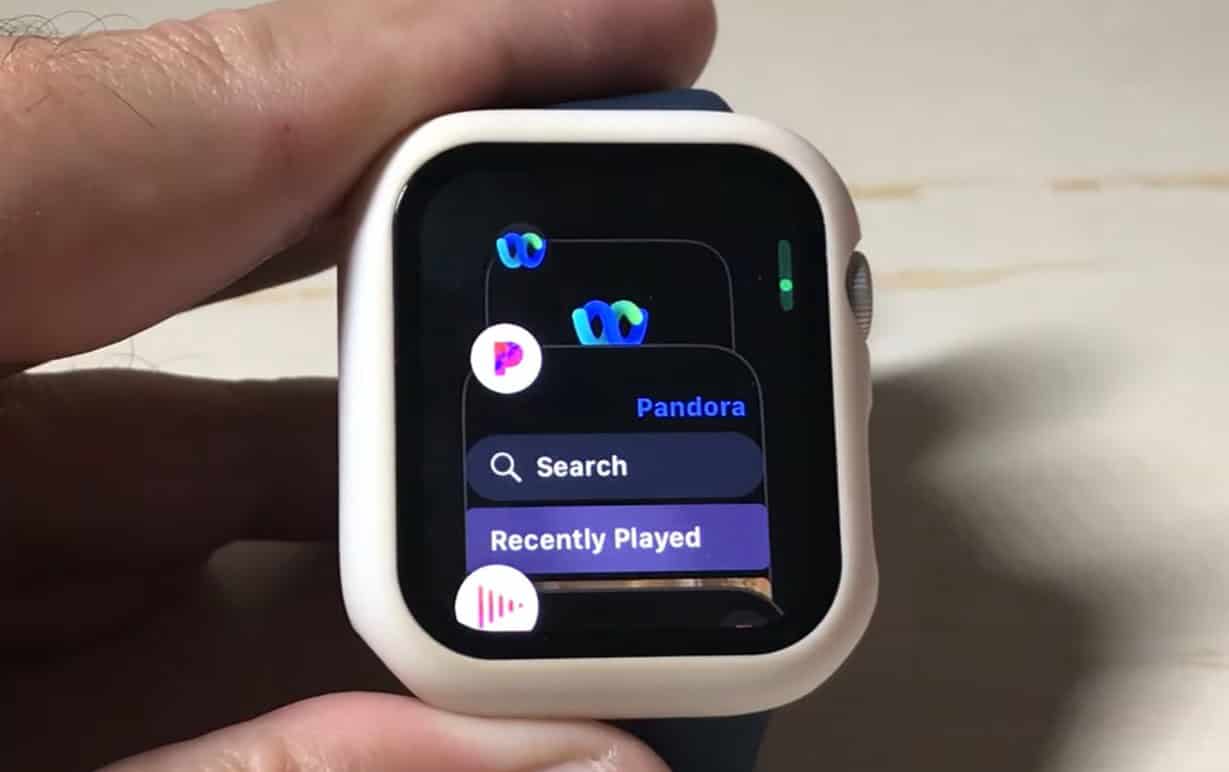
- Swipe left on the app’s card and tap the red X to close it.
- Press the Digital Crown once to exit the App Switcher.


2. Force-Quit a Frozen App
Sometimes an app ignores input, stutters, or locks up. In these cases, the App Switcher won’t help. Instead, you can force-quit the app directly from its screen. This gesture immediately shuts the app and returns you to the watch face without needing to restart the entire device.
- Open the app that is frozen so it fills the screen.
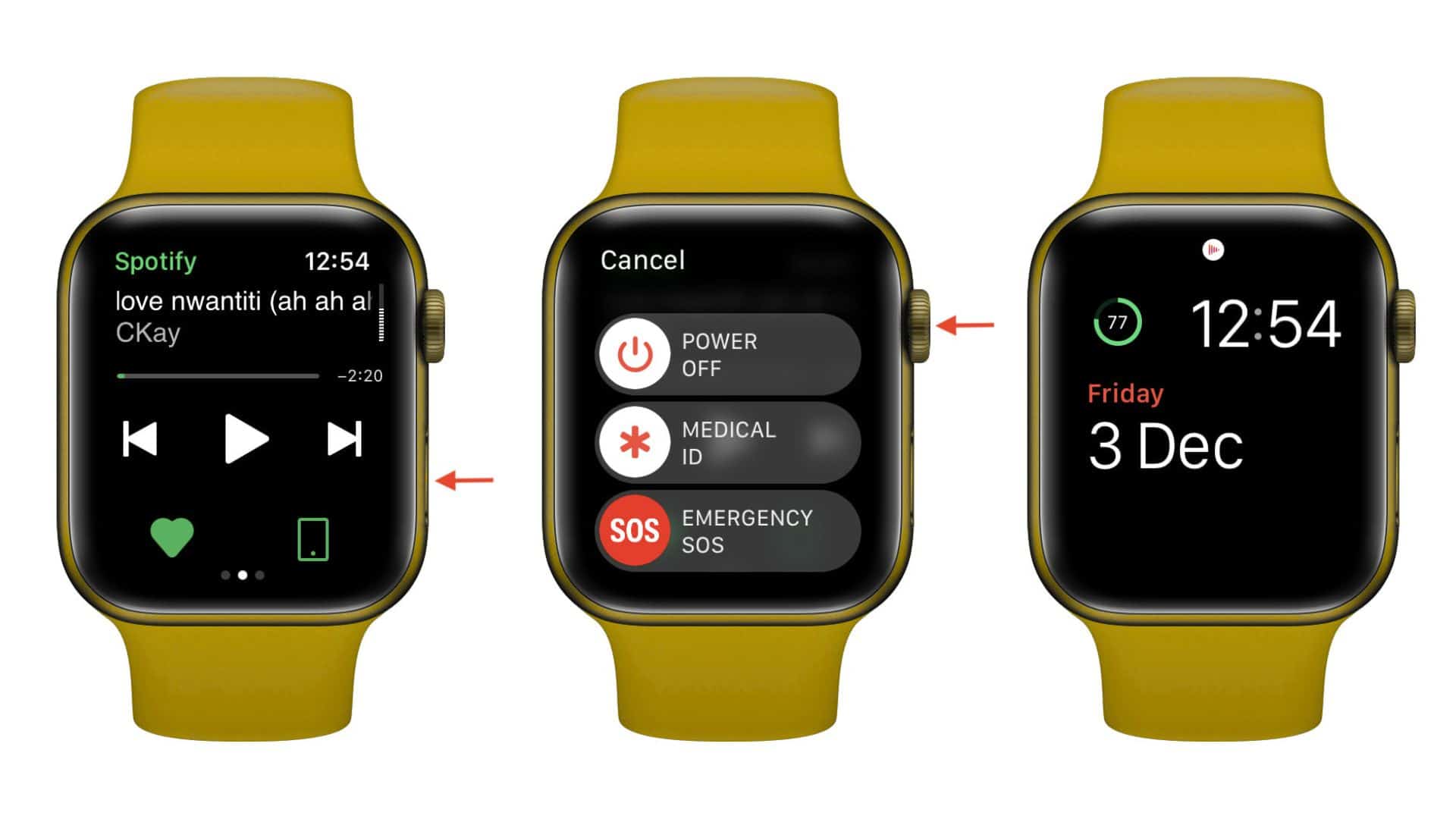
- Press and hold the Side button until the power and Emergency SOS sliders appear.
- Without sliding to shut down, press and hold the Digital Crown until the watch face returns.
- Reopen the app from the Home Screen or App List to test if it now works normally.

3. App Switcher in watchOS 9 and Earlier
On watchOS 9 and older versions, the Side button controls the recent apps dock instead of Control Center. The dock works much like the new App Switcher, letting you swipe away apps one by one. This method still applies to older devices that have not updated to watchOS 10.
- Press the Side button once to bring up the recent apps dock.
- Scroll through the apps using touch or the Digital Crown.
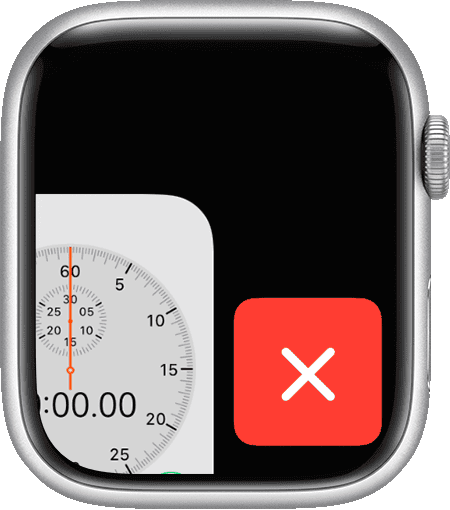
- Swipe left on the app’s card and tap the X to close it.
- Press the Side button or Digital Crown to return to the Home Screen.

If you’d rather remove apps entirely instead of just closing them, here’s how to delete apps on Apple Watch.
4. Adjust App Switcher Behavior in Accessibility
Some users find the App Switcher instantly opens an app card before they have time to swipe and close it. On watchOS 10.6.x, you can disable this “auto-select” behavior in Accessibility settings, which gives you more time to act.
- On Apple Watch, go to Settings > Accessibility.
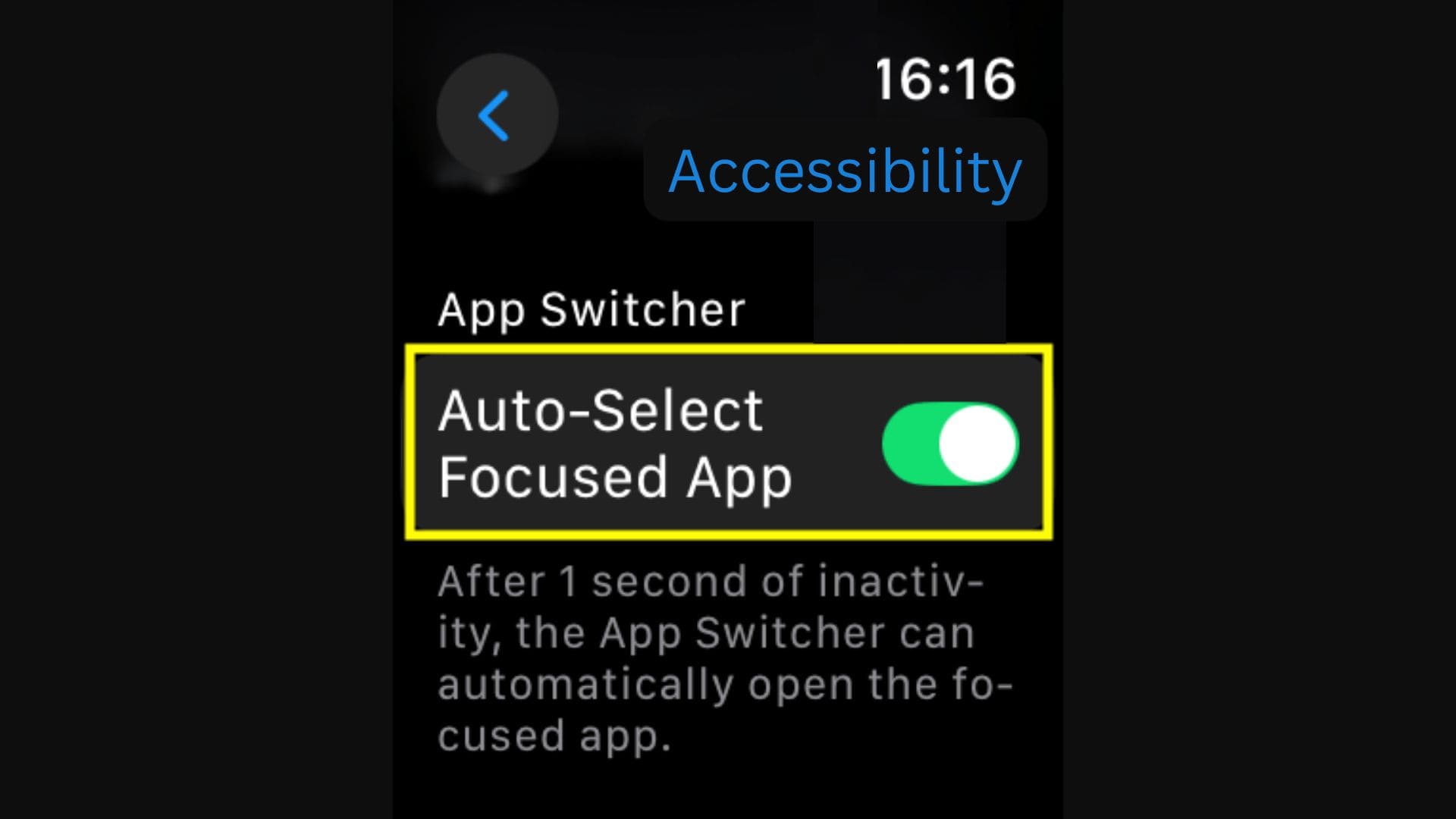
- Toggle Auto-Select Focused App off.
- Double-press the Digital Crown again. You can now swipe left and tap X without the app opening automatically.

5. Troubleshoot Double-Press Timing
The App Switcher depends on a quick, consistent double-press of the Digital Crown. If your timing is off, the watch may open the last app or misinterpret the gesture. Adjusting your cadence and immediately scrolling when the switcher opens helps prevent accidental launches.
- Double-press the Digital Crown quickly to open the App Switcher.
- Turn the Crown immediately to stay in the card list instead of opening the highlighted app.
- Swipe left and tap X on the target app card.
- Repeat for additional apps, maintaining a steady rhythm.
6. Restart or Force Restart When Inputs Fail
If your watch ignores button presses or gestures altogether, the problem may not be with a specific app. Restarting the device clears temporary glitches and restores normal inputs. Use a force restart only if the watch is unresponsive.
- Restart: Hold the Side button, slide Power Off, then press the Side button again to turn the watch back on.
- Force Restart: If the device is frozen, press and hold both the Side button and Digital Crown until the Apple logo appears (about 10 seconds).
- After rebooting, reopen the App Switcher or use force-quit on the target app if needed.
For a step-by-step guide dedicated to this process, see how to force restart Apple Watch Ultra.
7. Notes on “Close All” and System Management
Apple Watch does not include a “close all apps” feature. You must remove each app individually. That’s because watchOS manages background activity automatically, keeping apps in a low power suspended state. Closing every app regularly does not improve battery life and can make the watch less efficient.
- Open the App Switcher or dock depending on your version.
- Swipe left and tap X to close one app at a time.
- If an app freezes on open, use the force-quit gesture instead.
- Leave well-behaved apps alone and let watchOS manage resources in the background.
Still having trouble? Check out these troubleshooting tips for Apple Watch.
Tips
- Close apps only when necessary: watchOS suspends apps efficiently in the background. Closing every app routinely can actually slow things down the next time you reopen them.
- Reserve force-quit for frozen apps: The gesture is powerful but should not replace normal app closing. Use it only if the app locks up or ignores input.
- Adjust Digital Crown settings: If you struggle with the double-press timing, go to Settings > Accessibility > Click Speed and choose Slow or Slowest for easier triggering.
- Disable Auto-Select if needed: In Accessibility, turning off “Auto-Select Focused App” prevents the App Switcher from instantly opening highlighted apps, giving you time to swipe and close them.
- Restart when buttons don’t respond: A normal restart often fixes unresponsive input. Use a force restart only if your Apple Watch completely freezes.
- Don’t expect a “close all” option: Apple designed watchOS to remove apps one by one. There is no system setting to close all apps simultaneously.
FAQs
No. Apple Watch does not include a “close all apps” control. Each app must be removed individually from the App Switcher or dock.
Not usually. watchOS automatically suspends apps to save power. Closing them manually does not extend battery life in most cases. Only close apps that are frozen or slowing down.
In watchOS 10, Apple reassigned the Side button to Control Center. The App Switcher moved to the Digital Crown double-press.
Turn off Auto-Select Focused App in Accessibility. This gives you time to swipe and tap X without the app opening.
Go to Settings > Accessibility > Click Speed and adjust the timing to Slow or Slowest. If the issue continues, restart the watch.
Open the frozen app, hold the Side button until the power screen appears, then press and hold the Digital Crown until the watch face returns.
Summary
- watchOS 10 and later: Double-press the Digital Crown, swipe left on the app card, tap X, and press the Crown to exit.
- watchOS 9 and earlier: Press the Side button once, swipe left on the app card, tap X, and exit with the Side button or Crown.
- Force-quit frozen apps: While inside the app, hold the Side button until the power screen appears, then hold the Digital Crown until the watch face returns.
- Accessibility adjustments: Disable auto-select in Settings > Accessibility to prevent accidental launches or adjust click speed for easier double-press timing.
- System management: Restart or force restart if inputs fail, and remember that watchOS automatically manages background apps without needing you to close them all.
Conclusion
Closing apps on Apple Watch depends on your version of watchOS. In watchOS 10 and later, the App Switcher lives behind a double-press of the Digital Crown. In older versions, the Side button controls the dock. Both methods let you swipe away apps individually. For frozen apps, the long-standing force-quit gesture restores control without restarting the device. Apple does not provide a “close all” option, because watchOS is built to manage background tasks efficiently on its own. Use the App Switcher to tidy up recent apps only when they misbehave and rely on force-quit for unresponsive ones. With accessibility settings and restart options available, you have reliable tools to keep your watch responsive without unnecessary effort.


