

Apple Watch can help you find your parked car with the Compass app and Maps. When your iPhone disconnects from CarPlay or a recognized car Bluetooth system, it automatically drops a parked car marker. This marker syncs with Apple Watch, so you can navigate back using a pointer, distance readouts, and turn-by-turn directions.
Table of contents
Methods
These methods cover automatic detection via Apple Maps and Compass, routing directly from the watch, adding a complication for quick access, creating manual waypoints when automatic markers do not appear, using Siri and iPhone as fallbacks, tuning settings for reliability, and optional advanced automations.
1. Automatic Parked Car in Compass
Apple Watch can automatically show a parked car waypoint in the Compass app after your iPhone disconnects from CarPlay or a recognized Bluetooth system.
Don’t miss the best of The Mac Observer
Set us as a preferred source and our Apple reporting ranks higher in your Google Search results and Discover feed — one tap, no account changes.
- Pair your iPhone with the car through CarPlay or Bluetooth.
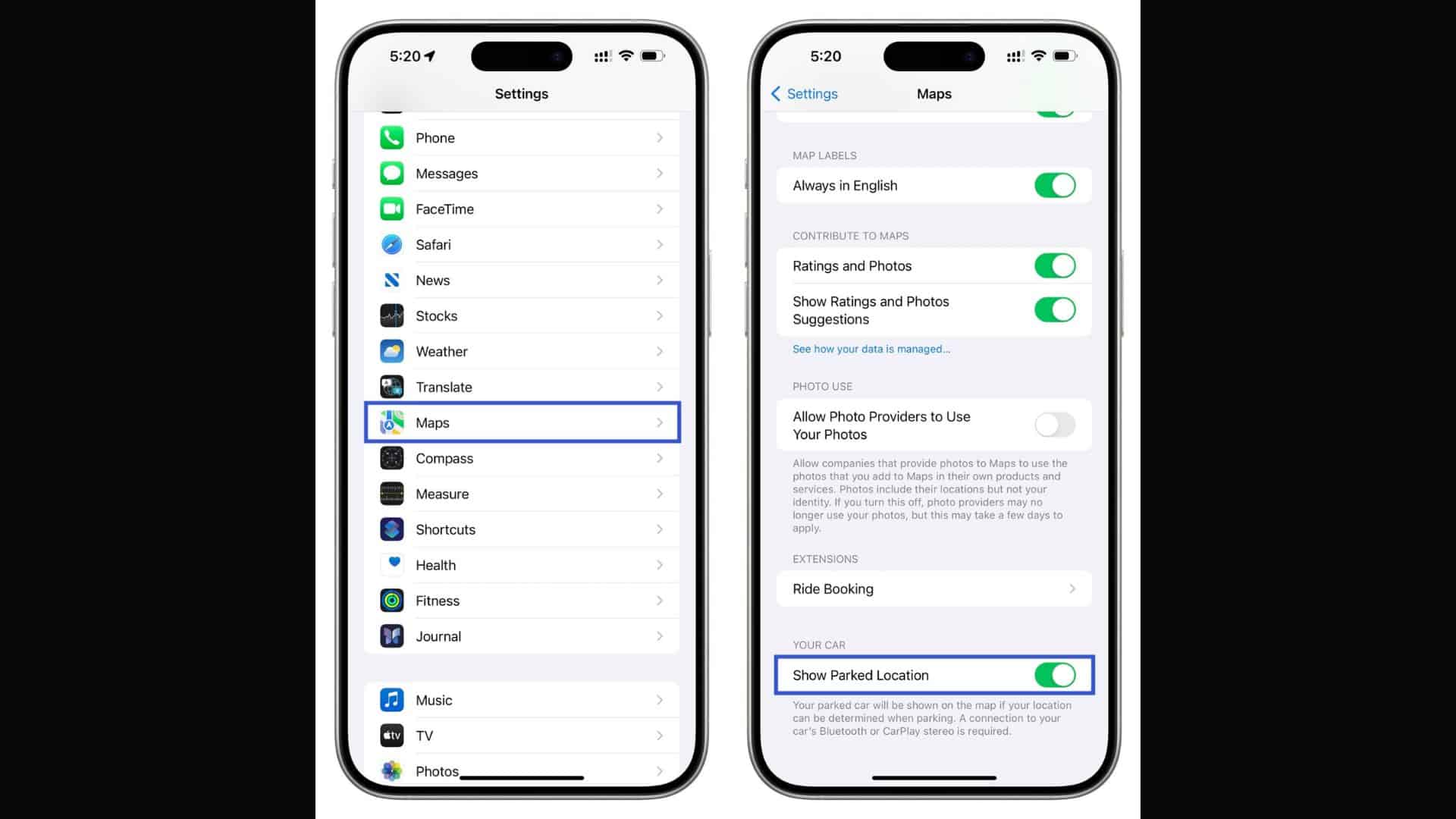
- On iPhone, enable Location Services, Significant Locations, and Show Parked Location under Maps.
- After you park and turn off the ignition, iPhone drops a “Parked Car” marker in Maps. This syncs to the watch as a Compass waypoint.
- On Apple Watch, open Compass and look for the parked car waypoint on the dial.
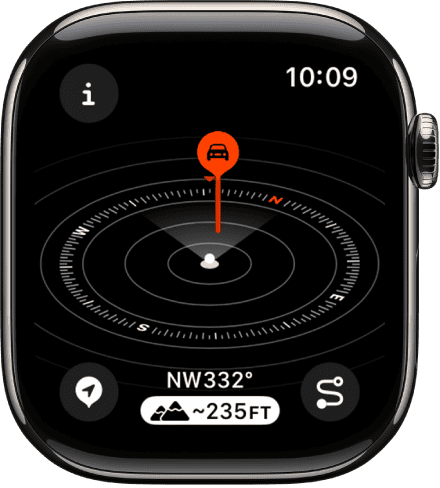
- Highlight the waypoint using the Digital Crown, then tap Select to open guidance with pointer, bearing, and distance.
- Walk in the direction of the pointer. Haptic feedback confirms arrival.
If the marker does not appear right away, close and reopen Compass or wait a few seconds to sync. iPhone does not automatically save a parked car at frequent places like home or office.
For Tesla owners, here’s how to connect Apple Watch to Tesla for easier car access.
2. Navigate with Maps on Apple Watch
Apple Maps on the watch can guide you back to your parked car with walking directions and haptic alerts.
- After parking, open Maps on Apple Watch.
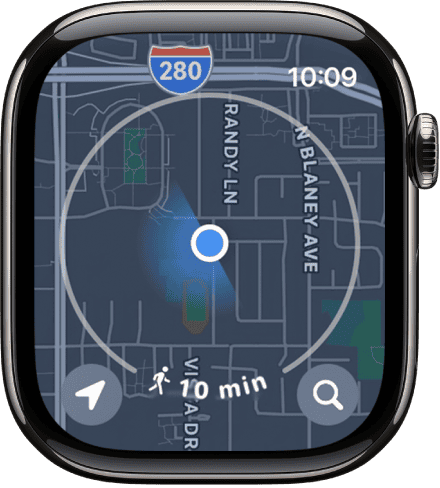
- Scroll suggestions or search for Parked Car to reveal the marker saved by iPhone.
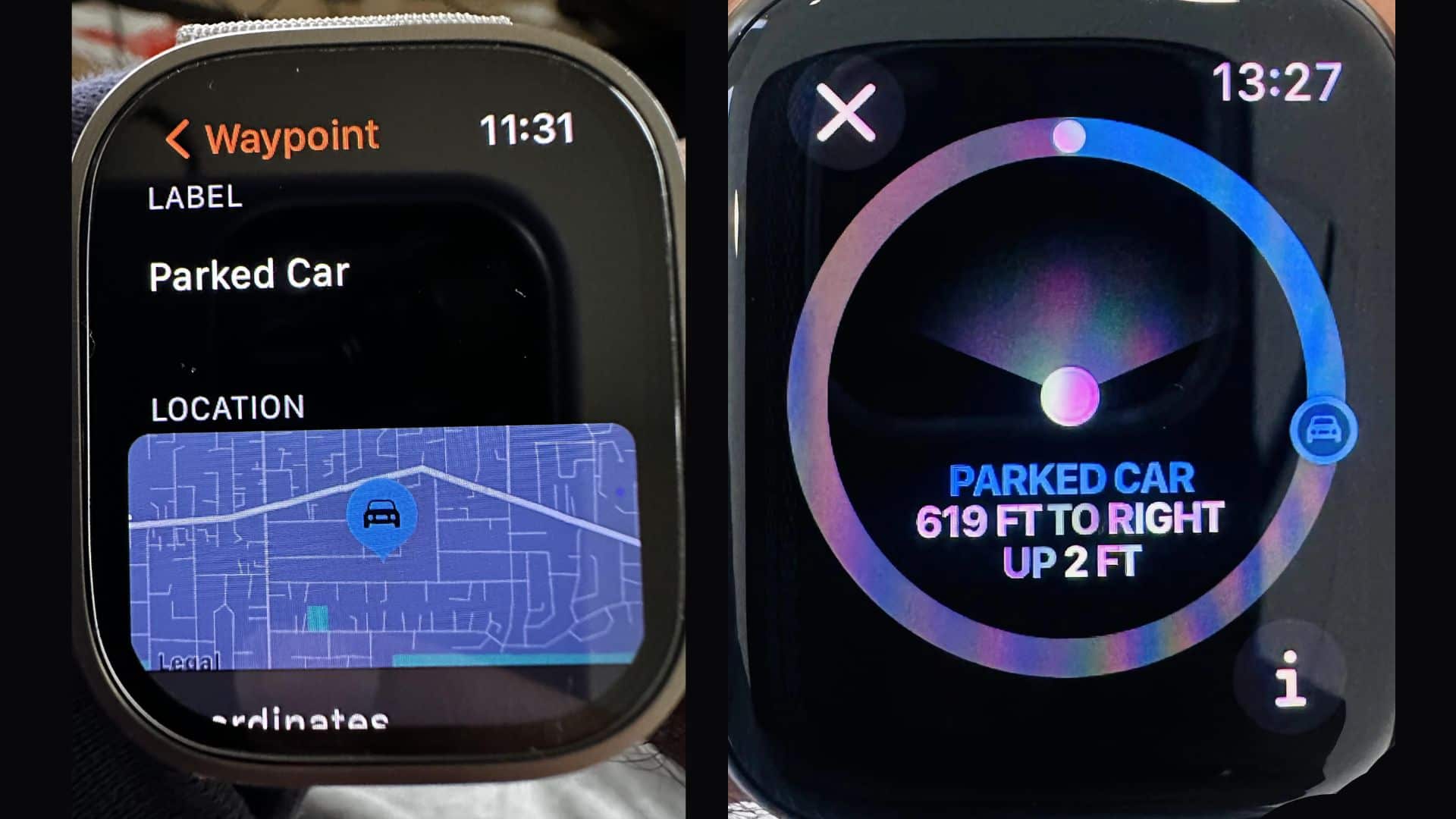
- Tap Parked Car to open details. Confirm the pin matches the actual location.
- Choose Walking Directions, then tap Start.
- Follow on-screen arrows and wrist taps until you reach the vehicle.


If the suggestion does not appear, check Recents or search manually. Restart Maps if guidance stalls. Navigation ends automatically when you arrive.
You can also download offline maps on Apple Watch to keep navigation working without an active connection.
3. Add the Parked Car Complication
Add a complication for one-tap access to your parked car waypoint from the watch face.
- Touch and hold the watch face, then tap Edit.
- Open Complications, pick a slot, then choose Compass Waypoints > Parked Car Waypoint.
- Exit editing. The complication now shows direction and distance.
- Tap the complication anytime to open Compass with the parked car targeted.
Use a face with a large complication slot for better visibility. If it does not refresh, switch faces briefly or reopen Compass to update.
Want more navigation insights? Here’s how to use Apple Watch route tracking for your trips.
4. Manually Mark a Car Waypoint in Compass
Create a manual waypoint when your car does not use CarPlay or Bluetooth, or when automatic marking fails.
- After parking, open Compass on Apple Watch.
- Tap the Waypoint button to save your location.
- Rename it, for example “Car – Level 3, Zone B,” and assign the car icon.
- Add notes such as garage level or a nearby landmark for clarity.
- When returning, open Compass, select the waypoint, and follow the pointer and distance readout.
Delete old entries to avoid clutter. In large garages, rely on notes to refine accuracy when GPS signal is weak.
5. Use Siri and iPhone as Backups
Use Siri or Maps on iPhone to retrieve the location if Apple Watch does not show the marker.
- On iPhone, open Maps and look under Siri Suggestions for Parked Car.
- Select it, confirm the pin, and start walking directions. The route also appears on Apple Watch.
- Or say, “Where is my parked car?” to Siri on iPhone for direct access.
- On Apple Watch, ask Siri for the parked car. If unavailable, open Maps or Compass manually.

As a fallback, use Mark My Location on iPhone or Apple Watch before leaving the car to create a custom pin.
If you’re new to the device, check this guide on how to use Apple Watch for everyday features.
6. Fix Parked Car Detection (Settings and Bluetooth)
Adjust settings to ensure parked car markers appear consistently.
- On iPhone, go to Settings > Privacy & Security > Location Services and turn it on.
- Under System Services, enable Significant Locations.
- In Settings > Maps, turn on Show Parked Location.
- In Bluetooth settings, set the car device type to Car Stereo so the disconnect event registers correctly.
- Restart iPhone and Apple Watch if Compass does not show the waypoint.
- Keep iOS and watchOS updated for the latest fixes.
Markers do not appear at frequent places like home or work. In garages, GPS may drift, so add notes when saving waypoints.
7. Advanced: Shortcuts and Automations (Optional)
Set up Shortcuts that save your parking spot automatically for added reliability.
- On iPhone, create a Shortcut that drops a Maps pin when CarPlay disconnects or when Driving Focus ends.
- Add the Shortcut to Apple Watch for quick activation.
- In cars without CarPlay, run the Shortcut manually after parking.
- Add prompts in the Shortcut to note floor or section details when GPS is unreliable.
Use these automations as a supplement to the built-in parked car feature, not a replacement.
Tips
- Add the Compass Waypoints complication in a large slot for clearer distance and direction.
- Before you leave the lot, confirm the Parked Car marker in iPhone Maps so the watch can pull it instantly.
- When you save a manual waypoint, use the car icon and add short notes like level and bay.
- Set your car’s Bluetooth device type to Car Stereo so iPhone logs disconnects as a vehicle event.
- If the waypoint does not sync, reopen Compass or switch watch faces once to refresh.
- Clean up old waypoints so the car entry stays easy to find.
- Update iOS and watchOS to benefit from Compass and waypoint improvements.
- In multi-level garages, trust the pointer for bearing, but follow posted signs and your notes for the final approach.
- If you often park at home or work, use manual waypoints since Apple avoids auto-marking frequent locations.
- As a fallback, use Mark My Location on iPhone or Apple Watch when you park.
FAQs
Yes. Without CarPlay or Bluetooth, save a manual waypoint in Compass or use Mark My Location in Maps before you leave the car.
Apple Watch Series 5 or later, SE models, and Ultra models support Compass waypoints on current watchOS versions.
Apple avoids auto-marking frequent locations like home and office. Use a manual waypoint in these cases.
In iPhone Maps, touch and hold Parked Car and tap Remove Car. To stop future markers, turn off Show Parked Location in Maps settings.
Yes. Open Maps on Apple Watch, select Parked Car, choose walking directions, and follow the haptics and on-screen arrows.
Restart iPhone and Apple Watch, reopen Compass, and confirm Location Services, Significant Locations, and the car’s Bluetooth type are set correctly.
GPS can drift indoors. Use the pointer for general direction and rely on your saved notes and signage for the final steps.
Summary
- Use Compass for the automatic parked car waypoint after you disconnect from CarPlay or Bluetooth.
- Open Maps on Apple Watch to start walking directions to the Parked Car marker.
- Add the Parked Car Waypoint complication for one-tap access and live distance.
- Create a manual Compass waypoint when automatic marking is unavailable.
- Use Siri or iPhone Maps as fallbacks to find and route to the car.
- Tune settings on iPhone and set your car’s Bluetooth type to improve reliability.
- Optional: use Shortcuts to log your spot when CarPlay disconnects or on demand.
Conclusion
Apple Watch makes it quick to find your parked car. Automatic markers handle most trips. Manual waypoints and Maps cover the rest. Add the complication, confirm the iPhone settings, and you get reliable guidance at a glance.



Discussion