

Your Apple Watch comes with multiple ways to lock its screen. These options protect your data, stop accidental taps, and improve usability during workouts or water exposure. From passcode-based locks to Water Lock and workout-specific options, each method serves a distinct purpose. Knowing when and how to use them ensures your device remains secure and functional in daily use.
Table of contents
Methods to Lock Apple Watch Screen
Apple provides different lock mechanisms depending on settings such as Wrist Detection, passcode configuration, and watchOS version. Below are the main methods, along with steps to enable and use them effectively.
1. Passcode with Wrist Detection (Automatic Lock)
This is the primary and most secure method. The watch automatically locks when removed from your wrist and requires a passcode to unlock. With Wrist Detection turned on, the watch stays unlocked while worn but instantly locks once removed. It also supports Apple Pay and essential safety features.
Don’t miss the best of The Mac Observer
Set us as a preferred source and our Apple reporting ranks higher in your Google Search results and Discover feed — one tap, no account changes.
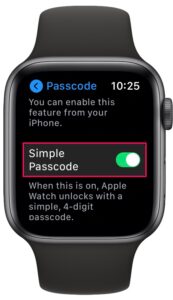
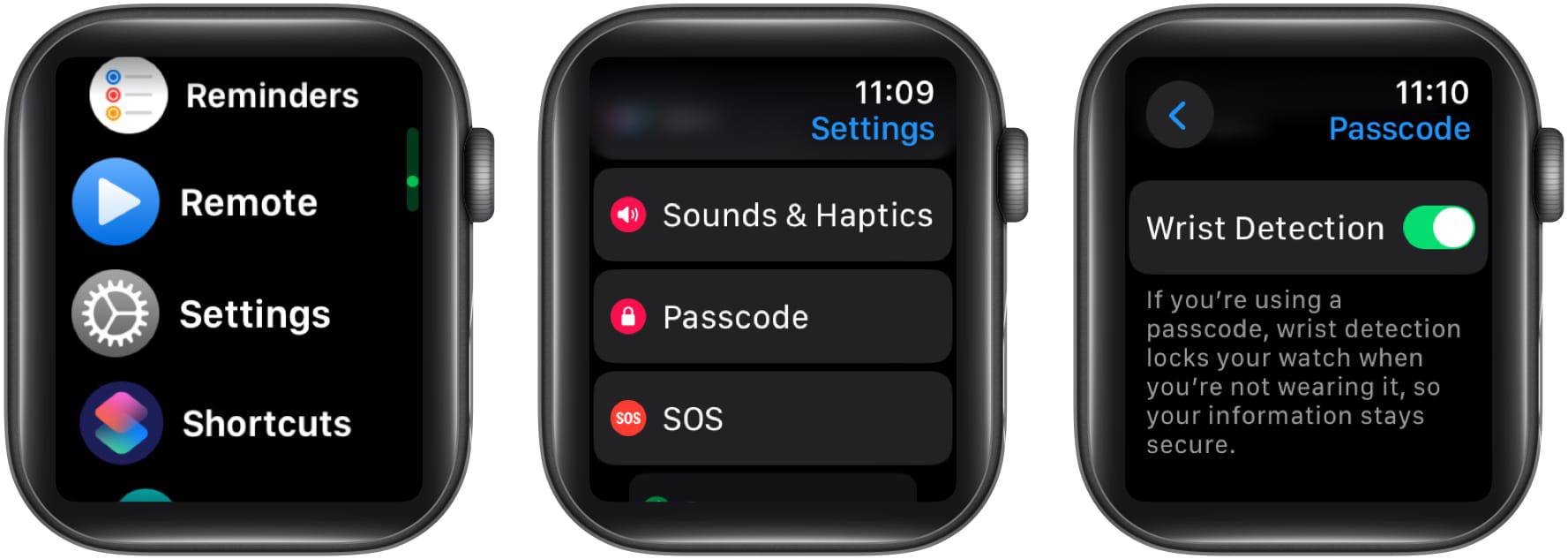
- On Apple Watch, open Settings > Passcode, then tap Turn Passcode On and set a code. You can disable Simple Passcode to create a longer code.
- In Settings > Passcode, make sure Wrist Detection is enabled.
- On iPhone, go to the Watch app > My Watch > Passcode, then enable Unlock with iPhone if you want the Watch to unlock automatically when your iPhone unlocks nearby.
- To unlock later, wake the screen and enter your passcode, or unlock your paired iPhone if the feature is enabled.


Need more details on security? Here’s how to remove Activation Lock from Apple Watch.
2. Water Lock (For Water Exposure)
Water Lock is designed to stop accidental touches when your watch gets wet. It disables touch input and ejects water from the speaker when turned off. This activates automatically during swim workouts or dive sessions on Apple Watch Ultra but can also be turned on manually.
- Press the side button to open Control Centre (or touch and hold the bottom, then swipe up in watchOS 9 or earlier). Tap the water droplet icon to enable Water Lock.
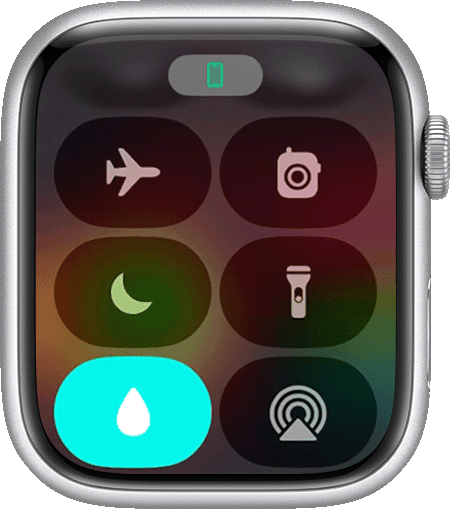
- While active, the screen will not respond to touch.
- To disable, press and hold the Digital Crown until “Unlocked” appears and tones play to eject water. On watchOS 8 or earlier, rotate the Crown to unlock.
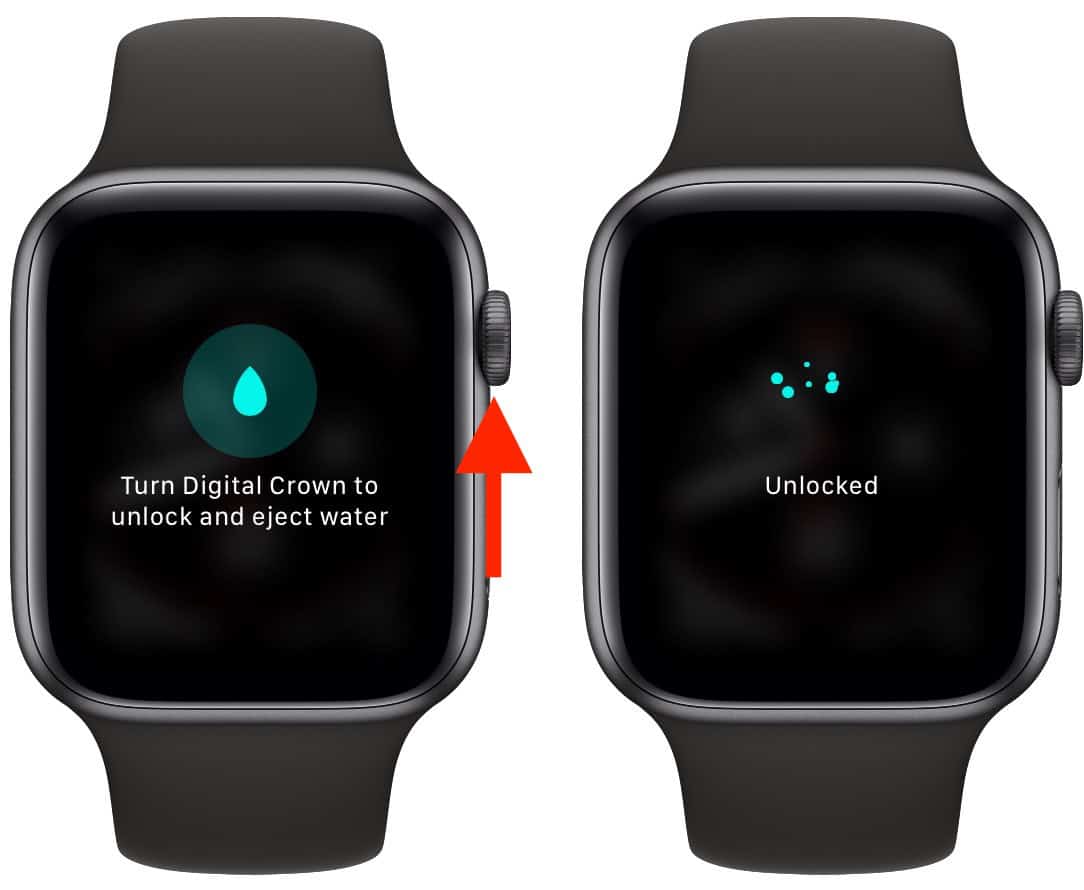


If you no longer see the water icon, here’s why the Water Lock icon may not be available.
3. Manual Lock from Control Centre (Wrist Detection Off)
If you prefer not to use Wrist Detection, a manual lock option appears in Control Centre. However, disabling Wrist Detection reduces Apple Pay functionality and affects safety features.
- On Apple Watch, go to Settings > Passcode and turn Wrist Detection off.
- Open Control Centre by pressing the side button and tap the lock icon. This locks the watch immediately.
- To unlock, enter your passcode on the watch.
4. Lock During a Workout (Prevent Accidental Taps)
During workouts, sweat or motion can trigger unintended inputs. The workout lock prevents this by disabling touch, separate from Water Lock.
- Start a workout in the Workout app.
- Swipe right to access workout controls and tap Lock.
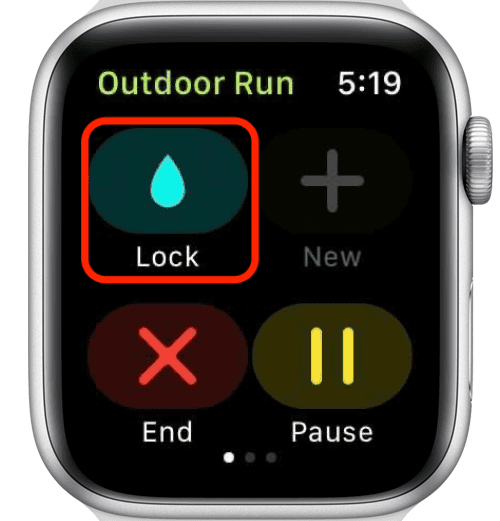
- To unlock, press the Digital Crown and side button together. If using Water Lock, disable it by following the Crown press method.

Once you’re done, don’t forget to properly end your workout on Apple Watch.
5. Unlock with iPhone (Paired Unlock Feature)
This isn’t a locking method, but it simplifies unlocking. When your paired iPhone unlocks nearby, the watch unlocks too.
- On iPhone, open the Watch app > My Watch > Passcode and enable Unlock with iPhone.
- Keep Bluetooth active and stay within ~10 meters of your iPhone.
- If the iPhone is out of range or Bluetooth is off, unlock the watch manually with its passcode.
You can also learn the different ways to unlock Apple Watch depending on your setup.
Tips
- Use a longer passcode by disabling Simple Passcode for stronger protection.
- Keep Wrist Detection on for the best balance between security, Apple Pay, and automatic locks.
- Always activate Water Lock before swimming or showering.
- During intense workouts, use the workout lock to avoid accidental pauses or skips.
- If you forget your passcode, reset the watch using Apple’s official methods instead of guessing.
FAQs
Yes, you can use Water Lock or manual lock options, but passcode lock remains the most secure method.
No, Water Lock only disables touch input and ejects water. Data protection requires a passcode with Wrist Detection.
You’ll need to reset your Apple Watch using Apple’s official reset steps. Repeated wrong attempts disable the device.
Apple Pay functionality is limited when Wrist Detection is disabled, so keeping it on is recommended.
Summary
- Passcode with Wrist Detection ensures the highest security.
- Water Lock prevents accidental taps during water exposure.
- Manual Lock works when Wrist Detection is off but limits features.
- Workout Lock avoids unwanted inputs during activities.
- Unlock with iPhone makes unlocking faster but requires Bluetooth range.
Conclusion
Apple Watch gives you flexible ways to lock the screen. From passcode protection to Water Lock and workout-specific options, each method serves a purpose. Choosing the right lock depends on your daily use, whether it’s security, workouts, or water activities. Keeping Wrist Detection on while using Water Lock during water exposure ensures the best mix of convenience and safety.


Discussion