

Want to chat with multiple friends or family members at once without juggling separate conversations? On iPhone, the Messages app lets you create group texts that work over iMessage or SMS/MMS, depending on who’s in the group. Whether you’re planning a trip, sharing photos, or keeping coworkers updated, setting up a group text only takes a few taps. Here’s how to do it, plus tips for naming, managing, and troubleshooting group chats.
Table of contents
Before you start
- Make sure everyone in the group has a working phone number or Apple ID linked to Messages.
- If all members are on iPhone (with iMessage turned on), you’ll have a blue bubble group chat with full features (read receipts, media sharing, reactions).
- If even one member isn’t on iPhone, the group will fall back to green bubble SMS/MMS, which has fewer features.
- Ensure you have a strong cellular or Wi-Fi connection before sending. Read more about 4 Wi‑Fi tips from a former Apple Wi‑Fi engineer.
How to Make a Group Text on iPhone
- From your Home Screen, tap the green Messages icon.
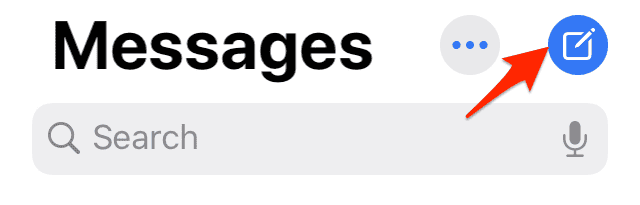
- Tap the Compose button (pencil in a square) in the top right.
- In the To: field, type the names, phone numbers, or email addresses of the people you want to include.
- Tap each one as they appear. You can add as many as you like.
- Enter your text in the message field at the bottom of the screen.
- Tap the Send button (blue or green arrow). Once sent, a group conversation is automatically created.

Name your group (iMessage only)
- Tap the group icons at the top of the screen.
- Tap Change Name and Photo.
- Enter a group name and optionally add an image or emoji.
Manage your group
- To add someone later: tap the group icons > Info (i) > Add Contact.
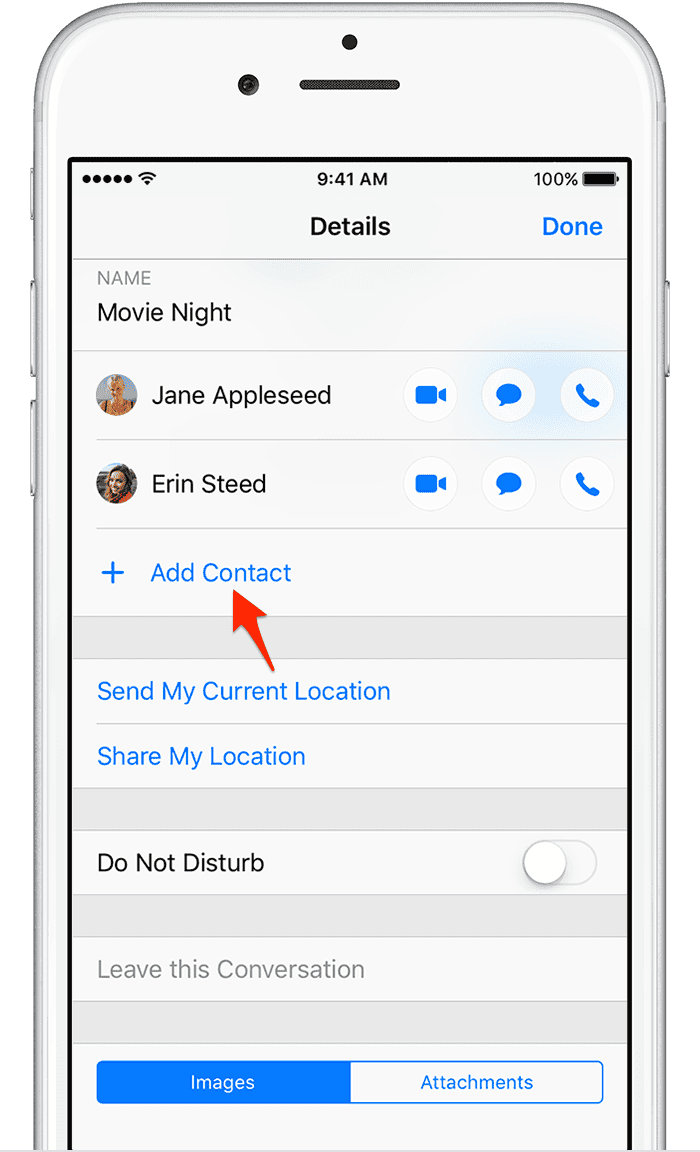
- To remove someone: only possible in iMessage groups, not SMS/MMS.
- To leave: tap Info (i) > Leave this Conversation (works only in iMessage).

Tips
- If you can’t name the group, it’s because not everyone is using iMessage.
- Use group settings to mute notifications if the chat gets noisy.
- Pin your group chat to the top of Messages for faster access.
- For large events, consider creating a shared Notes document or Reminders list instead of relying only on group texts.
For further reading, check out how to encrypt your iPhone messages.
FAQs
Yes, but the group will switch to SMS/MMS (green bubbles) with fewer features. You won’t be able to name the group or remove members.
You can only remove people in iMessage groups. Tap group icons > Info (i) > swipe left on the contact > Remove.
If the chat includes non-iMessage users (SMS/MMS), the Leave this Conversation option won’t appear. You can mute notifications instead.
Yes, if the email address is linked to a person’s Apple ID for iMessage. Otherwise, it won’t work.
Tap the group icons at the top of the chat. Everyone in the conversation will be listed under Info (i).
Summary
- Open Messages
- Tap Compose
- Add recipients
- Type and send your first message
- Name the group (if iMessage)
- Manage, add, or leave members as needed
Conclusion
Making a group text on iPhone is simple and lets you stay connected with multiple people at once. If everyone is on iMessage, you’ll enjoy the full feature set—naming the group, adding and removing people, and leaving conversations. If the chat falls back to SMS/MMS, you’ll still be able to message everyone together, just with fewer options. Either way, group texts remain one of the easiest ways to coordinate plans, share updates, and keep in touch.
Don’t miss the best of The Mac Observer
Set us as a preferred source and our Apple reporting ranks higher in your Google Search results and Discover feed — one tap, no account changes.


Discussion