

I’ve been using Microsoft Teams for a while now, and it has become one of the most reliable tools for communication and teamwork, especially on a Mac. Whether you’re collaborating on projects, joining meetings, or chatting with teammates, Teams makes it easy to stay connected and organized in one place.
If you are interested in the app, I’ll walk you through everything you need to know about using Microsoft Teams on a Mac, from installation to daily use. It’s simple once you get used to the interface, and with the right setup, it works smoothly with macOS.
Table of contents
What You Need to Use Microsoft Teams on Mac
Before getting started, make sure your Mac meets the requirements for running Microsoft Teams smoothly. You’ll need macOS 12 Monterey or later, a valid Microsoft account (personal, work, or school), and a stable internet connection. If you plan to join video calls or online meetings, ensure that your Mac’s microphone and camera are functioning properly and that you’ve granted Teams access to them.
Finally, download the latest version of the Microsoft Teams app from either the official Microsoft website or the Mac App Store to keep it updated automatically. Once these basics are in place, you’re ready to install and start using Microsoft Teams on your Mac.
How to Install Microsoft Teams on Mac
Step 1: Download the App
- Go to the official Microsoft Teams website. Select Mac as your platform, download the file, and open the .pkg installer.

- You can also find Teams on the Mac App Store, which keeps it updated automatically.

Step 2: Install and Sign In
Once installed, open Microsoft Teams from the Applications folder.
- Sign in using your Microsoft 365 or Outlook account.
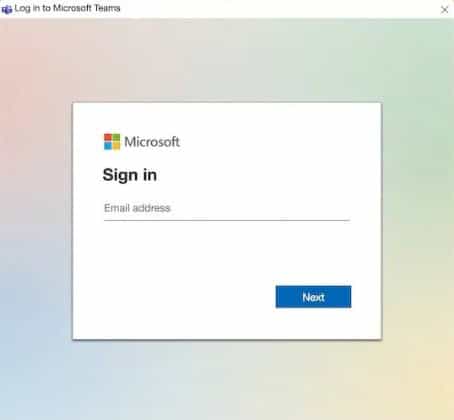
- Grant Teams permission to access your camera and microphone.
- You’ll now see the main Teams dashboard with tabs for Chat, Teams, Calendar, and Calls.

How to Use Microsoft Teams on Mac
Step 1: Navigate the Dashboard
The Teams interface is straightforward once you get familiar with it. The sidebar includes:
- Chat – for private and group messages
- Teams – where your groups and channels live
- Calendar – for meeting scheduling and integration with Outlook
- Calls – for voice and video calls
- Files – to view shared and recent documents

Each section helps keep your work structured and communication clear.
Step 2: Join or Schedule Meetings
To join a meeting, go to the Calendar tab, select the scheduled event, and click Join Now.
To create a meeting:
- Go to Calendar → New Meeting.
- Add a title, participants, and time.
- Click Send, and Teams will send invites automatically.
You can also share your screen, adjust background effects, or record the meeting for later viewing.
Step 3: Use Chat and Channels
Teams gives you two main ways to communicate — Chats and Channels.
- Chats are great for quick, direct conversations.
- Channels (under Teams) are designed for ongoing discussions, organized by topics or projects.
Use @mentions to tag teammates, react with emojis, or pin important messages to keep communication simple and visible.
Step 4: Share Files and Collaborate
One of the best parts of Teams is how well it integrates with Microsoft 365 apps.
- Click Files to upload or browse shared documents.
- Edit files together using Word, Excel, or PowerPoint directly within Teams.
- Attach files in chat using the paperclip icon and track edits in real time.
This feature keeps your workflow consistent without switching between multiple apps.
Tips for a Better Teams Experience on Mac
- Keep your Teams app updated for the best performance.
- Enable notifications in macOS to stay on top of messages.
- Use keyboard shortcuts like Command + E for quick search access.
- Integrate Outlook Calendar for easier meeting scheduling.
- Check Settings → Devices to test your mic and speakers before a call.
Conclusion
Microsoft Teams is one of the most dependable and flexible tools on Mac for both personal and professional communication. Once installed, it fits naturally into the macOS ecosystem and offers all the tools you need to chat, meet, and collaborate. Whether you’re managing a small team or working across departments, Teams helps keep everything in one place — simple, organized, and easy to use. Also, check the CarPlay support coming to Microsoft Teams.
FAQs
Yes. Visit teams.microsoft.com to use the web version in Safari, Chrome, or Edge.
It can slow down if multiple apps are open. Close unused programs, clear cache, and keep macOS and Teams updated.
Yes. During a meeting, click More options → Background effects to choose or upload a background.
Yes. It integrates with Word, Excel, PowerPoint, and Outlook so that you can collaborate across the Office suite.
Yes. Microsoft offers a free version with essential tools for chat, meetings, and file sharing.


I just cancelled a scheduled meeting on Microsoft Teams because I could reach the waiting room of the person I was meeting with but neither of us could successfully connect to each other.
Every item on your installation guide was followed exactly. I am on a Mac Book running Mac OS 15.7.3. Other person is on a PC desktop. That other person invited me to the meeting. No other people were involved.
As far as I am concerned this is yet another example of a Microsoft app that is supposed to work on Mac, yet doesn’t.
Unfortunately, Microsoft Teams on Mac has a long history of connectivity quirks, especially when joining meetings hosted from a PC. In this situation, the quickest workaround is to join via the Teams web app in a browser of your choice, or try another device.