

The update to iOS 18.5 has unfortunately caused a frustrating issue for some iPhone users: the sudden disappearance of all calendar events. This disruption can be significant, wiping out vital appointments and reminders. The good news is that your data is likely safe in the cloud and may simply be a syncing error. Here are the most effective troubleshooting steps reported by the community to recover your missing schedule.
Table of contents
Recovering Missing Events After iOS 18.5
1. Adjust the Sync Period Setting
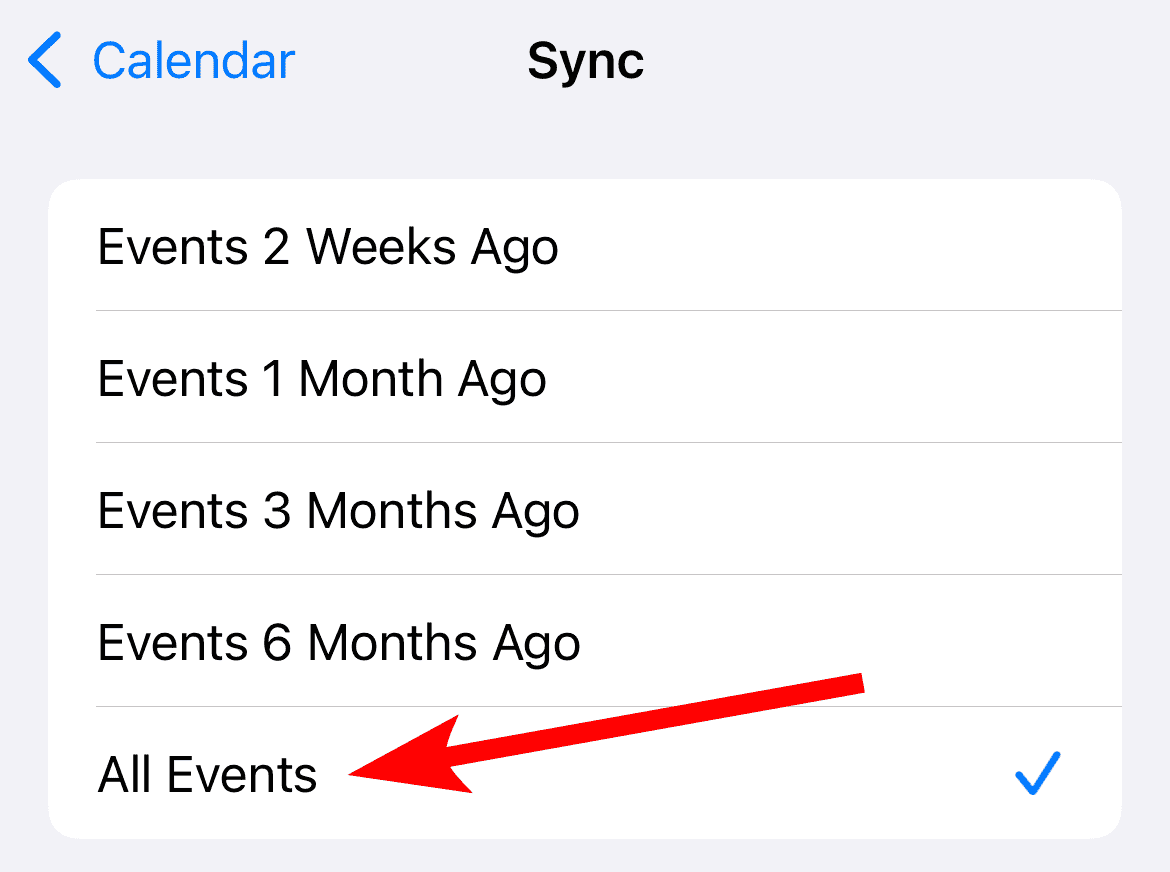
Often, the iOS update mistakenly resets the duration for how far back your calendar events are synchronized. This can cause older events to appear missing. Resetting this Sync setting to “All Events” is a simple yet crucial step to recover them.
- Open the Settings > Apps > Calendar > Sync.
- If it is set to “Events 1 Month Back” or “Events 6 Months Back,” change the setting to All Events.
- If “All Events” is already selected, try changing it to a different period (like “Events 6 Months Back”) and then immediately switch it back to All Events.

2. Toggle iCloud Calendar Synchronization
Toggling iCloud synchronization forces your iPhone to re-establish a connection with Apple’s servers, which host your primary calendar data. This action triggers a full redownload of your appointments. For those who share appointments, you may also be interested in organizing your schedule with calendar apps designed for family use.
Don’t miss the best of The Mac Observer
Set us as a preferred source and our Apple reporting ranks higher in your Google Search results and Discover feed — one tap, no account changes.
- Open the Settings app.
- Tap your Apple ID banner at the top of the screen.
- Tap iCloud, then tap See All under Apps Using iCloud.
- Locate iCloud Calendar and toggle the switch Off.
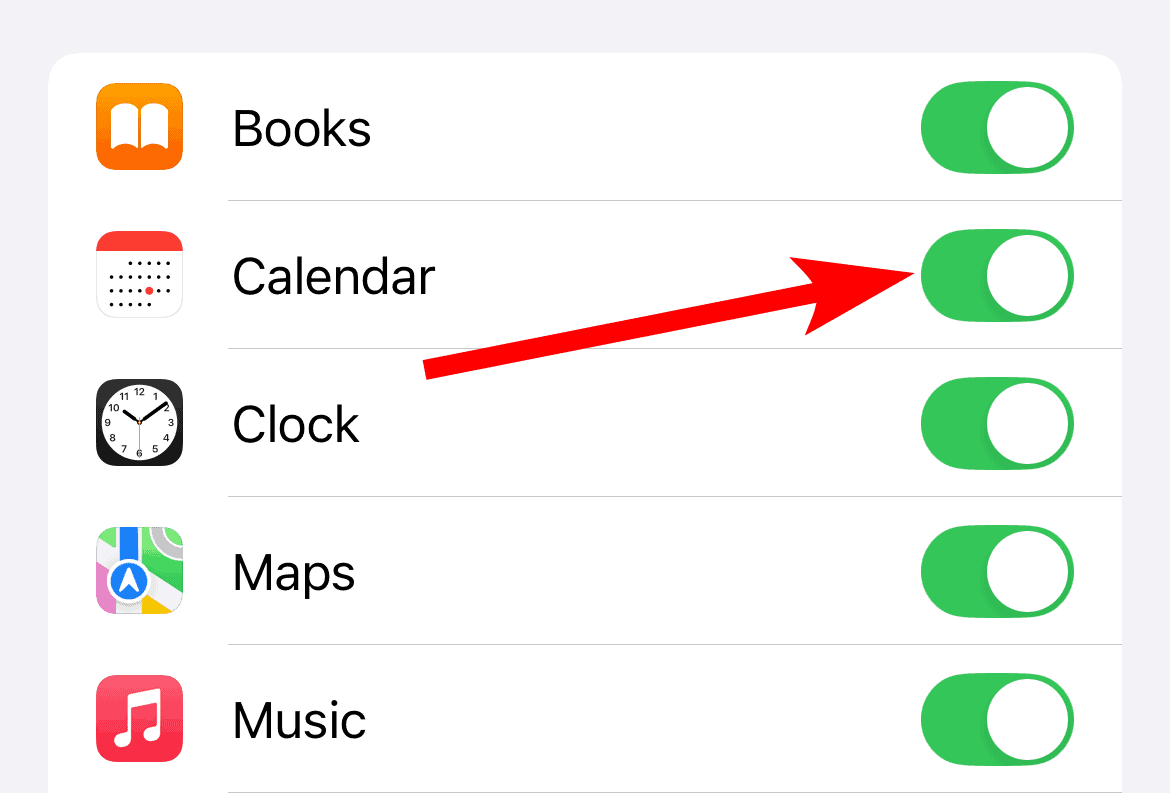
- When prompted, select Delete from My iPhone. (Your events remain safe on iCloud).
- Restart your iPhone, then return to this setting and toggle iCloud Calendar back On.

3. Check Visibility of All Calendars
The issue may be one of visibility rather than actual data loss. The iOS 18.5 update can sometimes uncheck specific calendars, hiding your appointments from view. Ensuring all accounts are checked is key. If you use other apps to manage your time, check out some excellent calendar apps for your iPhone.
- Open the default Calendar app.
- Tap the Calendars button at the bottom center of the screen.
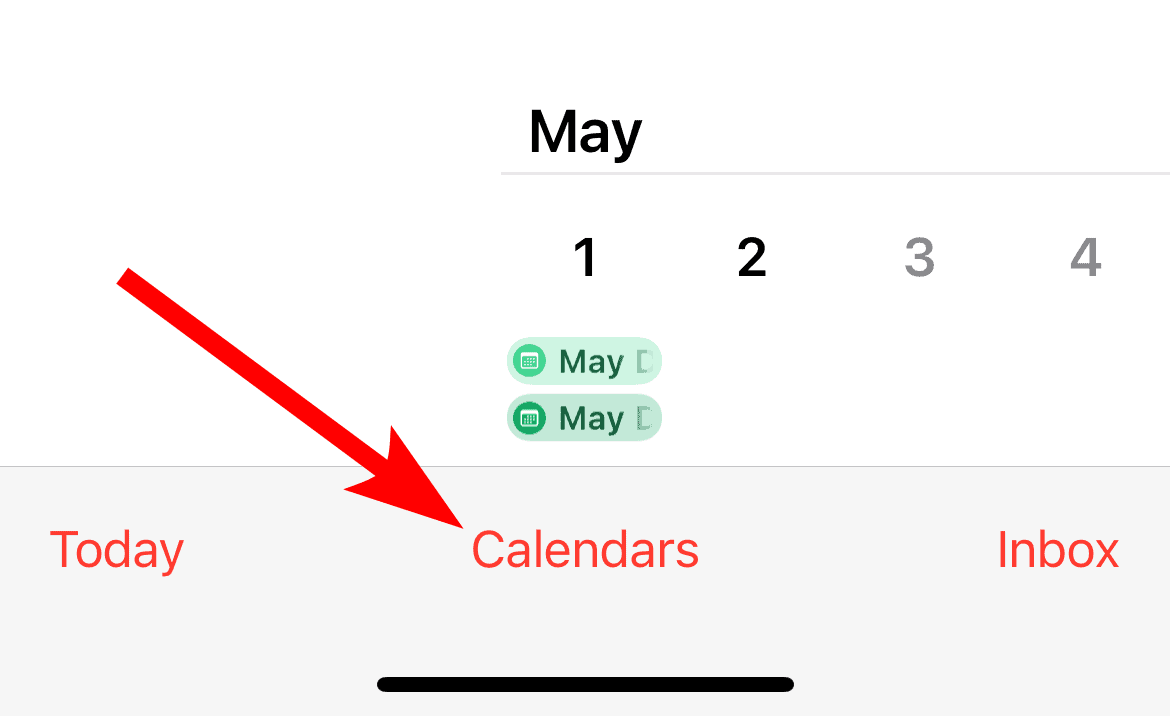
- Review the list of calendars under iCloud, Gmail, or other accounts.
- Ensure that the checkmark next to every calendar you wish to see is enabled.
- Tap Done to return to the main calendar view and check for your events.

4. Verify and Re-add Calendar Accounts
External calendar services like Google or Outlook require proper authentication to display events. The iOS 18.5 update may have disrupted the connection to these services, requiring re-verification. This process can also help if you are trying to sync your Apple Calendar with Google Calendar specifically.
- Go to Settings > Apps > Calendar > Calendar Accounts.
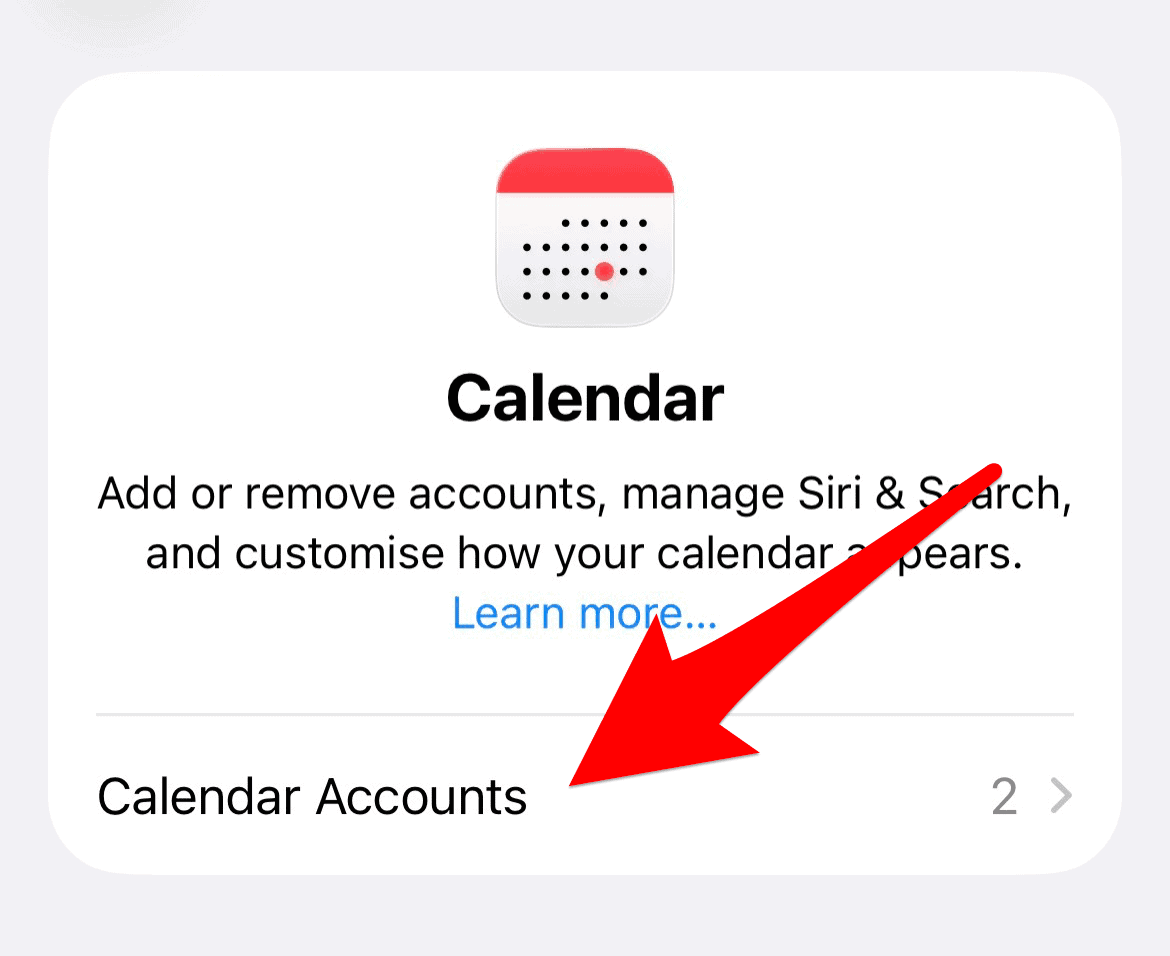
- Tap on each account (like Gmail or Outlook) and verify the credentials. You may need to sign in again.
- If an account is missing entirely, tap Add Account and re-add the necessary calendar service.

5. Restore Your Calendar Archive from iCloud Web
If all local device and syncing fixes fail, your last resort before using a full device backup is to restore a calendar archive directly from Apple’s servers. This is an effective method if the calendar data itself was corrupted in iCloud during the update process.
- On a computer, go to icloud.com/calendar and sign in with your Apple ID.
- Click the App Launcher icon and select Data Recovery.
- Click Restore Calendars.
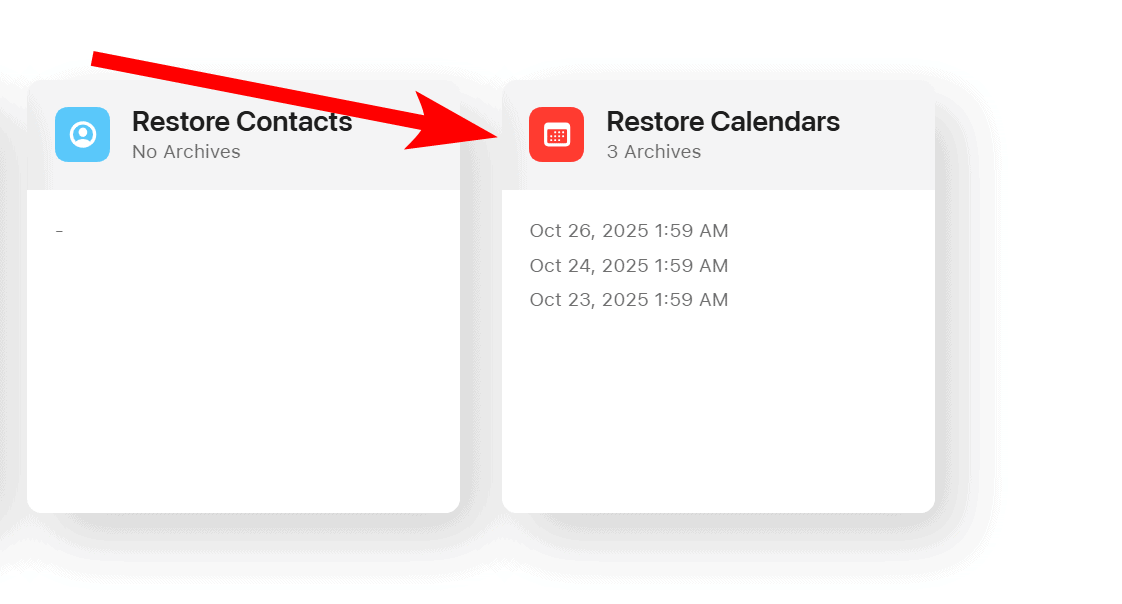
- Select an archive date before you updated to iOS 18.5 and click Restore.

FAQ
This is typically due to a sync glitch or an unexpected change to the sync settings during a major software update. The events are usually safe on a remote server like iCloud or Google, but the iPhone temporarily fails to connect or only retrieves a limited number of past appointments.
If your events were not synchronized to a cloud service, they were stored locally. Recovery is difficult, but possible if you have a full device backup from before the iOS 18.5 update was installed. This involves restoring the entire iPhone from that older backup.
With iCloud, your calendar events are saved indefinitely. The setting called Sync only controls how many months or years of historical events the iPhone downloads and displays on the device. Changing this to All Events should show your complete history.
Steps to Safeguard Your Calendar Data
The panic of losing a comprehensive daily schedule is completely understandable, but in almost all cases, the events are simply hidden by a temporary sync error introduced by the iOS 18.5 update. By methodically working through the sync and account settings, you can quickly bring your appointments back into view. To prevent future panic, always ensure your calendar events are synced to a cloud service. For those who track decades of activities, understanding how far back Apple Calendar retains data is also essential for peace of mind.


My iPhone lost all of my calendar events two days after updating. I have tried all the fixes recommended and still cannot restore my calendar. What can I do. Is there a live person I can talk to? Very very frustrating!