

If your Toshiba external hard drive suddenly starts acting up on your Mac, slow transfers, strange clicking sounds, or the dreaded “Drive not recognized” message, you’ve got a problem that can’t wait. Toshiba drives are known for reliability, but like every other brand, they’re not immune to corruption, bad sectors, or hardware failure. The good news is, you don’t need to panic. With the right repair software, you can often recover your files, repair disk errors, and keep your drive running smoothly without heading straight to a data recovery lab. Let’s look at the best tools for the job and what makes each one worth using.
Table of contents
What Makes Good Hard Drive Repair Software
Before naming names, it’s worth understanding what separates decent repair tools from the ones that actually get you out of trouble. The best Toshiba hard drive repair software for Mac should:
- Work with all file systems, including APFS, HFS+, FAT32, exFAT, and NTFS.
- Detect and fix disk errors caused by corruption or bad sectors.
- Recover lost files even from formatted or damaged drives.
- Support S.M.A.R.T. monitoring, so you can catch problems early.
- Have a clean, intuitive interface—because the last thing you need while troubleshooting is a confusing layout.
Now that we’ve got the basics down, let’s get into the software that actually delivers.
Don’t miss the best of The Mac Observer
Set us as a preferred source and our Apple reporting ranks higher in your Google Search results and Discover feed — one tap, no account changes.
1. Disk Drill – Best Overall Choice
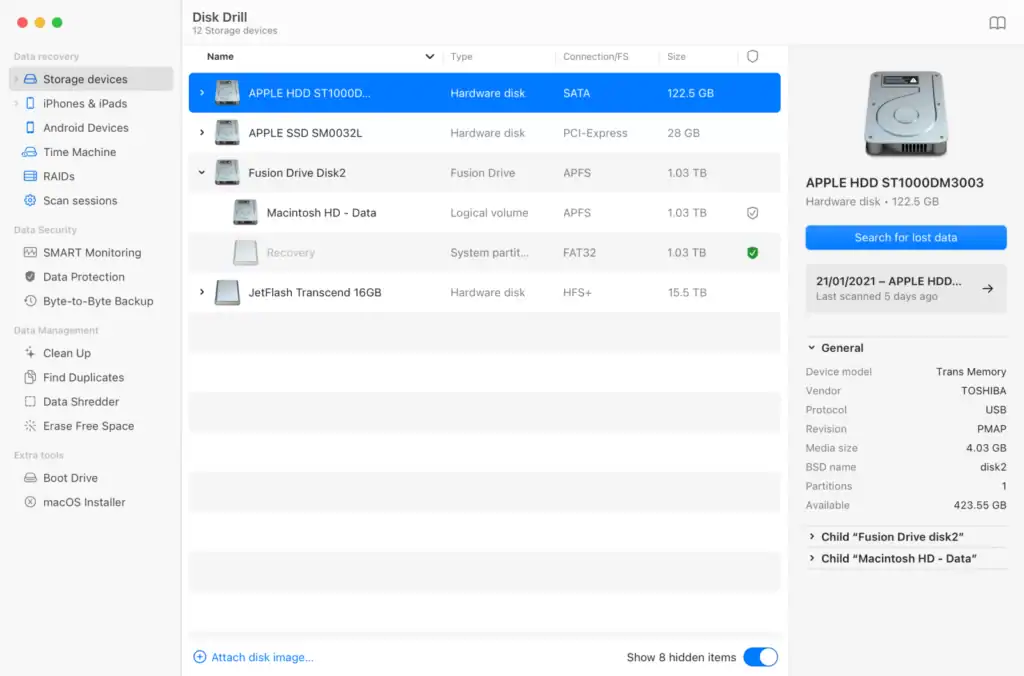
Image Source: Disk Drill
If you only try one program, make it Disk Drill for Mac. It’s an all-in-one repair and recovery tool that works perfectly with Toshiba drives, whether they’re formatted for macOS or shared with Windows.
Disk Drill’s strength lies in its simplicity. You connect your drive, open the app, and it automatically checks for errors and recoverable data. It can repair damaged file systems, rebuild partition maps, and recover files from drives that macOS refuses to mount. The scanning process is non-destructive, meaning it doesn’t make the problem worse while trying to fix it.
Another reason it tops the list: Disk Drill includes extra tools for data protection and S.M.A.R.T. monitoring. It’ll warn you if your Toshiba drive is showing signs of wear before it fails. The free version lets you preview recoverable files, while the Pro version (around $89) unlocks full recovery and repair tools.
2. Techtool Pro – Best for Diagnostics

Image Source: MacUpdate
Techtool Pro is like a full-body health check for your Mac and its drives. It’s particularly good if you suspect your Toshiba drive is failing physically or has directory structure issues.
It can run from a bootable device, bypassing macOS completely, which makes it useful when your system won’t recognize the drive at all. It runs S.M.A.R.T. checks, repairs volumes, rebuilds directories, and even performs hardware diagnostics to catch potential issues like overheating or voltage spikes.
It’s more expensive—prices start around $159—but it’s one of the few tools that can test both your Mac’s internal drive and your external Toshiba drive in one go.
3. Drive Genius – Best for Maintenance and Repair

Image Source: MacUpdate
Drive Genius has been a go-to Mac utility for years. It offers an impressive set of disk repair and optimization tools designed to extend your drive’s lifespan.
For Toshiba drives, it’s particularly useful for detecting bad sectors, repairing volume consistency issues, and running deep surface scans. It also includes malware detection and drive monitoring tools to prevent future failures.
The downside is that it doesn’t support macOS Sonoma or newer, which makes it best for users running Ventura or older. Still, if you’re on a slightly older system, Drive Genius can repair file system inconsistencies and even help you clone or reformat a failing drive safely.
4. DiskWarrior – Best for Directory Repairs
If your Toshiba drive mounts but behaves erratically—missing files, slow directory access, or errors when opening folders—DiskWarrior is worth a look.
It specializes in repairing and rebuilding damaged directory structures. When a drive’s directory becomes corrupted, your files might still be there, but macOS can’t find them properly. DiskWarrior fixes that by creating a new, optimized version of the directory and replacing the broken one.
Here’s the catch: it doesn’t support APFS yet, which means it won’t work with drives formatted in the newest macOS file system. But if your Toshiba drive uses HFS+ or FAT32, it’s an incredibly effective repair tool.
5. OnyX – Best Free Option

Image Source: Reddit
If you’re not looking to recover data but simply want to repair permissions, clean up caches, and keep your drive running smoothly, OnyX is your friend.
It’s a free Mac utility that handles system maintenance tasks and minor repair jobs. It won’t recover lost files or repair physical damage, but it can fix certain directory issues, rebuild caches, and optimize drive performance.
OnyX is especially handy when your Toshiba drive feels sluggish but still functional. It’s simple, safe, and totally free.
6. Carbon Copy Cloner – Best for Data Backup and Protection
Here’s the thing: sometimes, “repair” isn’t the smartest move—especially if your drive is close to failure. In those cases, your best bet is to clone the drive before it gives out.
That’s where Carbon Copy Cloner (CCC) shines. It creates bootable backups of your entire drive, including the operating system, so you can move everything to a new drive without losing a single file. For Toshiba drives showing signs of failure, CCC lets you salvage your data quickly and safely.
It doesn’t fix bad sectors, but as a companion to repair tools like Disk Drill, it’s an essential part of your data protection plan.
7. Data Rescue – Best for Deep File Recovery
If your Toshiba drive is readable but heavily corrupted, Data Rescue is built for deep recovery scans. It has both quick and deep scan modes, depending on how damaged the drive is.
While its interface looks dated, it’s effective. It can recover files from formatted, corrupted, or even partially overwritten drives. You can preview recoverable files before restoring them, and it supports most file systems.
Keep in mind that Data Rescue can’t scan your system drive directly in newer macOS versions without entering Recovery Mode—but for external Toshiba drives, it works fine.
How to Choose the Right Tool
Not all repair software is built for the same problems. Here’s a quick way to decide:
- Drive won’t mount: Try Disk Drill or Techtool Pro.
- Files missing or unreadable: Use DiskWarrior or Data Rescue.
- Drive still works but runs slowly: OnyX or Drive Genius can help.
- Drive might be dying: Clone it with Carbon Copy Cloner before running anything else.
And if your Toshiba drive shows physical failure symptoms—like clicking noises, overheating, or disconnections during use—stop immediately. No software can fix mechanical failure. In that case, you’ll need a professional recovery service.
Preventing the Next Hard Drive Disaster
Once your Toshiba drive is back in shape, take a few steps to prevent another crisis:
- Back up regularly using Time Machine or Carbon Copy Cloner.
- Monitor S.M.A.R.T. data with Disk Drill or Drive Genius.
- Eject properly before unplugging any external drive.
- Avoid sudden power losses by using a surge protector or UPS.
- Replace aging drives—if your Toshiba’s been running for over five years, it’s time to consider a replacement.
Hard drives don’t last forever, but staying proactive keeps surprises to a minimum.
Final Thoughts
Toshiba drives are solid, but no drive is bulletproof. Whether you’re dealing with corruption, missing files, or slow performance, having the right Mac repair software can make the difference between recovery and data loss.
If you want one go-to tool, Disk Drill stands out for its balance of ease, performance, and versatility. But pairing it with Carbon Copy Cloner for backups and OnyX for maintenance gives you full coverage.
Bottom line: take care of your Toshiba drive, keep good backups, and use repair tools before small problems turn into big ones. Your data—and your sanity—will thank you.





Discussion