

The Apple Music app gives you millions of songs. However, playback or connection issues on your iPhone frustrate users. These problems often start with simple glitches. Connectivity hiccups or old software are common culprits. Try straightforward troubleshooting first. This will quickly restore your listening experience. A stable connection and updated device ensure smooth Apple Music use.
Why Apple Music Stops Working
The Music app may fail on an iOS device. The cause is usually one of a few common issues. These range from minor app conflicts. Account restrictions or service outages are other causes. Knowing the potential reasons helps you find the right fix. Apply targeted solutions to get your music back. Always check the service status first.
1. Verify Your Internet Connection
Apple Music is mainly a streaming service. Therefore, a strong internet connection is essential for playing music. The app struggles to load songs if your connection is weak. It may not even open properly.
Don’t miss the best of The Mac Observer
Set us as a preferred source and our Apple reporting ranks higher in your Google Search results and Discover feed — one tap, no account changes.
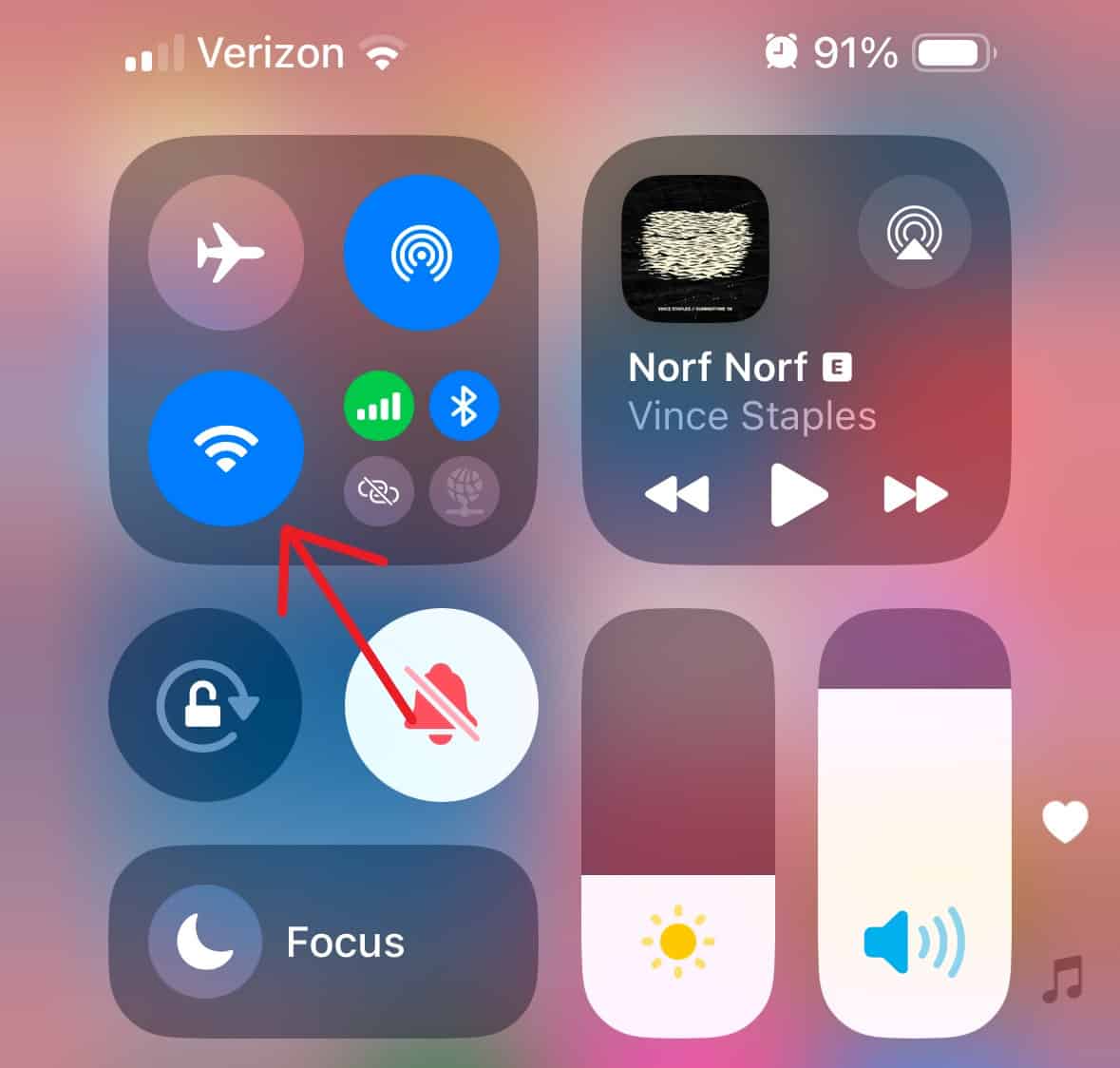
- Check Wi-Fi or Cellular Data: Make sure your iPhone uses reliable Wi-Fi. Alternately, confirm cellular data is active for the Music app.
- Test Other Apps: Open a web page or another streaming app. This confirms your general internet connection is working.
- Toggle Network Off/On: Switch Wi-Fi or cellular data off briefly. Then turn it back on. This refreshes the network connection.

2. Check Apple Music Server Status
Sometimes the issue is with Apple’s servers. It is not always your iPhone. Outages are rare. Still, they can stop the app from connecting to the service.
Visit Apple’s official System Status page for outages. Look for the Apple Music status indicator. If it is not green, Apple is resolving the issue. You must wait for their fix. Troubleshooting your device then offers no solution. Furthermore, you may want to review this comprehensive guide to the Apple Music web player. Also, you can compare Apple Music with its rival here: Apple Music vs Spotify: Is a New Premium Tier Coming?.
3. Force Quit and Restart the Music App
A simple app refresh clears minor software glitches. This often fixes issues stopping music playback. It also helps if the interface fails to load. This is one of the quickest fixes to attempt.
- Open the App Switcher: Swipe up from the bottom of Face ID iPhones and pause. Double-press the Home button on older iPhones.
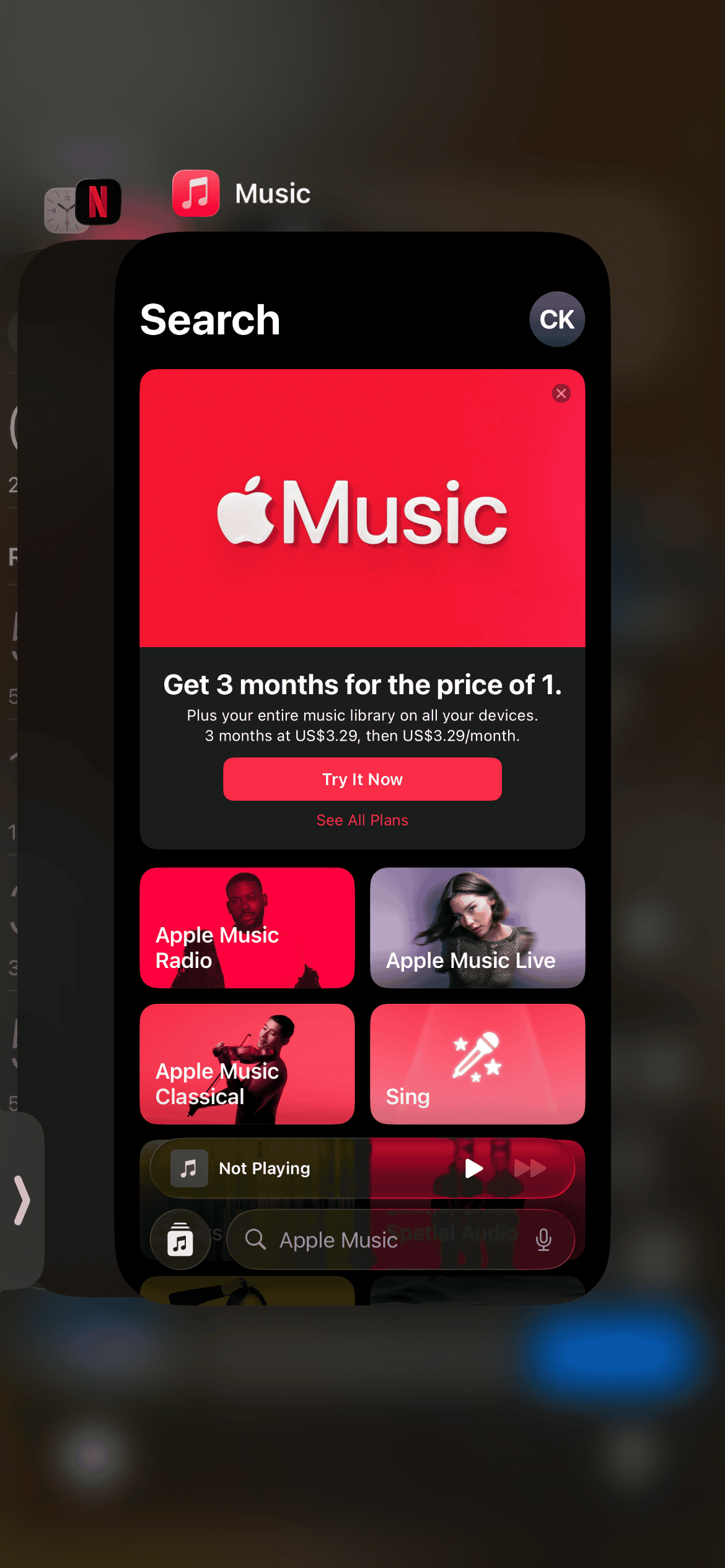
- Find the Music App: Locate the Music app preview card in the switcher.
- Close the App: Swipe the Music app’s preview card up off the screen. This forces the app to close. Relaunch the app from your home screen.

4. Verify Your Apple Music Subscription Status
Your access will be restricted if your subscription expired. A failed payment method also causes restrictions. This often stops songs from playing.
- Go to Settings: Open the Settings app on your iPhone.
- Access Subscriptions: Tap your Apple ID at the top. Next, select Subscriptions.
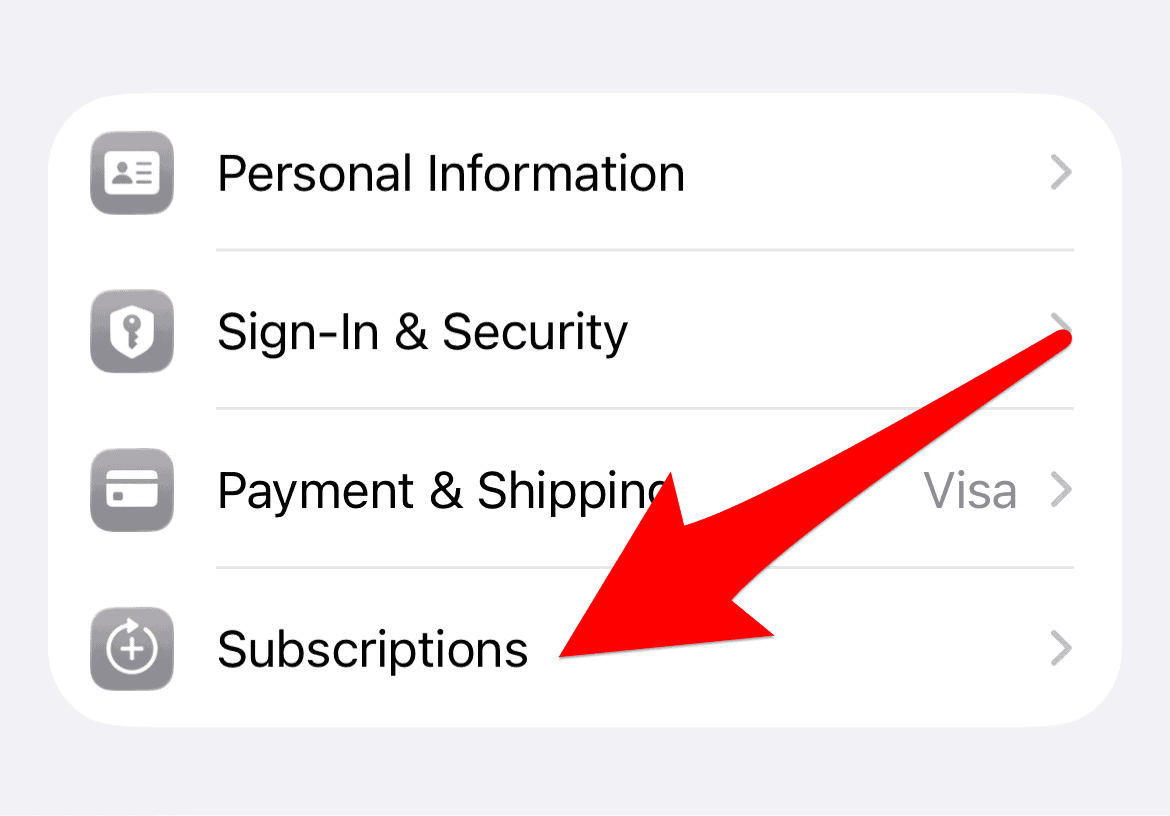
- Review Status: Find your Apple Music Membership. Confirm its status is active and paid up.

5. Sign Out and Back Into Apple ID
This solution helps resolve corrupted login credentials. It also fixes account syncing problems. The app must re-authenticate with Apple’s servers. Moreover, check this article if you have connection issues: how to fix Apple Music connection issues.
- Open Settings: Navigate to the main Settings menu.
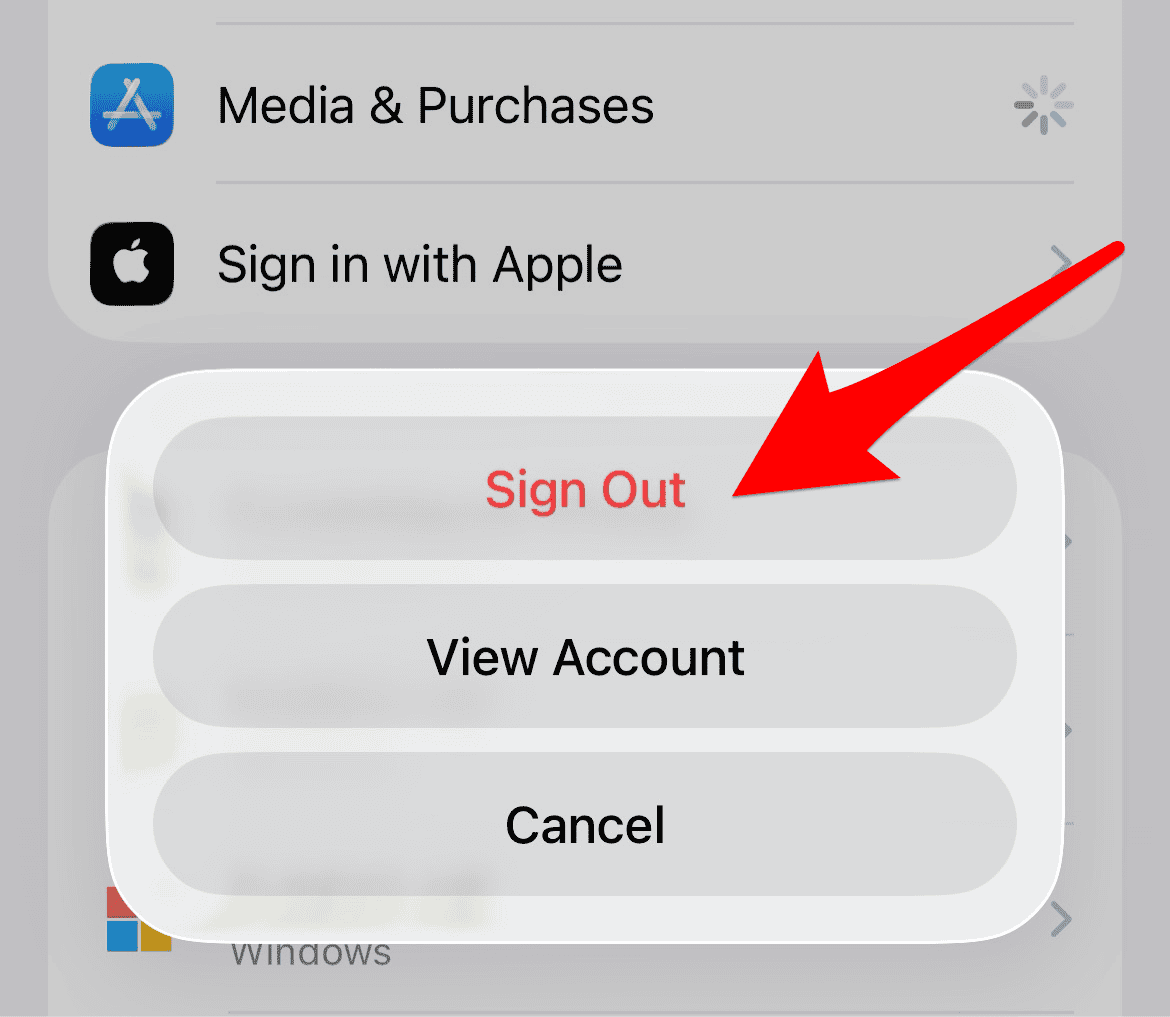
- Access Media & Purchases: Tap your Apple ID at the top. Then, select Media & Purchases.
- Sign Out: Tap Sign Out. You must then sign back in. Tap Media & Purchases. Enter your Apple ID and password.

6. Update Your iOS Software and Music App
Old software often contains bugs. These bugs conflict with apps like Apple Music. This leads to poor performance or playback failure. Therefore, keeping your device and the app updated is vital.
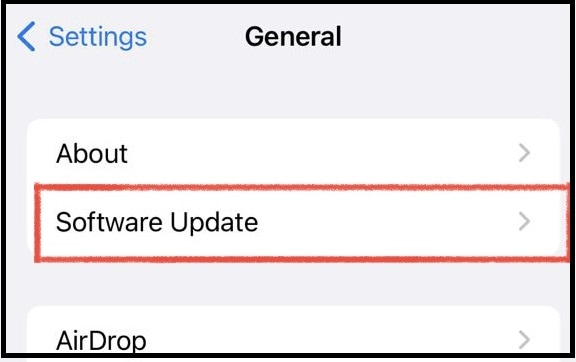
- Check iOS: Go to Settings > General > Software Update. Install any pending iOS updates immediately.
- Check App Store: Open the App Store. Tap your profile icon. Scroll down to check if the Music app needs an update.

FAQ
Pausing can result from an unstable internet connection. Low power mode may restrict background activity. A connected Bluetooth device might also cause issues. Try restarting your iPhone. Check your network stability as well.
This is a useful step. However, save it for very persistent issues. It temporarily removes downloaded music. Always try all other steps first.
Go to Settings > Music. Ensure the Sync Library toggle is on. If it is already on, try cycling it off. Restart your phone. Finally, turn it back on.
Restoring Your Playback Experience Quickly
You can usually resolve most Apple Music issues on your iPhone. Work systematically through these troubleshooting steps. These actions cover the most common issues. Start with verifying basic connectivity. Move to refreshing your account credentials. You return to reliable streaming quickly. Now you can focus on enjoying your music. Stream a new release or listen to your playlists. Additionally, learn how to transfer music to Apple Music.


Discussion