

Apple Music is one of the most popular music streaming platforms in the world, known for its sound quality and deep library. But every now and then, it stops connecting: playlists don’t load, songs hang on buffering, or you get an endless “Cannot Connect” message. It’s annoying, especially when all you want is to listen to your favorite track.
Let’s look at what causes Apple Music to stop connecting and how you can fix it quickly.
Why Apple Music Fails to Connect
When Apple Music can’t connect, the problem usually comes down to one of a few things.
Don’t miss the best of The Mac Observer
Set us as a preferred source and our Apple reporting ranks higher in your Google Search results and Discover feed — one tap, no account changes.
Unstable Internet Connection
Apple Music needs a steady, fast connection to stream high-quality songs. Weak Wi-Fi or spotty mobile data can interrupt playback or stop the app from loading entirely.
Apple Servers Are Down
Sometimes, the issue isn’t on your end. Apple’s servers can experience outages or scheduled maintenance, temporarily affecting services like Apple Music, iCloud, or Apple TV.
Outdated Software
Running an old iOS version can lead to bugs and compatibility issues. Apple rolls out updates to fix these problems, but if you haven’t installed the latest version, the app might not function properly.
Incorrect Date or Time Settings
It might sound minor, but if your iPhone’s time or date is wrong, it can cause authentication errors that prevent Apple Music from connecting.
Temporary Glitches
Sometimes, it’s just a momentary bug in the app or device memory that clears up after a restart.
How to Fix Apple Music Connection Issues
Here are the most reliable ways to get Apple Music working again.
1. Check Your Internet Connection
Start with the basics. Make sure your Wi-Fi or cellular data is active and stable. Open another app that requires internet, like Safari or YouTube, to confirm it’s working.
If your internet is fine but Apple Music still won’t connect, try switching between Wi-Fi and cellular data to see if that helps.
2. Check Apple’s System Status
If the problem isn’t your internet, it might be Apple’s servers. Visit Apple’s System Status page and look for Apple Music. A yellow or red indicator means the service is down.
You can also check Downdetector to see if other users are reporting the same issue. If Apple Music’s servers are down, all you can do is wait until they’re restored.
3. Update Your iPhone Software
Outdated software often causes connection problems.
To check for updates:
- Open Settings.
- Tap General > Software Update.
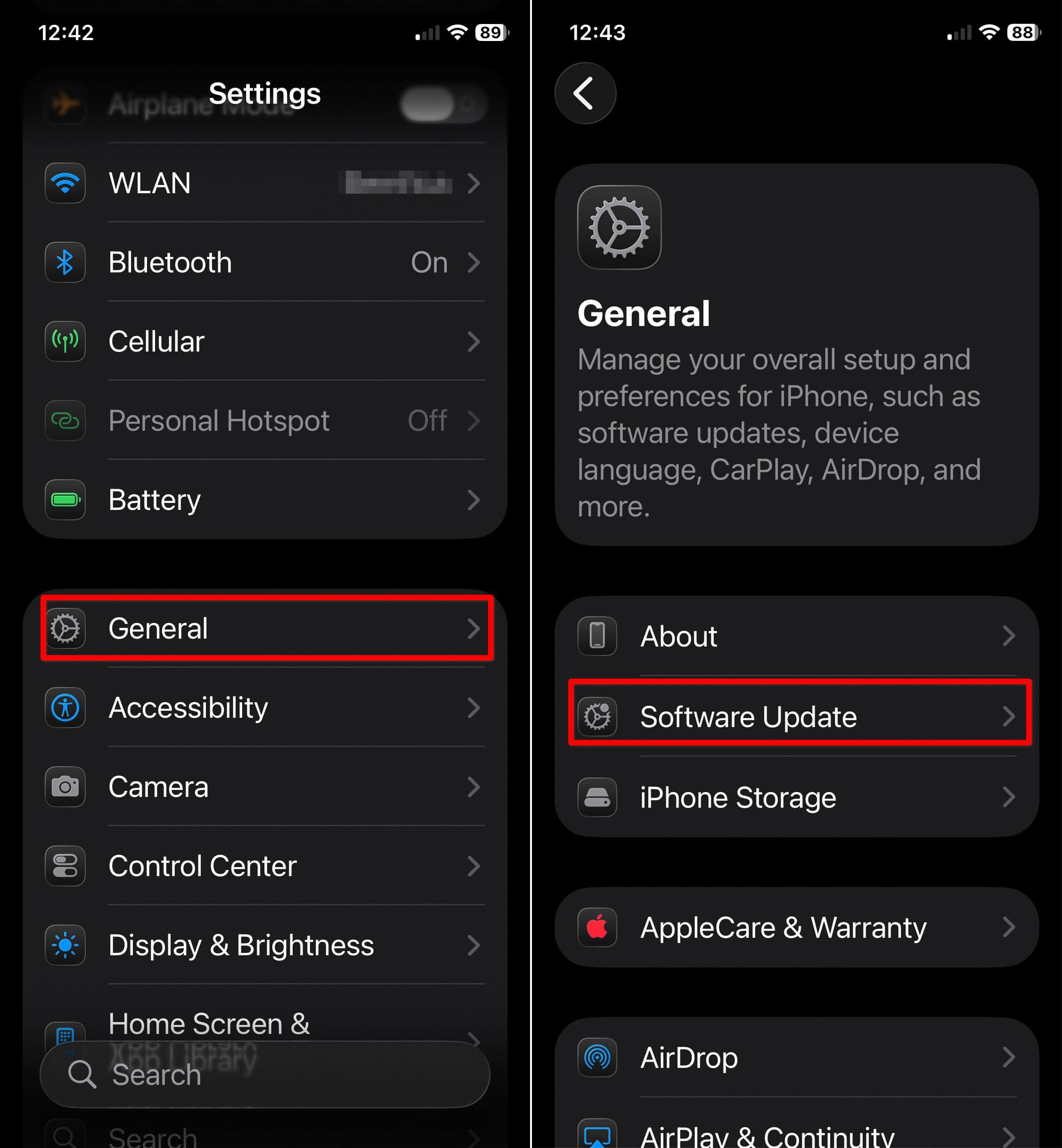
- If an update is available, download and install it.

After updating, restart your iPhone and open Apple Music again.
4. Verify Date and Time Settings
Incorrect time settings can cause verification issues with Apple’s servers.
To fix this:
- Go to Settings > General > Date & Time.
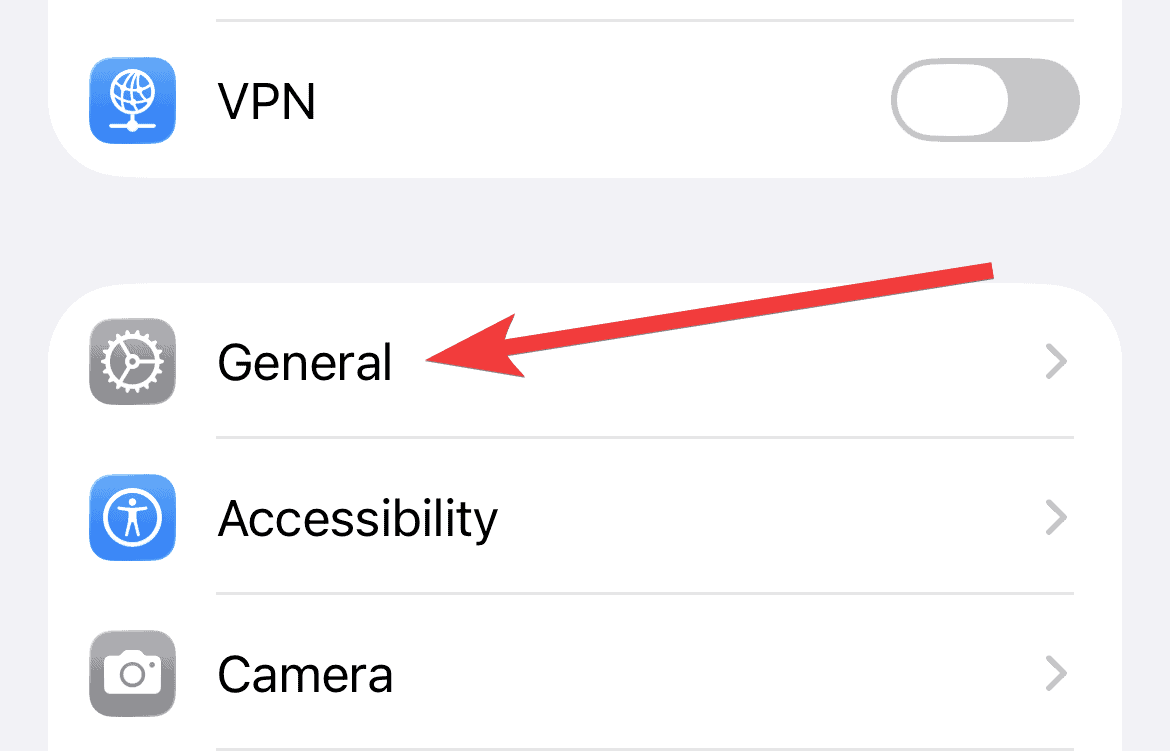
- Enable Set Automatically.
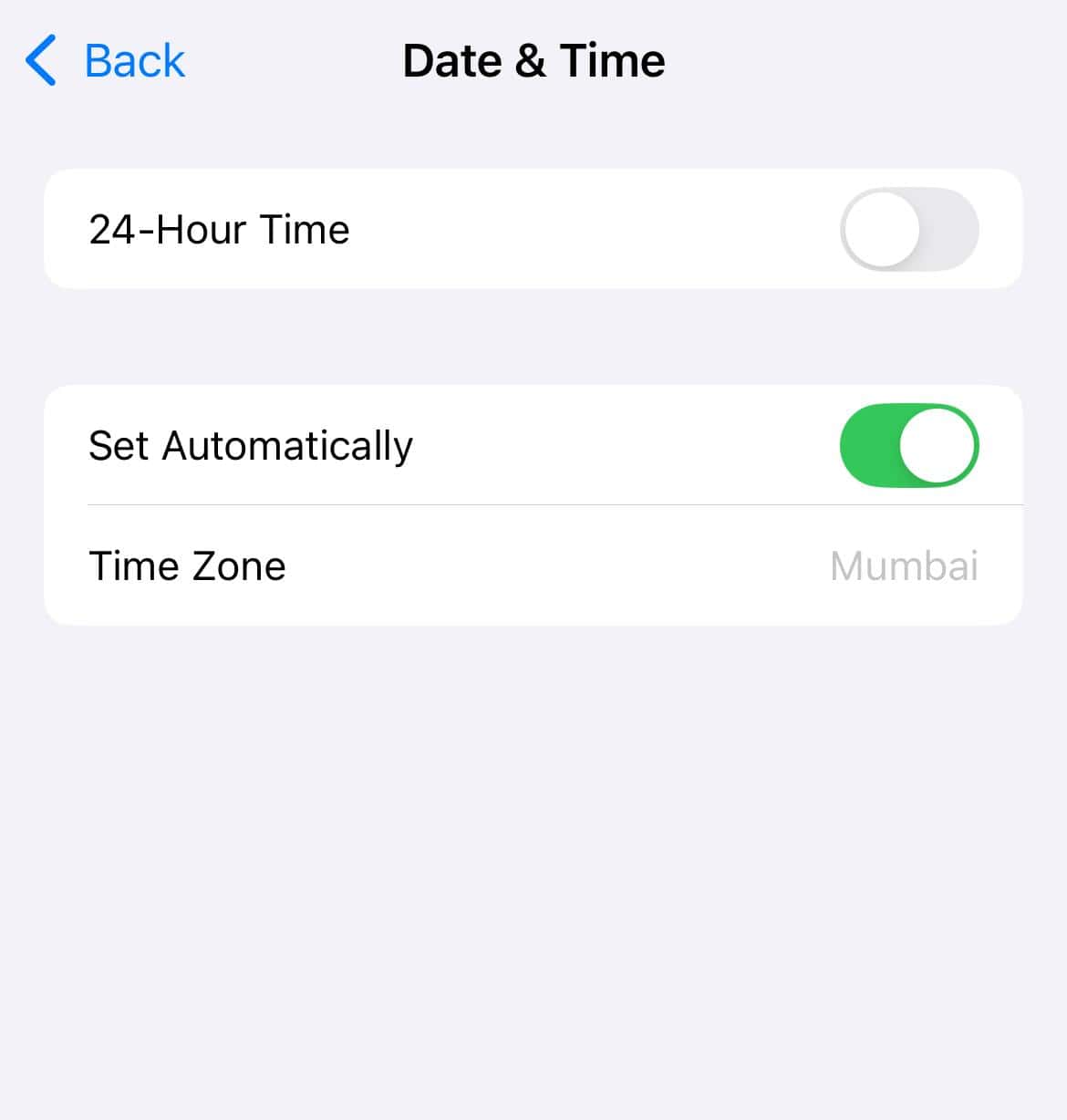


This ensures your device syncs the correct time and time zone using the internet.
5. Restart Your Device
It sounds simple, but restarting your iPhone clears temporary glitches and resets network connections.
- Press and hold the Side button + Volume button, then slide to power off.
- Wait a few seconds and turn it back on.
Once it’s rebooted, open Apple Music and try connecting again. If it still doesn’t work, sign out of your Apple ID and sign back in under Settings > [Your Name] > Media & Purchases.
When to Contact Apple Support
If you’ve tried all these fixes and Apple Music still refuses to connect, there may be a deeper software or account issue. Visit an Apple Store or contact Apple Support online for professional help.




Discussion