

When playlist covers disappear in Apple Music on a MacBook, it often points to a syncing issue between the Music app and Apple’s servers. In some cases, the artwork cache stops loading after a macOS update or an interruption in iCloud Music Library. Most of the time, playlist covers reappear once the cache is rebuilt, the system updates, or syncing is refreshed.
The steps below outline reliable methods to help you retrieve your playlist covers in Apple Music on your MacBook.
Table of contents
Why is this happening?
Missing playlist covers are usually tied to iCloud syncing errors, corrupted cache data, or incomplete artwork downloads. Because the Music app relies heavily on local cache and Apple’s artwork servers, a small glitch can cause entire playlists to appear blank even if the songs remain available.
Don’t miss the best of The Mac Observer
Set us as a preferred source and our Apple reporting ranks higher in your Google Search results and Discover feed — one tap, no account changes.
Other possible triggers include:
- macOS is not loading cached images correctly.
- Temporary artwork retrieval issues.
- Incomplete migration after updating to newer versions of macOS, such as macOS Tahoe.
- Third-party cleaning tools are removing cache folders.
Playlist artwork glitches sometimes appear alongside other visual issues, similar to the display problems covered in this overview of Apple Music UI issues in macOS Tahoe.
Here’s how to fix the problem
Two lines before the solutions or steps.
1. Refresh the Apple Music Library
Refreshing the cloud library forces the app to reload artwork and metadata.
- Open the Music app.
- In the menu bar, select File > Library > Update Cloud Library.
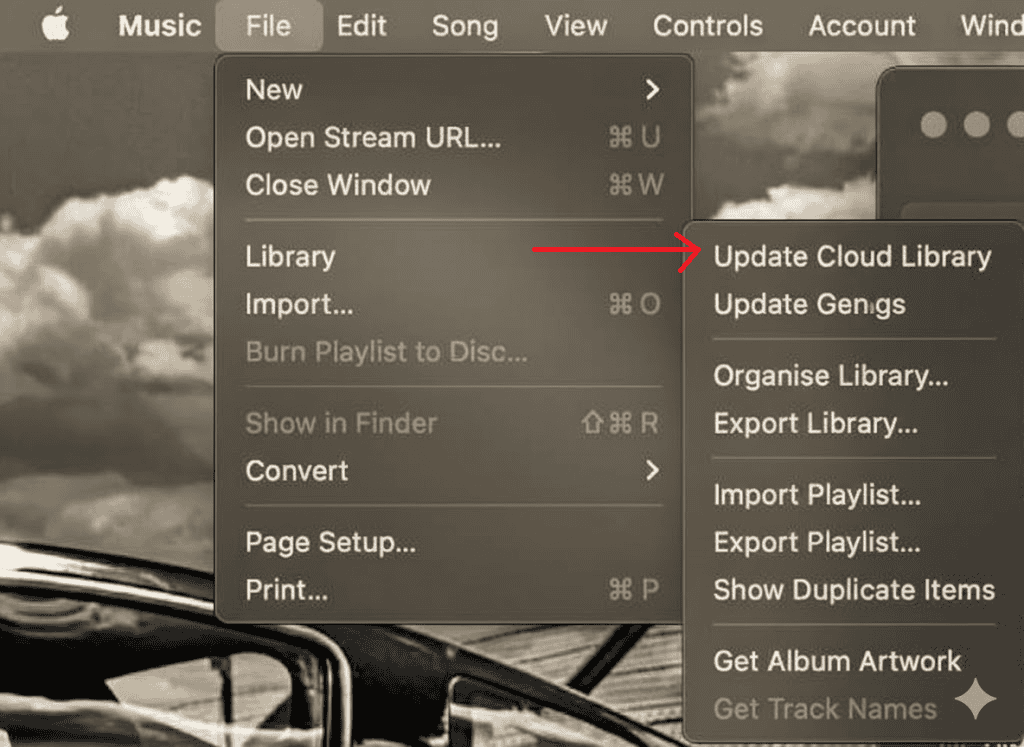
- Wait for iCloud Music Library to finish updating.

If the covers do not return after refreshing, continue with the next steps.
2. Rebuild the Artwork Cache
Rebuilding the cache is one of the most effective fixes when artwork disappears.
- Quit the Music app.
- Open Finder and choose Go > Go to Folder.
- Enter:
~/Library/Caches/com.apple.Music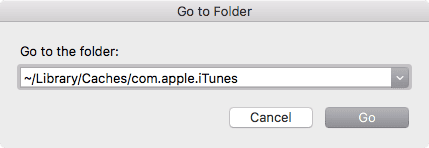
- Delete the fsCachedData folder or any artwork-related cache.
- Reopen the Music app to allow it to rebuild its artwork files.

If the issue resembles cases where Apple Music fails to load content, this may relate to the type of connectivity problems described in the guide on Apple Music connection issues.
3. Toggle Sync Library in Apple Music Preferences
Re-syncing the library often restores the missing playlist covers.
- Open Music > Settings.
- Go to the General tab.
- Turn off Sync Library.
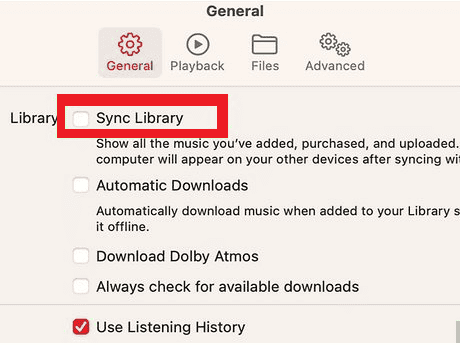
- Close the window and wait briefly.
- Turn Sync Library back on.

Playback and artwork can fail to refresh when Apple Music encounters server-side request errors. Some situations resemble the behavior described in this list of quick fixes for the unable to process request issue.
4. Update macOS and Apple Music
Software updates often resolve artwork and display glitches.
- Open System Settings > General > Software Update.
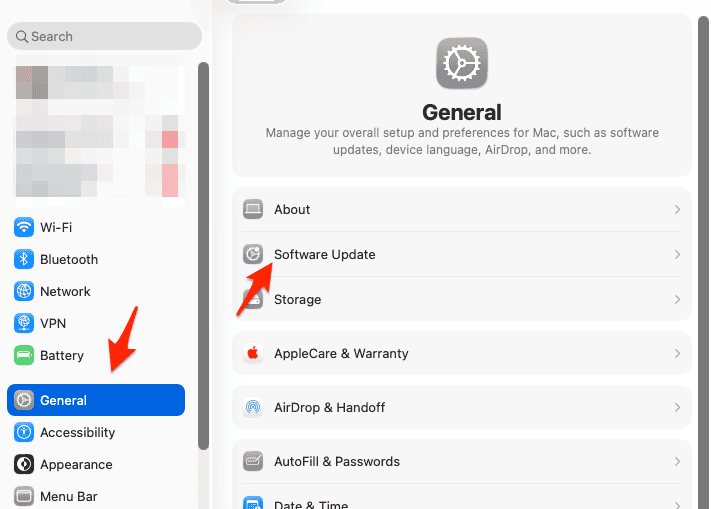
- Install any available updates.
- Restart the MacBook.

A number of artwork-related bugs occur alongside interface problems that have also been noted with macOS Tahoe, as seen in discussions of Apple Music UI issues.
If an error message appears while updating or syncing, the symptoms can be similar to the Something Went Wrong error in Apple Music.
5. Reset the Music App Preferences
Resetting preferences restores Apple Music’s default configuration and can fix persistent artwork failures.
- Quit the Music app.
- Open Finder and go to:
~/Library/Preferences/ - Move com.apple.Music.plist to the desktop.
- Open the Music app again.
- If artwork reappears, delete the old plist file.
If the covers remain missing, the issue may be temporary on Apple’s servers rather than a problem specific to the MacBook.
Additional Tips
- Back up the Music library before removing preference or cache files.
- Avoid cleaners that clear cache data automatically.
- Restart the Mac after performing each major fix.
- Larger libraries may require more time to re-sync artwork.
- Keep macOS and Music updated for smooth syncing and reliable artwork loading.
Final Thoughts
Playlist covers usually disappear because Apple Music cannot load cached artwork or sync properly with iCloud. Refreshing the library, rebuilding the cache, checking sync settings, and applying system updates are the most effective solutions.
Once these steps are completed, the Music app typically restores missing artwork without further action.
FAQs
macOS updates sometimes clear caches or interrupt artwork sync temporarily.
No. Clearing artwork cache only removes temporary images, not your music.
Artwork may be returned within minutes or take several hours, depending on your library’s size.
Yes. Right-click the playlist or album, choose Get Info, then update the artwork.


Discussion