

This error shows up at the worst moments. You try to open a site, and your Mac throws a warning that the certificate for this server is invalid. It looks serious, almost like a red flag that something unsafe is happening. Sometimes it is. Other times it’s your Mac trying to protect you from a simple mismatch or outdated data. Either way, the message gets in the way. So let’s walk through what it means and how to fix it without turning this into a guessing game.
Table of contents
What a certificate actually does
A certificate is basically proof that a website is who it claims to be. It helps your browser create an encrypted connection so anything you send or receive stays private. macOS checks that certificate every time you visit a site. If something doesn’t line up, you get the warning.
Why your Mac might think a certificate is invalid
Here’s the thing. Not every certificate error is a sign of danger. A few very common issues trigger it:
Don’t miss the best of The Mac Observer
Set us as a preferred source and our Apple reporting ranks higher in your Google Search results and Discover feed — one tap, no account changes.
- Your Mac’s date and time are off, so the certificate looks expired
- The site recently changed servers, and your browser is stuck on old cached data
- A certificate has custom trust settings that don’t make sense
- A certificate in your login keychain is corrupted or outdated
If this happens once, ignore it. If it happens everywhere you go online, it’s time to fix it.
Fix 1: Make sure your date and time are correct
Your Mac relies on accurate time to confirm whether a certificate is active. If your clock is wrong, your system sees certificates as expired even when they aren’t.
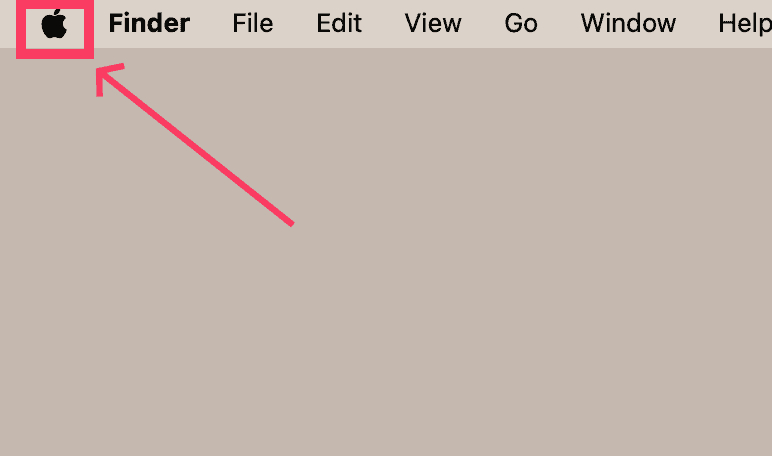
- Open the Apple menu
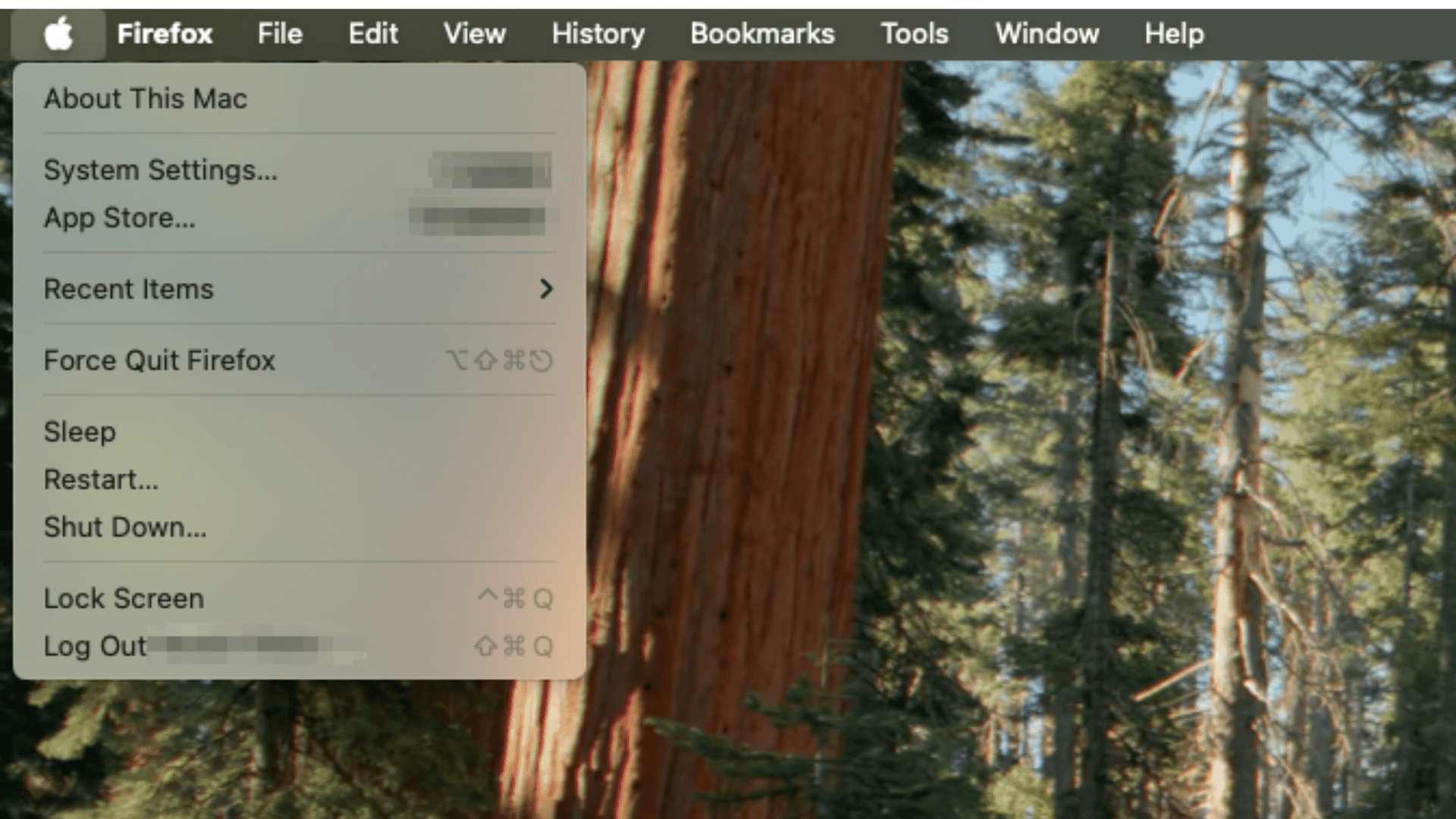
- Go to System Settings
- Open General then Date and Time
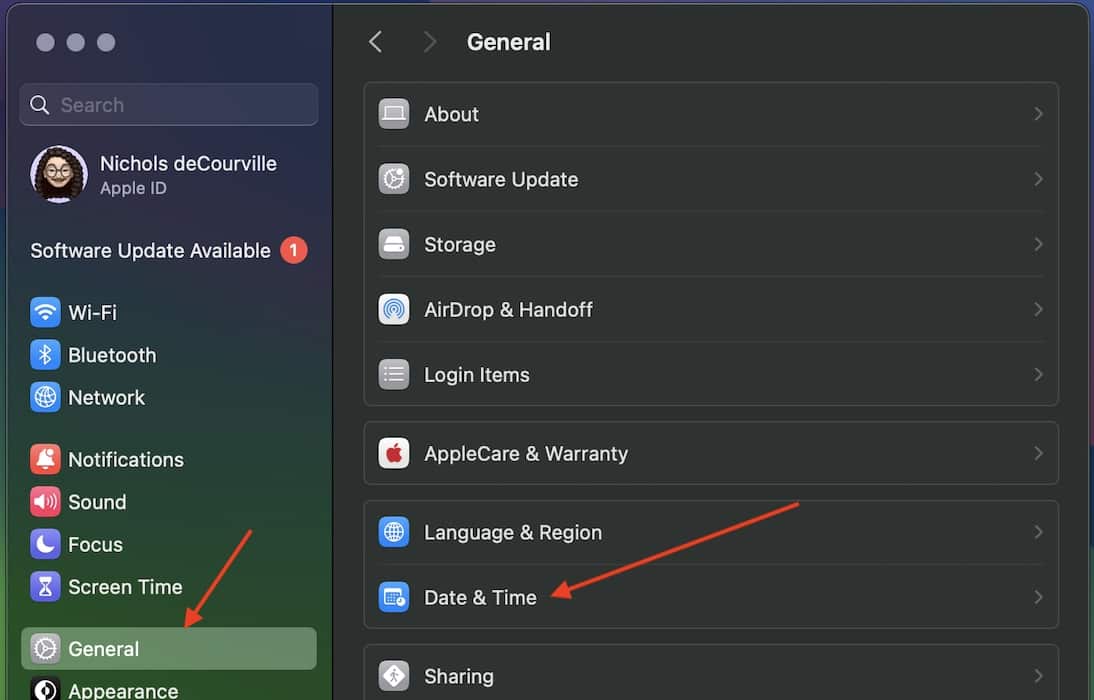
- Turn on Set date and time automatically


Give your Mac a moment. If the error came from a time mismatch, it usually clears fast.
Fix 2: Clear your browser cache
When a site moves to a new server, your browser may still cling to the old server’s details. That mismatch can trigger the invalid certificate warning.
In Safari, enable the Develop menu by going to Settings then Advanced. Once that menu appears, open it and choose Empty Caches.
If you want a faster all browser cleanup, a tool like CleanMyMac can wipe outdated cached data in one go. It clears cookies, traces, and junk that may cause repeat certificate warnings.
Fix 3: Check certificate trust settings
If the first two fixes don’t help, you may have a certificate with odd trust settings. macOS stores these in your keychain.
- Open Keychain Access from Utilities
- Select the login keychain
- Click Certificates in the sidebar
A certificate with a red X is already flagged. Right click it and delete it. Your Mac will fetch a clean version the next time it needs it.
If a certificate has custom trust settings you want to inspect:
- Double click it
- Open the Trust section
- Adjust the dropdowns as needed
- Close the window to save
Only modify certificates you understand. This isn’t a place to experiment.
When to delete a problematic certificate
If a certificate keeps throwing errors and adjusting trust settings doesn’t fix it, delete it from the login keychain. The system will download it again automatically. Just avoid touching anything in System Root. Removing certificates there can break important parts of macOS.
The bottom line
The certificate for this server is invalid error looks intimidating, but most causes are simple. Start with the basics like date, time, and cache. Then check your keychain for outliers. Once you clear the source, the warnings should stop for good, and you can get back to browsing without interruptions.


Discussion