

One of the best things about the Apple Watch is that it can work as your tiny, go anywhere music player. Whether you’re heading out for a walk, a workout, or just want to leave your iPhone behind, you can load playlists and albums onto the watch and listen offline. The trick is knowing where the options live and which method fits your setup.
Table of contents
Two ways to add music to Apple Watch
You can add music in two different ways. You can sync playlists and albums from your iPhone, or, if you have an Apple Music subscription, you can add and download music directly from the watch. Both routes work well, but they’re meant for different moments.
Let’s break it down.
Don’t miss the best of The Mac Observer
Set us as a preferred source and our Apple reporting ranks higher in your Google Search results and Discover feed — one tap, no account changes.
How to add music using your iPhone
This is the classic method and works with any watchOS version that supports the Music app.
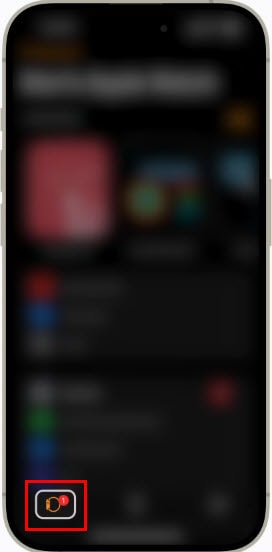
- Open the Watch app on your iPhone
- Tap My Watch
- Tap Music
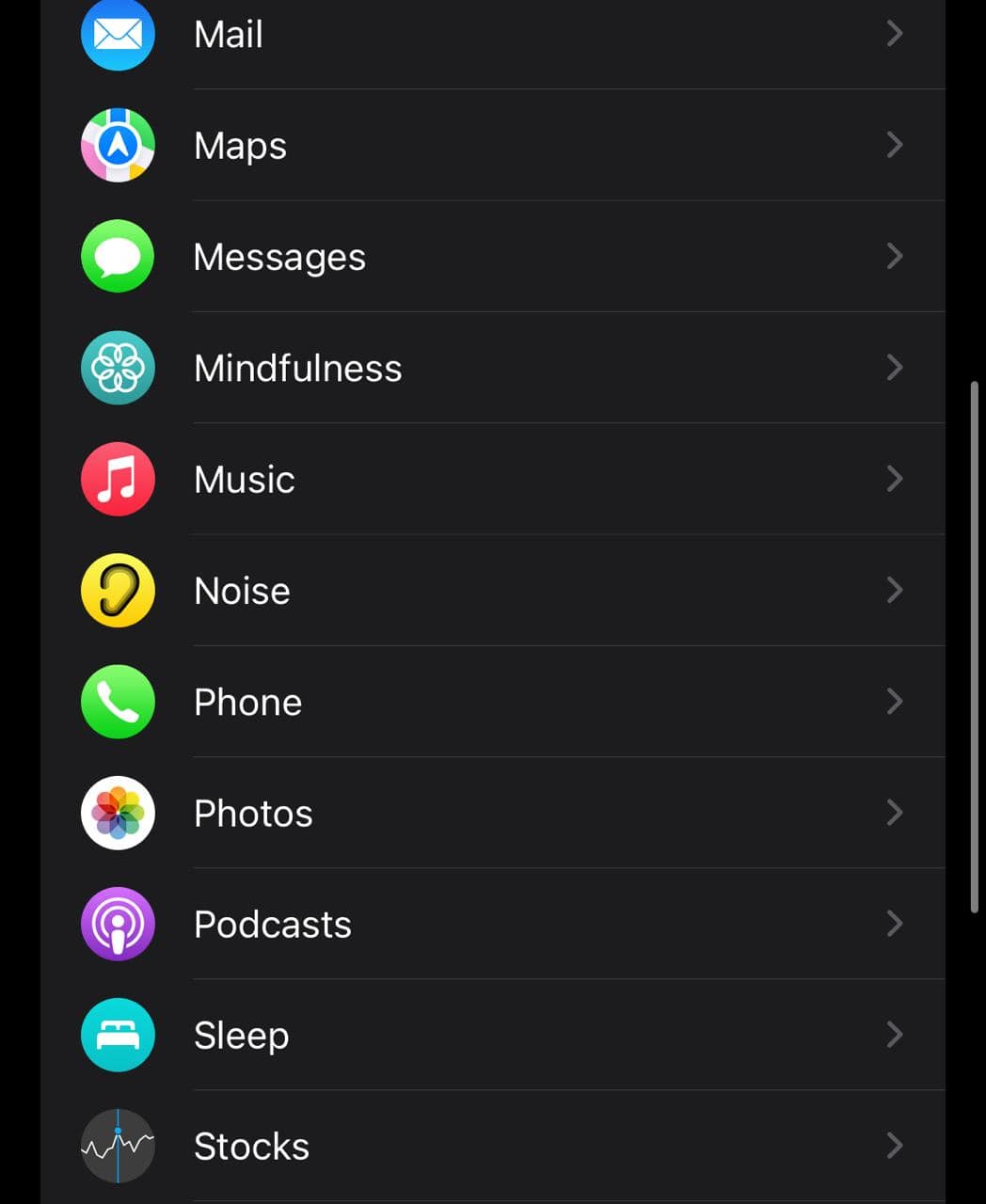
- Under Playlists and Albums, tap Add Music

- Browse for the playlists or albums you want
- Tap Add


Your watch will start syncing when it’s near your iPhone. If you’re on an older watchOS version, you may need to place the watch on its charger before it begins syncing.
This method is great if you want to build specific workout playlists or keep a set of reliable albums on your wrist.
How to add music directly from your Apple Watch
If you’re an Apple Music subscriber, the watch can pull in music on its own. This is helpful when you’re scrolling a playlist and decide you want it ready for offline listening.
Here’s how to do it:
- Open the Music app on Apple Watch
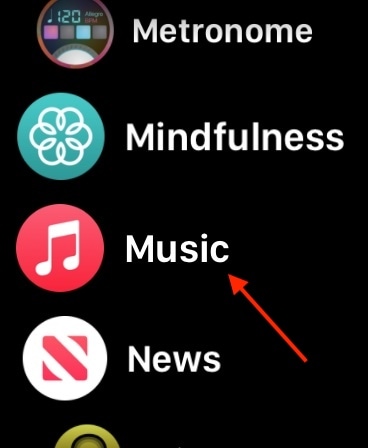
- Tap Listen Now or browse your library
- Open the playlist or album
- Tap the three dots
- Tap Add to Library
- Tap the three dots again
- Tap Download

Once it downloads, the music is on your watch and ready even without internet. Just keep in mind that downloading on battery alone drains power faster, so it’s smart to be on the charger if you’re loading several albums.
How automatic music works
If you subscribe to Apple Music, the watch will automatically add music you’ve listened to recently. If you haven’t played anything in a while, it may add recommended tracks instead. You can turn that off in the Watch app if you prefer to keep things manual.
Tips for better syncing
- Create dedicated playlists for the watch to avoid clutter
- Keep your watch on the charger for large syncs
- Make sure your watch and phone share the same Apple ID
- Remember the watch has limited storage for music, usually around 2GB
Removing music when you need space
If you fill up your music storage, you can remove tracks from either the iPhone or the watch.
On iPhone:
- Open Watch app
- Tap Music
- Tap Edit
- Remove items with the minus icon
On Apple Watch:
- Open Music
- Go to Library then Downloaded
- Swipe left on a playlist or album
- Tap Remove
The bottom line
Adding music to your Apple Watch takes a minute to learn, but once you’ve set it up, your watch becomes a dependable little music player. Whether you’re syncing playlists from your phone or downloading tracks straight from your wrist, you can head out the door with nothing but headphones and still have all your favorite songs with you.




Discussion