

Writing on an Apple Watch isn’t as strange as it sounds. The screen is small, sure, but Apple gives you several solid ways to type, scribble, dictate, or even hand the job over to your iPhone when things get tight. The trick is knowing which method works best in the moment. Let’s break it down so you can reply, search, or jot something out on your watch without feeling cramped or frustrated.
Table of contents
Switch between input methods

Whenever you tap a text field on your watch, you’ll see an input button at the bottom right. Tap it to switch between keyboard, Scribble, and Dictation. Not every option is available in every language or on every model, but your watch will show what it supports.
Type on the onscreen keyboard

If you have a Series 7 or newer, you get the tiny QWERTY keyboard. It’s surprisingly usable.
Don’t miss the best of The Mac Observer
Set us as a preferred source and our Apple reporting ranks higher in your Google Search results and Discover feed — one tap, no account changes.
- Tap the letters to type
- Or slide your finger across the letters in one motion to use QuickPath
- Predictive text appears as you go, and you can turn the Digital Crown to scroll through suggestions
For quick phrases, it works well. For longer replies, you’ll probably want something faster.
Scribble with your finger
Scribble is great when you want precision but not full typing.
- Trace letters, numbers, punctuation with your finger
- Turn the Digital Crown to move the cursor or pick from predictive text
- Tap Space to add a space
- Tap a word to select it, or double tap to select all
- Tap the erase button to delete
Scribble is best for short messages where you want control without tapping tiny keys.
Dictate your message
This is the easiest method when your hands are full or you’re on the move.
- Tap the microphone button
- Speak naturally
- Say punctuation like question mark or period
- Say an emoji name to insert it
Dictation needs an internet connection unless your watch has downloaded on-device language support, so keep that in mind if you’re offline.
Add emoji

Any time you’re typing, scribbling, or dictating, you can tap the emoji button.
Browse categories by holding and dragging along the icons at the bottom. Tap the emoji you want and keep typing.
Use your iPhone to type instead
This is the secret feature most people miss. When you start entering text on your watch and your iPhone is nearby, a notification appears: Apple Watch Keyboard Input.
Tap it and you can continue typing on the full iPhone keyboard, with everything appearing instantly on your watch. Perfect for longer messages.
Smart replies when you’re in a rush
Apple includes quick responses at the bottom of Messages and Mail replies. Tap one and you’re done. If you want to customize them, open the Watch app on your iPhone:
- My Watch > Mail or Messages > Default Replies
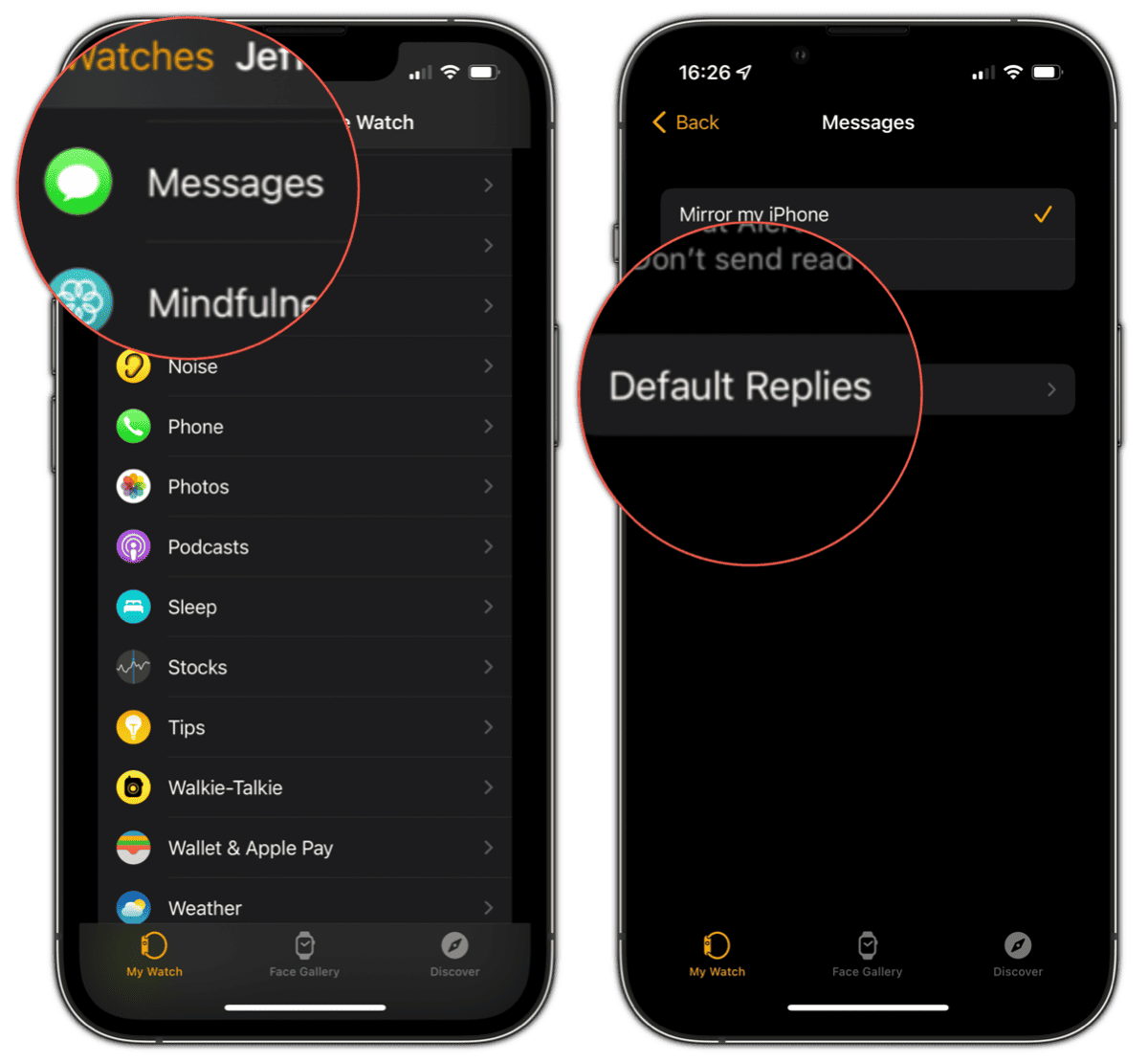

Add, reorder, or delete the canned responses you want to use.
When in doubt, just use Siri
If none of the text entry methods appeal in the moment, Siri can handle the whole task for you. Raise your wrist or hold the Digital Crown and say something like:
- Send a message to Alex
- Email Megan I’m running late
- Search for coffee shops nearby
Siri handles it without you typing anything at all.
The bottom line
Typing on a watch isn’t natural, but Apple gives you enough tools to make it painless. Use the keyboard when you need speed, Scribble when you want control, dictation when talking is easier, and your iPhone when the message gets longer than your patience. Once you get comfortable switching between them, writing on an Apple Watch feels less like a chore and more like second nature.


Discussion