
If you work with compressed files on your Mac, you already know the built-in Archive Utility only gets you so far. It handles basic zip files, sure, but once you start dealing with RARs, 7z archives, encrypted bundles, or older formats from the StuffIt era, you need something more capable. And here’s the thing. The best zip software isn’t just about unpacking files. It’s about control, convenience, and keeping your workflow smooth instead of wrestling with mystery formats.
Let’s break down the best options on macOS and what each one does well, so you can pick the tool that actually fits the way you work.
Table of contents
The Unarchiver
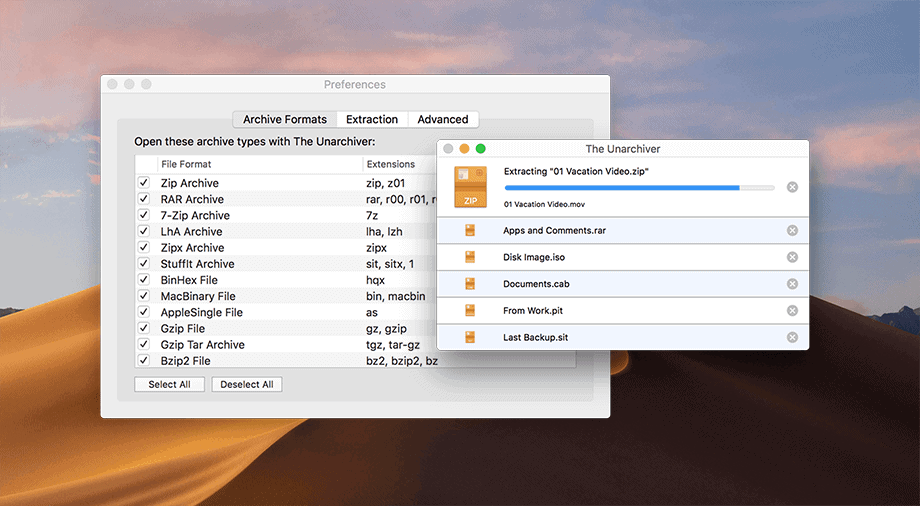
Image Source: Unarchiver
Don’t miss the best of The Mac Observer
Set us as a preferred source and our Apple reporting ranks higher in your Google Search results and Discover feed — one tap, no account changes.
If you want something simple, dependable, and free, start here. The Unarchiver opens pretty much anything you throw at it: zip, 7z, RAR, StuffIt, DiskDoubler, RPM, XAR, and a grab bag of ancient formats most people forgot existed. It plugs right into Finder, so you just double-click an archive and it extracts exactly where you want it.
Why people love it:
- Free
- Handles obscure legacy formats
- Clean, no-nonsense setup
If you only need to extract files and never create fancy archives, this is the one to install.
Archive Utility
Every Mac ships with Archive Utility already installed. You’ve probably used it without realizing. Right-click a file, hit Compress, and it does the job. It’s straightforward and reliable for basic zip work.
Where it falls short:
- Can’t open RAR or many modern formats
- Limited settings and no previews
It’s fine for light use. The moment you deal with anything more complex, it’s time to move on.
BetterZip
Image Source: Wikipedia
Now we’re getting into the serious tools. BetterZip is the one you reach for when you need control. It lets you open an archive like a normal folder, preview files inside, extract only what you need, and build encrypted archives with real password management.
What makes it shine:
- Built-in password manager
- Preview contents without fully extracting
- Clean and modern interface
If you work with archives often, BetterZip feels like an upgrade your Mac should have had years ago.
Archiver
Archiver gives you a friendlier take on the same idea. You can peek inside files, extract individual pieces, and even use Quick Look inside archived items. It also lets you split large files into multiple archives, which is handy for sending big projects around.
Why Archiver stands out:
- Lightweight and visually clear
- Supports popular formats including 7z, RAR, StuffIt
- Splitting and recombining large archives
It’s practical, approachable, and good for anyone who handles bigger files.
WinZip

Image Source: WinZip
WinZip carries a long legacy from the Windows world, and the Mac version is surprisingly capable. It gives you full control over encryption, cloud storage, and cross-platform sharing.
Why you might pick it:
- Great for sharing files with Windows users
- Opens nearly every format
- Integrates with cloud services for direct unzipping
If you bounce between macOS and Windows frequently, WinZip makes life easier.
Keka

Image Source: Keka
Keka feels minimal at first glance, but don’t let the simple interface fool you. It’s a powerhouse for archiving and extracting. Drag-and-drop support is excellent, encryption is built in, and it handles all the modern formats you actually use.
Highlights:
- Fast and reliable
- Works beautifully from the right-click menu
- Supports most formats including RAR and 7z
At a small one-time cost, it’s one of the best values on the list.
Unzip One
This one sits between simple and advanced. It’s free, modern, and supports most everyday formats. It also includes a security check to help protect you from malicious archives.
Why it’s worth a look:
- Clean interface
- Secure extraction
- Preview before you unzip
It doesn’t have the deep legacy format support of The Unarchiver, but it handles the modern formats most people see daily.
Honorable Mentions
Some apps don’t get as much attention but are still great options depending on your needs:
- StuffIt Expander if you work with older Mac archives
- Keka’s upcoming iOS version for cross-device workflows
- ZipMounter Lite which lets you mount zip files like disks
- A-Zippr and Archiver 4 for quick drag-and-drop compression
They each fill a niche, and if your workflow leans in that direction, they’re worth exploring.
Which App Should You Choose?
Here’s a simple way to decide.
Choose The Unarchiver if you need a free tool that opens everything.
Choose Keka if you want a clean, fast, inexpensive archiver.
Choose BetterZip if you want full control and a polished experience.
Choose Archiver if you need to split or manage large archives.
Choose WinZip if you share files with Windows users all the time.
Every option above works well. You just need the one that feels natural in your day-to-day work.




Discussion