

Let’s be honest: Apple’s native #images search tool is serviceable, but it is the “unsalted cracker” of the GIF world. It gets the job done, but it lacks the chaotic, hyper-specific library that makes GIPHY the gold standard for internet expression.
Even with iOS 19’s “Genmoji” allowing you to hallucinate AI stickers on the fly, there is a distinct cultural comfort in sending a classic, pixelated reaction GIF that millions of people recognize. If you have recently upgraded your iPhone or just realized your GIPHY button vanished after the latest update, here is how to reintegrate the internet’s premier GIF repository into your chat flow.
Table of contents
How to Install GIPHY in iMessage
Many users mistakenly go to the standalone App Store icon on their home screen to find GIPHY. While you can do that, it is far more efficient to manage iMessage apps directly from the source to ensure the extension activates immediately.
Don’t miss the best of The Mac Observer
Set us as a preferred source and our Apple reporting ranks higher in your Google Search results and Discover feed — one tap, no account changes.
- Open Messages: Jump into any conversation thread (it doesn’t matter who it’s with).
- Hit the Plus (+): Tap the + icon to the left of the text input field.
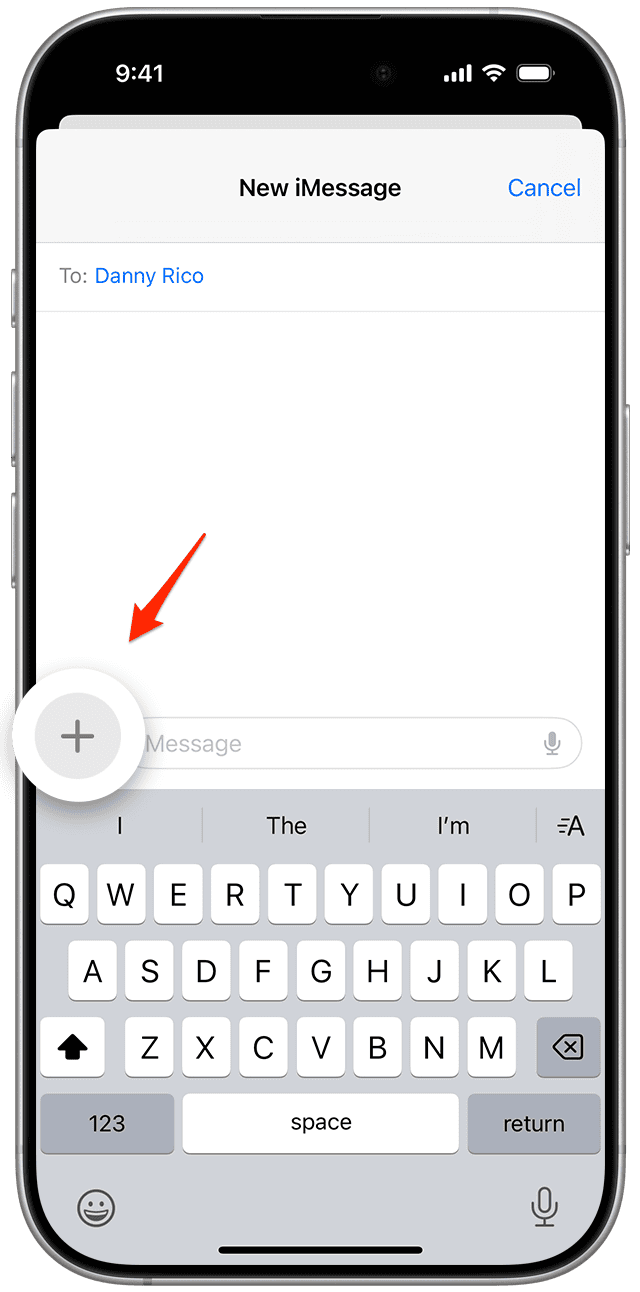
- Navigate to the Store: If you don’t see the “Store” icon immediately, tap “More” at the bottom of the list. Look for the blue “App Store” icon (it looks like the regular one, but acts as a plugin manager).
- Search & Get: Tap the magnifying glass, type “GIPHY,” and hit Get.
- Authentication: Double-click the side button (Face ID) to confirm the “purchase” (it’s free).

Optimization: Pinning GIPHY for Speed
Since iOS 17 revamped the iMessage menu, apps are often buried under the “More” tab, which is a friction point nobody wants when trying to drop a reaction in real-time. Here is how to promote GIPHY to your top tier.
- Tap the + button in a chat.
- Select More.
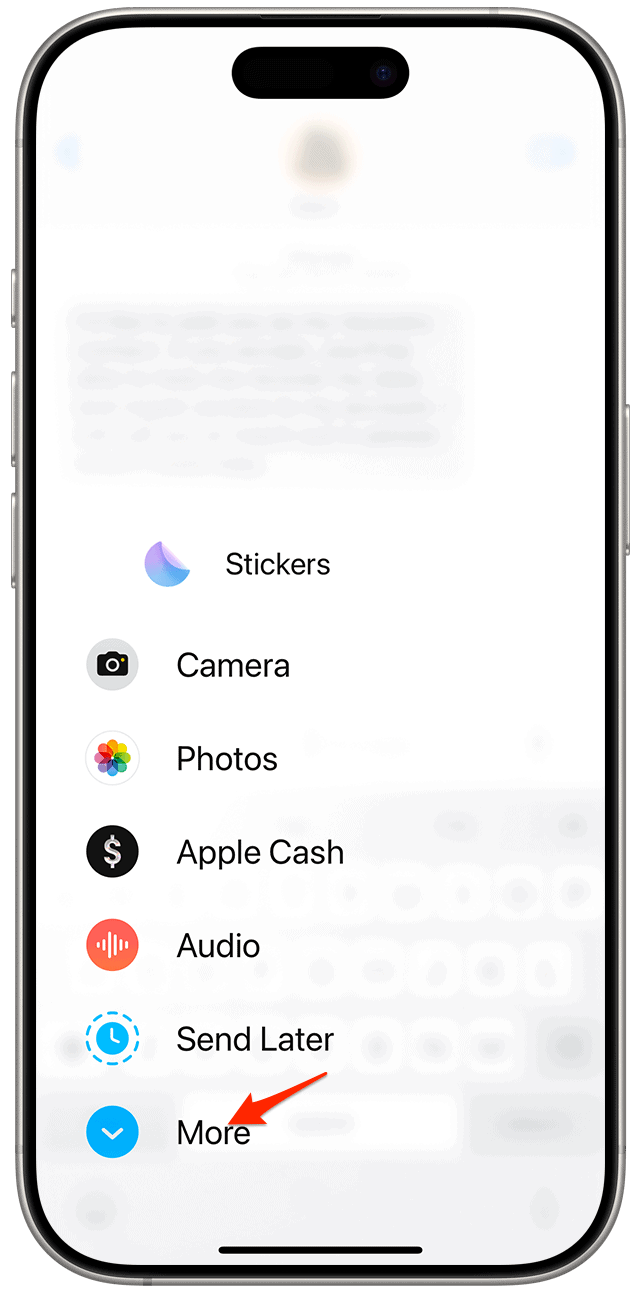
- Find GIPHY in the list.
- Long Press & Drag: Hold your finger on the GIPHY icon and drag it upward, moving it out of the “More” section and into your top favorites list. Drop it right next to Photos or Camera for instant access.

Check out how to send GIFs on iPhone.
Why Not Just Use the GIPHY Keyboard?
You might be tempted to install the GIPHY keyboard extension (via Settings > General > Keyboard). Don’t bother. The keyboard extension is a legacy relic that requires “Full Access” permissions, which often triggers scary privacy warnings about keylogging, and the copy-paste mechanic is clunky. The dedicated iMessage app described above is cleaner, faster, and integrates natively into the chat bubbles without the need to switch your actual typing keyboard.
FAQ
This is a common “cache” glitch. If it’s missing, scroll to the very bottom of the “More” list in iMessage, tap “Store” again, then tap your profile icon > “Apps” and ensure the toggle next to GIPHY is switched to ON.
Yes. Unlike emojis which are Unicode text, GIFs are video files. If you are on a strict data cap, be mindful that scrolling through the trending feed burns data quicker than you might expect.
Yes. When you open the GIPHY extension, there is a camera icon. You can record a short loop using your front or rear camera, apply filters, and send it instantly without it saving to your camera roll forever.
Summary
- Access the Source: Don’t leave the Messages app; use the integrated App Store via the + button.
- Download: Search for “GIPHY: The GIF Search Engine” and install.
- Prioritize: Long-press and drag the app from the “More” list to your main menu to avoid menu-digging.
- Avoid the Keyboard: Stick to the iMessage app extension rather than the system-wide keyboard for a smoother experience.
- Autoplay Settings: If GIFs aren’t playing automatically, check Settings > Accessibility > Motion and ensure Auto-Play Animated Images is on.
While Apple continues to push its proprietary visual tools, GIPHY remains the superior utility for pop-culture referencing. It indexes the “vibes” of a conversation better than Apple’s algorithms likely ever will. By pinning the app to your primary menu, you ensure that the perfect reaction, be it a The Office quote or a confused math lady, is never more than two taps away.



Discussion