

Your iPhone is running out of space. This frustration is very common. System Data is often the culprit. This storage includes caches and logs. Temporary files also make it grow. This storage grows unexpectedly. Clearing this storage is complex. Implement these strategies now. You will reclaim internal memory. Your device will perform optimally.
Table of contents
Proven Strategies to Reclaim iPhone Storage
1. Offload Unused Applications
Do you have unused applications? They take up valuable space. iOS automatically removes the application. Importantly, it keeps all related data. You can reinstall the app easily later. This is a great first step. Use this for large apps. This process is one of the effective ways to get more storage on your iPhone.
- Go to Settings then General.
- Tap on iPhone Storage.
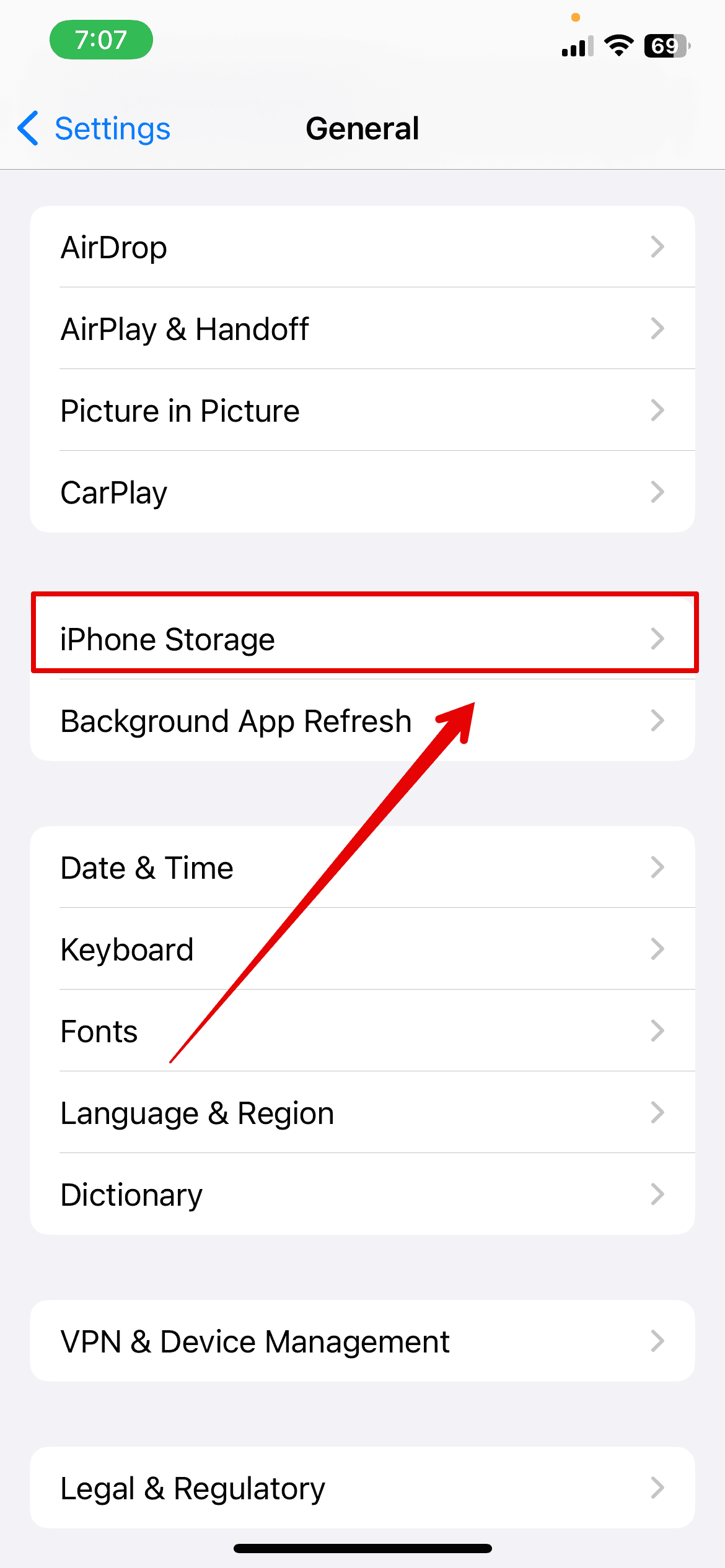
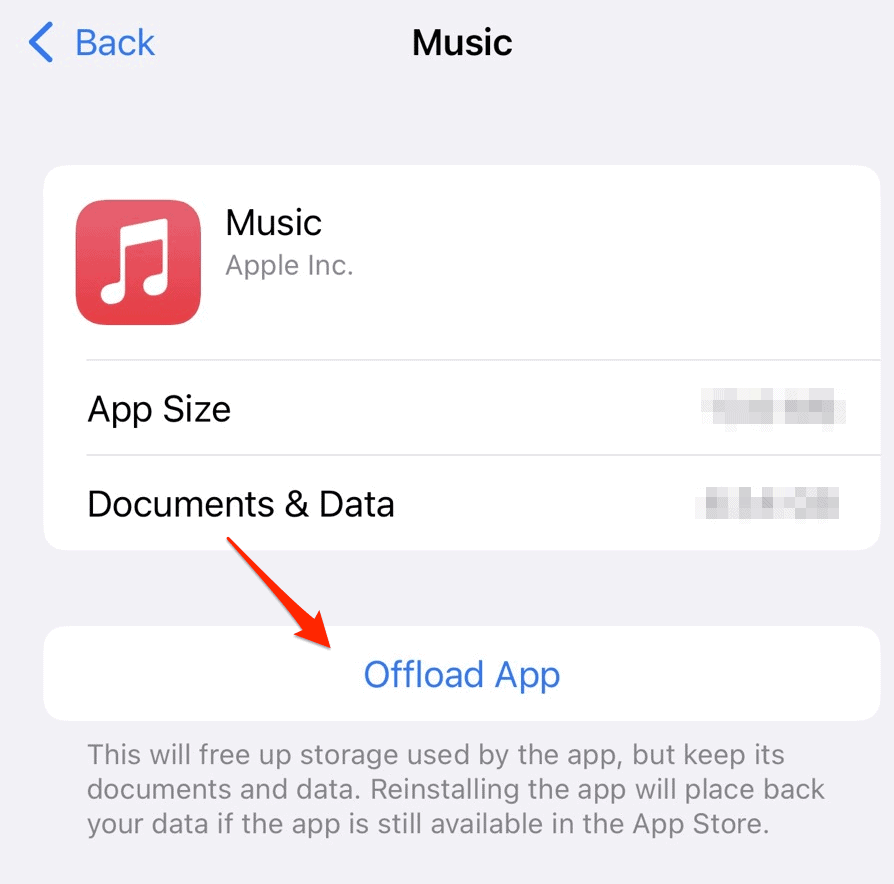
- Tap any large, rarely used app.
- Select Offload App and confirm.


2. Optimize Photo and Video Storage
Media files consume huge storage. Apple offers a great setting. It keeps low resolution versions locally. Meanwhile, it preserves originals in iCloud. This saves gigabytes of space. This works well for massive media libraries. Furthermore, explore affordable ways to expand your iPhone storage if space is limited.
Don’t miss the best of The Mac Observer
Set us as a preferred source and our Apple reporting ranks higher in your Google Search results and Discover feed — one tap, no account changes.
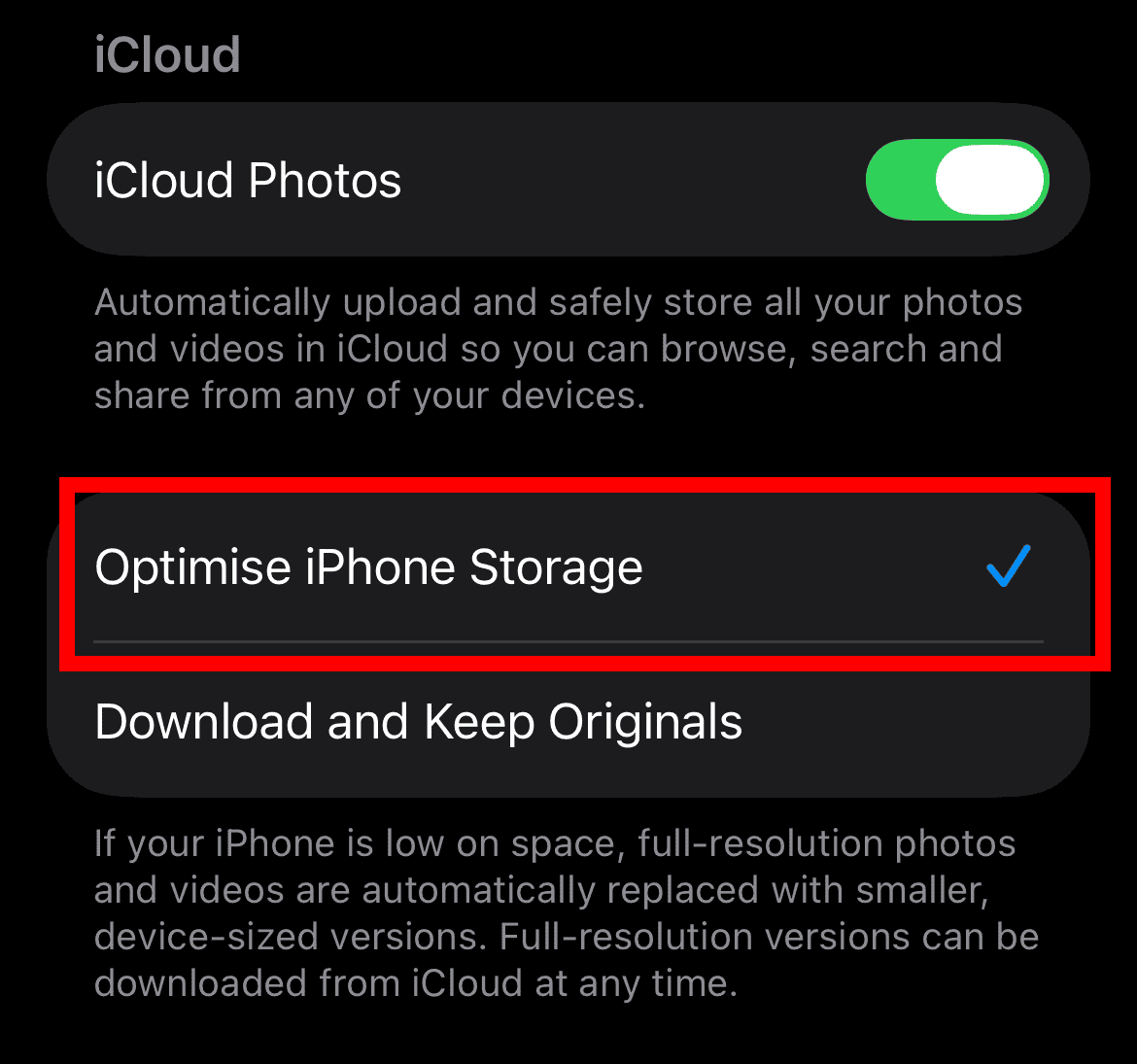
- Navigate to Settings > Apps > Photos.
- Under iCloud, select Optimize iPhone Storage.
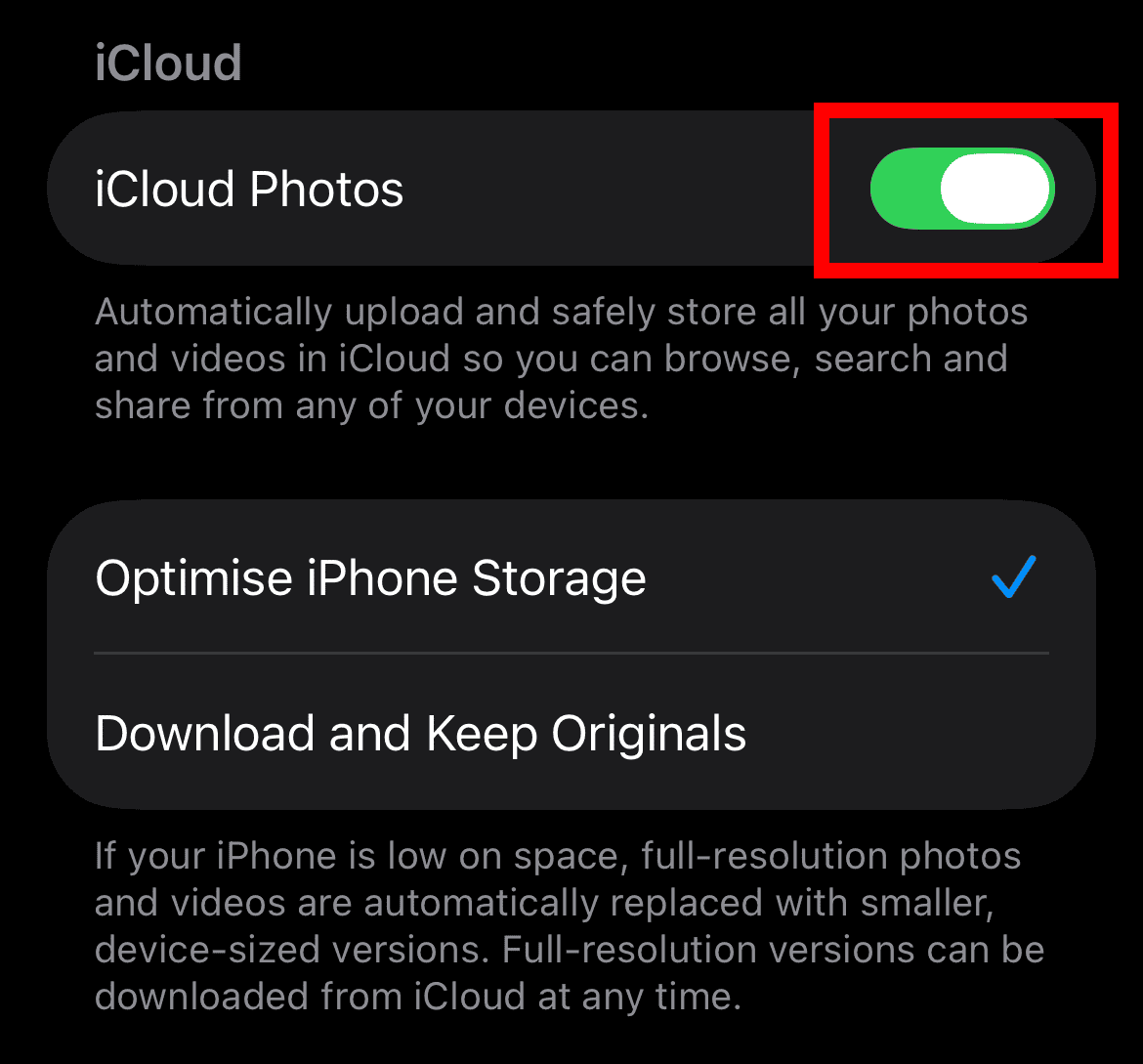
- Ensure iCloud Photos is toggled on.


3. Clear Safari Browser Data
Your Safari browser stores data continuously. This includes history and cookies. This accumulates greatly over time. It becomes large System Data. Clearing this data is simple. This maintenance frees up noticeable space. In addition, it improves your privacy. We have seen that iPhone owners are fed up with iOS taking over their storage.
- Open Settings and scroll to Safari.
- Tap Clear History and Website Data.
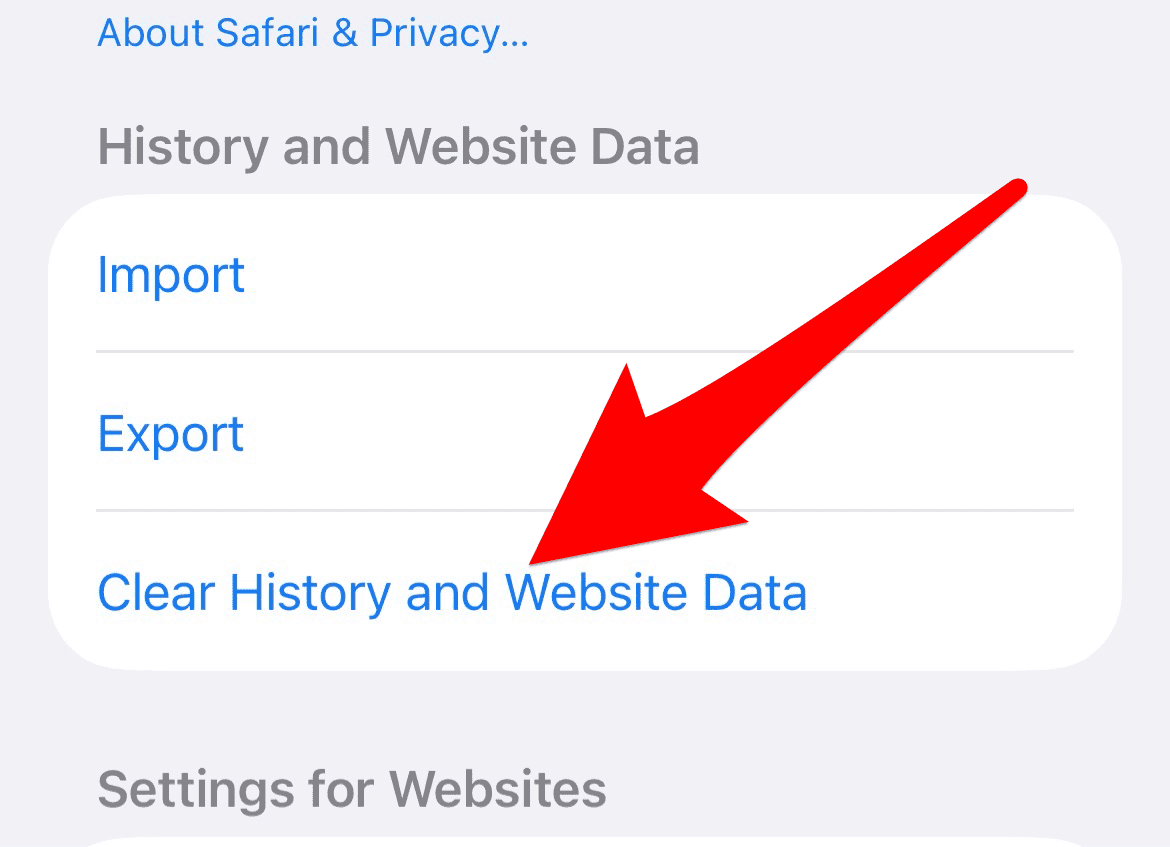
- Confirm by tapping Clear History and Data.

4. Delete and Reinstall Resource-Heavy Applications
Application cache builds up quickly. This cached data becomes System Data. Deleting and reinstalling an app fixes this. This action clears the cache completely. You therefore get a clean start. This technique helps with streaming apps. Always back up data before deleting.

5. Delete Large Message Attachments
Messages consume storage quickly. This is true with photos or videos. iOS lets you delete old attachments. You can also manually delete large files. This step frees up substantial space. Use this if you send media often.
- Go to Settings and tap General.
- Select iPhone Storage then tap Messages.
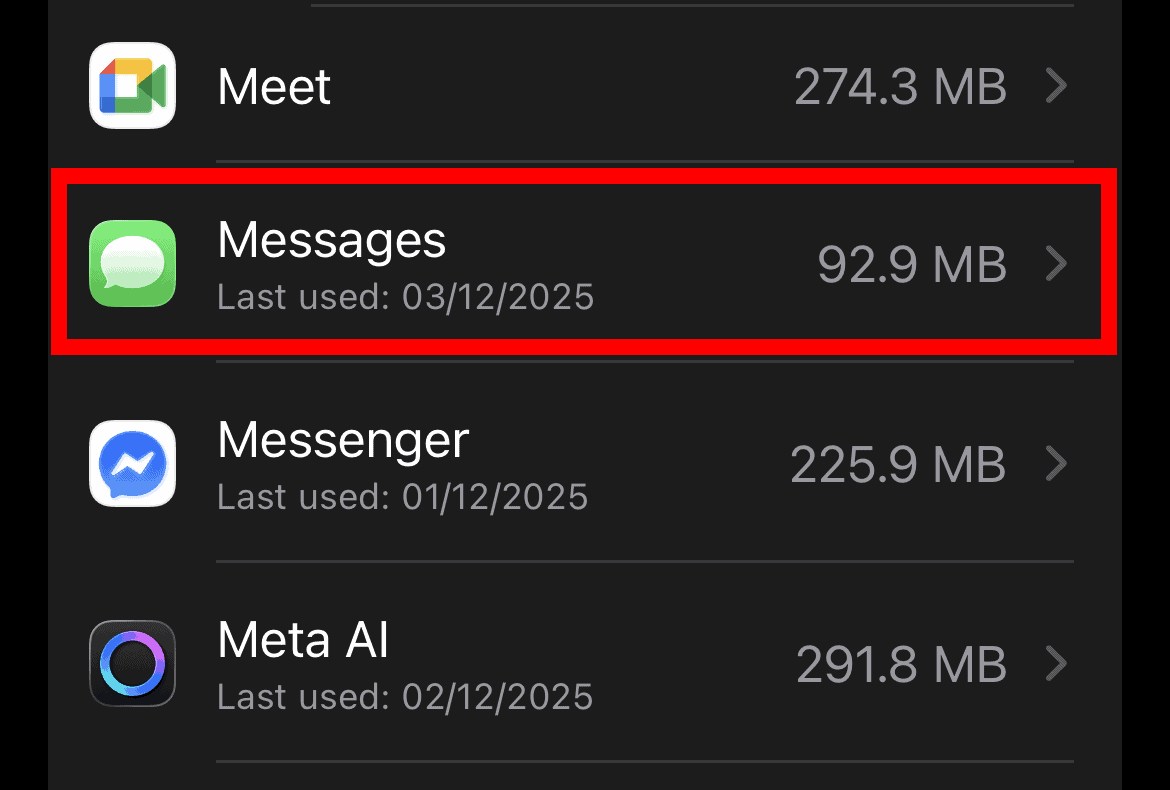
- Review categories like Videos and Photos.
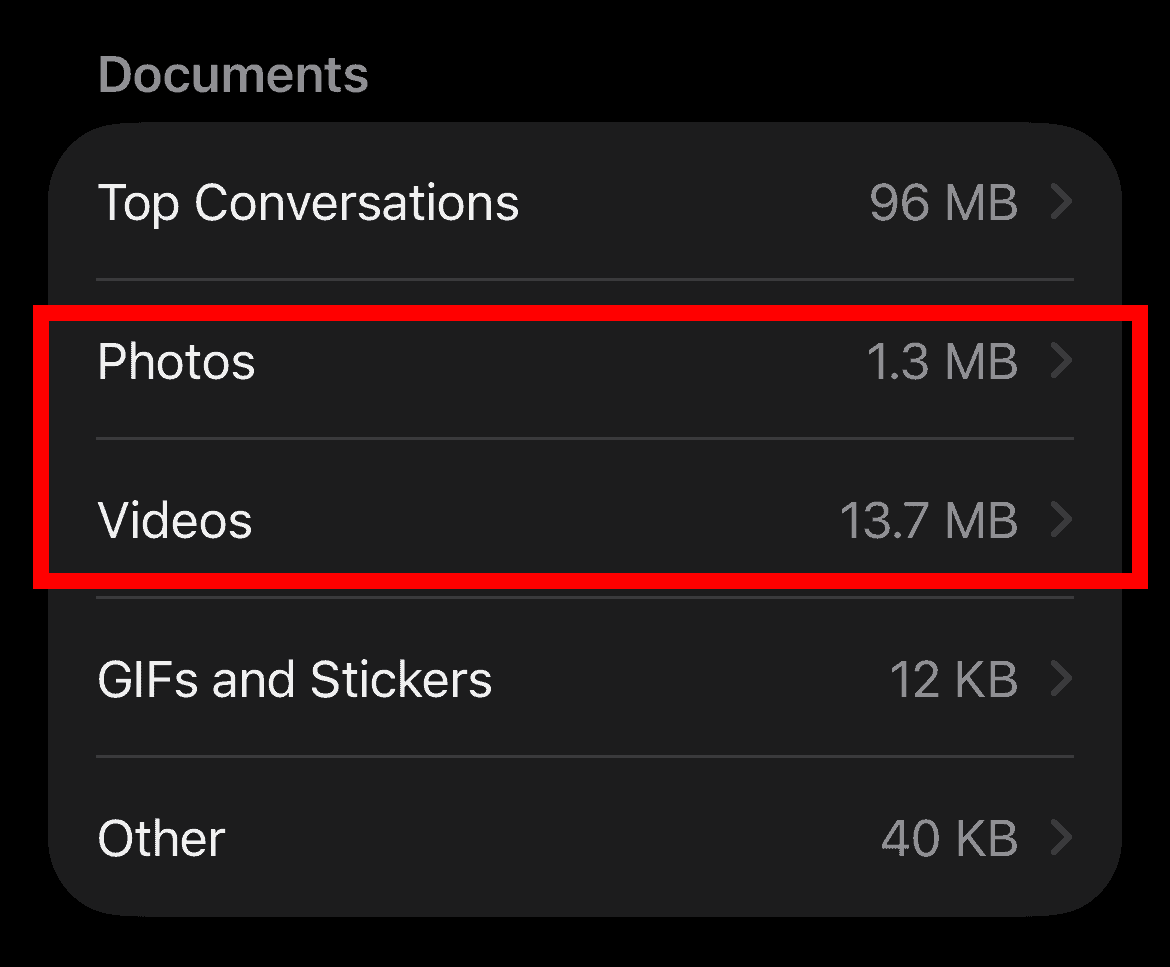
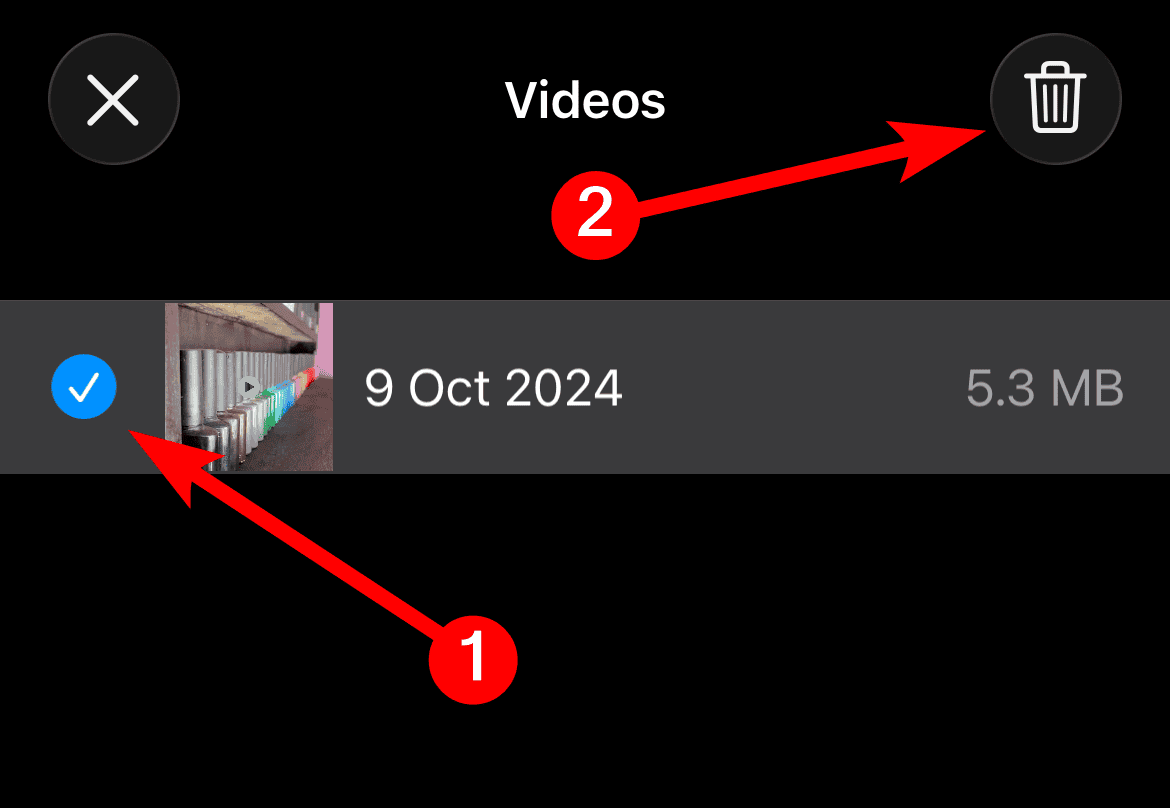
- Tap Edit, select the media you want to delete, and tap the trash bin icon in the top-right corner.


6. Perform a Full Backup and Restore
A complete reset is the best solution. It purges excessive System Data. iOS only reinstalls the core system. It leaves accumulated garbage behind. This process requires time. However, it guarantees dramatic space reduction. It fully cleans the storage category.
- Create a full backup.
- In Settings, go to General then Transfer or Reset iPhone.
- Select Erase All Content and Settings.
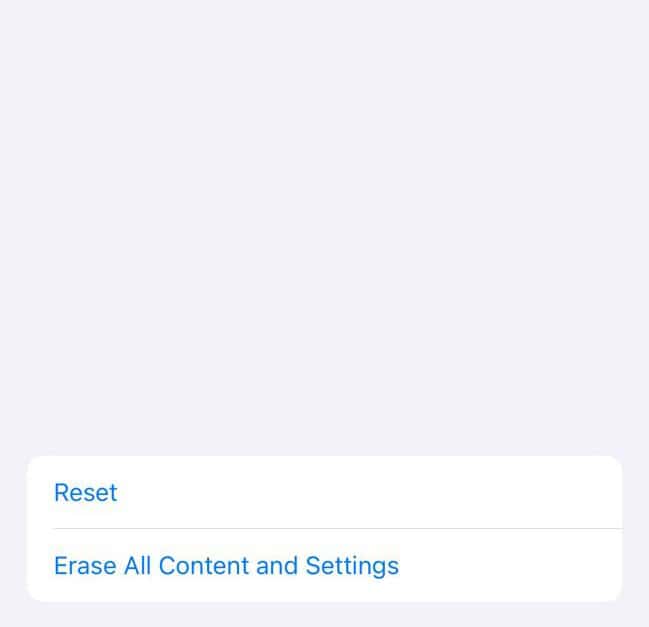
- After the device restarts, restore your backup.

FAQ
System Data includes many caches and logs. It stores Siri voices and fonts. Applications create these temporary files. Processes run constantly, creating them. They sometimes fail to clear efficiently.
No, Apple provides no direct option. You cannot manually delete this category. You must manage phone storage instead. This indirectly forces the system to clear temporary files.
A simple restart might clear some files. This brings a minor reduction. Conversely, employ deeper cleaning methods. Use them for significant issues.
Maximizing Your iPhone’s Available Space
Managing System Data is constant work. You easily control this challenge. Regularly offload old applications. Optimize your photo library consistently. Clearing caches prevents storage shortages. Moreover, these strategies reclaim essential gigabytes. They also ensure device functionality. Before buying a new phone, consider how much iPhone storage you need.


Discussion