

If you’re running into an invalid birthday Apple ID error, it usually means the date of birth linked to your account can’t be verified. This often appears when creating a new Apple ID, updating account details, or trying to access age-restricted features.
Here’s how to fix it step by step.
Table of contents
- Why the “Invalid Birthday Apple ID” Error Appears
- Step 1: Check Whether Your Apple ID Has Missing Age Information
- Step 2: Update Your Apple ID Birthday Correctly
- Step 3: Sign Out and Refresh Account Data
- Step 4: Check Whether a Feature Is Triggering Age Verification
- Step 5: Create a New Apple ID (Last Resort)
- When to Contact Apple Support
Why the “Invalid Birthday Apple ID” Error Appears
Your Apple ID birthday determines eligibility for services, parental controls, and certain features. This error commonly appears when:
Don’t miss the best of The Mac Observer
Set us as a preferred source and our Apple reporting ranks higher in your Google Search results and Discover feed — one tap, no account changes.
- The birthday entered doesn’t meet the minimum age requirement
- The date format is incorrect
- Your Apple ID has incomplete or unverified age details
- An older or child account was never fully confirmed
In many cases, the issue isn’t the date you entered; it’s that the age was never properly saved.
Step 1: Check Whether Your Apple ID Has Missing Age Information
A very common cause is an account where the birthday exists but was never verified.
If Apple can’t confirm your age, it may block updates and show errors tied to missing age information on your Apple ID. This can trigger birthday validation issues even when the date itself is correct.
Step 2: Update Your Apple ID Birthday Correctly
If your birthday is incorrect or unverified, you’ll need to update it through your account settings.
Follow the steps to update the birthday associated with your Apple ID and make sure the information meets the minimum age requirement for your region.
Keep in mind:
- Child accounts may require Family Sharing approval
- Frequent changes may be restricted
- The date format must be entered accurately
Double-check everything before saving.
Step 3: Sign Out and Refresh Account Data
After updating your birthday:
- Sign out of your Apple ID on the affected device
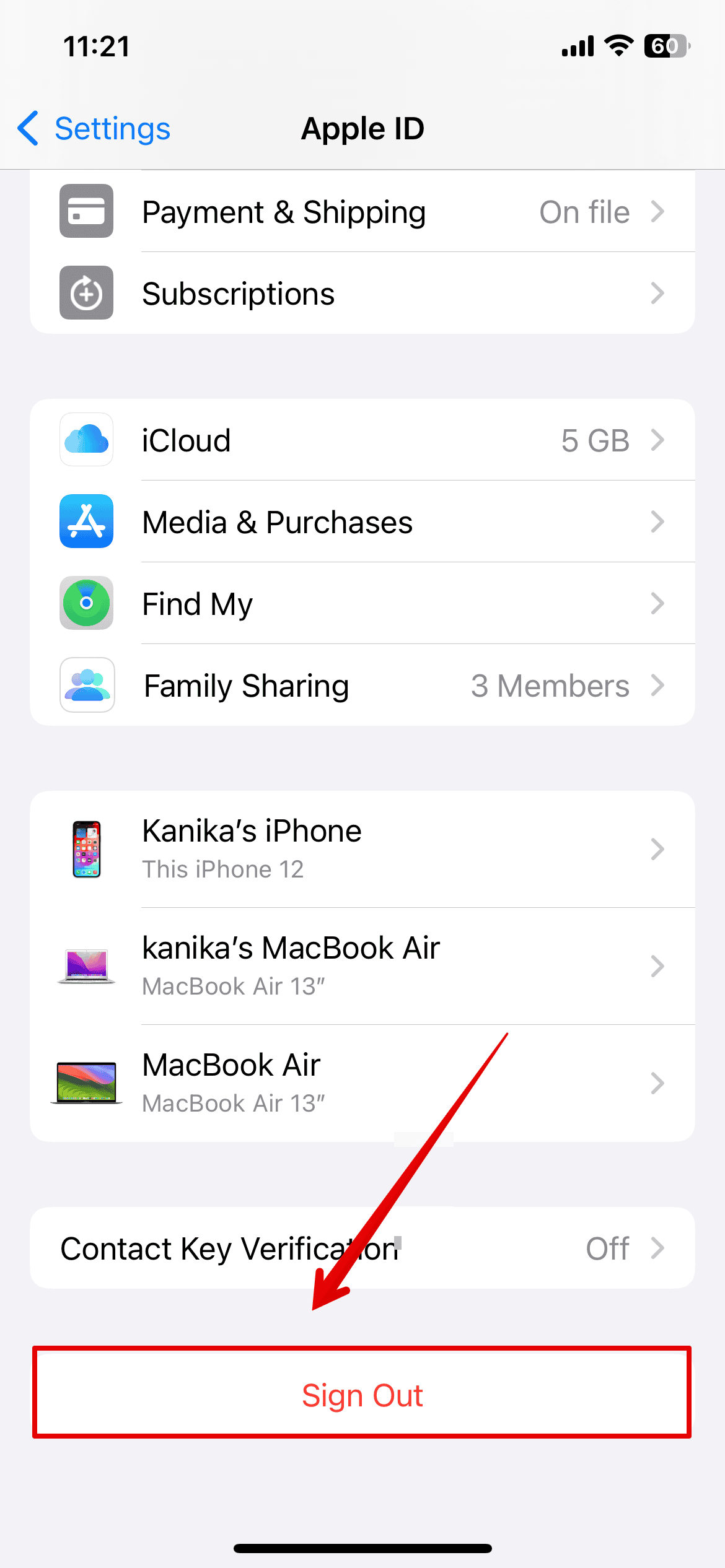
- Restart the device

- Sign back in
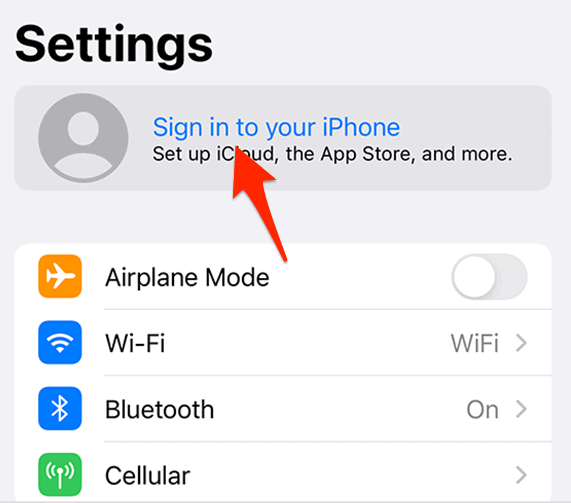


This refreshes Apple ID data across services and often clears lingering validation errors.
Step 4: Check Whether a Feature Is Triggering Age Verification
Sometimes the error only appears when enabling a specific feature.
This often happens when age confirmation is required, prompting you to verify your birthday again. Similar age-verification issues have been seen when enabling newer services that rely on Apple ID age data, requiring users to confirm their birthday before continuing.
Step 5: Create a New Apple ID (Last Resort)

Image Source: Apple
If your account data can’t be corrected, creating a new Apple ID may be the only option.
When you create a new Apple ID, make sure your birthday is entered correctly during setup so you don’t run into the same validation issue again.
Only use this step if other fixes don’t work.
When to Contact Apple Support
You should contact support if:
- Your birthday is correct, but still rejected
- You can’t edit age information
- The account was created years ago with incomplete data
They can manually review and correct account records when automated fixes fail.
Final Takeaway
An invalid birthday Apple ID error is almost always tied to unverified or incomplete age information rather than a wrong date being entered. In most cases, confirming or updating your birthday and refreshing your account data is enough to resolve it.
If the error only appears when enabling a specific feature, it’s likely an age-verification check being triggered in the background. And if your account was created years ago with missing details, correcting the birthday or creating a new Apple ID as a last resort is the cleanest way forward.
Once your age information is properly verified, the error usually doesn’t return.




Discussion