
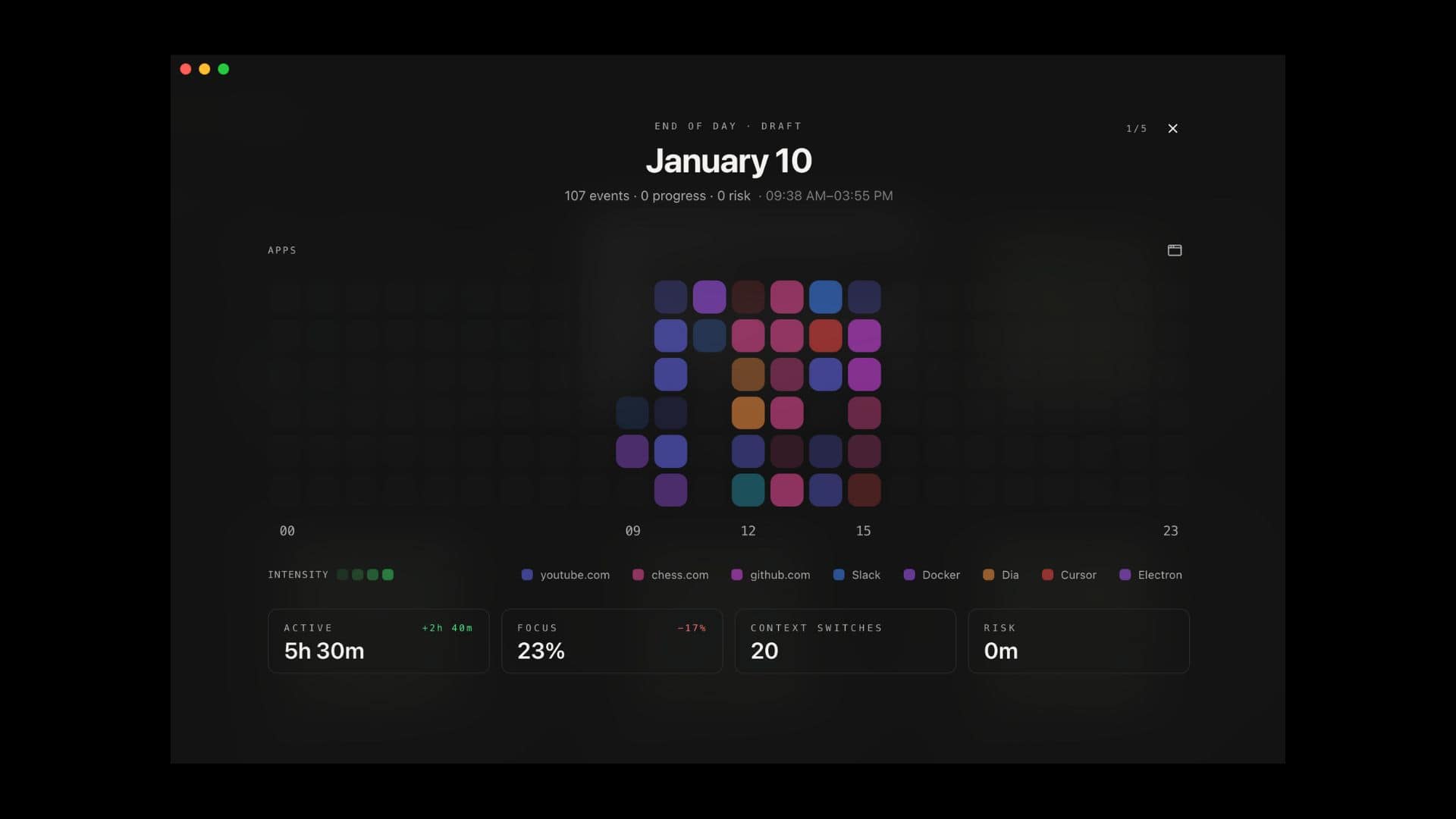
If you take almost no screenshots during long projects, you know the problem. Weeks pass, you ship work, and you still cannot show what changed day to day. Screencap tackles that gap. It runs on macOS, captures what you do on a schedule, and turns those captures into a timeline, daily summaries, and project milestones. It also adds optional addiction tracking and an end-to-end encrypted social tray for sharing progress.
Screencap is on GitHub currently, and the developer frames it as an open-source project designed to inspire forks. You get the app and the social backend for free, so you can customize it and build your own version instead of waiting for a roadmap.
Screencap helps you answer questions like what you did today, how long you worked, and whether you spent too much time in distractions such as Chess. It started as a background project tracker, and it grew into a broader personal dashboard with a Day Wrapped tray, an End of Day flow, and optional LLM-based classification.
Don’t miss the best of The Mac Observer
Set us as a preferred source and our Apple reporting ranks higher in your Google Search results and Discover feed — one tap, no account changes.
Screencap is worth your attention
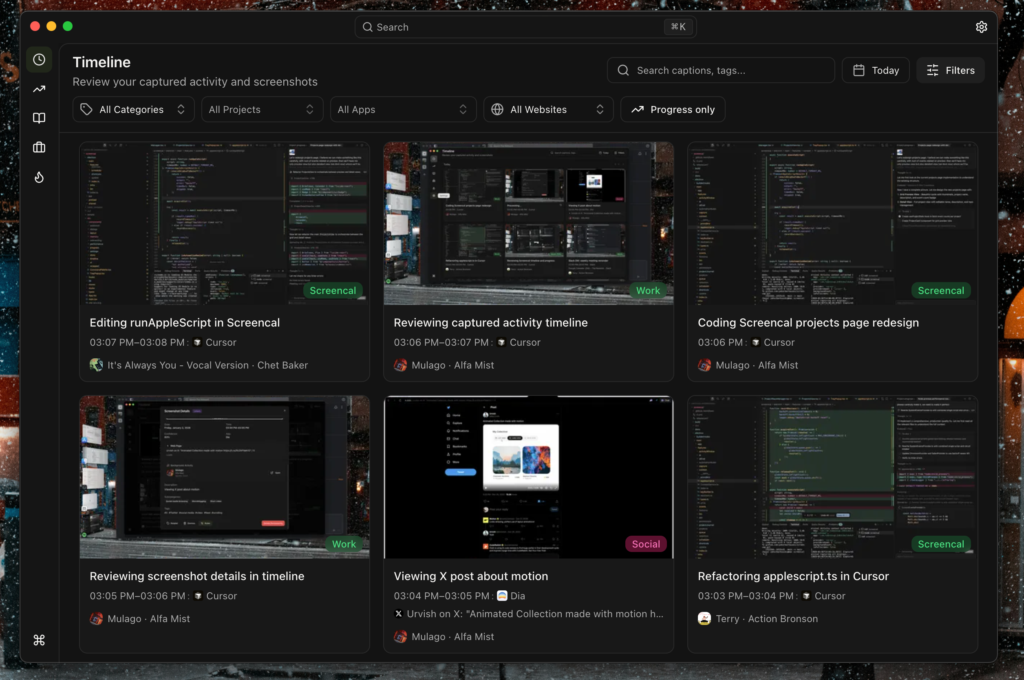
Screencap works best when you want proof of progress and better recall, not another to-do list. It collects your activity into clear blocks of time, then lets you relabel events, dismiss captures, and mark moments as progress or addiction signals.
It also tries to reduce noise. Instead of saving every tiny switch, it waits for stability and then captures a representative moment. That design makes the timeline easier to scan and keeps storage more reasonable.
If you care about privacy, the app keeps core data local by default. You can also choose local AI, cloud AI, or no AI at all. When you enable sharing, Screencap encrypts content end to end before it leaves your Mac.
How to use Screencap
1) Install and grant permissions
- Download the latest release and drag Screencap.app into Applications.
- Open the app and follow the onboarding.
- Grant Screen Recording so the app can capture screenshots.
- Add Accessibility and Automation permissions if you want richer context, like window titles and browser URLs.
2) Set your capture routine
- Open Settings -> Capture and pick your capture interval.
- Open Settings -> Data and set your retention period.
- Use the shortcuts if you want quick control:
- Capture now
- Capture project progress
- End of Day flow
3) Choose your AI setup, or skip it
- If you want automatic labeling, enable classification in Settings -> AI.
- Pick one option:
- Local LLM through Ollama or LM Studio
- Cloud LLM through an OpenAI-compatible API
- Disabled, if you only want context-based grouping
4) Review your day and mark what matters
- Open the timeline and scan your events by time slot.
- Edit labels when the app guesses wrong.
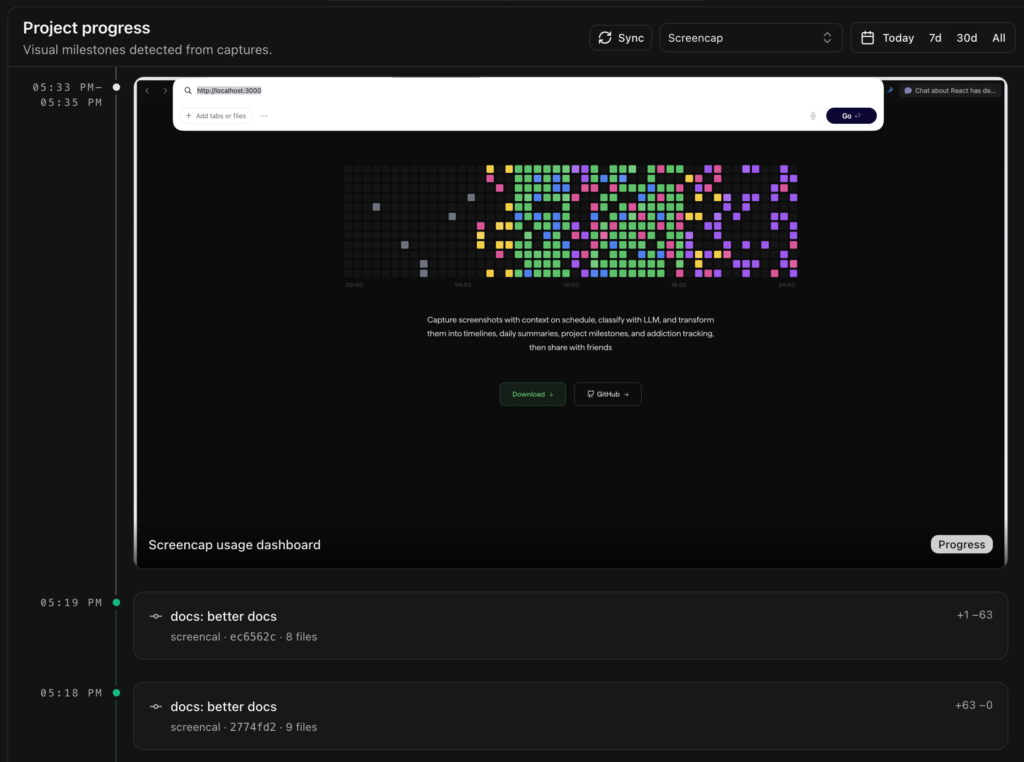
- Promote key moments into milestones so you build a project record you can actually use later.
- If you track addictions, confirm or dismiss candidates so the system learns your rules.
Next steps if you want to go deeper
Fine-tune what gets captured
- Create automation rules to skip capture for sensitive apps or sites.
- Force categories or projects for tools you use every day.
- Turn off AI for specific apps if you want local-only behavior.
Try the End of Day flow
- Use it as a daily closeout.
- Review metrics, confirm milestones, then write short reflections with embedded screenshots.
Explore the social tray only if you need it
- Pick a username and generate keys on the device.
- Add friends and share a Day Wrapped view if you want lightweight accountability.
- Share projects through encrypted rooms if you collaborate and want a shared milestone feed.
Download: https://github.com/yahorbarkouski/screencap
Screencap will not replace your task manager or your calendar. It fills a different gap. It shows you what actually happened on your Mac, then turns that raw activity into a clear record of work, habits, and progress. If you like open source tools, value privacy, and want a better way to understand where your time goes, this is an app worth trying this week.




Discussion