

Your Apple ID age affects what services you can use and how Apple enforces parental controls. When your account shows an age under 13, Apple treats it as a child account with strict limits. In many countries you cannot simply edit that age yourself once it’s set. Apple sets these rules to protect children and to comply with local laws.
If you are trying to correct a mistaken age or update a birthdate for a child’s Apple ID under 13, you will need the right approach. Depending on the situation, the solution may be a family group change, a support request, or creating a new child account. This article breaks down each method step by step with details that will help you succeed.
Table of contents
Methods
1. Change Age via Family Sharing
When an Apple ID’s birthdate must be set to under 13, the change requires approval from a family organizer in Family Sharing. This step applies whether you are correcting a mistaken date or lowering the birthdate to reflect a younger age.
Don’t miss the best of The Mac Observer
Set us as a preferred source and our Apple reporting ranks higher in your Google Search results and Discover feed — one tap, no account changes.
How Family Sharing Change Works
- Sign in to the Apple ID you want to update on a supported device.
- Go to Settings or System Settings and then select your name.
- Tap or click Personal Information.
- Choose Birthday or Change Birthday.
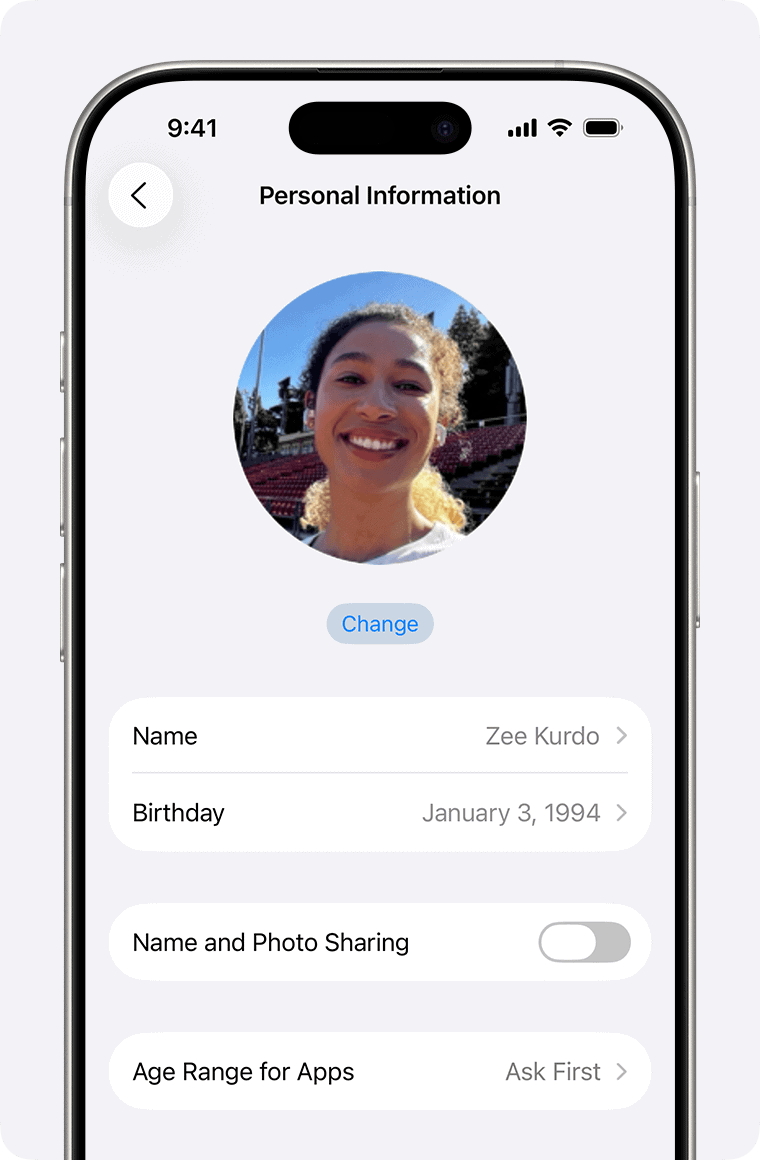
- Enter the correct birthdate for the child (under 13).
- Tap Done or Save.
- Follow on-screen prompts to send a request to the family organizer.
- The organizer receives an email with an approval link.
- The organizer opens the email and approves the request using their Apple ID sign-in and payment method details.
- Once approved, the birthdate changes, and the child account updates.

This process ensures an adult in the family group consents to the age change and the related privacy and safety policies.
2. Request Apple Support Help
If you cannot edit the child’s birthdate because the system blocks edits, Apple Support may need to correct it. This often happens when the Apple ID is already classified as a child account, and the age under 13 is locked.
When to Contact Apple Support
- You cannot change the date under Personal Information.
- The age field is grayed out and non-editable.
- You are not part of a Family Sharing group.
- You need to correct a mistake that occurred when the account was created.
Support Request Steps
- Open a browser and visit Apple’s official support site.
- Choose Apple ID issues.
- Select Update birthdate or personal info.
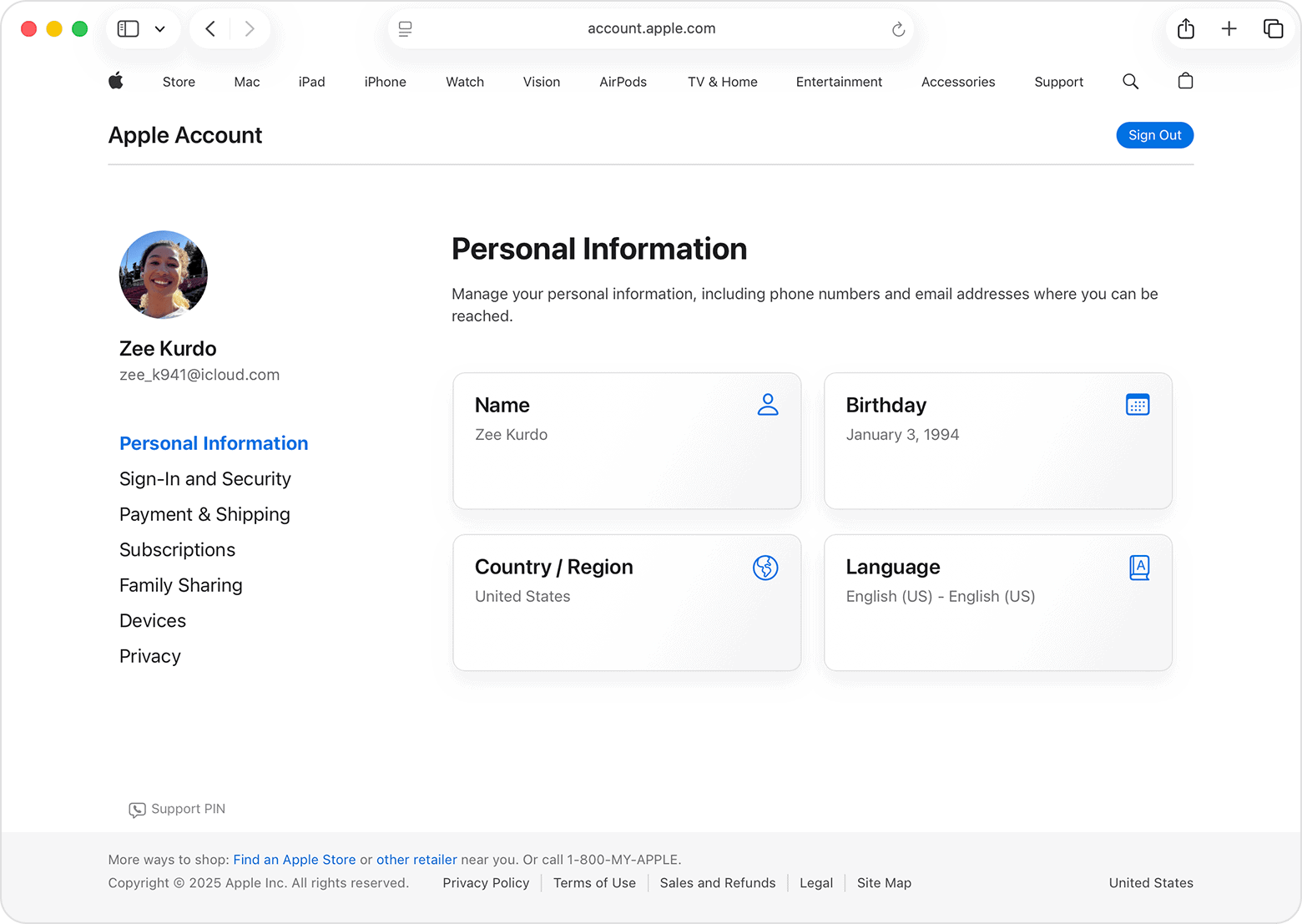
- Pick a contact method like chat or call.
- Explain the account, the correct birthdate, and why it must change.
- Provide any proof Apple requests, such as ID or parental consent.
- Apple updates the birthdate or guides you on next steps.

Apple Support may also walk you through verifying the account and ensuring the request follows policy.
3. Create a New Child Apple ID
Apple does not allow self-creation of Apple IDs for users under 13 outside of Family Sharing. If the existing Apple ID cannot be corrected, many parents create a new child Apple ID inside Family Sharing.
How to Create a Child Apple ID
- On your iPhone or iPad, open Settings.
- Tap your name then Family Sharing.
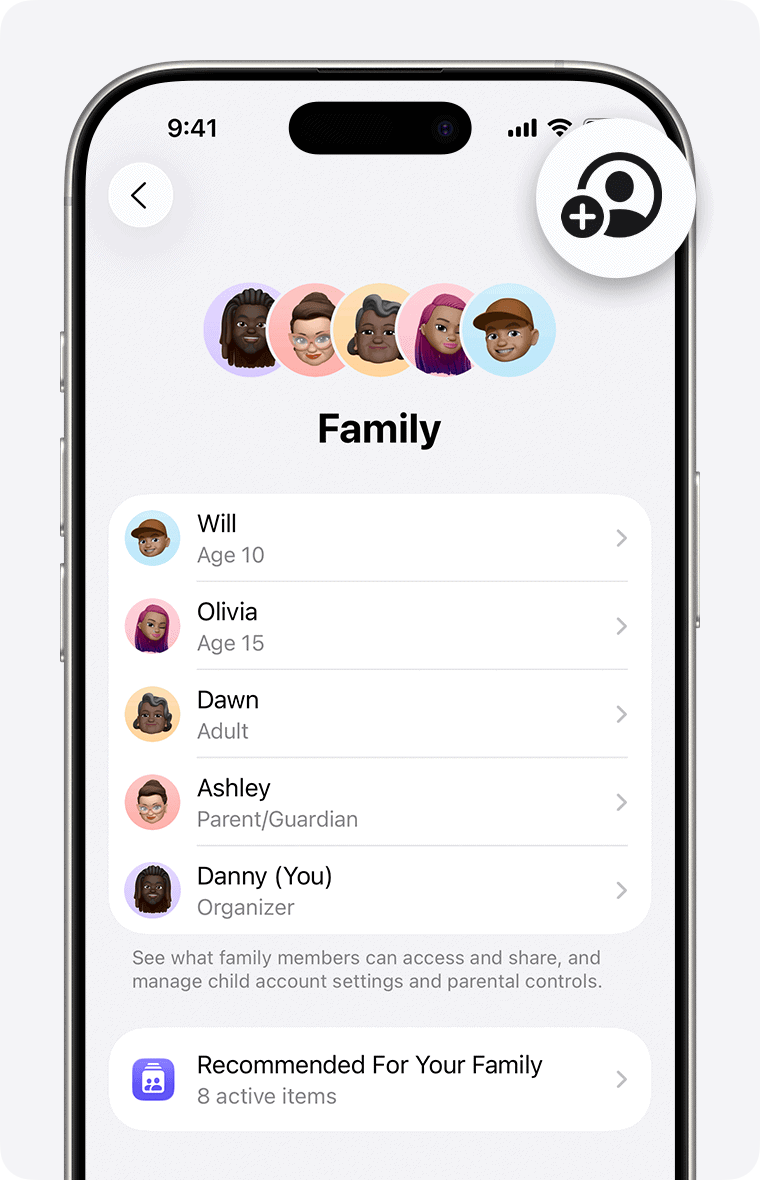
- Tap Add Member.
- Choose Create Child Account.
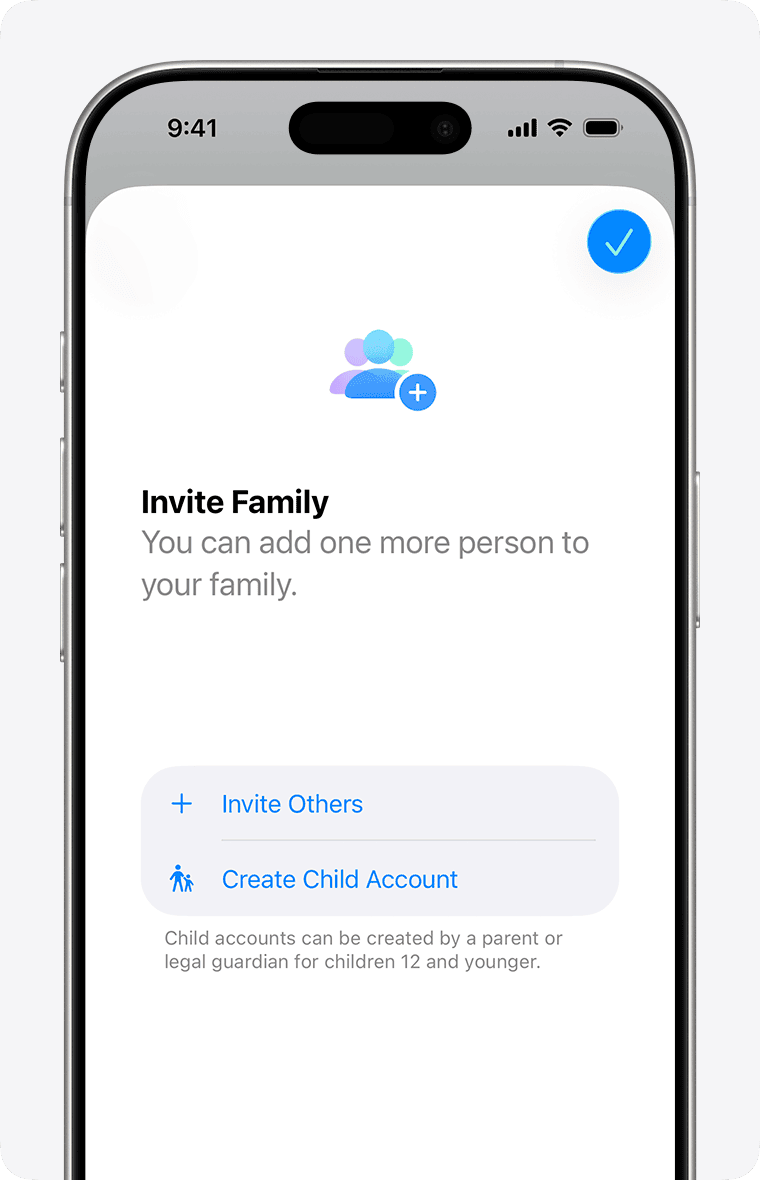
- Enter the child’s correct birthdate.
- Follow the on-screen steps to finish setup.
- Use the new account on the child’s device.


This method creates the child account with accurate age data from the start. It also gives you parental controls and Screen Time management through the family organizer.
Tips
- The organizer’s credit card details may be required to approve under-13 birthdates.
- Once a birthdate is set under 13, Apple may not allow it to be edited without support help.
- Always double-check the year of birth before saving changes.
- If Apple Support redirects you to web forms, use the official support page and choose Apple ID issues.
- For families outside your region, family organizer approval rules still apply.
FAQs
Can a child under 13 change their own Apple ID age?
No. You must use a family organizer’s approval through Family Sharing or contact Apple Support.
What if the age shows under 13 but is wrong?
Try editing the birthdate and sending an approval request to a family organizer. If that fails, contact Apple Support for help.
Can you edit age once set under 13?
Apple’s system often locks the date for child accounts so it cannot be edited again without support.
What tools can parents use once Apple ID age is correct?
Use Family Sharing controls, Screen Time limits, and content restrictions to manage the child’s device experience.
Summary
- If you must change the age on a child Apple ID under 13, start with Family Sharing and the family organizer’s approval.
- If you cannot edit directly, contact Apple Support through the official support site.
- When correction is not possible, consider creating a new child Apple ID in Family Sharing with the correct birthdate.
- Always ensure the correct year of birth before saving changes.
Conclusion
Changing the age on an Apple ID under 13 is not as simple as editing a profile field. Apple requires a parent or family organizer’s consent through Family Sharing. When the system blocks edits, Apple Support can help correct mistakes. In cases where the original account cannot be fixed, creating a new child Apple ID gives a clean start with accurate age and parental controls.


Discussion