

Waking up to a notification that says “No backups available” or seeing that dreaded greyed-out “Back Up Now” button can be surprisingly stressful. Your photos, messages, and app data are precious, and the thought of losing them is a nightmare. But don’t panic! This is actually a very common issue for iPhone and iPad users, and it is usually quite easy to resolve.
We have gathered the best solutions to get your iCloud backups running smoothly again. Let’s dive in and get your data safe and sound.
Table of contents
Common Reasons Backups Fail
Before we start tapping buttons, it helps to understand why your device is acting up. Usually, the “No backups available” error comes down to a few simple culprits.
Don’t miss the best of The Mac Observer
Set us as a preferred source and our Apple reporting ranks higher in your Google Search results and Discover feed — one tap, no account changes.
- Not Enough Storage: This is the most frequent cause. If your iCloud storage is full, your device has nowhere to put the new data.
- Wi-Fi Issues: Backups require a strong, stable Wi-Fi connection. If your internet is spotty, the backup will fail.
- Software Glitches: Sometimes iOS just needs a refresh or a settings toggle reset to get things moving again.
- Apple System Status: Rarely, the problem isn’t you. It might be Apple’s servers.
Here’s How to Fix Your iCloud Backups
Try these methods in order. We start with the easiest fixes and move to the deeper troubleshooting steps.
1. Check Your iCloud Storage Space
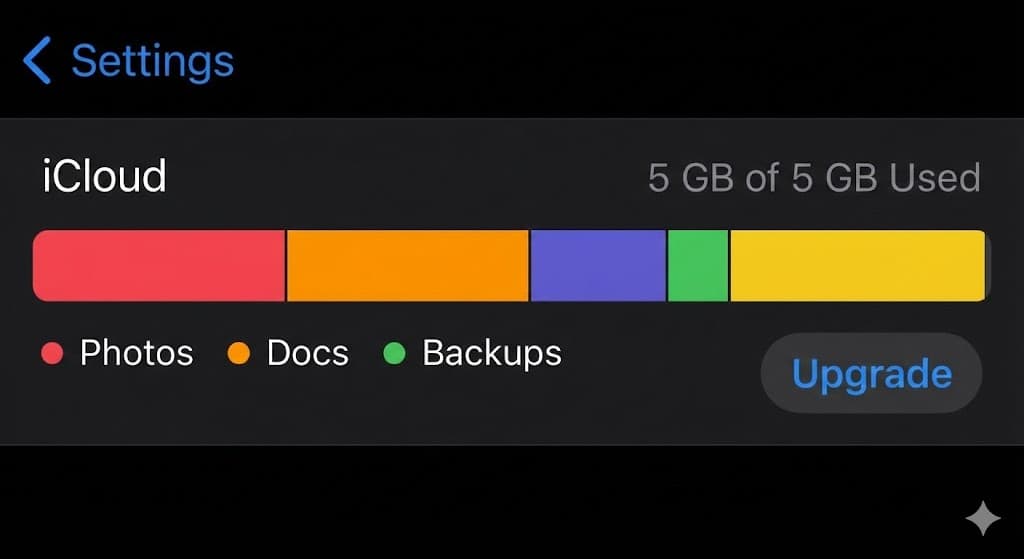
If you are on the free 5GB plan, you likely ran out of space long ago. You need to see if you have room for a new backup.
- Open the Settings app on your device.
- Tap your Name at the very top.
- Tap iCloud.
- Look at the colored bar at the top. It displays your usage across Photos, Backups, and iCloud Drive. If it is full, you need to either buy more storage or delete some data to make room.

2. Verify Your Wi-Fi Connection
iCloud backups are heavy. They generally won’t work over cellular data unless you have specifically enabled that setting (available on iPhone 12 and later).
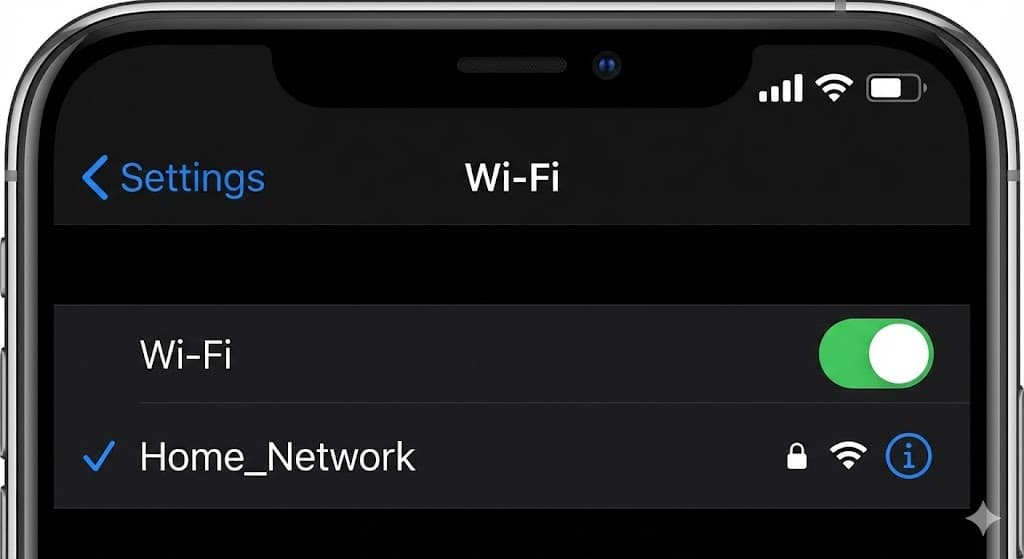
- Open Settings and tap Wi-Fi.
- Make sure you are connected to a known network.
- Try opening a webpage in Safari to ensure the internet is actually working.
- If it feels slow, toggle Wi-Fi off and back on again.

3. Toggling iCloud Backup Off and On
Sometimes the software service responsible for backing up gets stuck. A quick restart of the feature can kickstart it.
- Go to Settings > [Your Name] > iCloud.
- Tap iCloud Backup.
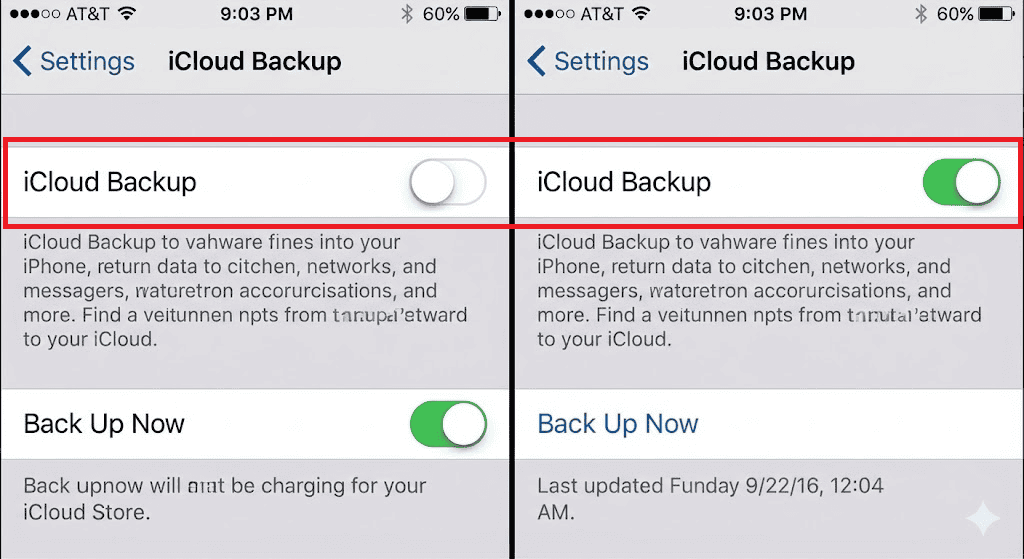
- Turn the switch Off. Wait a few seconds.
- Turn the switch back On.
- Tap Back Up Now to see if it works.

4. Sign Out and Sign Back In
This is the classic IT fix. It refreshes the connection between your device and your Apple ID.
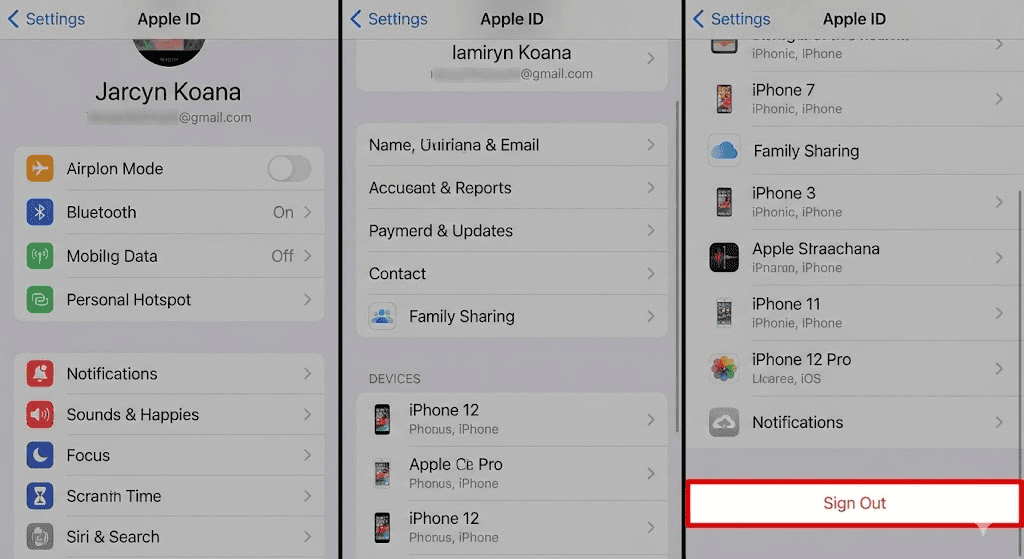
- Go to Settings > [Your Name].
- Scroll to the very bottom and tap Sign Out.
- You will need to enter your Apple ID password to turn off Find My iPhone.
- Once signed out, restart your phone.
- Go back to Settings and sign in again.

5. Remove Old Backups
If your file system is corrupt or a previous backup is blocking a new one, deleting the old file can help.
- Go to Settings > [Your Name] > iCloud.
- Tap Manage Account Storage (or just Manage Storage).
- Tap Backups.
- Select your current device from the list.
- Tap Delete and Turn Off Backup.
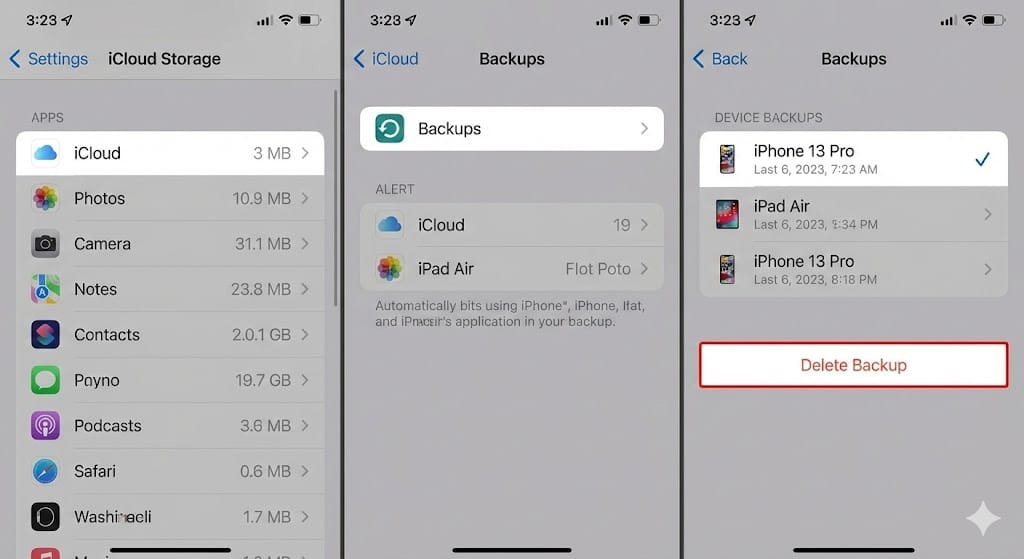
- Once deleted, go back and turn iCloud Backup on again to start fresh.

Additional Tips
If you are still stuck after trying the steps above, here are a few extra tricks to keep in mind.
- Update Your iOS: An outdated operating system can cause compatibility issues with iCloud servers. Go to Settings > General > Software Update to check for the latest version.
- Use a Computer: If cloud backups refuse to work, you can always back up your device to a Mac or PC using a cable. It is a great safety net while you troubleshoot the cloud issue.
- Check Apple’s Status: Visit Apple’s “System Status” page online. Look for “iCloud Backup.” If the dot is not green, the issue is on their end, and you just have to wait.
Final Thoughts
Seeing a backup error is scary, but it is rarely permanent. By clearing up some storage or refreshing your connection, you can usually get that green “Back Up Now” button working again in minutes. Regular backups are the best insurance policy for your digital life, so it is worth taking the time to manage and protect your iCloud data across all your devices today.
FAQs
A: No, deleting an old backup only removes the “snapshot” of your phone stored in the cloud. The photos currently on your phone remain safe. However, if you lose your phone before making a new backup, you won’t be able to restore them.
A: Speed depends on your Wi-Fi speed and the amount of data. If you have thousands of new photos, the first backup can take hours. Plug your phone into power and let it run overnight.
A: Yes, if you have an iPhone 12 or later. You can enable this in Settings > [Your Name] > iCloud > iCloud Backup by toggling on “Back Up Over Cellular.”
A: For most modern users, no. Between high-resolution photos and app data, 5GB fills up very quickly. Upgrading to the 50GB plan is often necessary for a hassle-free backup experience.


Discussion