

Emojis make messages quicker and more expressive, but you often see one and pause because you are not sure what it actually means, and your iPhone already has a simple way to solve that.
With thousands of emojis available across modern keyboards, understanding them matters more than ever, especially as Apple keeps adding new ones with every update. The good part is you do not need any third-party app or website. You can make your iPhone read emoji meanings aloud in seconds.
Here is how it works, along with a full breakdown of emoji meanings and the latest additions in iOS 26.
Don’t miss the best of The Mac Observer
Set us as a preferred source and our Apple reporting ranks higher in your Google Search results and Discover feed — one tap, no account changes.
Table of contents
1. Turn on Speak Selection on iPhone
Before your iPhone can read emoji meanings, you need to enable an accessibility feature called Speak Selection.
This feature reads any selected text out loud, including emojis, and it works system-wide across apps like Notes, Messages, and Safari.
Follow these steps:
- Open Settings
- Tap Accessibility
- Select Spoken Content
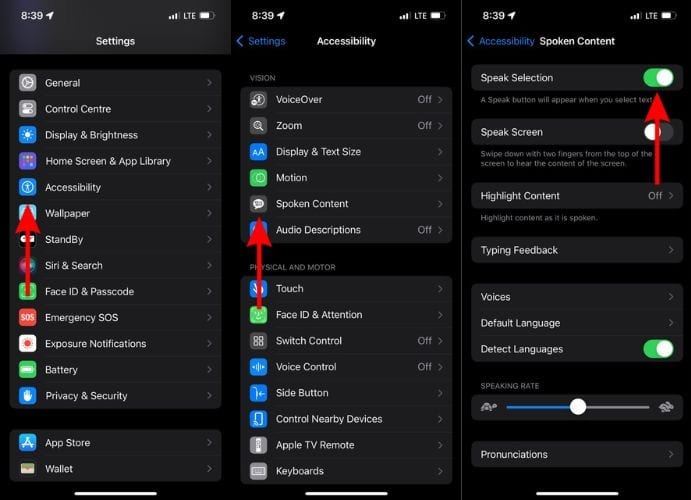
- Turn on Speak Selection

Once you enable this, your iPhone becomes capable of interpreting emojis as spoken descriptions.
2. Make Your iPhone Read Emoji Meanings
Now you can use this feature to understand any emoji instantly.
Use the Notes app for the easiest experience:
- Open Notes
- Create a new note or open an existing one
- Tap the emoji icon on the keyboard
- Insert one or multiple emojis
- Press and hold the emoji
- Tap Select or Select All
- Tap the arrow in the menu
- Tap Speak
Your iPhone will now read the emoji name aloud, which gives you its intended meaning.
This works because every emoji has an official Unicode name and description, and iOS uses that data to speak it correctly.
At first, it sounds like a small trick, but it solves a real problem. Emojis often carry different meanings depending on context, and many users misunderstand them, especially across cultures or age groups.
Here is where this feature helps:
- It tells you the official meaning, not just how people use it
- It avoids awkward or wrong replies
- It helps when you see new emojis after updates
- It improves accessibility for visually impaired users
Once you try it, you will likely use it often, especially when new emojis roll out.
3. Top Emoji Meanings You Should Know
You already use many of these daily, but some meanings still surprise people.
Most used emoji meanings
| Emoji | Name | Meaning |
|---|---|---|
| 😂 | Face with tears of joy | Laughing hard |
| ❤️ | Red heart | Love |
| 😭 | Loudly crying face | Sadness or overwhelming emotion |
| 😎 | Smiling face with sunglasses | Cool, confident |
| 😍 | Heart eyes | Love or admiration |
| 👍 | Thumbs up | OK, agreed |
| 😊 | Smiling face | Happiness |
| 🙏 | Folded hands | Thanks or prayer |
| 🔥 | Fire | Popular, impressive |
| 💯 | Hundred points | Perfect, correct |
Commonly misunderstood ones
| Emoji | Meaning |
|---|---|
| 😏 | Smirking face, often used in a suggestive tone |
| 🙈 | Embarrassment or playful denial |
| 💀 | Used for extreme laughter or shock |
| 👀 | Watching closely or reacting to something |
| 🤡 | Used to call someone foolish |
| 🤷 | Indifference or not knowing |
These meanings come from how emojis are defined and widely used across platforms, not just what they look like.
4. New Emojis in iOS 26

Apple continues to expand emoji support with every update, and iOS 26.4 brings a fresh batch.
Recent updates introduce new emoji designs based on Unicode standards, which means they work across all major platforms.
New emoji concepts in iOS 26.4
- Distorted face
- Ballet dancer
- Orca
- Trombone
- Treasure chest
- Landslide
- Fight cloud
- Hairy creature
What else changed
- Around 163 new emoji designs appear in total
- About 150 variations include skin tone updates for existing emojis
This means your emoji keyboard grows without you noticing, and new symbols keep appearing over time.
5. How Apple Decides Emoji Meanings
Apple does not invent emoji meanings randomly.
Instead, it follows standards set by the Unicode Consortium, which defines:
- Emoji names
- Basic meanings
- Technical encoding
This ensures emojis stay consistent across devices, even if designs look slightly different.
There are now thousands of emojis available globally, with the total count nearing 4,000 across all categories.
Your iPhone simply presents Apple’s version of those standardized emojis.
6. Bonus: Use Genmoji for Custom Emojis

If you want more than standard emojis, newer iPhones support Genmoji.
This feature lets you create emojis using text prompts or combine existing ones.
Here is what you can do:
- Generate a custom emoji from text
- Mix multiple emojis into one
- Create unique reactions for messages
Genmoji runs on Apple Intelligence, which also powers other smart features in iOS 26.
This adds a personal layer on top of standard emoji usage.
7. Tips to Use Emojis Correctly
Understanding meanings is one thing, but using emojis correctly matters just as much.
Here are some quick tips:
- Stick to common meanings unless you know the context
- Avoid using emojis that have double meanings in formal chats
- Use fewer emojis in professional conversations
- Combine emojis only when it improves clarity
- Check meaning using Speak Selection if unsure
This keeps your messages clear and avoids confusion.
8. Where This Feature Works Best
You can use Speak Selection in most apps, but some work better than others.
Best apps to try:
- Notes
- Messages
- Safari
Notes works best because it allows easy selection and clean text handling.
Final Thoughts
You do not need to guess emoji meanings anymore. Your iPhone already includes a built-in way to read them aloud, and it works in seconds once you enable it.
At the same time, Apple keeps expanding the emoji library with updates like iOS 26.4, adding new expressions and refining existing ones. This means the chances of confusion will always exist, but now you have a direct way to handle it.
If you use emojis often, this small feature saves time and helps you avoid sending the wrong message. So next time you see an emoji you do not understand, just select it and tap Speak.



Discussion