
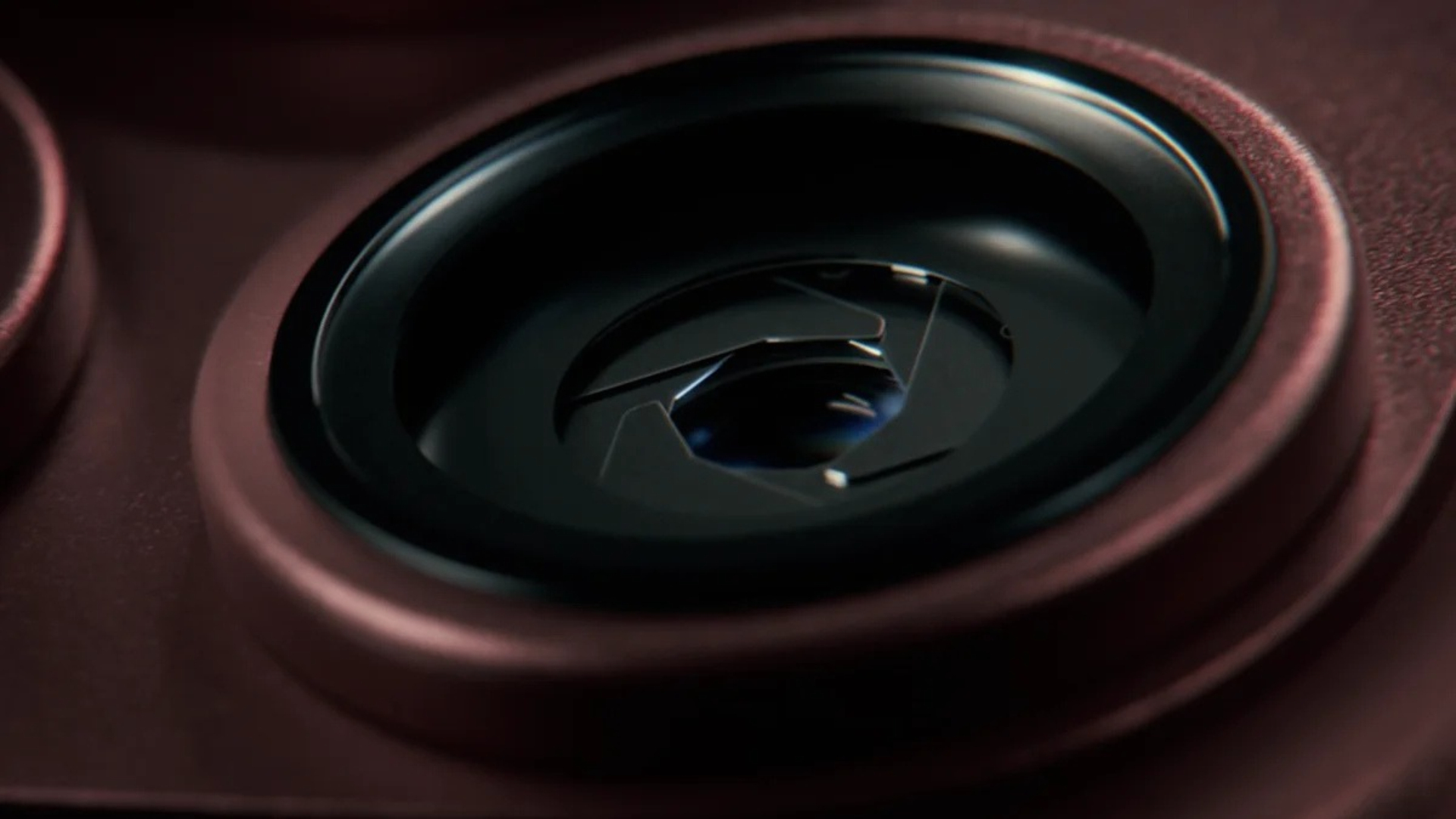
The iPhone 18 Pro and iPhone 18 Pro Max let you control the physical aperture of the 48MP Fusion Main camera. You can choose f/1.48, f/1.8, f/2.8, or f/4.0 to balance light intake and depth of field instead of leaving every decision to automatic mode.
Apple lists the four stops in the iPhone 18 Pro specifications and explains the Camera control in its advanced camera guide. The variable aperture belongs to the Main camera, so other lenses keep their fixed optical apertures.
A lower f-number opens the lens wider, which admits more light and can soften the background around a nearby subject. A higher f-number narrows the opening, which reduces incoming light while keeping more of the scene acceptably sharp.
Don’t miss the best of The Mac Observer
Set us as a preferred source and our Apple reporting ranks higher in your Google Search results and Discover feed — one tap, no account changes.
Set and preserve the lens aperture
You can open the aperture control from Camera Controls or add it to the tools above the viewfinder. The same control is available in Photo, Video, Cinematic, Slo-mo, and Time-Lapse modes on iPhone 18 Pro models.
Change the aperture in the Camera app
This is the direct method and works without changing the layout of your permanent camera toolbar.
- Open Camera and select a supported capture mode.
- Make sure the Fusion Main camera is active, normally at 1x.
- Tap the Camera Controls button.
- Tap Lens Aperture.
- Choose f/1.48, f/1.8, f/2.8, or f/4.0, then compose and capture the image or video.
Keep Lens Aperture in the camera toolbar
Adding the control above the frame is useful when you change f-stops often and want fewer taps between adjustments.
- Open Camera Controls and choose the option to customize the camera tools.
- Add Lens Aperture to the tools shown above the camera frame.
- Return to the viewfinder and tap Lens Aperture whenever you need it.
- Select a value and check the live preview before shooting.
Preserve your selected aperture
By default, Camera may return to an automatic choice later. Preserve Settings tells iOS to remember the last aperture selection.
- Open the Settings app.
- Go to Camera, then tap Preserve Settings.
- Turn on Lens Aperture.
- Open Camera again and confirm that your previous f-stop remains selected.
For related background, read our guides to the iPhone 18 Pro’s four aperture stops and iPhone 18 Pro manual camera controls.
Tips
Choose an aperture for the subject and available light, then use the preview to confirm that the result matches your intent.
- Use f/1.48 in low light or when you want the strongest natural background separation.
- Try f/1.8 for portraits that need slightly more depth around the face.
- Use f/2.8 for small groups, food, or general daylight photography.
- Choose f/4.0 for landscapes, architecture, and scenes where foreground and background detail matter.
- If the image becomes too dark at f/4.0, steady the phone or adjust shutter speed rather than assuming the aperture is broken.
FAQs
Does variable aperture work on every iPhone 18 camera?
No. Apple specifies variable aperture for the 48MP Fusion Main camera on iPhone 18 Pro and iPhone 18 Pro Max. The Ultra Wide, Telephoto, and front cameras do not gain the same four optical stops.
Is aperture the same as Portrait mode blur?
No. Aperture changes the physical lens opening and the optical depth of field at capture. Portrait mode can add or adjust a computational depth effect, including after the photo is taken.
Which aperture lets in the most light?
The widest option, f/1.48, admits the most light. The f/4.0 setting admits the least but provides the deepest focus range among the four choices.
Can I use manual aperture for video?
Yes. Apple’s current guide lists Lens Aperture control in Photo, Video, Cinematic, Slo-mo, and Time-Lapse modes on iPhone 18 Pro models.




Discussion