
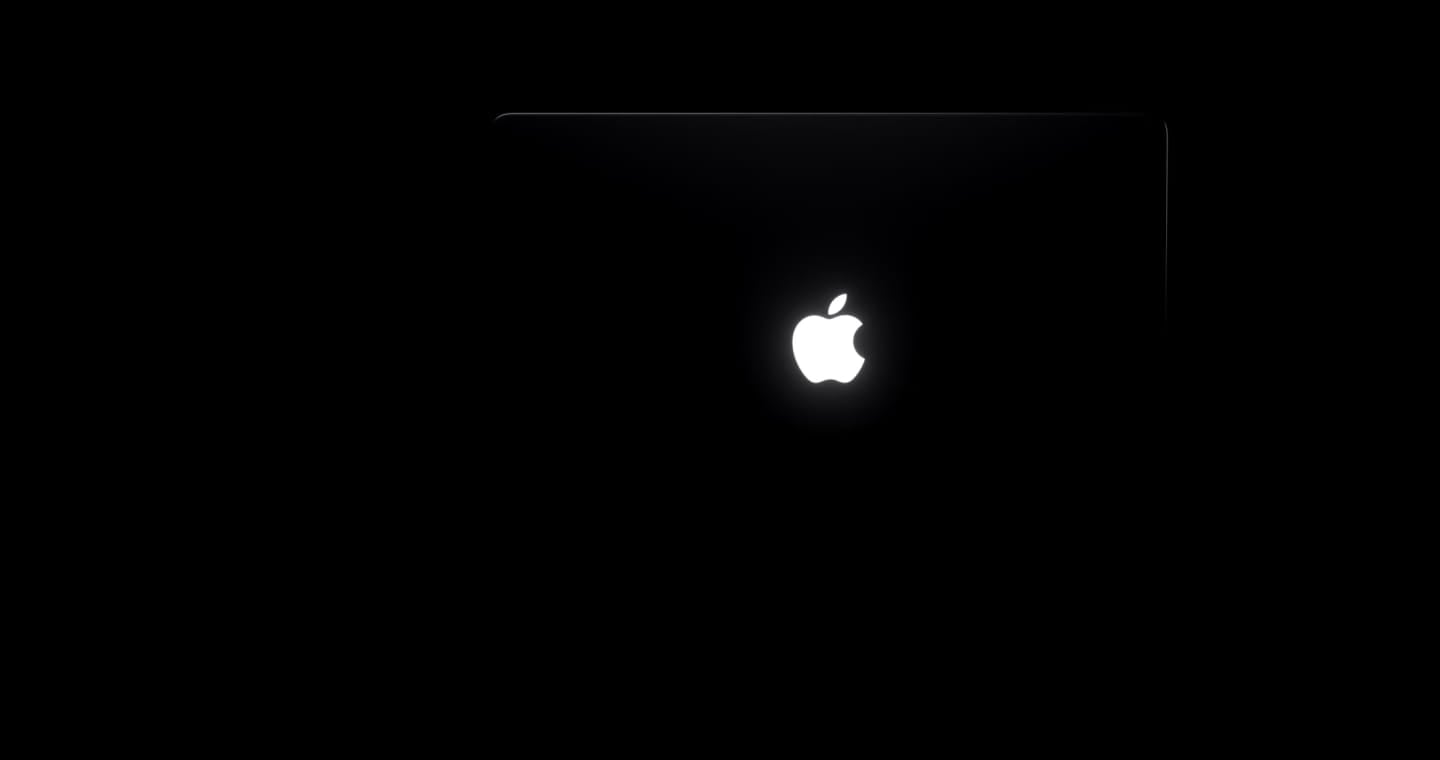
The glowing Apple logo is back on the lid of the new MacBook Pro with PROLED XDR Display, and you can’t switch it off in System Settings. Apple’s own support article, published November 5, says the way to turn it off is a single Terminal command. Here’s how it works and how to undo it.
This is the first lit logo on a MacBook Pro in a decade. Apple dropped it when it redesigned the MacBook Pro in 2016, and the new PROLED XDR models that started shipping on November 6 bring it back. Some owners love the retro look. Others would rather not have a bright white apple shining across a dark bedroom, a lecture hall or a client meeting.
How the illuminated Apple logo on the MacBook Pro with PROLED XDR Display behaves
Apple says the logo on the back of the display lights up whenever the Mac is awake. It dims or brightens on its own based on two things: the brightness of the built-in screen and the light picked up by the Mac’s ambient light sensor. In Apple’s words, “the Apple logo will be dimmer in a dim room and brighter in a bright room” at every screen brightness level.
Don’t miss the best of The Mac Observer
Set us as a preferred source and our Apple reporting ranks higher in your Google Search results and Discover feed — one tap, no account changes.
That gives you exactly one control short of Terminal. Turn your screen brightness down and the logo follows. There is no separate brightness slider for the logo, no color option and no schedule. Put the Mac to sleep and the logo goes dark, because Apple ties the glow to the Mac being awake.
If you want the logo dark all the time, whatever the room or the screen is doing, you need Apple’s Terminal method.
Step by step: turn off the glowing Apple logo with Apple’s Terminal command
Apple says this requires a MacBook Pro with PROLED XDR Display. You also need an administrator password, because the command uses sudo.
- Step 1: Open Terminal. You’ll find it in the Utilities folder inside Applications, or press Command and Space to open Spotlight and type Terminal.
- Step 2: Type or paste this command exactly, then press Return:
sudo defaults write com.apple.CoreBrightness LEBacklightMode -int 0 - Step 3: Type your administrator password when Terminal asks for it, then press Return. Terminal won’t show the characters as you type, which is normal.
- Step 4: Check the lid. Apple says the illumination turns off immediately, so you don’t need to restart.
If Terminal answers that you aren’t in the sudoers file, your account isn’t an administrator. On a company Mac managed by IT, that usually means you’ll have to ask them to run the command for you.
The logo setting covers every user account, macOS Recovery and your next Mac
This isn’t a per-user preference. Apple says the change affects all macOS user accounts on the Mac, and it even holds when you start up from macOS Recovery. So if you share the laptop with family, one person turning it off turns it off for everyone.
The setting also travels. Apple says that when you migrate to a new Mac, the setting transfers with your data. If you move from this MacBook Pro to a future model with a lit logo using Migration Assistant, the logo should stay dark there too, and you’ll need the command below to bring it back.
How to turn the Apple logo glow back on, and why Apple kept the switch out of System Settings
Changed your mind? Open Terminal again, type this command and press Return, then enter your administrator password: sudo defaults delete com.apple.CoreBrightness LEBacklightMode
Apple says reinstalling macOS also turns the illumination back on. That’s worth knowing before you sell the laptop. Erasing and reinstalling macOS restores the glow, so the next owner gets the logo as Apple ships it.
Apple barely talks about the logo in its marketing. Its October 28 press release and its MacBook Pro product page don’t mention the light in their text, although the product page does show the glowing apple in a dark-room image. A hidden Terminal switch fits that low-key approach. It keeps System Settings clean for most people who will never want to change it, while still giving a fix to the smaller group who find the light distracting.
One more point for buyers comparing models. Apple’s instructions apply only to the MacBook Pro with PROLED XDR Display. The support article doesn’t cover the 14-inch MacBook Pro with M6 that Apple announced the day before, so don’t expect the command to do anything there.
Discussion