

Apple Maps gets several useful improvements in iOS 27, including sharper 3D city views, smarter local recommendations, better route searches, and more detailed offline maps. Apple has also improved how Maps remembers places you visit and helps you discover restaurants and attractions nearby.
These changes make the app more useful for exploring unfamiliar cities, finding interesting destinations, and planning everyday journeys. Some features work automatically, while others require a few steps to access. Here’s a closer look at six improvements worth trying.
1. Enhanced Flyover Makes 3D City Views More Realistic
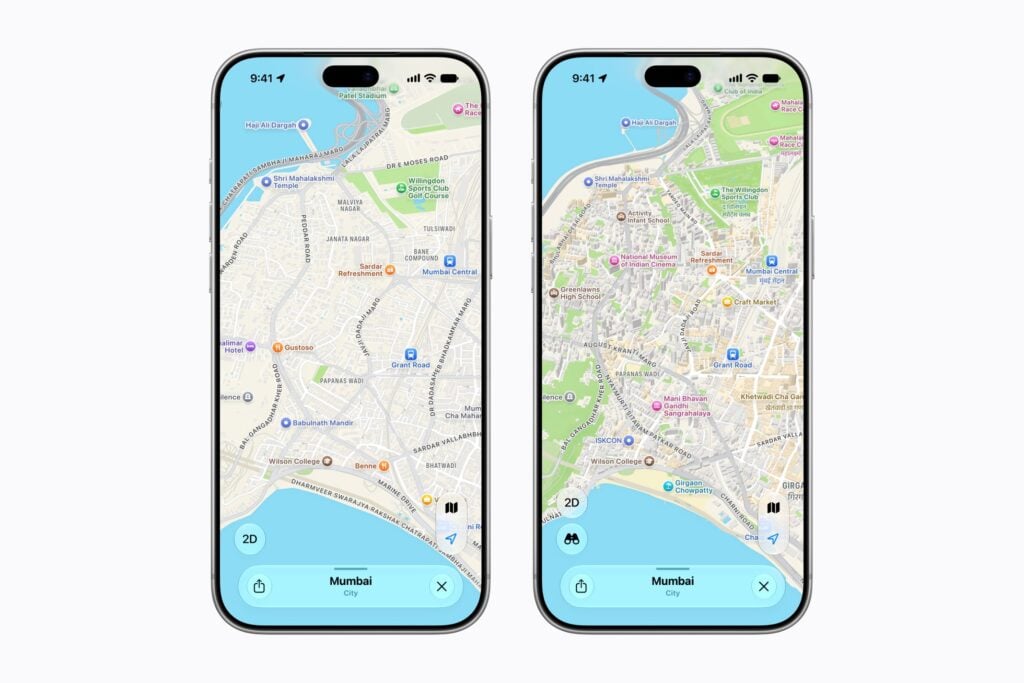
Apple has upgraded Flyover in iOS 27 by combining aerial photography with AI processing to produce sharper and more realistic city views. Buildings, roads, parks, and landmarks now appear with greater detail in supported locations.
Don’t miss the best of The Mac Observer
Set us as a preferred source and our Apple reporting ranks higher in your Google Search results and Discover feed — one tap, no account changes.
The improvement is particularly useful when exploring a destination before traveling, as you can examine nearby streets and landmarks from different angles.
To try enhanced Flyover:
- Open Apple Maps on your iPhone.
- Search for a city that supports Flyover.
- Tap Flyover on the city’s information card.
- Move your iPhone or interact with the screen to explore the 3D view.
Enhanced Flyover is available in selected cities, so the imagery varies depending on the destination.
2. Local Lists Helps You Discover Popular Places
Local Lists is one of the biggest additions to Apple Maps in iOS 27. It highlights collections of trending places, including popular restaurants, family-friendly attractions, and locations where people frequently meet.
Apple generates these recommendations using aggregated activity and trends without linking suggestions to individual users.
To find Local Lists:
- Open Maps and tap the search field.
- Type Local Lists.
- Select Guides from the search results.
- Open a collection to explore its recommended locations.
You can save interesting collections for later. For more details, see this guide to finding Local Lists in iOS 27.
Local Lists currently supports select cities in the United States, so users elsewhere may not see the feature.
3. Natural Language Search Now Understands Route Preferences
Apple Maps can now handle more specific navigation requests using natural language. For example, you can search for directions that avoid toll roads or highways instead of manually adjusting every route preference.
This builds on Apple’s existing search functionality and makes it easier to describe the journey you want in everyday language.
To try it, open Maps and enter a request such as “Directions to the airport without toll roads.” Review the suggested route before starting navigation to confirm it follows your preferences.
You can also manually adjust these restrictions through the driving route options. Apple’s driving directions guide explains how to avoid toll roads and highways.
4. Offline Maps Show More Detail
Apple has improved the appearance and usability of offline maps in iOS 27. Downloaded maps now display more locations, darker and clearer labels, and icons that are easier to recognize.
Tapping certain locations, such as towns, can also zoom directly into the surrounding area, making it easier to explore unfamiliar destinations.
To download an offline map:
- Open Maps and tap your profile picture or initials.
- Select Offline Maps.
- Tap Download New Map.
- Search for a city or region and adjust the download area.
- Tap Download to save it.
Offline maps support navigation without an active internet connection, although real-time traffic information requires connectivity.
5. Visited Places Tracks Locations More Accurately
Apple introduced Visited Places in iOS 26, and iOS 27 improves its accuracy while expanding availability to additional regions.
The feature automatically keeps track of places you’ve visited, making it easier to find a restaurant, shop, or attraction you forgot to save. Apple also uses end-to-end encryption to protect your location history.
To enable Visited Places, open Settings > Apps > Maps > Location and turn on Visited Places. You must also enable Significant Locations & Routes under Settings > Privacy & Security > Location Services > System Services.
Once enabled, open Maps and go to Places > Visited Places to review your history. The feature remains unavailable in certain countries and regions.
6. Better Recommendations and Trending Restaurants
Apple Maps also improves how it recommends nearby destinations. The Suggested Places section now supports horizontal scrolling through more recommendations, giving you additional options without repeatedly searching.
Meanwhile, a new Trending Restaurants section highlights popular dining locations directly within the search interface in supported areas.
To explore these recommendations, open Maps, tap the search field, and browse the available nearby suggestions or restaurant collections.
These improvements are especially helpful when visiting somewhere unfamiliar and looking for places to eat or explore.
Apple Maps Gets More Useful With iOS 27
Alongside these six improvements, Apple has refreshed the Maps app icon with additional Liquid Glass styling and introduced a Parked Car widget for the Apple Watch Smart Stack.
Apple has also expanded its mapping capabilities in India, introducing more detailed navigation, Look Around, and over 300 3D landmarks. Enhanced natural language guidance and dual-language map labels require iOS 27.2 or later. You can read more about the latest Apple Maps improvements in India.
With better search tools, improved map detail, and more ways to discover local attractions, iOS 27 gives iPhone users several practical reasons to use Apple Maps more often.




Discussion