

Want to speed up a video on your iPhone without losing quality? The good news is you do not need any third-party apps. Apple’s own iMovie app, which comes pre-installed or can be downloaded for free, lets you adjust video speed with ease.
Whether you are creating a time-lapse style effect or just want a faster playback, iMovie gives you full control while keeping your video sharp and smooth.
Table of contents
How to speed up a video on iPhone using iMovie?
Time needed: 5 minutes
The easiest way to speed up a video is to use iMovie on iPhone. Follow these steps:
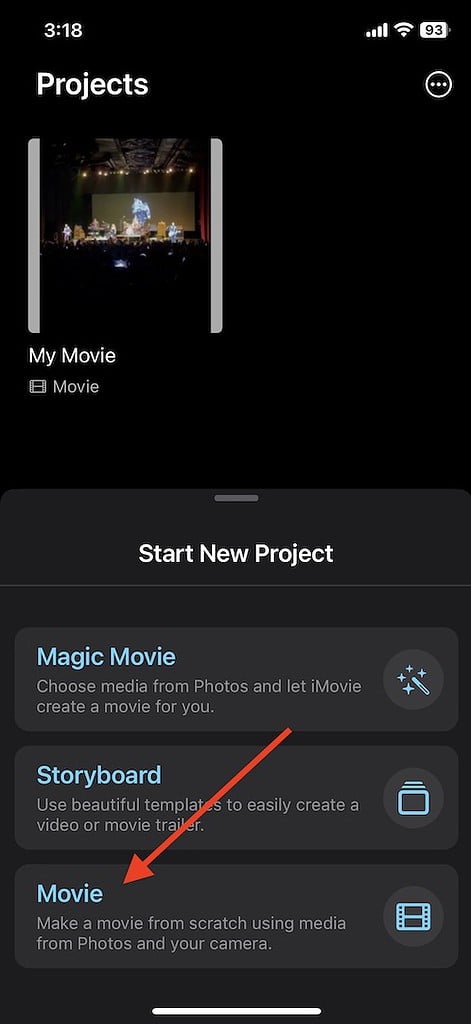
- First, open iMovie on your iPhone and start a new project. If you already have a project, open it and move to step three.
- Those starting a new project. Select Movie and the next screen will allow you to choose what media to add to the project. Select any clips to add to the project.
- Now, tap one of the clips within your timeline to reveal the inspector.
- You can then select the speed button at the bottom of the screen. Click the speed button and then adjust the slider to change the speed of your clip.

- Additionally, you can create ranges within a clip. This allows you to make a specific part fast. There are two methods to create a range: either drag the yellow range handles to create a start and end to your clip, or you can select Add within the inspector to create another range.
- If you want to create more ranges, simply select an area of the clip that is outside of your current range. You can also tap Add from the inspector, allowing you to create a new range from the border of the playhead position. You can view what ranges you have via the vertical white lines at the bottom of a clip.
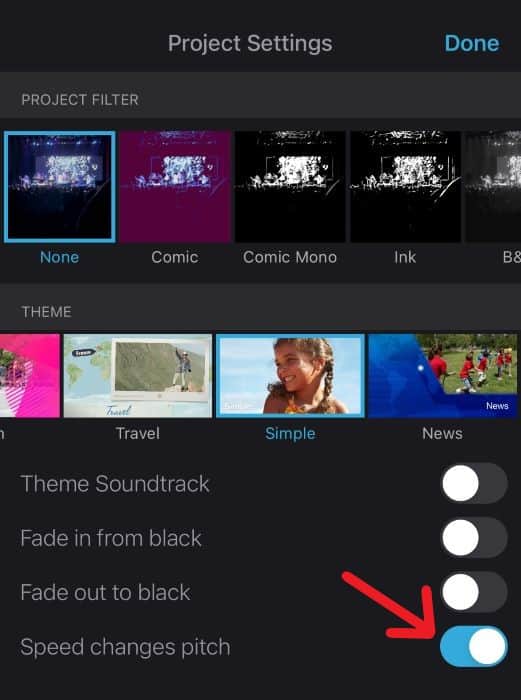
- Tap anywhere outside of the inspector to dismiss it when you are finished. Remember that if you want the audio to change with your speed, you’ll need to tap the gear icon (settings) and select Speed changes pitch (it should be on by default).


Note that you can search the Apple App Store for other video editors, but I prefer this one because it is the most accessible.
Don’t miss the best of The Mac Observer
Set us as a preferred source and our Apple reporting ranks higher in your Google Search results and Discover feed — one tap, no account changes.
 NOTE
NOTE
Tips
- Instead of applying one speed to the whole clip, create ranges to speed up only specific parts.
- If you want the audio to match the speed change, make sure “Speed changes pitch” is enabled in iMovie settings.
- Start with small videos before editing long ones. It makes learning easier.
- Speeding up plus trimming gives you tighter, more engaging videos.
- Always save the final video in the highest resolution available to avoid quality loss.
Frequently Asked Questions
Yes, iMovie lets you create ranges so you can adjust the speed for specific sections of a clip.
No, iMovie preserves the original quality of your video during speed adjustments.
By default, iMovie changes the pitch of the audio along with the speed. You can toggle this in settings if you don’t want the pitch to change.
No, other third-party apps exist, but iMovie is free, beginner-friendly, and designed to work seamlessly with iOS.
Summary
- Use iMovie on iPhone to speed up videos without losing quality.
- Apply speed changes to the whole clip or specific ranges.
- Control whether audio pitch changes with video speed.
- Experiment with short clips first to practice editing.
- Save and export in high resolution for the best results.
Conclusion
Speeding up a video on iPhone is quick and easy with iMovie. The built-in editor gives you control over how much of the video to adjust, whether you want the audio to sync, and how smoothly the final product looks.
Remember, it may take a bit of practice to get your editing skills where you want them, but once you have these skills down, you’ll be creating the shots you want in no time. Also, using iMovie, you can slow down videos on iPhones.
You may also want to know how to trim a video in iMovie on Mac, iPhone, and iPad.


Discussion