

When Apple Mail suddenly stops bringing in new messages, the frustration hits fast. You open your inbox expecting fresh emails, and… nothing. No error message. No warning. Just silence. And because email is one of those things you don’t think about until it breaks, the whole situation feels more disruptive than it should be.
The good news is that Apple Mail rarely fails without a reason. And once you understand the usual suspects, fixing the problem becomes straightforward. Let’s walk through it calmly and clearly — no jargon, no fluff.
Table of contents
Start with the Basics
Before you jump into settings and server details, check the simple things. These are the fixes people skip because they seem “too obvious,” yet they solve the problem more often than you’d think.
Don’t miss the best of The Mac Observer
Set us as a preferred source and our Apple reporting ranks higher in your Google Search results and Discover feed — one tap, no account changes.
Make Sure Your Device Is Online
Open your browser and load any website. If it won’t load, Mail can’t fetch new messages either.
If you’re on Wi-Fi, reconnect. If you’re on cellular, toggle it off and on. A quick reset of the router doesn’t hurt either.
Check for Email Service Outages
Apple Mail isn’t always the culprit. Your email provider might be having a temporary outage.
- iCloud Mail issues often appear on Apple’s system status page.
- Gmail, Outlook, Yahoo, and others have status dashboards too.
If the service is down, all you can do is wait.
Double-Check Your Email Credentials
If Mail suddenly asks for a password, take that seriously. It usually means the server rejected your last login attempt.
Go directly to your provider’s website — Gmail.com, Outlook.com, your work mail portal — and sign in from there.
If the login fails, you’ve found your problem.
If it works but Mail still refuses to authenticate, you may need an app-specific password or to adjust security settings like two-factor authentication.
Look at Mail Fetch and Notification Settings
Sometimes Mail isn’t broken — it’s just following a schedule you forgot you set.
- Go to Settings > Apps > Mail > Mail Accounts.
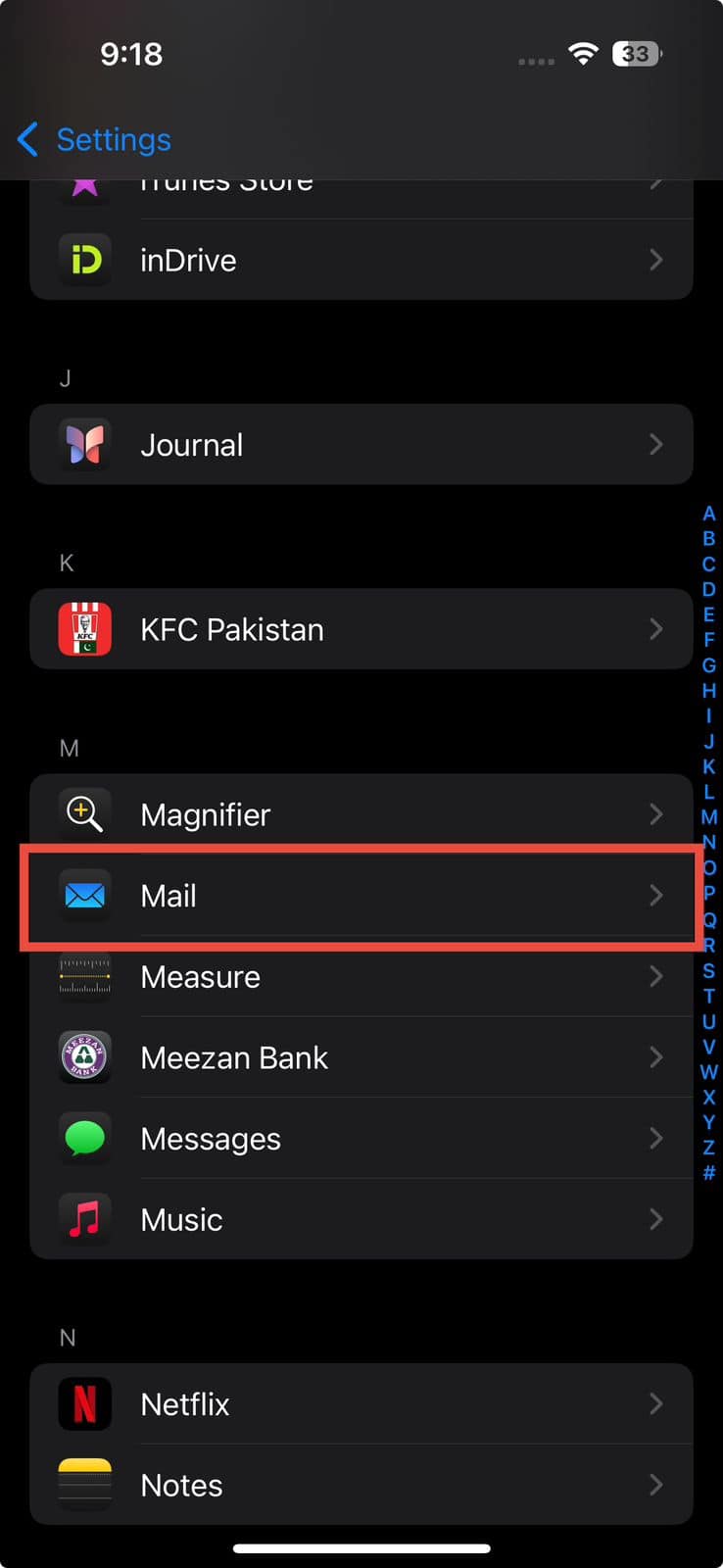

- Tap Fetch New Data.
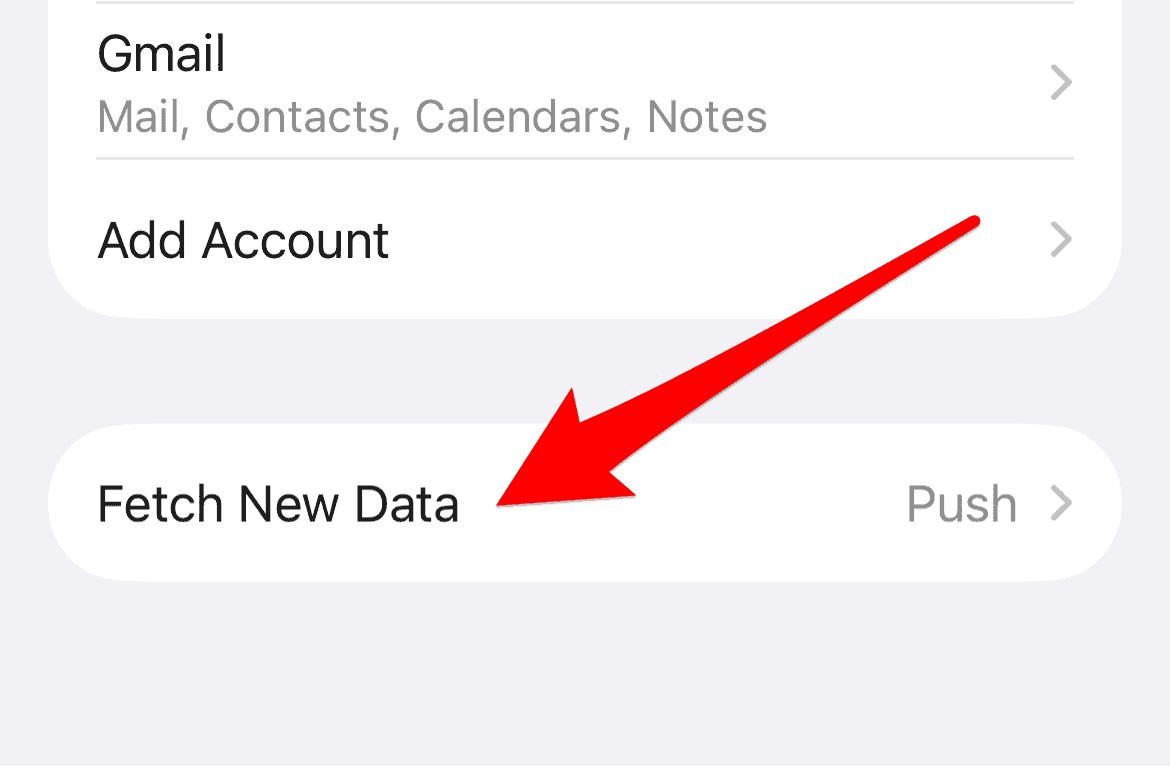
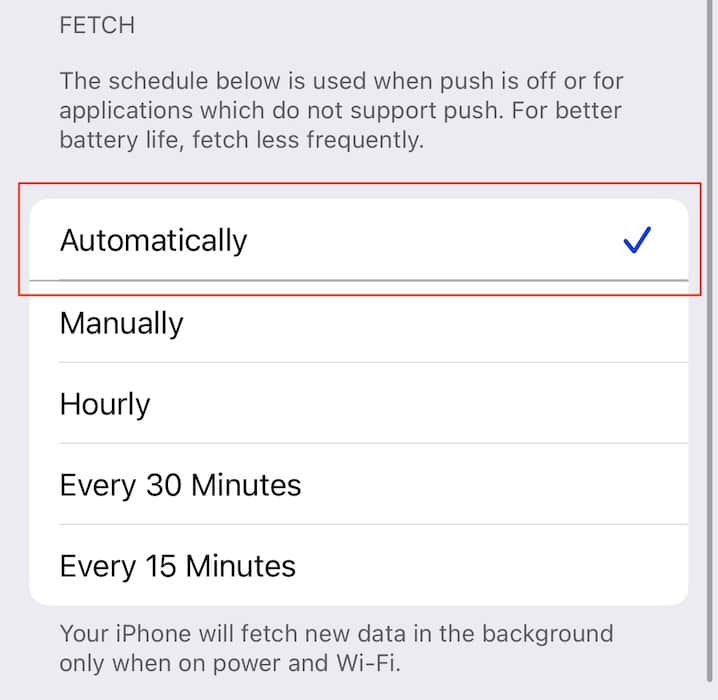
- Check if the account is set to Push, Fetch, or Manual.
- If needed, switch to Automatically or choose a fetch interval that’s more frequent.


Also check notifications:
Settings > Notifications > Mail — make sure alerts and badges are allowed for the account you’re checking.
Check Whether Messages Are Showing Up Somewhere Else
If the inbox looks suspiciously empty, messages might be landing in places you’re not looking.
Check Folders
- Spam / Junk
- Archive
- Filters and rules
- Any custom folders
A misconfigured filter can quietly relocate messages without warning. Resetting or disabling rules temporarily can help.
Check Your Email Quota
If your provider’s storage is full, new messages can’t arrive at all.
Some accounts — especially free ones — have strict limits.
On a Mac, you can see storage details by control-clicking your mailbox in the sidebar and choosing Get Account Info.
If you’re maxed out, deleting old mail or moving it to “On My Mac” can fix the issue instantly.
Remove and Re-Add the Mail Account
If nothing has worked so far, it may be time to wipe the account from your device and start clean.
This doesn’t delete the emails from the server — it just removes local settings and cache.
On iPhone or iPad:
- Settings > Apps > Mail > Mail Accounts
- Tap the account
- Tap Delete Account
- Add it again
On Mac:
- Mail > Preferences
- Accounts
- Remove the account
- Add it back
This step fixes a surprising number of invisible configuration problems.
Update Your Device or Apple Mail
Apple occasionally patches bugs that affect Mail syncing.
Keeping your software current is a low-effort way to avoid weird glitches.
On Mac:
Apple Menu > System Settings > General > Software Update
On iPhone/iPad:
Settings > General > Software Update
After updating, restart the device and test Mail again.
When the Problem Isn’t Apple Mail at All
Sometimes the Mail app is behaving perfectly fine — the server isn’t.
Things to check with your provider or IT admin:
- Has your password expired?
- Is two-step verification blocking Mail?
- Has IMAP access been disabled?
- Are you over the daily sending or receiving limits?
- Has your account been flagged for suspicious activity?
If you use corporate email, it’s not unusual for a system admin to change security settings without warning.
Final Thoughts
Apple Mail not receiving mail can feel like a major breakdown, but most issues come down to a handful of common causes — bad passwords, network hiccups, incorrect server settings, filters behaving badly, or a full mailbox. Once you run through the checks above, one of them usually reveals the culprit.
Email is a lifeline for work, school, and e



Discussion